A Public App Needs DDoS Protection? Enable DDoS Protection
The CloudTrips Load Balancer gives the web application a public endpoint. That endpoint can also receive a distributed denial-of-service attack: traffic from many sources can attempt to exhaust network or application capacity and make the site unavailable to legitimate users.
Enable Azure DDoS IP Protection on the Load Balancer’s public IP. Azure continuously profiles traffic to that address and automatically applies tuned Layer 3 and Layer 4 mitigation when an attack exceeds its learned thresholds.
Internet traffic
       |
Azure DDoS detection and mitigation
       |
Load Balancer public IP
       |
Private WEB01 and WEB02
This trip builds on A Web App Needs Traffic Distribution? Create a Load Balancer. Keep
lb-cloudtrips-web-test-weu,pip-cloudtrips-lb-test-weu, its rule and probe, and both private web VMs. Start both VMs before continuing.
DDoS IP Protection is a paid service billed for each protected public IP. Enable it only for this exercise and use the cleanup step when finished.
Choose the Protection Tier
Azure provides infrastructure-level DDoS protection for its platform by default. This trip adds workload-specific monitoring, adaptive thresholds, mitigation telemetry, and reporting for the CloudTrips public IP.
Use IP Protection because this small lab protects one public IP. It does not require a DDoS protection plan. Network Protection instead associates a plan with one or more VNets and protects supported public IP resources in those networks. It also includes value-added features such as DDoS Rapid Response support, cost protection, and eligible WAF discounts. Evaluate both tiers and their current pricing before selecting one for a production estate.
DDoS Protection and Web Application Firewall solve different problems. DDoS Protection mitigates network attacks at Layers 3 and 4. A WAF inspects HTTP and HTTPS requests at Layer 7 for attacks such as SQL injection. A public web application can require both.
Confirm the Public Endpoint
Retrieve the Load Balancer frontend address:
LB_IP=$(az network public-ip show \
  --resource-group rg-cloudtrips-network-test-weu \
  --name pip-cloudtrips-lb-test-weu \
  --query ipAddress \
  --output tsv)

printf 'Load Balancer public IP: %s\n' "$LB_IP"
curl --connect-timeout 5 "http://${LB_IP}"
The request should return a response from WEB01 or WEB02. This confirms
that the address belongs to the working public frontend before its protection
configuration changes.
Enable IP Protection
In the Azure portal, search for Public IP addresses and open
pip-cloudtrips-lb-test-weu.
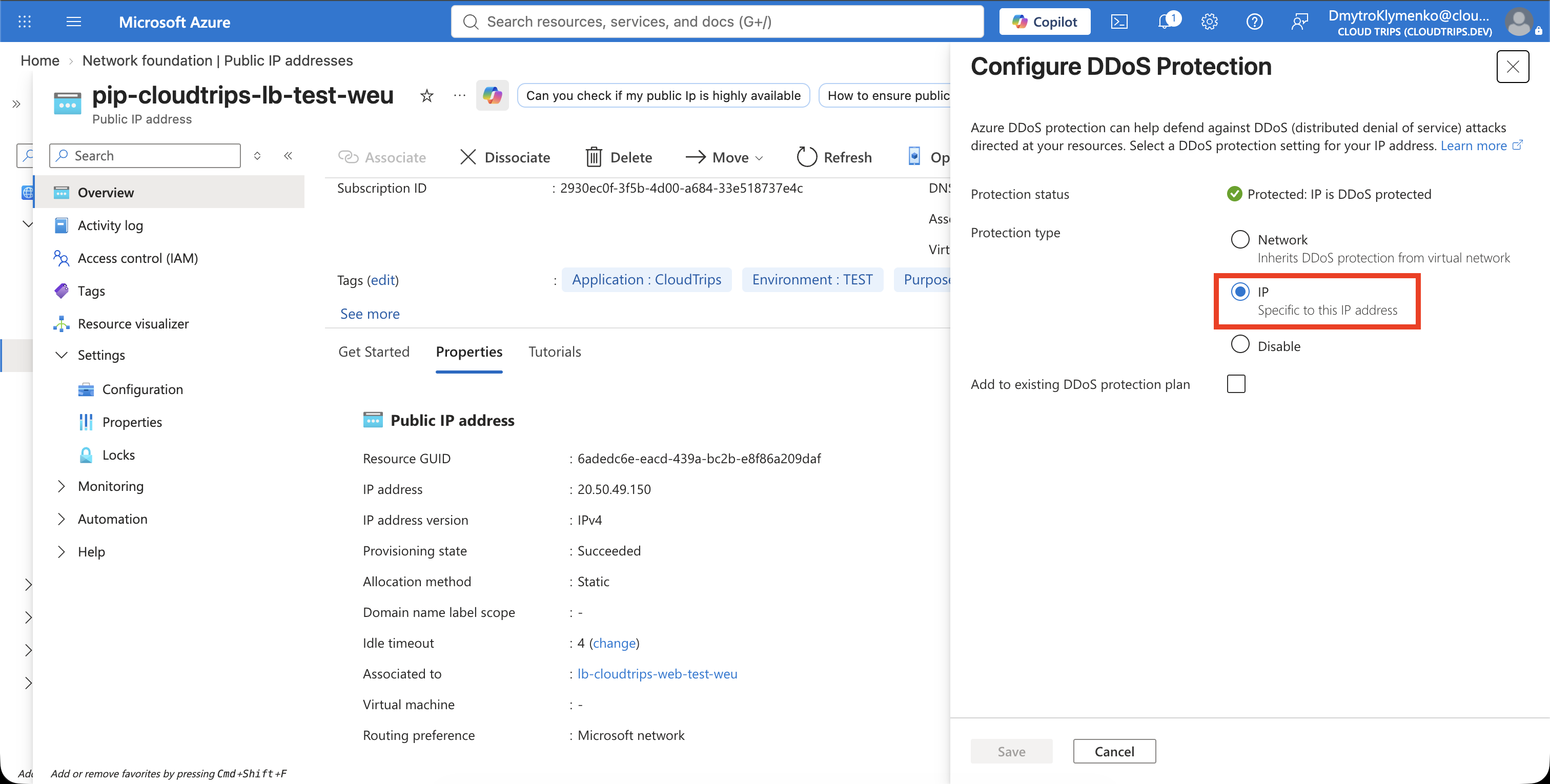
On Overview, select Properties, then select DDoS protection. In Configure DDoS protection, set:
Protection type: IPSelect Save. The public address, Load Balancer frontend, rule, health probe, and backend pool do not change. The setting adds protection to the existing public IP without redeploying the application.
Verify the Protection Status
Return to Overview > Properties > DDoS protection. Confirm:
Protection type: IP
Protection status: Protected
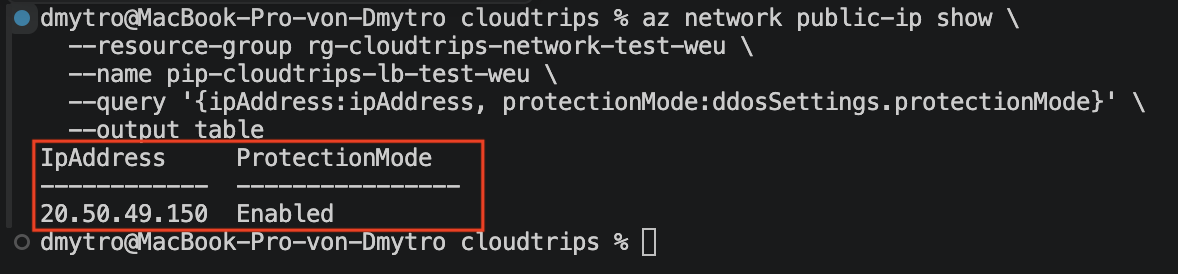
You can also verify the resource configuration with Azure CLI:
az network public-ip show \
  --resource-group rg-cloudtrips-network-test-weu \
  --name pip-cloudtrips-lb-test-weu \
  --query '{ipAddress:ipAddress, protectionMode:ddosSettings.protectionMode}' \
  --output table
The protection mode should be Enabled. Then repeat the application request:
curl --connect-timeout 5 "http://${LB_IP}"A normal request should still reach one of the two web servers. Protection is transparent to traffic that remains below the automatically tuned mitigation thresholds.
Inspect the DDoS Metrics
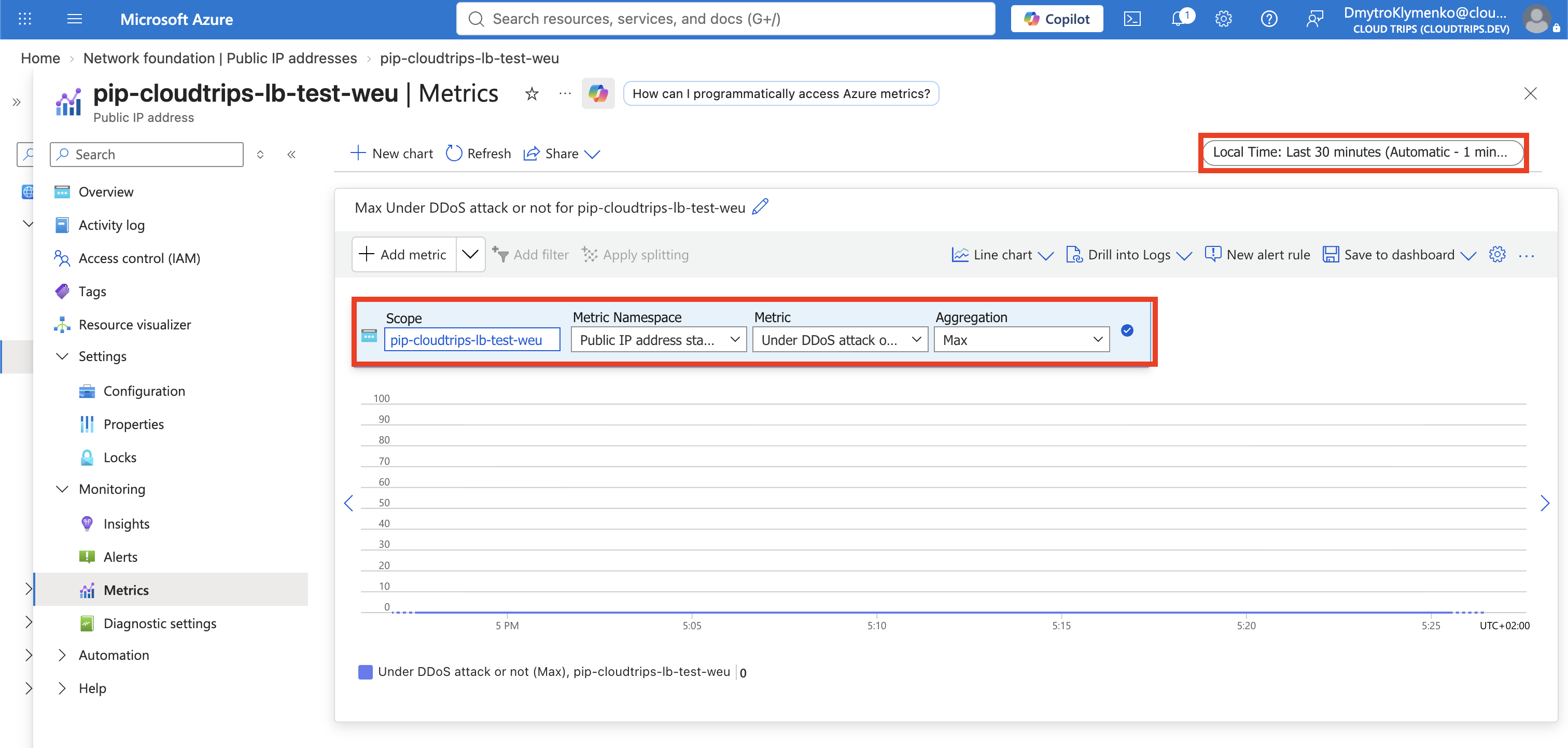
On the public IP, select Monitoring > Metrics. Set the metric to:
Metric namespace: Public IP Address
Metric: Under DDoS attack or not
Aggregation: Maximum
Time range: Last 30 minutes
The value should remain 0, meaning Azure has not detected an attack during
the selected period. During active mitigation it changes to 1. Other DDoS
metrics expose inbound traffic, dropped packets, and the adaptive thresholds
used to trigger mitigation.
Do not attempt to prove the feature by generating a denial-of-service attack. A small traffic generator does not validate Azure’s mitigation capacity, and an uncontrolled test can disrupt the application or violate service terms. Use the protection status and telemetry to validate configuration. Coordinate any authorized simulation through an approved security-testing process.
Continue or Clean Up
Continue with Global Traffic Needs Regional Balancing? Configure a Cross-Region Load Balancer. Keep the protected public IP, regional Load Balancer, rule, probe, backend VMs, NICs, disks, and HTTP NSG rule. Do not disable IP Protection yet; the final cleanup in that trip disables it after the cross-region test.
If you are stopping, open the public IP’s DDoS protection configuration,
set Protection type to Disabled, and select Save. Confirm the status
is no longer Protected so per-IP protection billing stops. The equivalent
CLI cleanup and verification are:
az network public-ip update \
  --resource-group rg-cloudtrips-network-test-weu \
  --name pip-cloudtrips-lb-test-weu \
  --protection-mode Disabled \
  --ddos-protection-plan null \
  --output none

az network public-ip show \
  --resource-group rg-cloudtrips-network-test-weu \
  --name pip-cloudtrips-lb-test-weu \
  --query '{Name:name,ProtectionMode:ddosSettings.protectionMode,ProtectionPlan:ddosSettings.ddosProtectionPlan.id}' \
  --output table
ProtectionMode must show Disabled, and ProtectionPlan must be empty.
Disabling the feature does not delete the public IP or Load Balancer. Delete
the lab compute and networking resources separately if they are no longer
required.