Packet-Level Evidence Is Needed? Capture Packets
Connection Troubleshoot identifies likely connectivity faults, but some incidents require packet-level evidence. A packet trace can show whether a TCP request reached the VM, whether the VM replied, how the connection closed, and which addresses and ports participated.
Use Network Watcher packet capture on WEB01. Limit the capture to TCP port
80, generate one request from WEB02, stop the capture, and inspect the result
in Wireshark.
This trip builds on A Network Issue Must Be Diagnosed? Use Network Watcher. Delete its temporary deny rule, keep both web VMs, and confirm the
cloudtrips-webservice is running on WEB01.
Packet captures can contain credentials, personal data, tokens, and application payloads. Capture only an authorized flow, restrict the filter, protect the file, and delete it when the investigation is complete.
Install the Network Watcher Agent
Packet capture requires the Network Watcher Agent extension on the target VM.
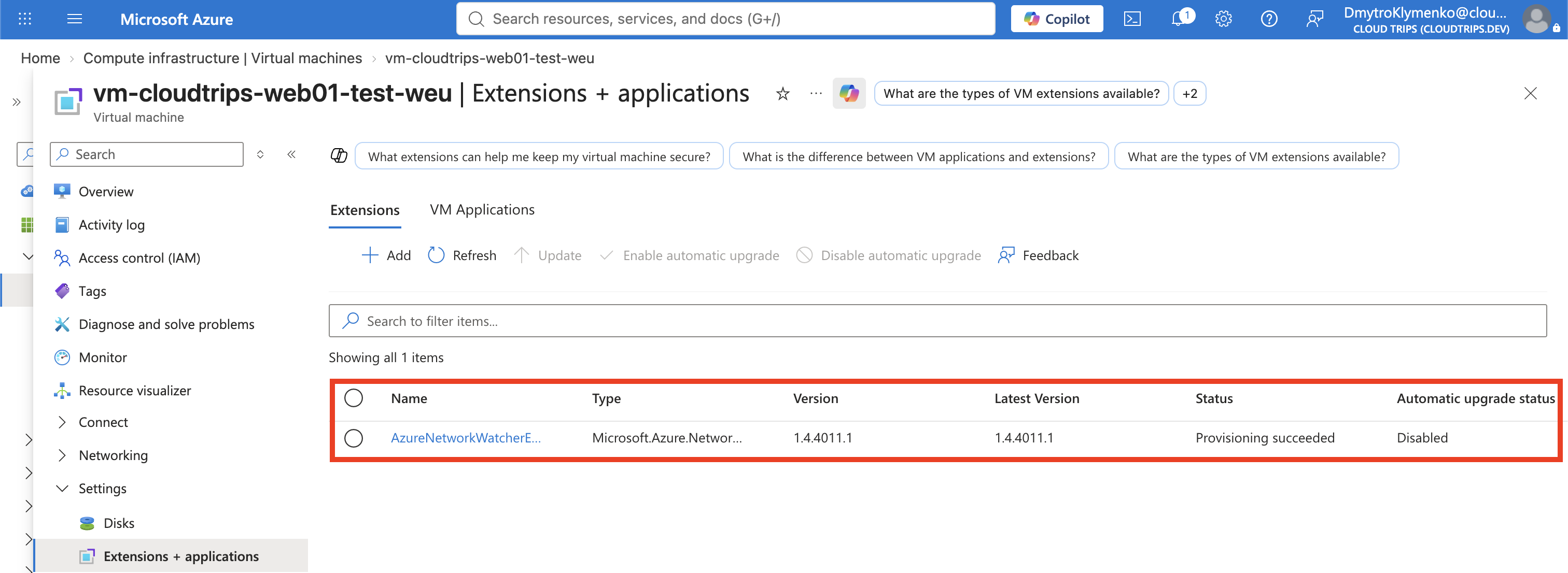
Open vm-cloudtrips-web01-test-weu > Settings > Extensions +
applications. If AzureNetworkWatcherExtension is not listed, select Add,
install Network Watcher Agent for Linux, and wait for provisioning to
succeed. The installation does not require a reboot.
Verify with Azure CLI:
az vm extension list \
  --resource-group rg-cloudtrips-network-test-weu \
  --vm-name vm-cloudtrips-web01-test-weu \
  --query "[?publisher=='Microsoft.Azure.NetworkWatcher'].{Name:name,State:provisioningState}" \
  --output table
Expect AzureNetworkWatcherExtension with Succeeded. The agent needs access
to Azure platform addresses and to the selected Storage account. Resolve any
extension or upload failure before starting the capture.
Create Short-Lived Capture Storage
Packet captures stored in Blob Storage are easier to retrieve than files left on a VM without an administrative login path. Generate a globally unique name:
CAPTURE_STORAGE="stctpc$(az account show --query id --output tsv | tr -d '-' | cut -c1-10)"
printf 'Capture storage account: %s\n' "$CAPTURE_STORAGE"
Create a StorageV2, Standard LRS account named with that value in
rg-cloudtrips-network-test-weu and West Europe. Keep secure transfer required
and minimum TLS 1.2. This temporary account is only for the capture and can
be deleted at the end of the trip.
Do not place captures in a general application container. Access to packet captures should be limited to authorized network and security operators.
Start a Filtered Capture
Search for Network Watcher, open the service, and select Network diagnostic tools > Packet capture > Add. Configure:
Subscription: CloudTrips TEST
Resource group: rg-cloudtrips-network-test-weu
Target type: Virtual machine
Target instance: vm-cloudtrips-web01-test-weu
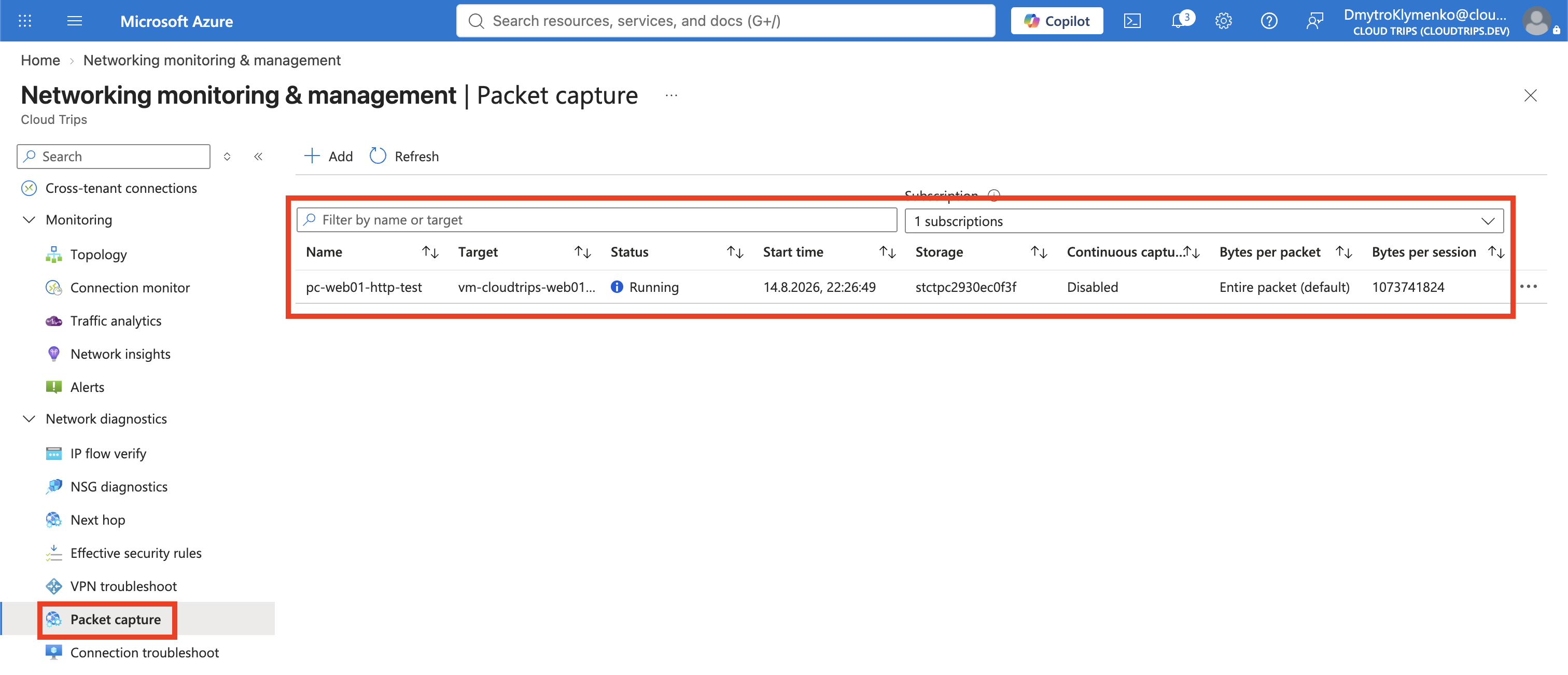
Packet capture name: pc-web01-http-test
Capture location: Storage account
Storage account: Use the CAPTURE_STORAGE value
Maximum bytes per packet: 0 (capture the complete packet)
Maximum bytes per session: 5 MB
Time limit: 120 seconds
Add one filter:
Protocol: TCP
Local IP address: Leave empty
Local port: 80
Remote IP address: Leave empty
Remote port: Leave empty
The local port is 80 because the capture runs on WEB01, where the web service
listens. Leaving IP fields empty permits any client address but still excludes
all non-TCP and non-port-80 traffic. Select Start packet capture.
Generate One Known Flow
While the capture status is Running, read WEB01’s private IP and send one request from WEB02:
WEB01_IP=$(az vm list-ip-addresses \
  --resource-group rg-cloudtrips-network-test-weu \
  --name vm-cloudtrips-web01-test-weu \
  --query '[0].virtualMachine.network.privateIpAddresses[0]' \
  --output tsv)

az vm run-command invoke \
  --resource-group rg-cloudtrips-network-test-weu \
  --name vm-cloudtrips-web02-test-weu \
  --command-id RunShellScript \
  --scripts "curl --silent --show-error --connect-timeout 5 http://${WEB01_IP}/"
Expect CloudTrips response from WEB01. Return to the capture and select
Stop, rather than waiting for the full time limit. Its status should change
to Stopped. This is the final status for the finished capture; the portal
does not change it to Completed.
Download and Inspect the Capture
Open pc-web01-http-test and use its capture-file link to download the .cap
file from Storage. Keep the file in a restricted working directory.
Open the file in Wireshark and apply this display filter:
tcp.port == 80Find the connection between WEB02’s private address and WEB01_IP. A normal
TCP exchange begins with the three-way handshake:
WEB02 -> WEB01  SYN
WEB01 -> WEB02  SYN, ACK
WEB02 -> WEB01  ACK
The following packets carry the HTTP request and response. Select a packet and expand Transmission Control Protocol to inspect source and destination ports, sequence numbers, acknowledgements, and flags. The successful handshake proves that WEB01 received and accepted the TCP connection; the HTTP response proves that the application replied.
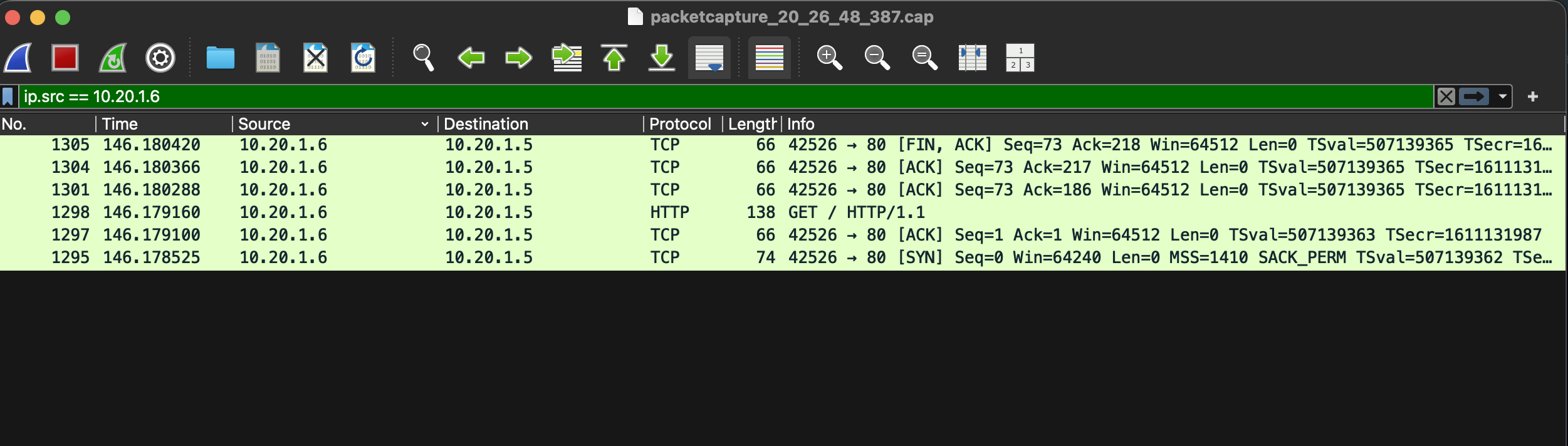
Packet capture is evidence, not automatic root-cause analysis. Repeated SYN packets without a SYN-ACK suggest that the request or response is being dropped. A reset can indicate a closed port or an explicit rejection. Complete silence at WEB01 means the traffic never reached the capture point. Correlate these observations with NSG diagnostics, routes, guest firewall state, and application logs.
Remove the Sensitive Artifacts
Delete the pc-web01-http-test capture session in Network Watcher. Then delete
the downloaded .cap file and the temporary $CAPTURE_STORAGE account unless
your approved incident-retention policy requires them. Removing the session
does not necessarily remove a separately downloaded copy.
Keep the Network Watcher Agent only if later diagnostics require it; otherwise, remove it from WEB01 under Extensions + applications. Deallocate both VMs when the lab is complete.
Continue with Traffic Flow Records Are Needed? View Flow Logs. Keep both web VMs and the CloudTrips VNet for the flow-record exercise.