A Network Issue Must Be Diagnosed? Use Network Watcher
A failed connection does not reveal whether the cause is a route, a network security group, the guest operating system, or an application that is not listening. Changing several controls at once can hide the real cause and leave the network more permissive than intended.
Use Azure Network Watcher to diagnose a controlled CloudTrips failure. Add a temporary NSG rule that blocks HTTP to WEB01, reproduce the problem, use NSG diagnostics to identify the exact rule, and then remove only that rule.
WEB02 test client
       |
       | TCP 80
       v
NSG rule denies traffic
       |
       v
WEB01 web service
This trip uses
vm-cloudtrips-web01-test-weu,vm-cloudtrips-web02-test-weu,vnet-cloudtrips-test-weu,snet-app, andnsg-cloudtrips-app-test-weufrom the earlier Load Balancer labs. Start both VMs and keep the Python HTTP service running on WEB01.
Network Watcher is a regional diagnostic service. Azure normally enables it automatically when a virtual network is created or updated. Its on-demand diagnostic tools are different from continuous Connection Monitor, flow logs, and packet capture, which can add agents, storage, or monitoring charges.
Confirm the Healthy Baseline
Read WEB01’s private IP address:
WEB01_IP=$(az vm list-ip-addresses \
  --resource-group rg-cloudtrips-network-test-weu \
  --name vm-cloudtrips-web01-test-weu \
  --query '[0].virtualMachine.network.privateIpAddresses[0]' \
  --output tsv)

printf 'WEB01 private IP: %s\n' "$WEB01_IP"
From WEB02, call WEB01 directly:
az vm run-command invoke \
  --resource-group rg-cloudtrips-network-test-weu \
  --name vm-cloudtrips-web02-test-weu \
  --command-id RunShellScript \
  --scripts "curl --silent --show-error --connect-timeout 5 http://${WEB01_IP}/"
The output should contain CloudTrips response from WEB01. This baseline
proves that routing, the NSG, and the HTTP service permit the connection before
the controlled fault is introduced.
Introduce One Controlled Fault
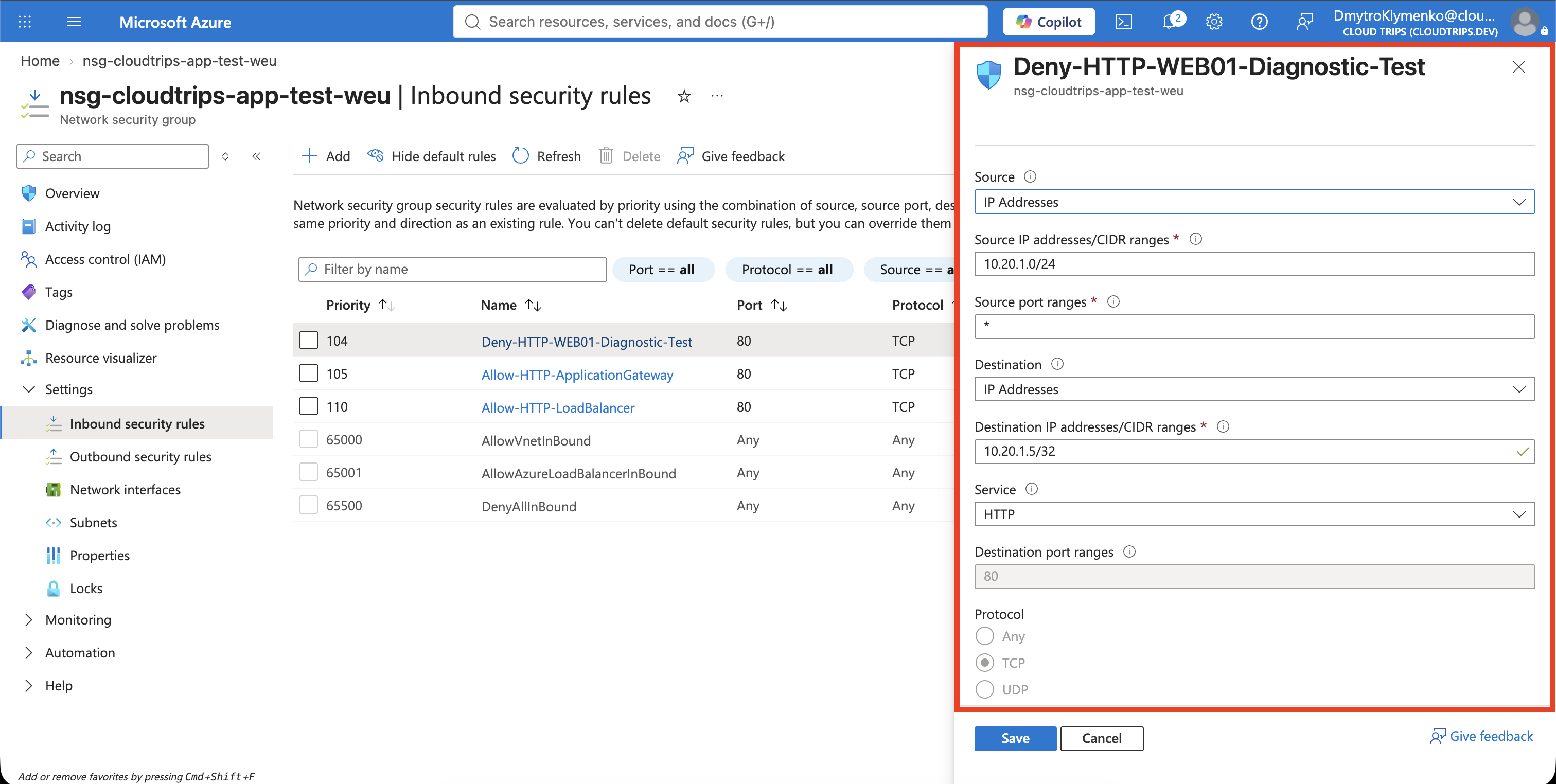
Open nsg-cloudtrips-app-test-weu and select Inbound security rules >
Add. Configure:
Source: IP Addresses
Source IP addresses/CIDR ranges: 10.20.1.0/24
Source port ranges: *
Destination: IP Addresses
Destination IP addresses/CIDR ranges: Use WEB01_IP with /32
Service: HTTP
Destination port ranges: 80
Protocol: TCP
Action: Deny
Priority: 104
Name: Deny-HTTP-WEB01-Diagnostic-Test
Description: Temporary rule for the Network Watcher diagnostic lab
For example, if WEB01 uses 10.20.1.4, enter 10.20.1.4/32. Priority 104
is evaluated before the existing priority-105
Allow-HTTP-ApplicationGateway rule and priority-110 Load Balancer HTTP
allow rule. The /32 destination limits the deliberate failure to one VM.
Repeat the WEB02 request with a time limit:
az vm run-command invoke \
  --resource-group rg-cloudtrips-network-test-weu \
  --name vm-cloudtrips-web02-test-weu \
  --command-id RunShellScript \
  --scripts "curl --verbose --max-time 5 http://${WEB01_IP}/"
The request should time out. Do not change the web service, route table, or other NSG rules yet; preserving the failed state lets Network Watcher examine the actual configuration.
Inspect the Network Topology
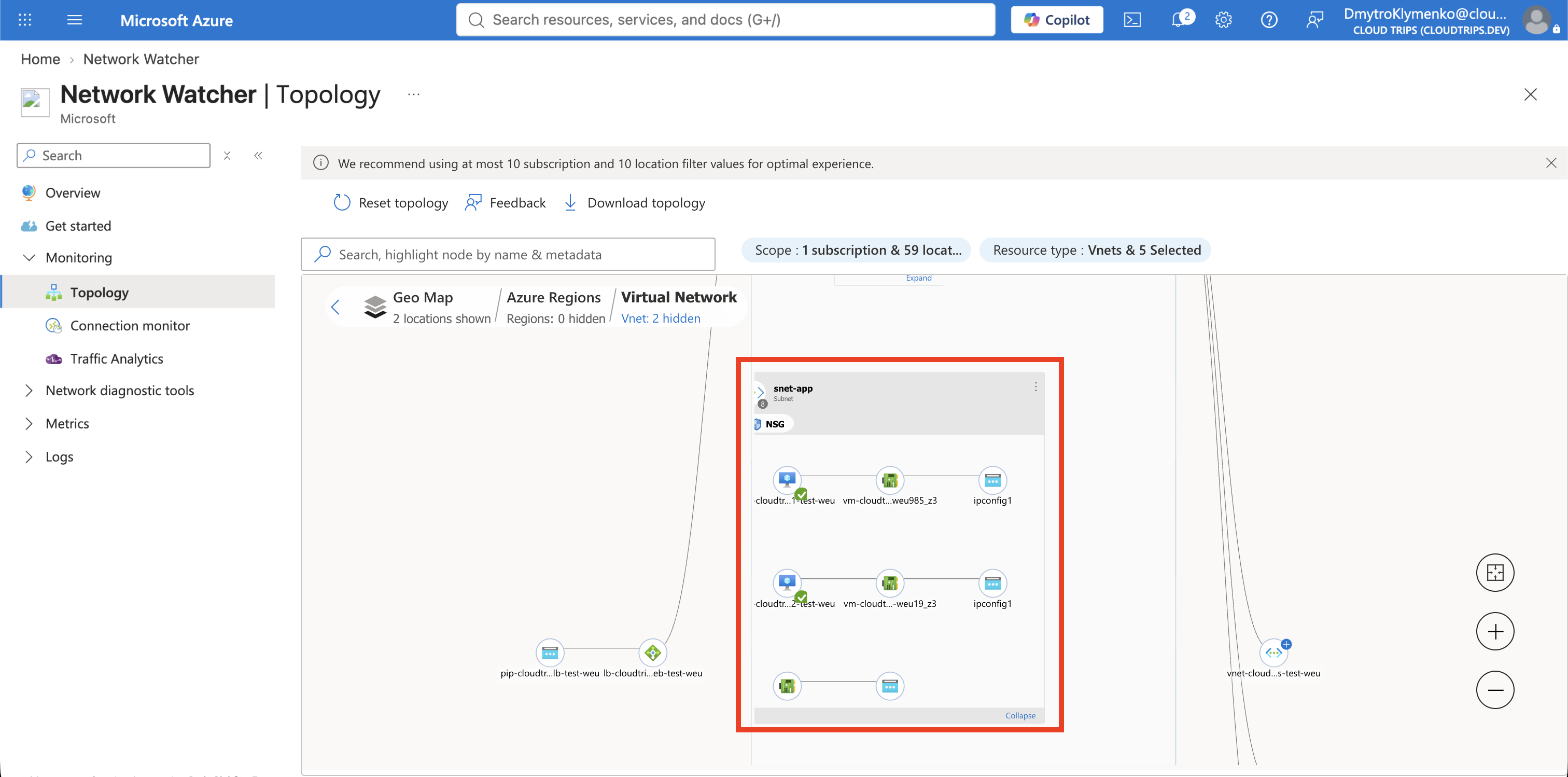
Search for Network Watcher. Open Monitoring > Topology, select the
CloudTrips TEST subscription and West Europe, and expand
vnet-cloudtrips-test-weu.
Confirm that WEB01 and WEB02 are connected through snet-app and that
nsg-cloudtrips-app-test-weu is associated with the path. Topology explains
which Azure resources participate, but it does not by itself prove which rule
blocked this TCP flow.
Diagnose the NSG Decision
Under Network diagnostic tools, select NSG diagnostics and configure:
Target resource type: Virtual machine
Virtual machine: vm-cloudtrips-web01-test-weu
Protocol: TCP
Direction: Inbound
Source type: IPv4 address/CIDR
Source: Use WEB02's private IP with /32
Destination type: IPv4 address/CIDR
Destination: Use WEB01_IP with /32
Destination port: 80
Select Run NSG diagnostics. The result should be Denied and identify
Deny-HTTP-WEB01-Diagnostic-Test as the matched security rule. This is stronger
evidence than merely noticing that a deny rule exists: the diagnostic evaluates
the effective configuration for this specific direction, protocol, addresses,
and port.
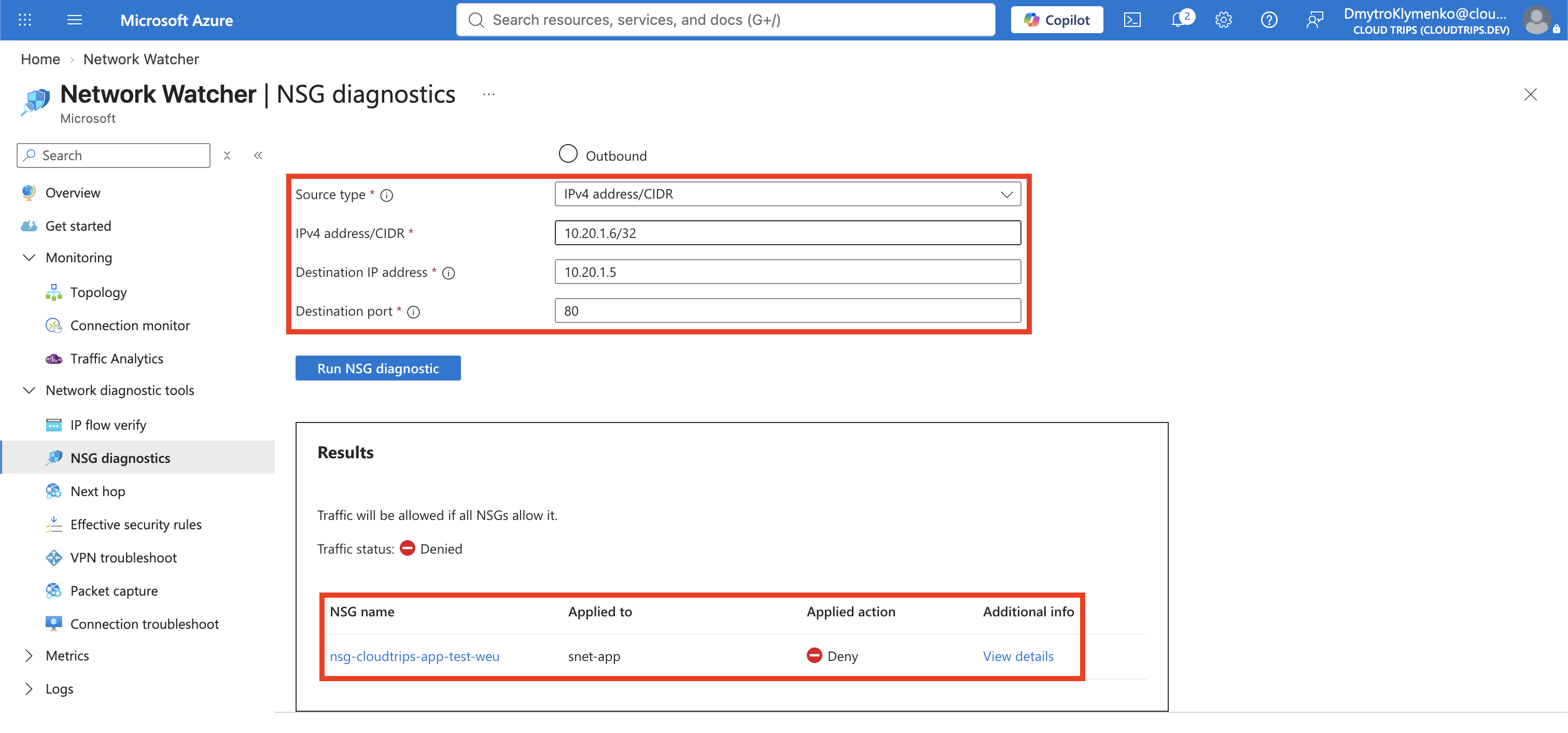
If the result names a different rule, use that result rather than assuming the temporary rule is responsible. Rule priority, NSGs on both the subnet and NIC, and Azure Virtual Network Manager security admin rules can all affect the effective decision.
Check End-to-End Connectivity
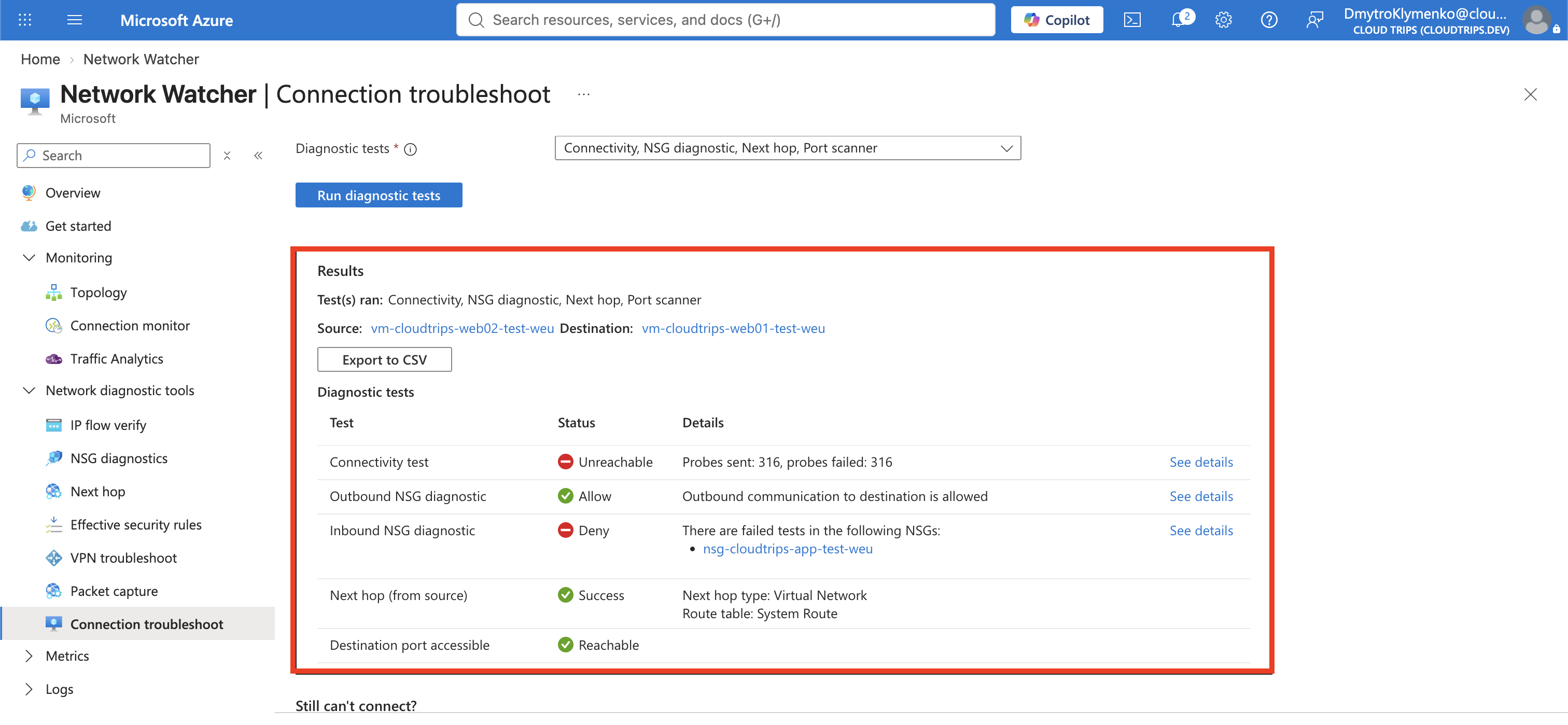
Open Network diagnostic tools > Connection troubleshoot and set:
Source type: Virtual machine
Source virtual machine: vm-cloudtrips-web02-test-weu
Destination type: Virtual machine
Destination virtual machine: vm-cloudtrips-web01-test-weu
Preferred IP version: IPv4
Protocol: TCP
Destination port: 80
Diagnostics tests: Connectivity, NSG diagnostic, Next hop
Select Run diagnostic tests. The result should show the connection as unreachable and report the NSG as the blocking component. Connection Troubleshoot combines reachability with NSG and routing evidence; it can also surface DNS failures, missing routes, a guest firewall, or a server that is not listening.
Fix Only the Proven Cause
Return to nsg-cloudtrips-app-test-weu > Inbound security rules and delete
only Deny-HTTP-WEB01-Diagnostic-Test. This is the temporary resource created
for the lab; keep the legitimate HTTP allow rule and Azure default rules.
Run NSG diagnostics again with the same inputs. The result should now be Allowed and identify the applicable allow rule. Repeat Connection Troubleshoot or the request from WEB02:
az vm run-command invoke \
  --resource-group rg-cloudtrips-network-test-weu \
  --name vm-cloudtrips-web02-test-weu \
  --command-id RunShellScript \
  --scripts "curl --silent --show-error --connect-timeout 5 http://${WEB01_IP}/"
CloudTrips response from WEB01 proves that the same flow works after the
specific blocking rule is removed. Deallocate both VMs if you are not
continuing immediately. Network Watcher itself does not need to be deleted;
remove any separately configured monitors, captures, or logs when they are no
longer required.
Continue with Packet-Level Evidence Is Needed? Capture Packets. Keep both web VMs and the working HTTP service on WEB01.