Threat Traffic Must Be Blocked? Configure Firewall IDPS
An allow rule confirms that a destination is approved, but it does not prove that every request sent to that destination is safe. A compromised workload could send malicious instructions through a connection that the firewall would otherwise allow.
Enable Azure Firewall Premium’s Intrusion Detection and Prevention System (IDPS). IDPS compares traffic with Microsoft-managed signatures: patterns associated with exploits, malware, command-and-control communication, and other threats.
The two parts of the name describe its operating modes:
Intrusion detection  -> identify and report suspicious traffic
Intrusion prevention -> identify, report, and block suspicious traffic
This trip builds on Encrypted Traffic Needs Inspection? Configure Firewall Premium TLS Inspection. Keep its Premium firewall and policy, TLS configuration, trusted lab CA, route, private VM, and Bastion connection.
The controls now work together:
Application rule -> allows www.microsoft.com
TLS inspection   -> decrypts the HTTPS request
IDPS             -> checks its contents and blocks a matching threat signature
This lab sends only a harmless text pattern that an IDPS test signature is designed to recognize. It does not download or execute malware.
Azure Firewall Premium and Log Analytics are billable. Complete the test and clean up promptly if these resources are no longer needed.
Enable Alert and Deny
Open afw-cloudtrips-test-weu. On Overview, open its associated Premium
Firewall Policy. Select Settings > IDPS.
IDPS offers these modes:
- Off does not inspect traffic with IDPS signatures.
- Alert detects and logs matching traffic but allows it to continue.
- Alert and deny detects, logs, and blocks matching traffic.
Select Alert and deny, and then select Apply or Save. Wait until the policy provisioning state is Succeeded.
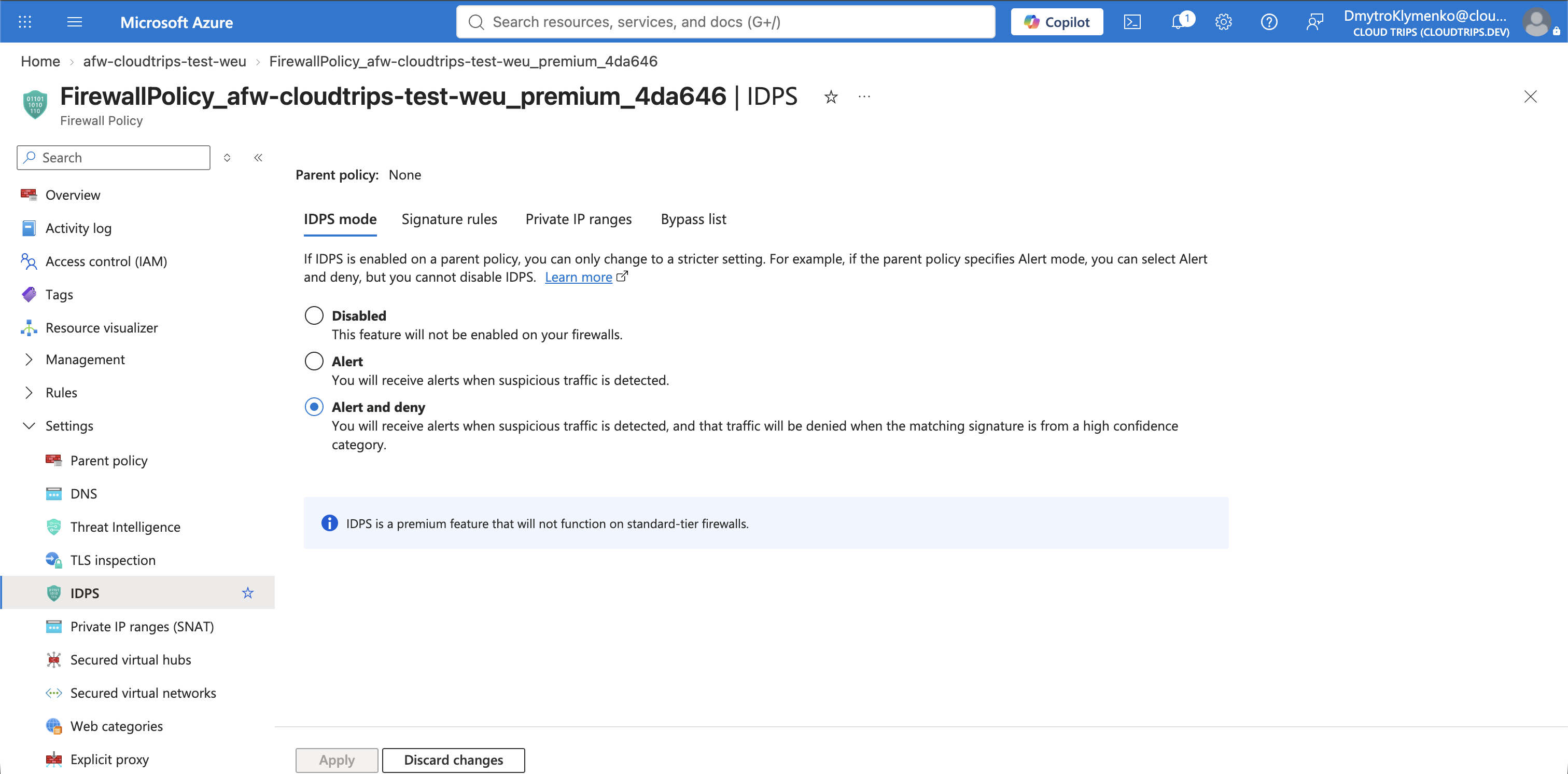
In production, teams normally begin with Alert, review legitimate traffic for false positives, tune individual signatures, and then move to Alert and deny. This isolated lab can use prevention mode immediately because its test pattern is deliberate.
Do not add an IDPS bypass. A bypass tells the firewall not to run IDPS for the matching source, destination, port, or protocol, which would defeat this test.
Send IDPS Events to Log Analytics
Blocking proves the control works, but logs explain why it blocked the connection. Azure Firewall does not retain queryable resource logs until a diagnostic setting sends them to a destination.
Search for Log Analytics workspaces and select Create. Configure:
Subscription: CloudTrips TEST
Resource group: rg-cloudtrips-network-test-weu
Name: law-cloudtrips-network-test-weu
Region: West Europe
Select Review + create, and then select Create.
Do not open Diagnostic settings on the Log Analytics workspace. That page shows workspace categories such as Audit, Summary Logs, and Job Logs, not firewall traffic.
Instead, return to the actual Azure Firewall resource
afw-cloudtrips-test-weu. Open Monitoring > Diagnostic settings and
select Add diagnostic setting. The firewall is the log source; the Log
Analytics workspace is only the destination. Configure:
Diagnostic setting name: diag-cloudtrips-afw-idps
Log category: Azure Firewall IDPS Signature
Destination: Send to Log Analytics workspace
Subscription: CloudTrips TEST
Log Analytics workspace: law-cloudtrips-network-test-weu
Destination table: Resource specific
The category can appear simply as IDPS log in some portal versions. Select
the category whose description refers to IDPS signature matches. Choose
Resource specific so events are written to the dedicated
AZFWIdpsSignature table. Select Save.
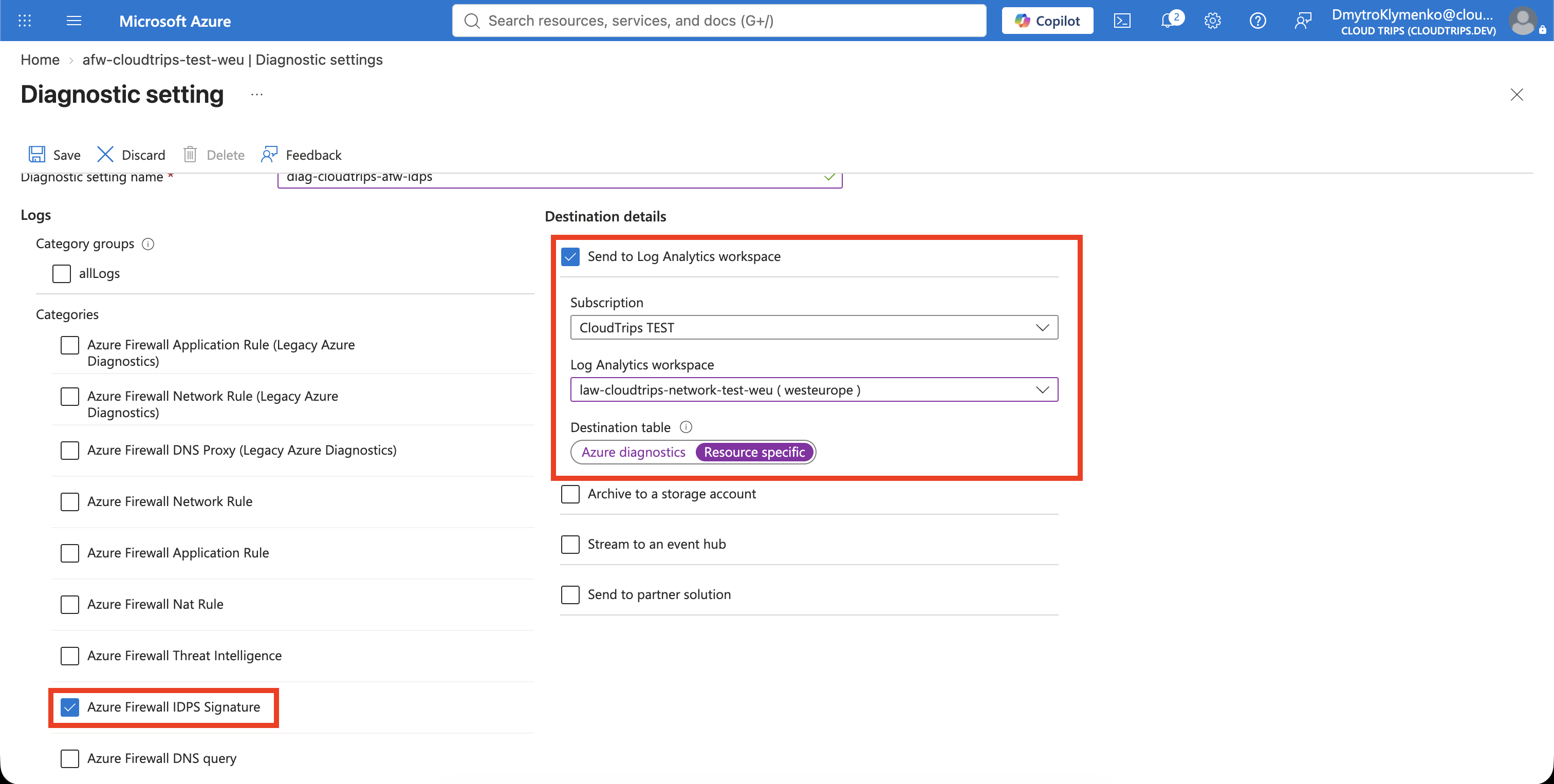
If the firewall already has a diagnostic setting that sends the IDPS category to this workspace in resource-specific mode, reuse it instead of creating a duplicate.
New Azure Firewall logs can take up to 30 minutes to begin appearing. The traffic test itself does not need to wait, but the final query might initially return no rows.
Prove That Normal HTTPS Still Works
Start vm-cloudtrips-bastion-test-weu if it is deallocated and connect through
Connect > Bastion.
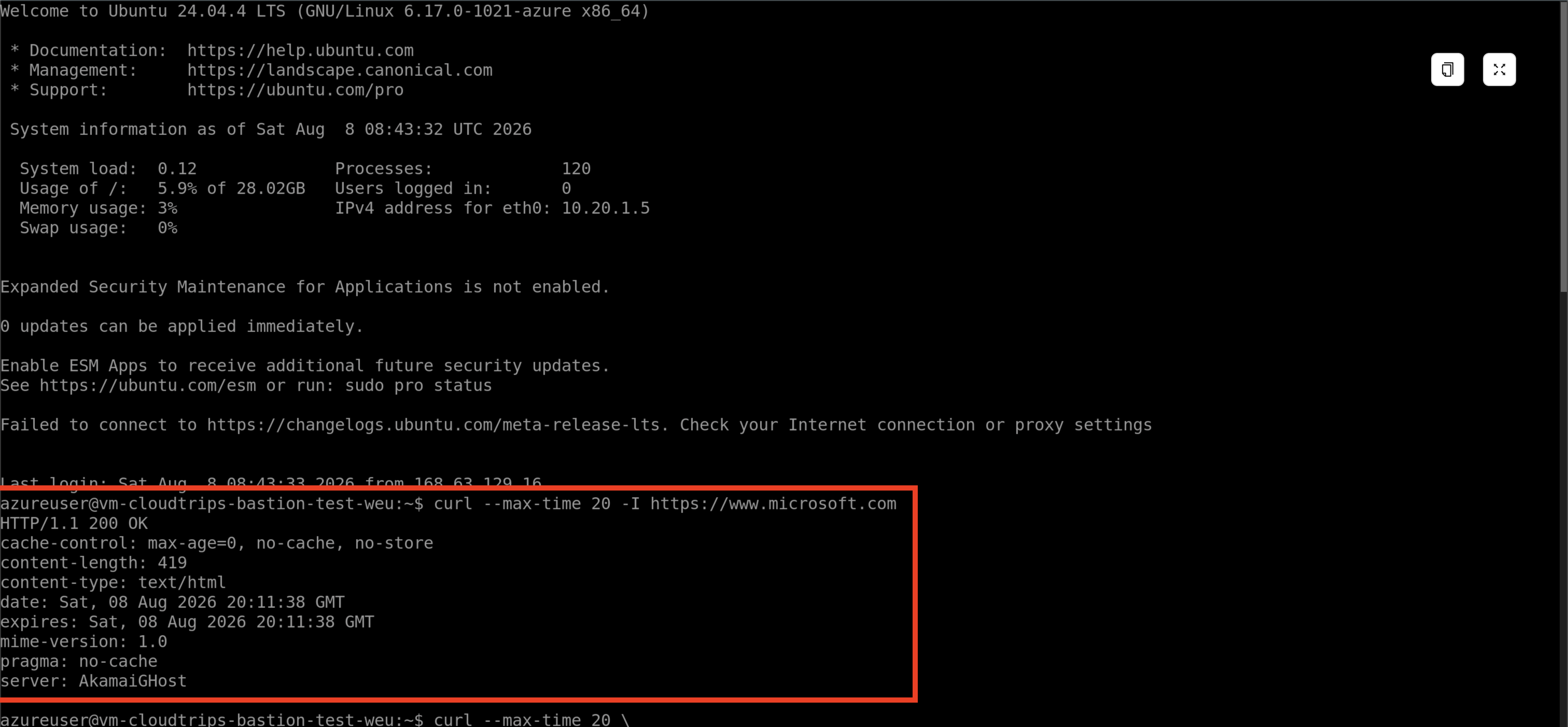
Run a normal request first:
curl --max-time 20 -I https://www.microsoft.comA normal response such as 200, 301, or 302 proves that the existing
application rule, TLS inspection, CA trust, and route still work. IDPS does not
block every request; it blocks traffic that matches an active signature.
Trigger a Harmless IDPS Signature
Now send another request with the test value HaxerMen in its HTTP User-Agent
header:
curl --max-time 20 \
  -A "HaxerMen" \
  https://www.microsoft.com \
  --output /dev/null \
  --verbose
The User-Agent normally identifies the client software making an HTTP request.
Here it contains a harmless string recognized by a Microsoft-documented IDPS
test signature. Because TLS inspection is enabled for the existing
Allow-Microsoft-Web rule, the firewall can read that header inside the HTTPS
connection.
The request should fail, time out, or end without a normal HTTP response. That is the expected result: the application rule allowed the destination, but IDPS recognized the test pattern and denied the request.
In the verbose output, these lines provide the evidence:
issuer: CN=Azure Firewall Manager CA
SSL certificate verify ok.
User-Agent: HaxerMen
Operation timed out ... with 0 bytes received
The Azure Firewall CA and successful certificate verification prove that TLS
inspection decrypted the connection. The request was connected and sent, but
no response arrived after the HaxerMen header. Together with a successful
normal request from the preceding step, that timeout is the expected IDPS deny
result. Confirm the exact reason in the IDPS log next.
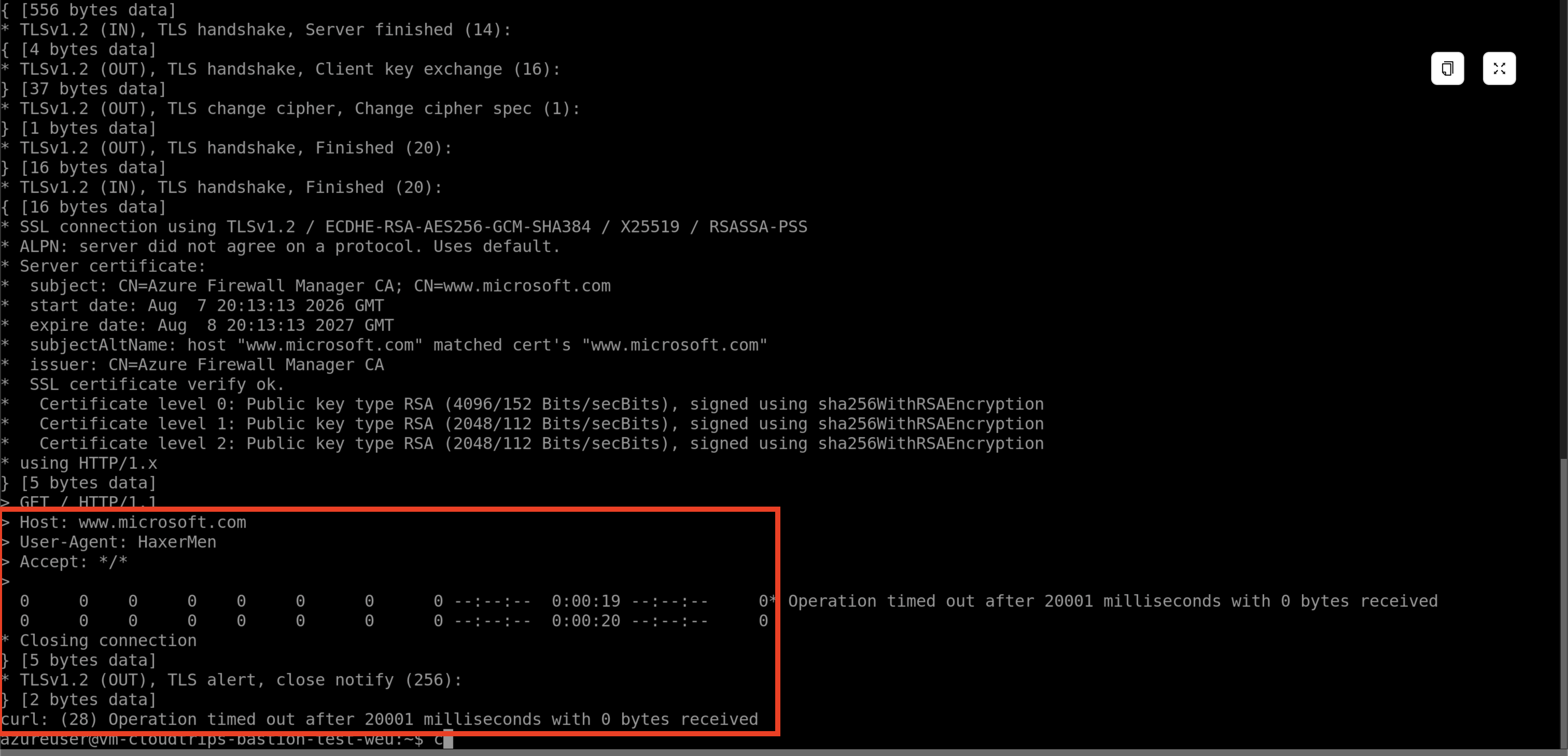
The exact curl error can vary because the firewall drops the suspicious
traffic rather than returning a normal web response. Do not weaken the rule or
use --insecure; certificate trust is not the cause of this expected failure.
Find the Blocked Signature
Open afw-cloudtrips-test-weu and select Monitoring > Logs. If Azure
asks for a scope, select law-cloudtrips-network-test-weu.
Run this Kusto Query Language (KQL) query:
AZFWIdpsSignature
| where TimeGenerated > ago(1h)
| project TimeGenerated, SourceIp, DestinationIp, Protocol,
    SignatureId, Description, Action
| order by TimeGenerated desc
Look for the event created by the test request. It should show a deny action
and a description related to the suspicious HaxerMen User-Agent. Microsoft
has documented this test with signature ID 2032081, but managed signatures
can be updated. Treat the event produced by your current run as the evidence.
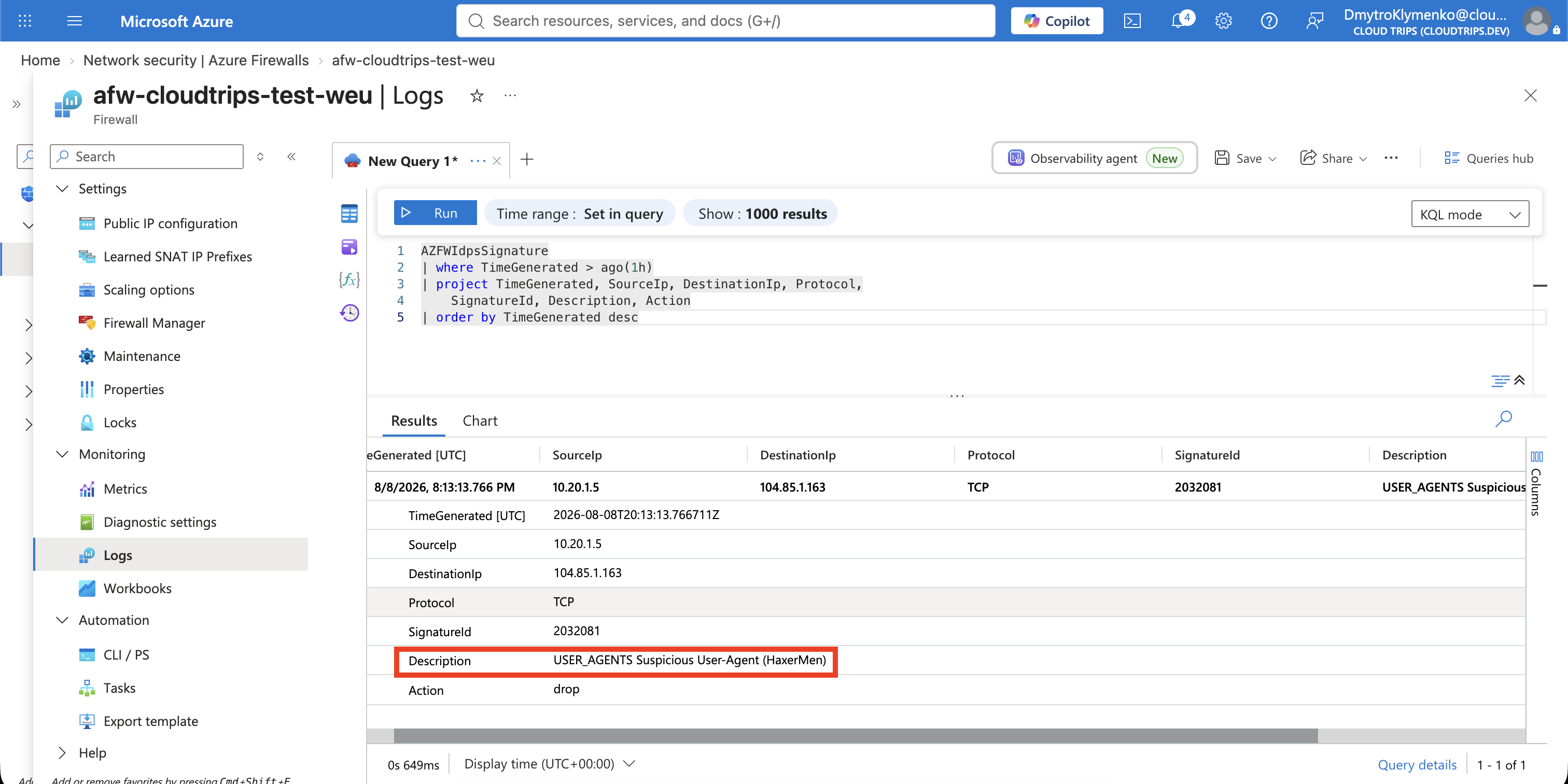
If no row appears immediately, wait several minutes and run the query again. For a newly created diagnostic setting, initial log delivery can take up to 30 minutes. Do not repeatedly change the firewall policy while waiting for log ingestion.
The result separates the responsibilities clearly: the application rule allowed the destination, TLS inspection made the encrypted header visible, and IDPS matched a threat signature and blocked the request.
Clean Up the Firewall Lab
This is the final trip in the current Azure Firewall sequence. Azure Firewall Premium remains billable even when the test VM is stopped.
If you want to keep the firewall for later experiments, change IDPS to Alert or Off, deallocate the VM, and retain the diagnostic logs for review.
If the firewall lab is finished, first delete Default-To-Azure-Firewall from
rt-cloudtrips-app-test-weu. This restores the subnet’s normal outbound route
before the firewall disappears. Then delete:
afw-cloudtrips-test-weu
Its Premium Firewall Policy
pip-cloudtrips-afw-test-weu
AzureFirewallSubnet
The generated TLS Key Vault and managed identity
law-cloudtrips-network-test-weu, if it is used only by this lab
If you retain the VM, remove the lab CA from its Ubuntu trust store using the cleanup command in the preceding TLS-inspection trip. If you delete the VM, its trusted-certificate change disappears with the operating-system disk.
The Bastion test VM was retained through the complete firewall sequence. When the sequence is finished, delete it and verify that its delete-with-VM disk and NIC are gone. Also remove the now-unused foundational NIC and its separately billed public IP; no later trip depends on them:
az vm delete \
  --resource-group rg-cloudtrips-network-test-weu \
  --name vm-cloudtrips-bastion-test-weu \
  --yes

az network nic delete \
  --resource-group rg-cloudtrips-network-test-weu \
  --name nic-cloudtrips-vm-test-weu

az network public-ip delete \
  --resource-group rg-cloudtrips-network-test-weu \
  --name pip-cloudtrips-vm-test-weu

az resource list \
  --resource-group rg-cloudtrips-network-test-weu \
  --query "[?contains(name, 'cloudtrips-bastion-test-weu') || name=='nic-cloudtrips-vm-test-weu' || name=='pip-cloudtrips-vm-test-weu'].{Name:name,Type:type}" \
  --output table
The final command must return no matching VM, disk, NIC, or public IP. If the VM’s OS disk or generated NIC remains because its delete option was changed, delete that named remainder explicitly before leaving the lab.