App Needs MySQL? Create MySQL Server
Your app uses MySQL to store products and orders, and needs a shared database that keeps data across app restarts. Hosting it yourself also means patching the database server and maintaining backups. Azure Database for MySQL Flexible Server handles those operations while your app uses familiar MySQL connections and queries.
Create the Server
In the Azure portal, open Azure Database for MySQL flexible servers → Create:
Resource group: rg-cloudtrips-mysql-test-weu (new)
Server name: mysql-ctappweu (globally unique)
Region: West Europe
MySQL version: 8.0
Workload type: Dev/Test
Availability zone: No preference
Administrator login: ctadmin
Enter a strong password in Password and Confirm password, and save it securely. Under Compute + storage, select Burstable, B1ms if available, 20 GiB storage, and 7 days backup retention. Review the estimated cost before creating this small lab server.
Allow Your Computer
Keep Add firewall rule for current IP address checked on the creation form. This allows your computer to connect to the server. Review the configuration and select Create.
After deployment, open the server’s Networking page.
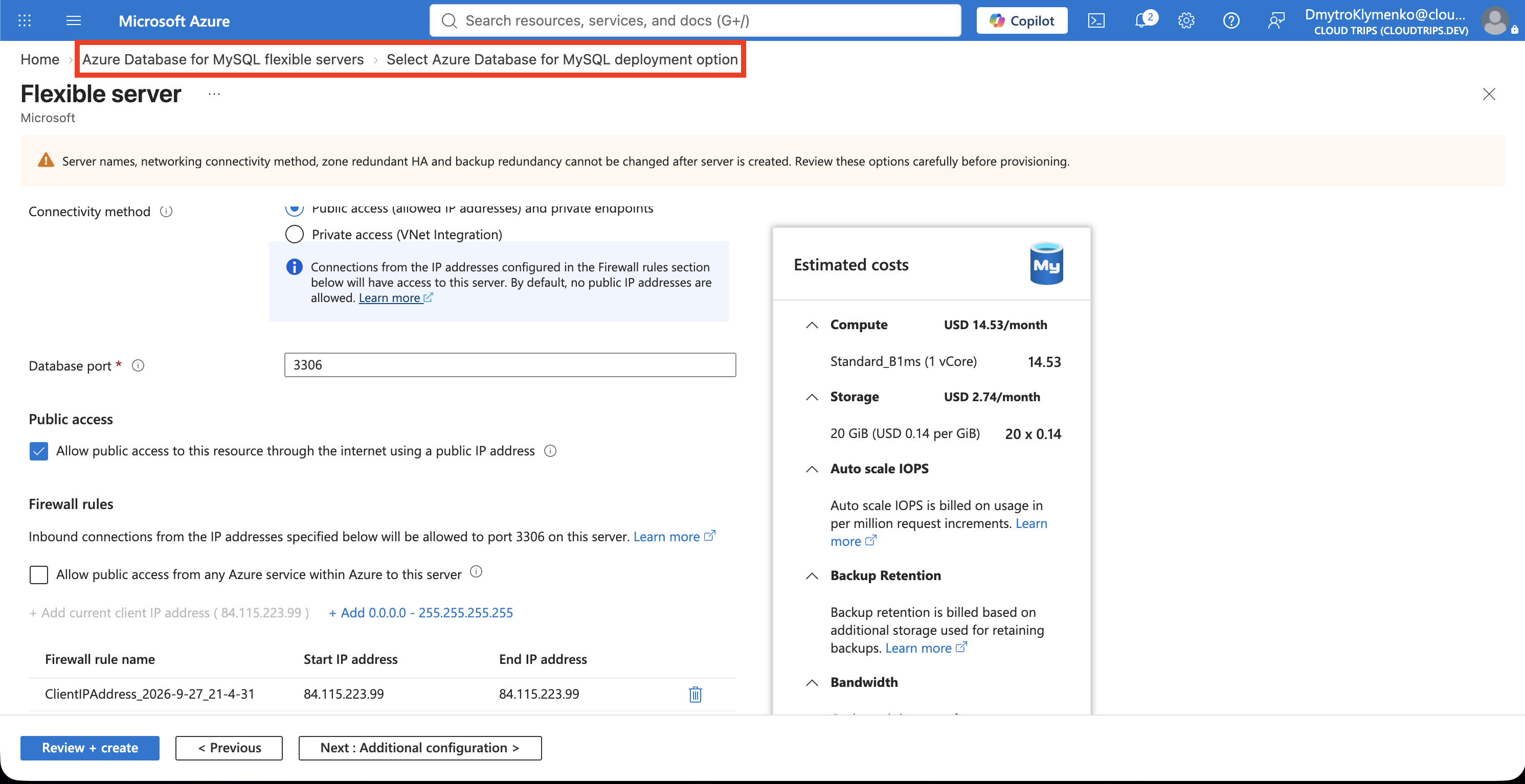
Check the rule matches your public IP. Connections use TCP port 3306; your local network must allow outbound access. Update the rule when your public IP changes.
Connect with MySQL Workbench
Install MySQL Workbench for your operating system. Open it and select + beside MySQL Connections:
Connection name: CloudTrips MySQL
Connection method: Standard (TCP/IP)
Hostname: mysql-ctappweu.mysql.database.azure.com
Port: 3306
Username: ctadmin
Password: your MySQL admin password
Use your actual server hostname. On the SSL tab, set Use SSL: Require to encrypt the connection. Select Test Connection, save, and open the connection.
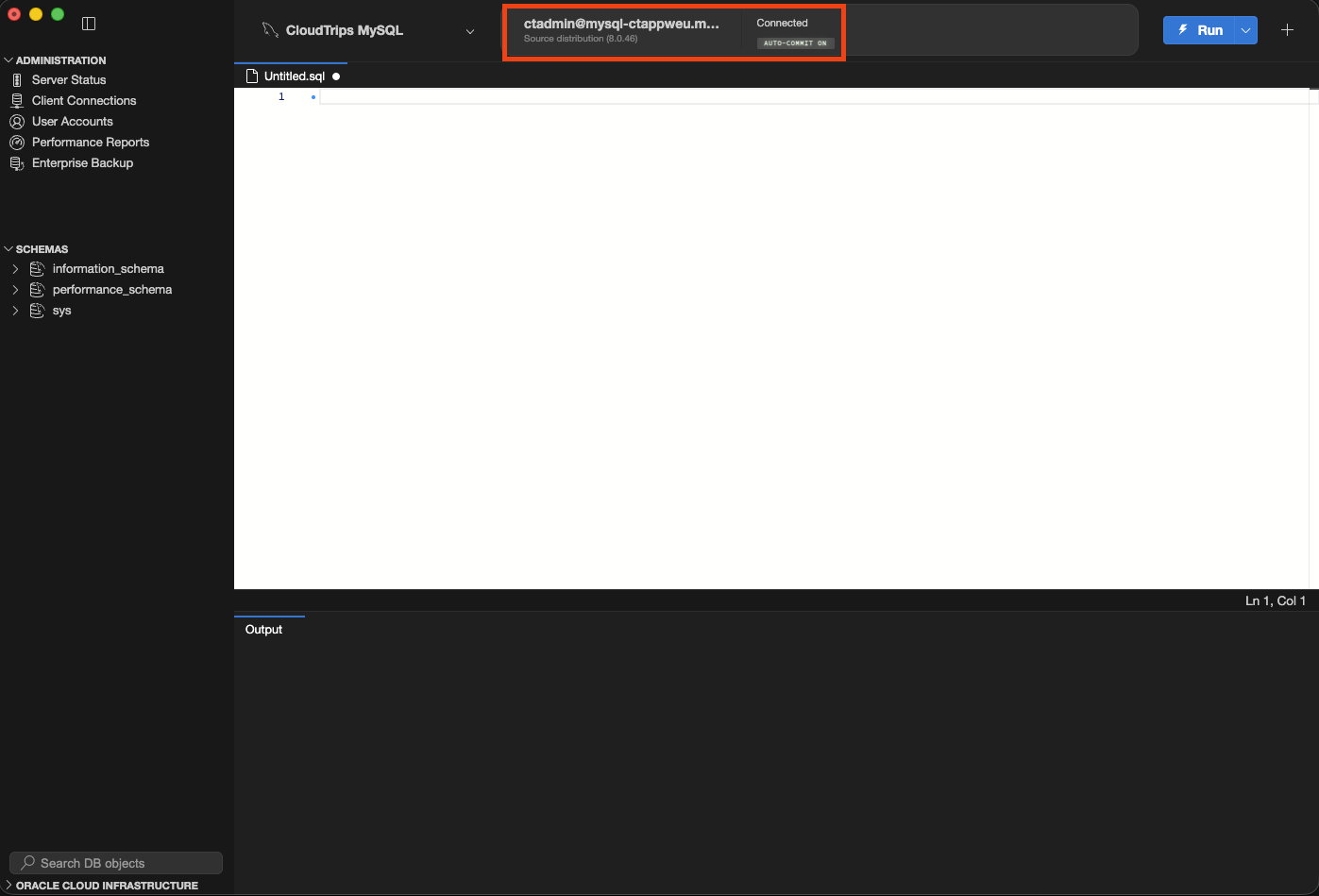
Check the hostname and successful connection message. The login uses the MySQL admin account created above. For application deployments, configure certificate and hostname verification using the trusted CA certificate bundle for Azure MySQL.
Create the App Database
Open a SQL query tab and execute the complete script once:
CREATE DATABASE appdb;
USE appdb;
CREATE TABLE products (
    product_id int AUTO_INCREMENT PRIMARY KEY,
    name varchar(100) NOT NULL,
    price decimal(10,2) NOT NULL CHECK (price >= 0)
);
INSERT INTO products (name, price) VALUES ('Notebook', 12.50);
SELECT DATABASE() AS database_name, product_id, name, price
FROM products;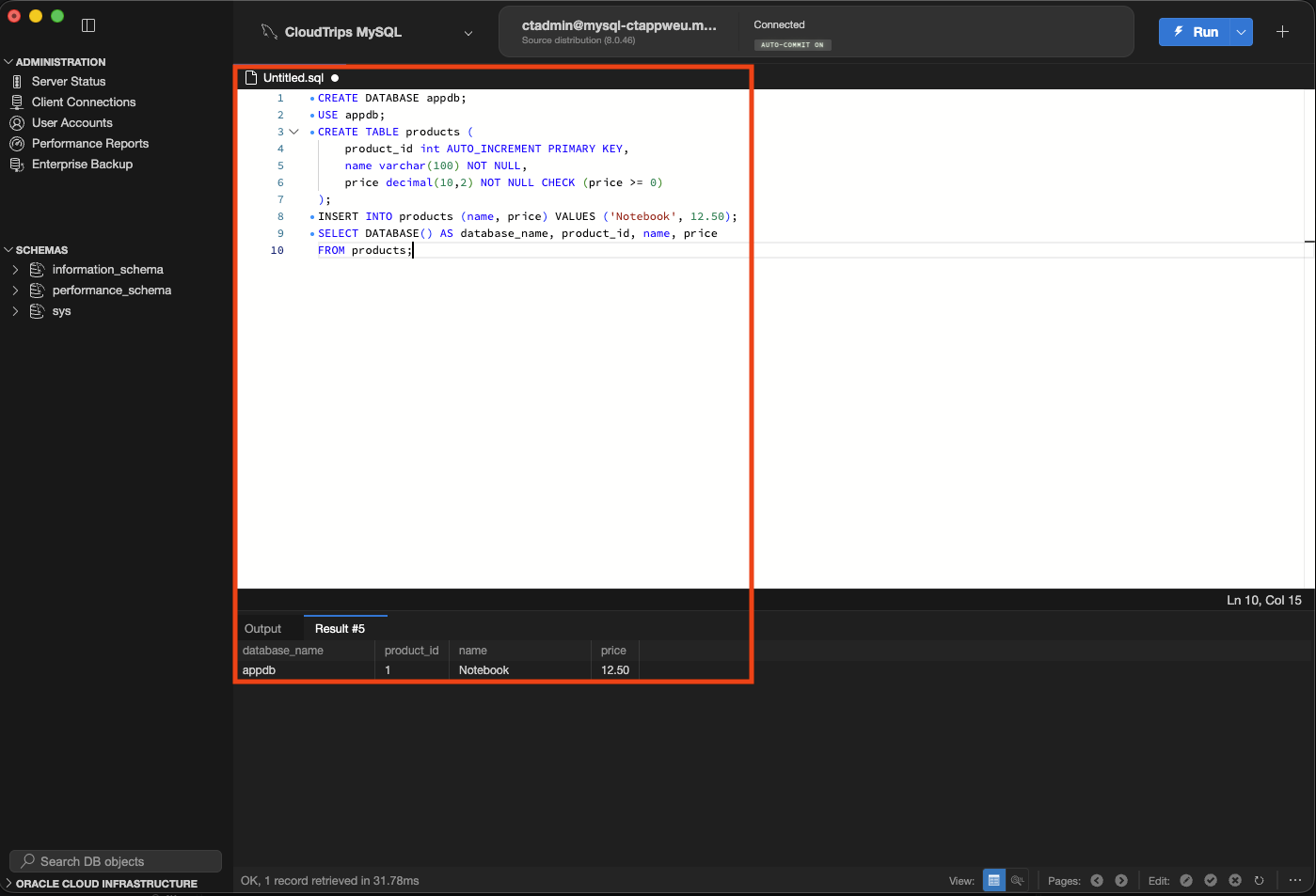
Expect appdb, 1, Notebook, and 12.50. MySQL generated the ID and stored the product. Your app connects to the same hostname and selects appdb; give it a separate account with permissions limited to its tasks.
Clean Up
Keep the server for the next MySQL trip, or delete rg-cloudtrips-mysql-test-weu and confirm deletion completes. Closing Workbench leaves the server running and billable.