Need a Linux Server Quickly? Create a Linux VM
CloudTrips needs a Linux server quickly for administration, development, or an application test. An Azure virtual machine can provide an Ubuntu Server system within minutes without purchasing physical hardware.
An Azure virtual machine, or VM, supplies software-defined CPU and memory on physical infrastructure operated by Microsoft. Azure manages the underlying host, but you remain responsible for the Linux guest operating system, updates, applications, identities, and administrative access.
This trip creates one small Ubuntu VM with a temporary public IP address. SSH
uses a key pair instead of a password, and the network security group permits
TCP port 22 only from your current public IPv4 address. Production servers
should normally use private connectivity and a controlled management path such
as Azure Bastion, VPN, or ExpressRoute.
Understand SSH Key Authentication
An SSH key pair has two related parts:
| Part | Location | Purpose |
|---|---|---|
| Public key | Stored in the Linux user’s ~/.ssh/authorized_keys file |
Lets the VM recognize the matching private key |
| Private key | Kept only on your laptop or approved administration device | Proves that you are allowed to sign in |
The public key is not a password and can be placed on the VM. The private key must remain secret. Do not upload it to source control, paste it into the trip, email it, or share it with another user. If Azure generates the pair, download the private key when prompted; Azure does not provide another download later.
Understand Trusted Launch
Trusted Launch protects the VM’s boot chain against bootkits, rootkits, and unauthorized changes to low-level startup components. It requires a compatible Generation 2 image and provides two main controls:
| Control | Purpose |
|---|---|
| Secure Boot | Allows only trusted, digitally signed bootloaders, kernels, and drivers to start |
| vTPM | A virtual Trusted Platform Module that stores protected security state and records boot measurements |
Together, these controls help Azure verify that the VM started with expected components. Trusted Launch does not patch Ubuntu, block every form of malware, encrypt application data while it is being processed, or replace backups and network security. Use a confidential VM when the threat model also requires hardware-protected memory.
Deployment Settings
Use this isolated TEST environment:
Subscription: CloudTrips TEST
Resource group: rg-cloudtrips-compute-test-weu
Region: West Europe
Virtual machine: vm-cloudtrips-linux01-test-weu
Image: Ubuntu Server 24.04 LTS - x64 Gen2
Preferred size: Standard_B2s
Fallback size: Standard_D2s_v3
Authentication: SSH public key
Administrator username: azureuser
Key pair name: sshkey-cloudtrips-linux-test-weu
OS disk: Standard SSD, image default size
Virtual network: vnet-cloudtrips-linux-test-weu
Subnet: snet-servers
VM-size availability depends on the region, subscription quota, selected
image, and security configuration. Select See all sizes and use
Standard_B2s when available. If the portal offers only Standard_D2s_v3, use
that size; it is sufficient for the exercise but normally costs more.
The VM, managed disk, and Standard public IP can incur charges. Shutting down Ubuntu inside the VM does not necessarily release its Azure compute allocation. To stop compute charges while retaining the VM, use Stop in the Azure portal and wait for Stopped (deallocated). Disk and some networking charges can continue until the resources are deleted.
Reuse the Compute Resource Group
Reuse the resource group created by the Windows VM trip:
Resource group: rg-cloudtrips-compute-test-weuIn the Azure portal, open Resource groups and confirm that it exists in the
CloudTrips TEST subscription. If you started directly with this Linux trip
and the group does not exist, select Create and configure:
Subscription: CloudTrips TEST
Resource group: rg-cloudtrips-compute-test-weu
Region: West Europe
Do not delete this shared resource group during the Linux exercise. It can also
contain vm-cloudtrips-win01-test-weu from the Windows trip.
Configure the Linux VM
Search for Virtual machines, open the service, and select Create > Azure virtual machine.
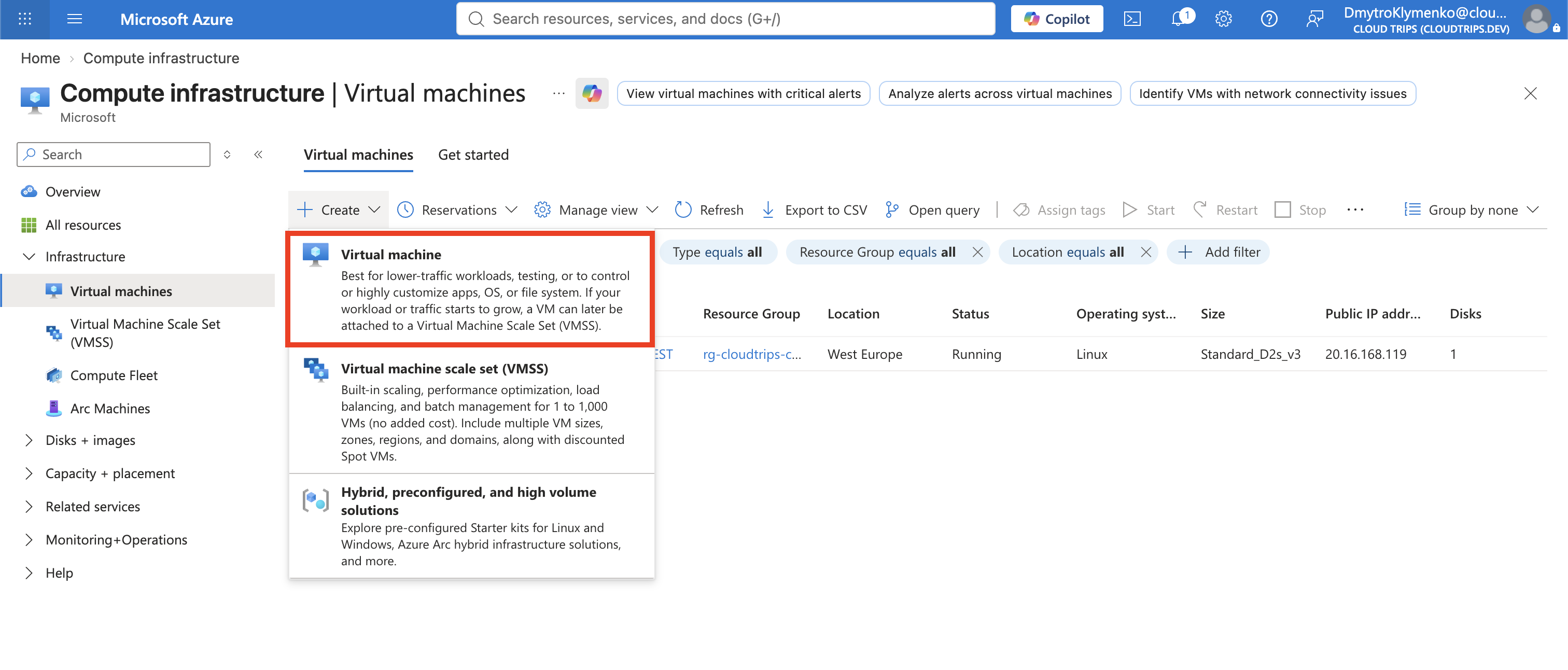
On Basics, configure:
Subscription: CloudTrips TEST
Resource group: rg-cloudtrips-compute-test-weu
Virtual machine name: vm-cloudtrips-linux01-test-weu
Region: West Europe
Availability options: No infrastructure redundancy required
Security type: Trusted launch virtual machines
Image: Ubuntu Server 24.04 LTS - x64 Gen2
VM architecture: x64
Size: Standard_B2s, or Standard_D2s_v3 if B2s is unavailable
One VM without availability redundancy is suitable for this disposable lab, not for a production service that must survive host or zone failures.
Under Administrator account, configure:
Authentication type: SSH public key
Username: azureuser
SSH public key source: Generate new key pair
SSH key type: RSA
Key pair name: sshkey-cloudtrips-linux-test-weu
RSA is used here for broad client compatibility. If your organization requires a different supported key type, follow that standard instead.
Under Inbound port rules, configure:
Public inbound ports: NoneDo not let the Basics tab create a broad default SSH rule. You will create an explicit rule limited to one source address on the Networking tab.
Configure the Disk
On Disks, configure:
OS disk size: Image default
OS disk type: Standard SSD (locally-redundant storage)
Delete with VM: Enabled
Do not add a data disk yet. A later trip will attach, format, mount, and persist a separate managed data disk.
Create the Network and Restricted SSH Rule
On Networking, create or select:
Virtual network: vnet-cloudtrips-linux-test-weu
Address range: 10.81.0.0/16
Subnet: snet-servers
Subnet range: 10.81.1.0/24
Public IP: Create new Standard SKU public IP
NIC network security group: Advanced
Configure network security group: Create new
Delete public IP and NIC when VM is deleted: Enabled, if displayed
Name the NSG nsg-cloudtrips-linux01-test-weu. Under Inbound rules, add:
Source: IP Addresses
Source IP addresses/CIDR ranges: <YOUR-CURRENT-PUBLIC-IP>/32
Source port ranges: *
Destination: Any
Service: SSH
Destination port: 22
Protocol: TCP
Action: Allow
Priority: 1010
Name: Allow-SSH-MyIP
<YOUR-CURRENT-PUBLIC-IP> is the internet-facing IPv4 address of the laptop or
workstation from which you will connect. Obtain it from an approved
organizational IP-check service or your network administrator. /32 matches
exactly that one IPv4 address.
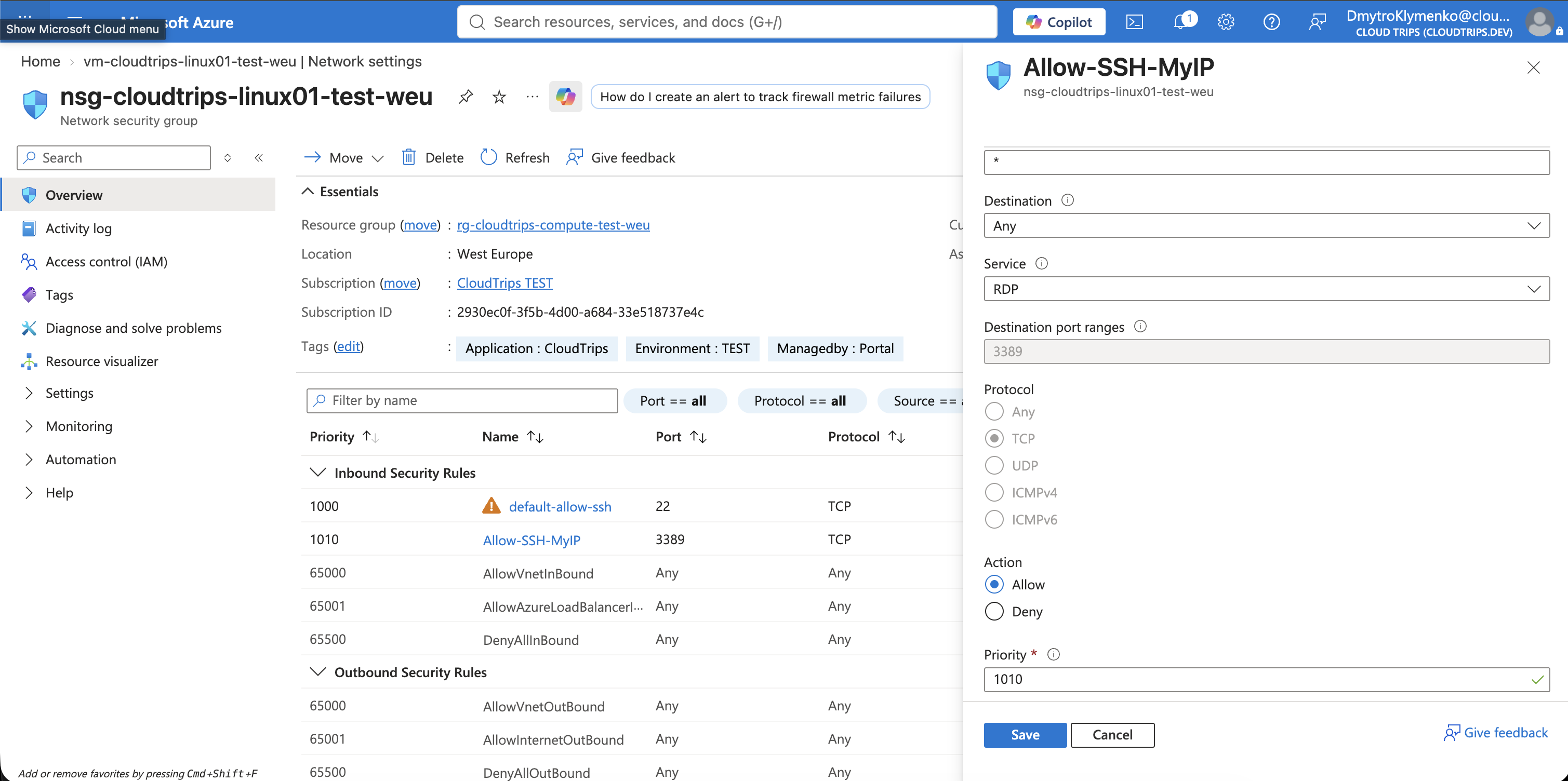
Do not select Any or the Internet service tag as the SSH source. If your
public IP changes, replace the /32 source in Allow-SSH-MyIP with the new
address instead of broadening the rule.
Review and Create
Leave advanced settings at their defaults. On Tags, add:
Application: CloudTrips
Environment: TEST
ManagedBy: Portal
Select Review + create. Check the validation results and estimated cost, then select Create.
When Generate new key pair appears, select Download private key and create
resource. Save the downloaded .pem file securely. This guide refers to it
as:
sshkey-cloudtrips-linux-test-weu.pem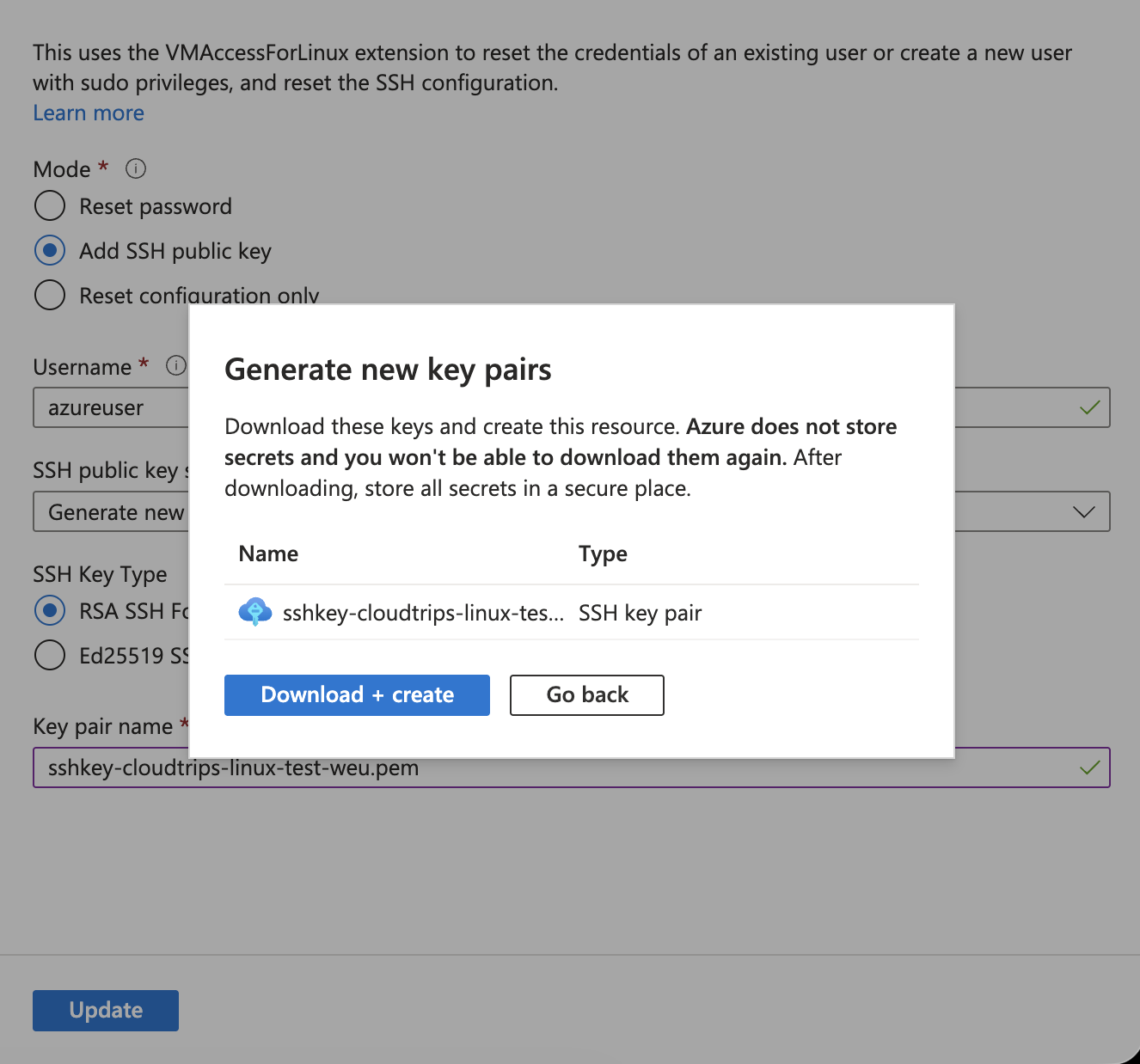
Wait for deployment to complete, and then select Go to resource.
Verify the Azure Configuration
On the VM Overview, confirm:
Status: Running
Operating system: Linux
Size: Standard_B2s or Standard_D2s_v3
Public IP address: Assigned
Private IP address: Assigned from 10.81.1.0/24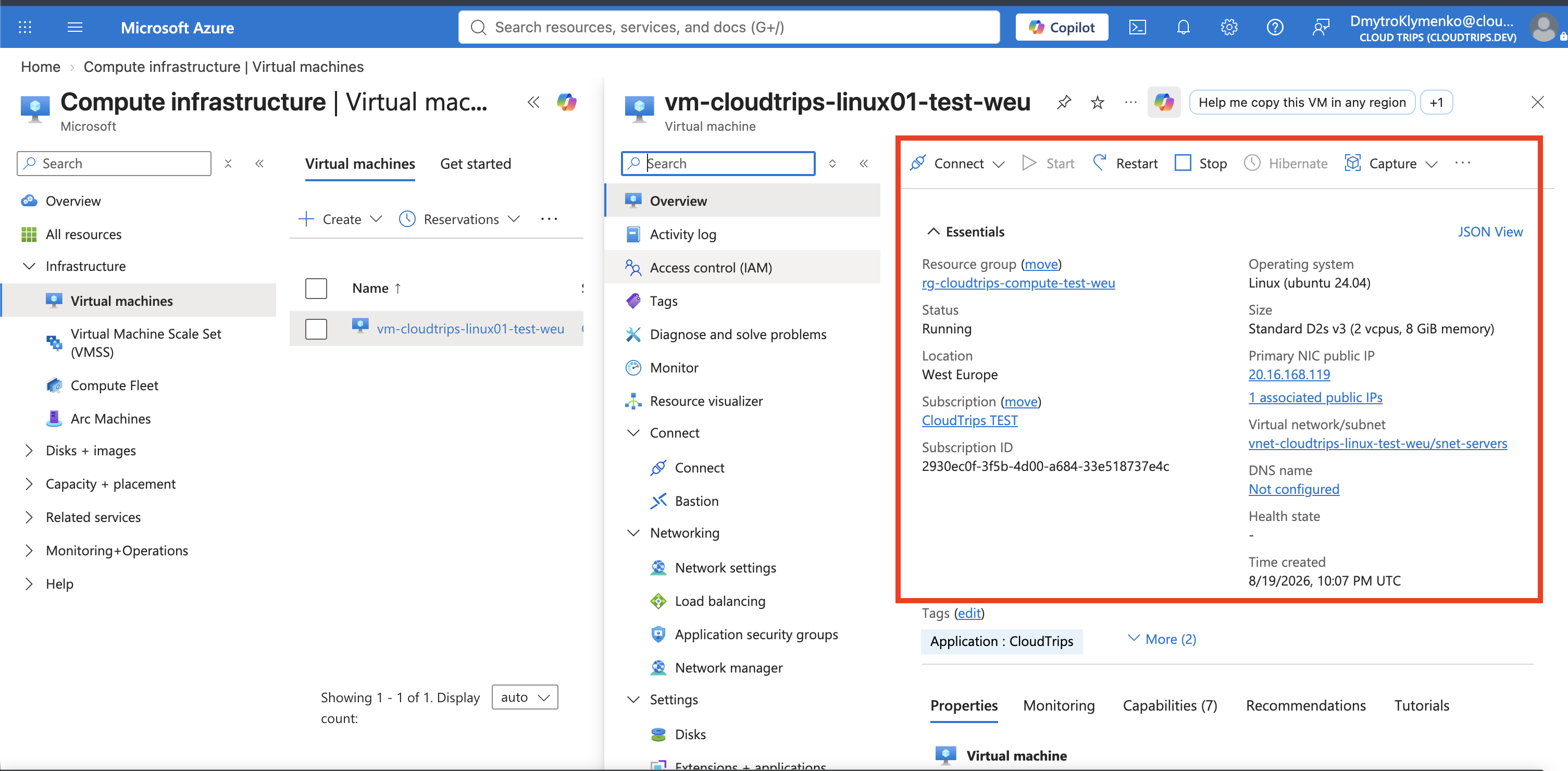
Open Networking > Network settings. Confirm that
Allow-SSH-MyIP permits TCP destination port 22 only from your current
public IPv4 /32. The source must not be 0.0.0.0/0, Any, or Internet.
Protect the Private Key on macOS or Linux
On your laptop, open Terminal and move the key from Downloads into your SSH directory:
mkdir -p ~/.ssh
mv ~/Downloads/sshkey-cloudtrips-linux-test-weu.pem ~/.ssh/
chmod 400 ~/.ssh/sshkey-cloudtrips-linux-test-weu.pem
chmod 400 permits only your local user to read the private key. OpenSSH can
reject a key file that other users can access.
On Windows, use the built-in OpenSSH client from PowerShell and provide the downloaded key’s Windows path. Protect the file according to your organization’s Windows file-permission policy.
Connect with SSH
Copy the VM’s public IP address from Overview, then run:
ssh \
  -i ~/.ssh/sshkey-cloudtrips-linux-test-weu.pem \
  azureuser@<VM-PUBLIC-IP>
Replace <VM-PUBLIC-IP> with the actual address. On the first connection, SSH
displays the server’s host-key fingerprint because your client has not seen
this VM before. Confirm that you are connecting to the public IP displayed by
this VM before accepting the prompt.
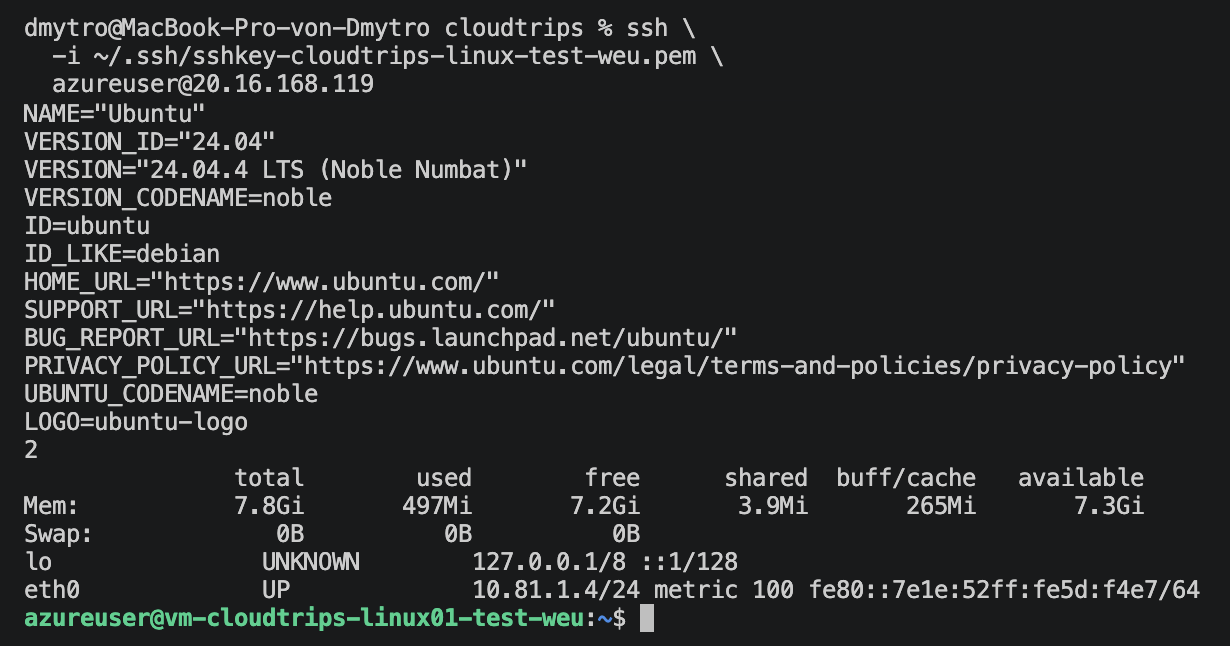
After signing in, run:
hostname
cat /etc/os-release
nproc
free -h
ip -brief address
Confirm:
- The hostname is
vm-cloudtrips-linux01-test-weu. /etc/os-releaseidentifies Ubuntu.- The CPU and memory are consistent with the selected VM size.
- The primary network interface has an address from
10.81.1.0/24.
Run exit to close the SSH session. The Linux server is now ready for the
following Resize VM and Add data disk trips.
Keep the VM for the Next Trips
Keep vm-cloudtrips-linux01-test-weu if you are continuing with the resize and
data-disk trips. To pause first, stop the VM from the Azure portal and wait
until its state becomes Stopped (deallocated).
Do not run a resource-group deletion command here. The shared
rg-cloudtrips-compute-test-weu group can also contain the Windows VM and its
related resources. Deleting the group would remove both labs.
If you are not continuing, open the Linux VM in the portal and select
Delete. In the deletion dialog, select only the associated Linux VM
resources shown for deletion, such as its OS disk, NIC, and public IP. Afterward,
remove vnet-cloudtrips-linux-test-weu, nsg-cloudtrips-linux01-test-weu, and
sshkey-cloudtrips-linux-test-weu only after confirming that no remaining
resource uses them. Keep the resource group and the Windows resources. Securely
delete the downloaded private key from your laptop when it is no longer needed.