SOC Needs Investigation Context? Create a Sentinel Watchlist and Workbook
A deletion log shows an account name, but the investigator also needs to know which team owns that account and see related activity together. A watchlist supplies reference information; a workbook presents query results as tables and charts. Your security operations center (SOC) can use both to investigate faster.
Reuse law-ctsentinelweu, rg-cloudtrips-sentinel-test-weu, and the Azure Activity logs from Configure Microsoft Sentinel. Use your subscription Owner account for this lab.
Create the Administrator Watchlist
Save this text as admins.csv, using a plain-text editor. Replace the example account with the Caller value from your test deletion. Keep one row per account.
Account,Team
admin@example.com,CloudTrips Lab
In Microsoft Defender → Microsoft Sentinel → Configuration → Watchlist, select workspace law-ctsentinelweu and New or Add new.
Name: CloudTrips administrators
Alias: ct_admins
Description: Administrator accounts used in CloudTrips labs
Source type: Local file
File type: CSV file with a header
Number of lines before row with headings: 0
Upload file: admins.csv
SearchKey: Account
Create the watchlist. SearchKey identifies the column used to match records. Wait for processing, then open the watchlist’s items.
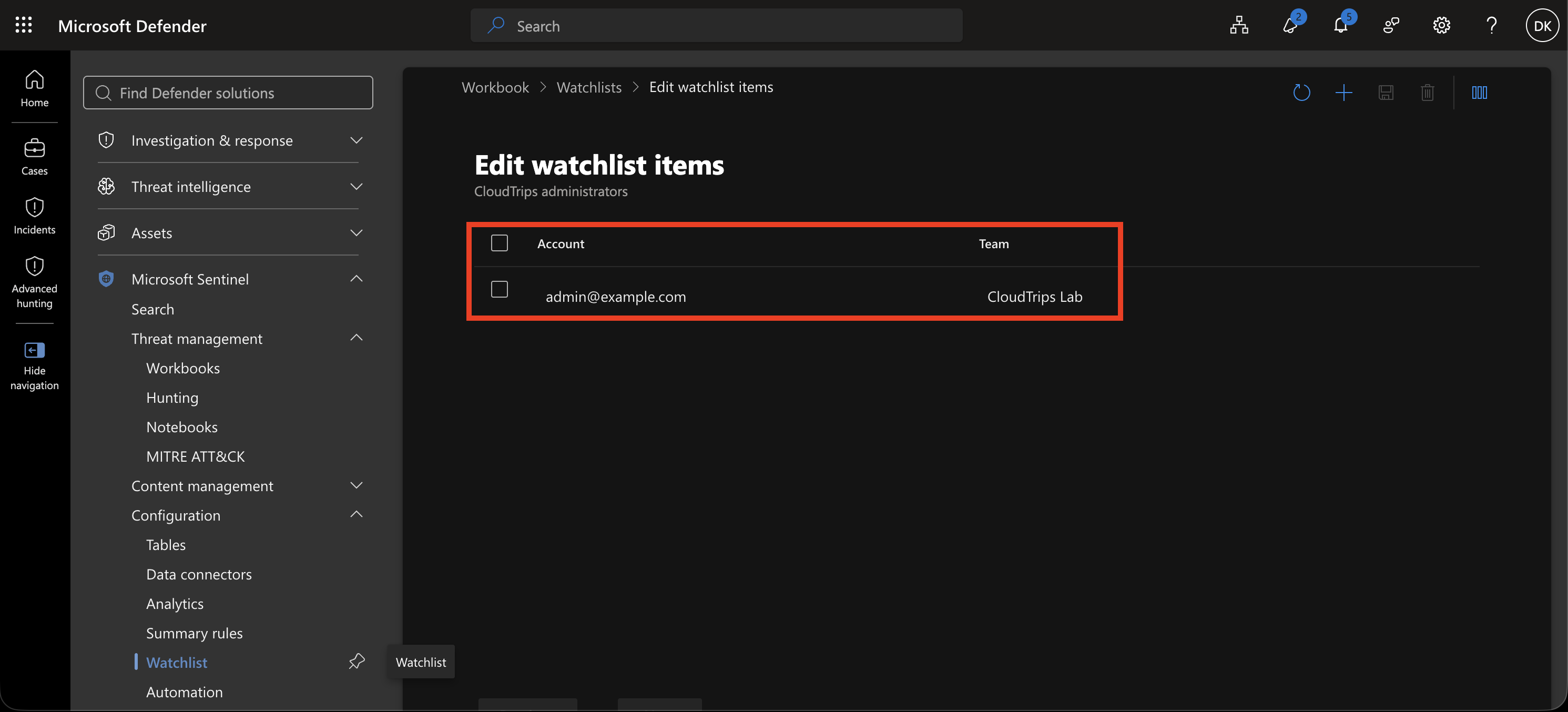
Check that your caller account and CloudTrips Lab appear in separate columns. The alias ct_admins is the name used in queries.
Match the Logs to the Watchlist
In Azure portal → Log Analytics workspaces → law-ctsentinelweu → Logs, switch to KQL mode, set the time range to Last 7 days, and run:
let Admins = _GetWatchlist('ct_admins')
    | project AccountKey = tolower(tostring(SearchKey)), AdminTeam = tostring(Team);
AzureActivity
| where TimeGenerated > ago(7d)
| where OperationNameValue =~ "MICROSOFT.RESOURCES/SUBSCRIPTIONS/RESOURCEGROUPS/DELETE"
| where ActivityStatusValue =~ "Success"
| summarize arg_max(TimeGenerated, *) by CorrelationId, ResourceId
| extend AccountKey = tolower(Caller)
| lookup kind=leftouter Admins on AccountKey
| extend AdminContext = iff(isempty(AdminTeam), "Unlisted account", "Listed administrator")
| project TimeGenerated, Caller, AdminContext, AdminTeam, ResourceGroup, CallerIpAddress
| order by TimeGenerated desc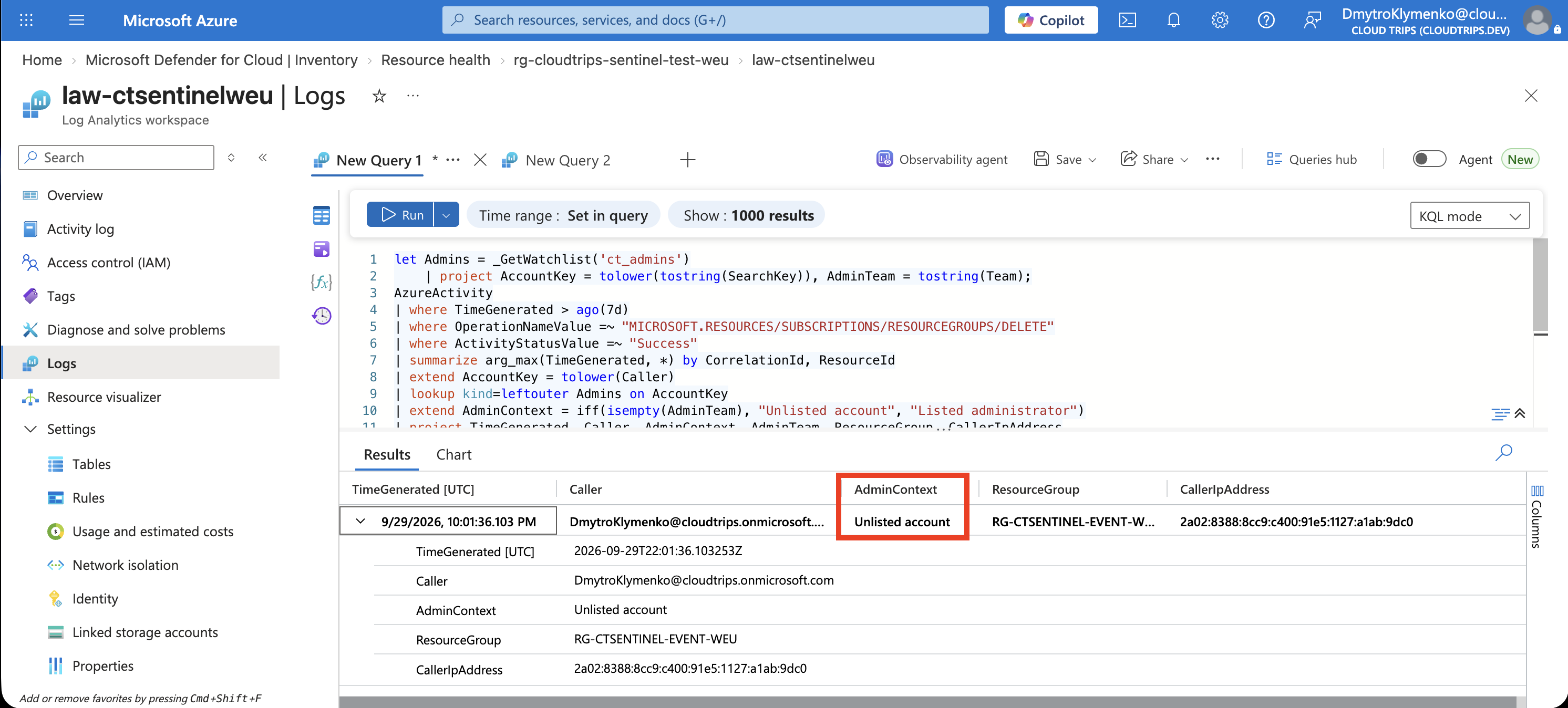
AdminTeam comes from your CSV. AdminContext identifies matched and unmatched accounts. The query normalizes account casing, keeps unmatched events, and groups repeated records for the same operation and resource. Check the caller, deleted group, and timestamp against your test; a listed administrator’s action still requires investigation.
If the watchlist is still loading, wait and rerun. For an empty result, check the workspace and event date; increase both time ranges if your deletion is older than seven days.
Create the Workbook
In Defender → Microsoft Sentinel → Threat management → Workbooks, choose Add workbook → Edit. Remove any sample elements, then choose Add → Add data source + visualization.
Data source: Logs (Analytics)
Resource type: Log Analytics
Workspace: law-ctsentinelweu
Time range: Last 7 days
Visualization: Grid
Paste the complete query above, select Run query, then Done editing for that query. Select Add → Add data source + visualization again for the chart, using the same data source, workspace, and time range. Paste the same query, replacing its final project and order by lines with:
| summarize Deletions = count() by AdminContextChoose Bar chart, run it, and finish editing. Save the workbook:
Name: wb-ctinvestigation-weu
Subscription: CloudTrips TEST
Resource group: rg-cloudtrips-sentinel-test-weu
Location: West Europe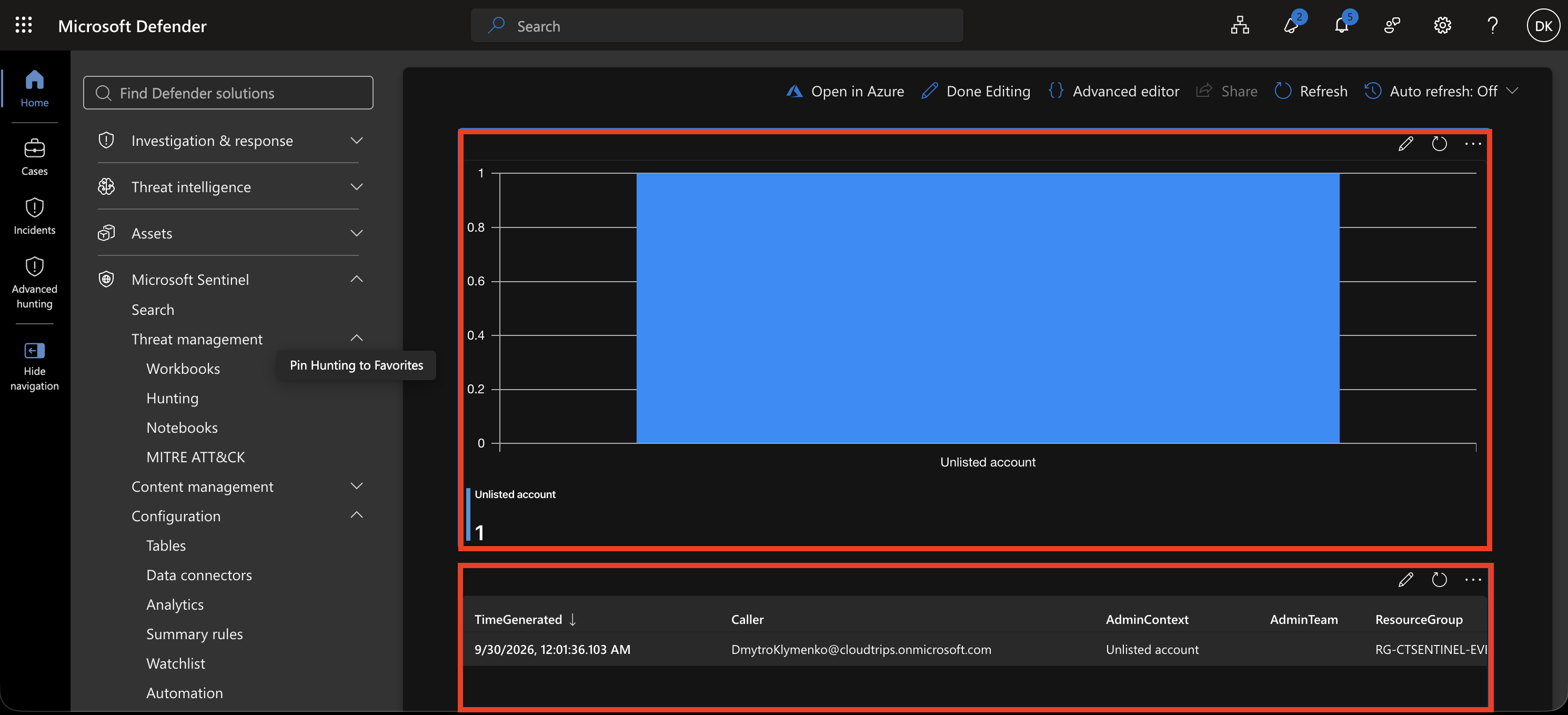
The grid shows individual deletions; each bar counts operations for one AdminContext value. Compare the chart total with the grid’s row count. Your lab may produce just one row and one bar. Reopen the saved workbook to confirm both views are retained.
Finish
Keep the workbook and watchlist for later investigations, updating the account list as responsibilities change. To remove this exercise, delete wb-ctinvestigation-weu and ct_admins. Keep the shared Sentinel workspace for other trips.