Data Needs Discovery and Governance? Configure Microsoft Purview
Your team needs to find a dataset, understand its columns, and know whom to contact. Microsoft Purview Data Map records technical metadata discovered by scans. Unified Catalog helps people find that data and understand its business context. In this lab, a small sales file becomes a searchable asset with a description and an owner.
What Problem Does Purview Solve?
A company can have customer data in SQL, sales files in Blob Storage, reports in Power BI, and documents in Microsoft 365. As these grow, teams lose track of what data exists, where it lives, who owns it, and how it should be handled. People spend time asking around, reuse datasets they do not understand, or share sensitive information incorrectly.
Microsoft Purview brings together tools for three related needs:
| Need | How Purview helps |
|---|---|
| Data governance: find and understand data | Discover datasets, record their structure, identify owners, and add business definitions. |
| Data security: protect sensitive information | Classify and label information, and apply configured data loss prevention (DLP) policies to control sharing. |
| Data compliance: manage records and investigations | Apply retention rules and support auditing and eDiscovery. |
These capabilities are configured and licensed according to the solutions you use. Microsoft Purview overview
For example, an analyst needs sales figures for a report. A catalog entry can show where the sales dataset lives, what “amount” means, which currency it uses, and whom to ask about it. The analyst can judge whether that dataset fits the report before requesting access.
This trip covers discovery and basic governance: scan a file, inspect its columns, and document its purpose and owner. Data remains in the storage account; Purview holds the catalog information describing it.
Use CloudTrips TEST and a lab tenant where you can administer Purview. You need permission to create Azure resources and assign storage roles, plus Purview permissions configured below. This exercise uses the Azure and Microsoft Purview portals.
Set Up Your Purview Account in Azure
Open Azure portal → Microsoft Purview accounts. Reuse your tenant’s existing account if one is listed. Otherwise, select Create if that option is available:
Subscription: CloudTrips TEST
Resource group: rg-cloudtrips-purview-test-weu
Account name: purviewctlabweu (change if taken)
Location: an available region offered for your tenant
Networking: Public access for this lab
Create the resource group in West Europe if needed. The account’s available region can be restricted by your tenant; your storage account can be in another region. Review the price and configuration, then select Review + create → Create. Azure account-creation instructions
Once deployed, open Microsoft Purview with the same tenant and check Settings → View all settings. Record the Azure account’s actual name for the scanner’s managed identity.
Enterprise governance uses pay-as-you-go billing. Review the displayed billing setup before enabling it; an existing account may serve your whole organization.
Prepare the Sample File
Create a storage account in the Azure portal:
Resource group: rg-cloudtrips-purview-test-weu
Storage account: stctpurviewweu (change if taken)
Region: West Europe
Performance: Standard
Redundancy: LRS
Hierarchical namespace: Disabled
Public network access: Enabled from all networks for this lab
Allow Blob anonymous access: Disabled
Under Data storage → Containers, create governance-demo, with Private access. Download purview-sales.csv and upload it into the container:
order_id,product,amount,currency
1,Notebook,12.50,EUR
2,Pen,2.00,EUR
3,Folder,4.50,EUR
Give Purview Access and Register the Source
Two permission systems are involved: Purview roles let you manage the catalog; storage IAM lets the scanner read the file.
In Purview → Data Map → Collections, select the root collection, usually named after your Purview account, and open Role assignments. Add your user under Data source administrators and Data curators. If you cannot edit assignments, have the collection administrator add you. The curator role includes reading and editing asset metadata. Use this root collection for the source and scan in this lab. Data Map permissions
In Azure portal → stctpurviewweu → Access control (IAM), assign Storage Blob Data Reader to the system-assigned managed identity of the linked Purview account. Find the identity using the account’s actual name or principal ID. Wait for the assignment to take effect.
In Purview → Data Map → Data sources → Register, choose Azure Blob Storage:
Source name: ct-purview-sales
Subscription: CloudTrips TEST
Storage account: stctpurviewweu
Collection: the root collection used above
Data policy enforcement, if shown: Disabled
Save the registration. Blob Storage connection guidance
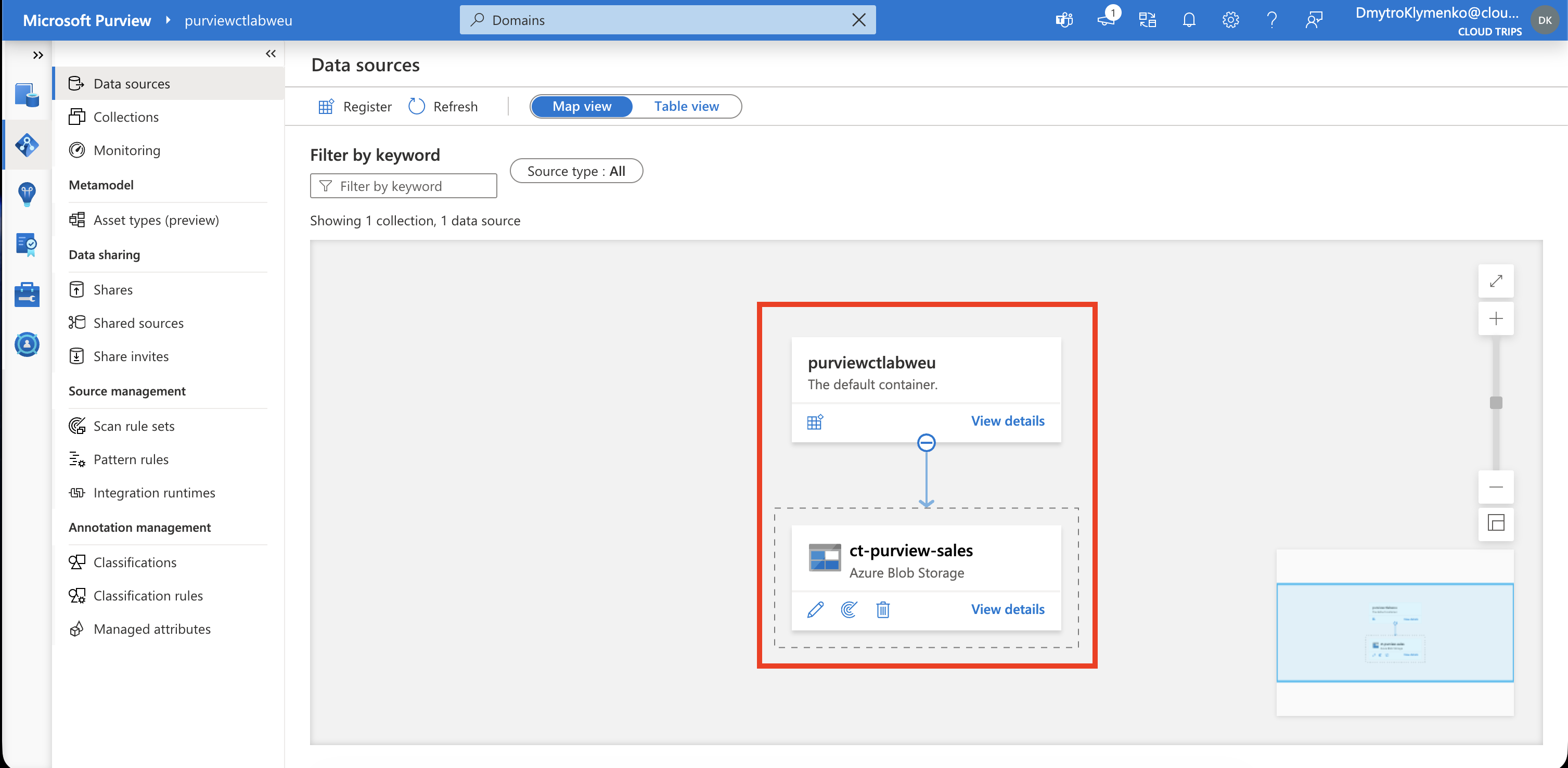
Check that the source points to your actual storage account. Registration identifies the source; the next step reads its metadata.
Run One Scan
Select the source and New scan:
Scan name: scan-ct-sales
Integration runtime: Azure integration runtime
Credential: Purview system-assigned managed identity
Collection: same as the registered source
Select Test connection, then continue. Scope the scan to governance-demo, choose the system default scan rule set, select Once, and Save and run. Open the scan details and refresh until the run completes. Scanning instructions
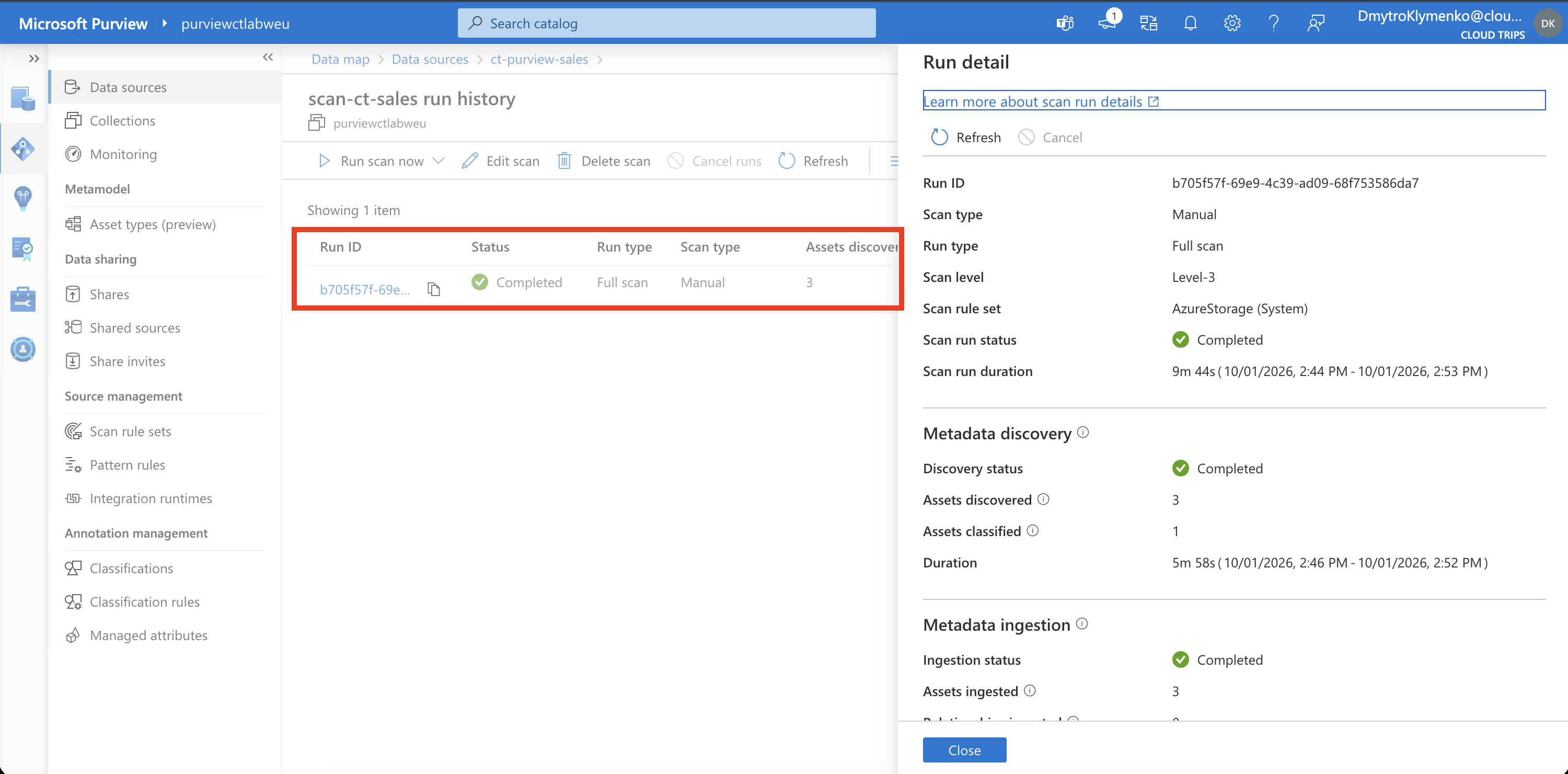
Check Completed and the discovered assets. If the connection fails, verify the identity’s storage role, role propagation, and network access. A completed scan can still need time for catalog indexing.
Find the Data and Add Context
Open Unified Catalog → Discovery → Data assets, search for purview-sales, and use All assets if tabs are shown. Open the CSV asset and inspect Schema. Expect order_id, product, amount, and currency. Match its storage path to your uploaded file. Search and asset details
Choose Edit and add:
Description: Fictional CloudTrips sales orders. Each row is one order; amounts are in EUR. Intended for governance training.
Owner contact: your signed-in lab user
Add the owner under Contacts, save, and reopen the asset to verify the change. Metadata curation
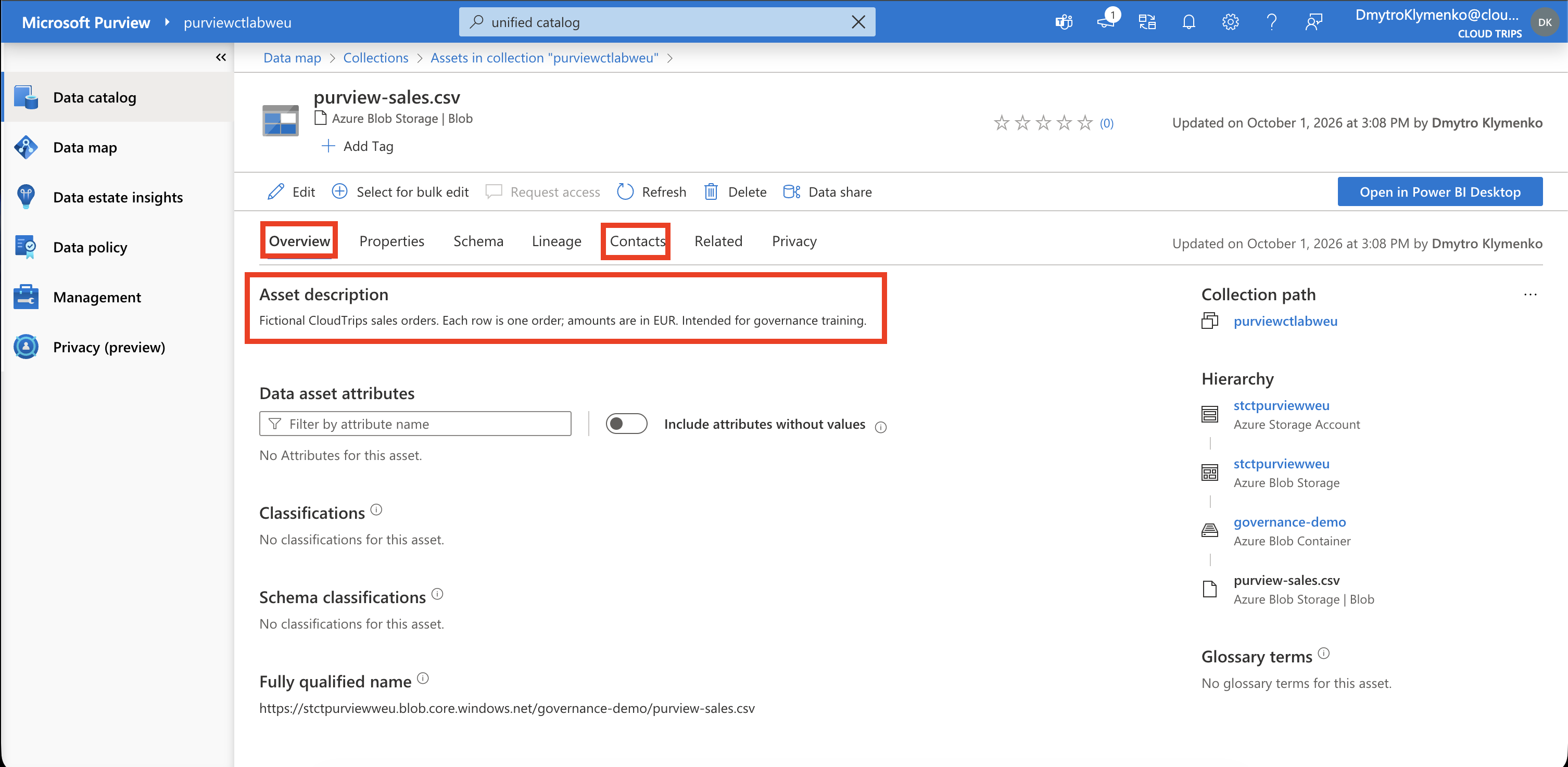
The scan supplied the technical structure; you supplied purpose and accountability. A classification describes a detected data type, such as an email address. This fictional sales file may have no sensitive classifications. Its discovered schema and saved context are the success checks for this trip.
Finish
Keep the account if you will extend the catalog. To remove only this exercise from a shared account, delete the lab scan, source registration, and remaining lab asset metadata, then delete the sample storage account.
If you enabled enterprise solely for this disposable tenant lab, deleting its linked Azure Purview resource removes the account’s governance information. Verify that it contains only your lab before deleting it and the remaining lab resource group. Review Azure Cost Management afterward for usage charges. Keep any shared enterprise account and its linked resource.