Alerts Need Tuning? Configure Dynamic Thresholds and Suppression Windows
Normal traffic changes during the day. A dynamic threshold learns a metric’s usual range and detects deviations. An alert processing rule controls the action groups applied to fired alerts, including scheduled notification suppression during maintenance.
Reuse stctmonitorweu, al-ctblob-read, and ag-ctmonitor-email from Create a metric alert.
Create a Dynamic Rule
Open Azure Monitor → Alerts → Alert rules → Create → Alert rule. Select the storage account’s Blob service and configure:
Signal: Transactions
Dimension filters: None
Aggregation: Total (Sum)
Threshold type: Dynamic
Operator: Greater than
Sensitivity: Medium
Check every: 5 minutes
Lookback period: 15 minutes
Advanced options — Number of violations: 3
Advanced options — Evaluation period: 1 hour
Action group: ag-ctmonitor-email
Name: al-ctblob-dynamic
Resource group: rg-cloudtrips-monitor-test-weu
Severity: 3 - Informational
Under Advanced options, set Number of violations to 3 and Evaluation period to 1 hour. If the form reads “violations within”, enter 3 violations within 1 hour. This requires three threshold violations within that hour. Check every: 5 minutes is how often Azure checks; Lookback period: 15 minutes is the metric aggregation window used for each check.
Save the rule after reviewing its cost. Sensitivity controls how far the metric must deviate; High is more sensitive. Requiring several violations reduces reactions to isolated spikes. Use the preview chart to inspect the expected range when it becomes available.
Screenshot 1: Dynamic rule with Medium sensitivity, evaluation settings, and the threshold preview or learning status.
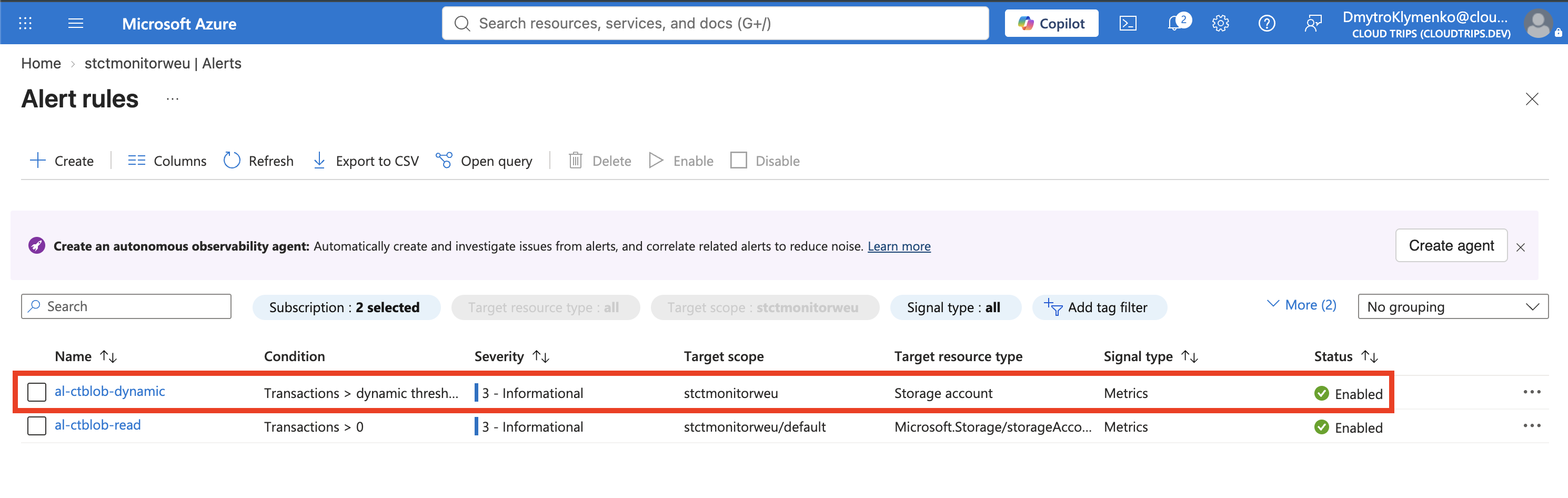
Dynamic thresholds need at least three days and 30 samples before they can trigger. Weekly seasonality needs about three weeks. A new or quiet lab can remain in learning mode. Success here is the saved rule and its correct configuration; observe the learned range later as real activity accumulates.
Schedule Notification Suppression
This Trip demonstrates two separate features: al-ctblob-dynamic detects deviations from learned behavior, while apr-ctmaintenance suppresses notifications from the earlier al-ctblob-read rule during a scheduled window.
We target the read rule because downloading a file makes it easy to trigger and test. The dynamic rule needs a learning period and unusual traffic before it can fire. Suppression can also apply to a dynamic rule: to target it, change the filter value to al-ctblob-dynamic. For the steps below, keep al-ctblob-read.
Open Azure Monitor → Alerts → Alert processing rules → Create:
Scope: rg-cloudtrips-monitor-test-weu
Filter: Alert rule name Equals al-ctblob-read
Rule settings: Suppress notifications
Scheduling: On a specific time
Time zone: UTC
Start: a UTC time at least 30 minutes from now
End: one hour after the start
Name: apr-ctmaintenance
Resource group: rg-cloudtrips-monitor-test-weu
Enabled: Yes
Use al-ctblob-read as the exact filter value so the window targets your repeatable test. Record the UTC start and end, save, and reopen the rule. Configuration changes can take up to 30 minutes to take effect.
Screenshot 2: Saved processing rule showing its scope, alert-rule filter, Suppress notifications action, and bounded UTC schedule.
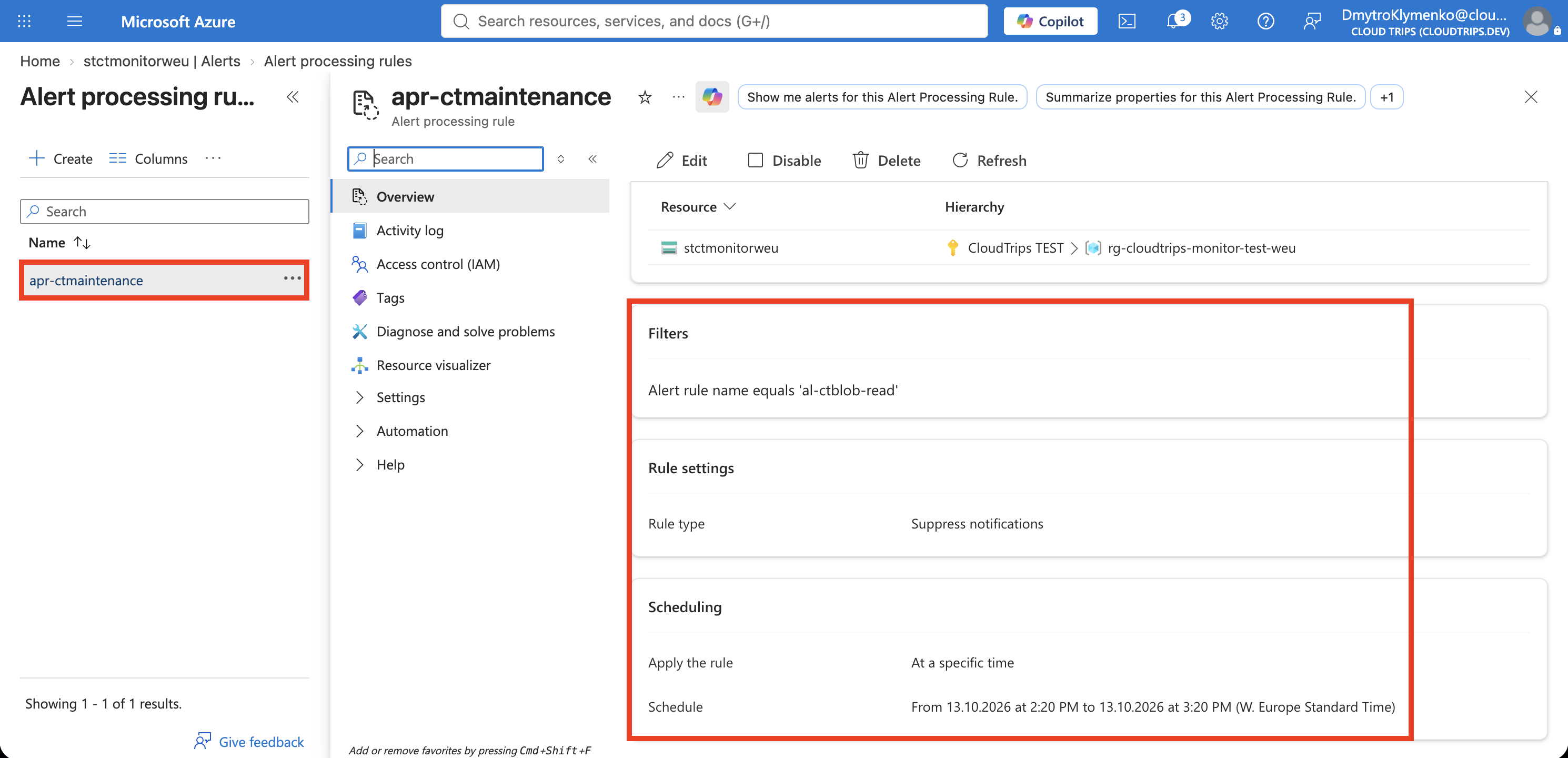
Verify the Difference
Before the window, enable al-ctblob-read and pause downloads until any earlier Fired alert resolves. Leave the rule enabled. During the active window, download monitor-check.txt to trigger a fresh alert. Check Azure Monitor → Alerts for the Fired record and inspect its history or processing details for suppression information where available. Email should be suppressed for that new matching alert.
After the window, stop downloads until the static alert resolves. Trigger a fresh download and confirm a new Fired transition can notify ag-ctmonitor-email. Expiry applies to new processing; it does not replay the notifications suppressed earlier.
The alert condition and incident visibility continue to work during the window. Suppression controls delivery through action groups. If email still arrives, check the rule name, UTC schedule, propagation time, and whether the email belongs to an older alert or an action-group test.
Finish
Disable both test alert rules and apr-ctmaintenance. Keep ag-ctmonitor-email for later Trips. Re-enable the dynamic rule only when you want ongoing monitoring and accept the associated cost.