App Needs Reliable Messaging? Create a Service Bus Queue
An online shop accepts an order, but its shipping service is temporarily unavailable. Calling that service directly would make the order depend on its availability. With Azure Service Bus, the shop sends a message to a queue and the shipping service processes it when ready, before the message expires.
A namespace contains messaging resources. A queue holds messages awaiting processing. The sender adds work; the receiver processes it. In this lab, you play both roles through the portal. No application, SDK, or installation is needed.
Create the Namespace and Queue
In the Azure portal, search for Service Bus, select Create, and enter:
Subscription: CloudTrips TEST
Resource group: rg-cloudtrips-servicebus-test-weu
Namespace name: sb-ctmessagingweu
Region: West Europe
Pricing tier: Standard
The namespace name must be globally unique; add a suffix if needed and use that name throughout. Choose Standard so you can reuse this namespace for the later topics, subscriptions, and sessions trips. Basic would be sufficient for this queue exercise alone. Standard has a base charge plus usage charges; review the estimate before creating it.
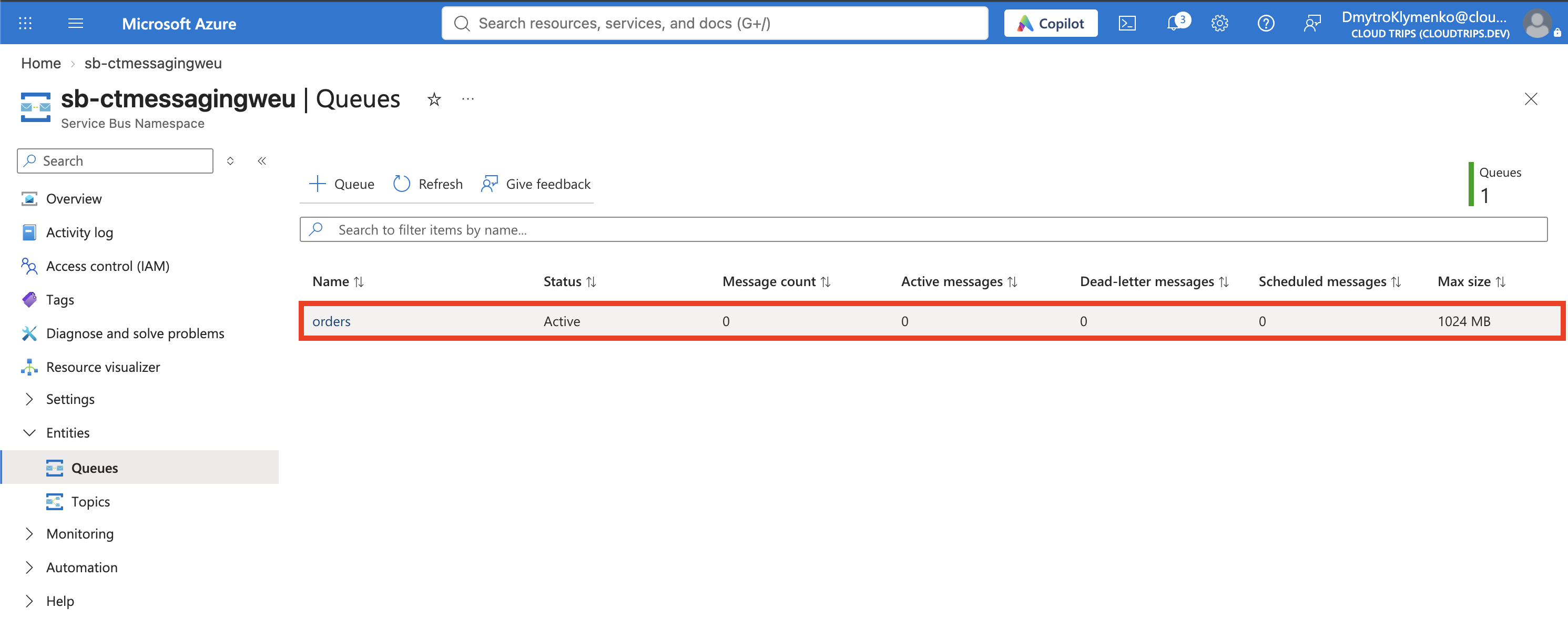
For this portal lab, keep public network access enabled. Select Review + create → Create. After deployment, open the namespace, then Entities → Queues → + Queue. Name it orders and keep the remaining defaults, including sessions disabled.
Screenshot 1: The orders queue overview showing its namespace and empty queue.
Give Yourself Messaging Access
On the namespace, open Access control (IAM) → Add role assignment. Assign Azure Service Bus Data Owner to your signed-in user at this namespace scope. You need permission to assign roles, such as an unrestricted lab subscription Owner role.
Azure resource Owner and Service Bus Data Owner serve different purposes: managing a resource does not automatically grant message access through Microsoft Entra ID. The data role gives this lab user permission to send and receive. Real applications can use the narrower Data Sender or Data Receiver roles.
Open orders → Service Bus Explorer → Settings, choose Microsoft Entra ID, and save. If access is denied immediately after the assignment, allow a few minutes for the role to propagate and reopen Explorer.
Send and Inspect an Order
Select Send messages, choose Application/Json, and paste:
{
  "orderId": "CT-1001",
  "product": "Notebook",
  "quantity": 1
}
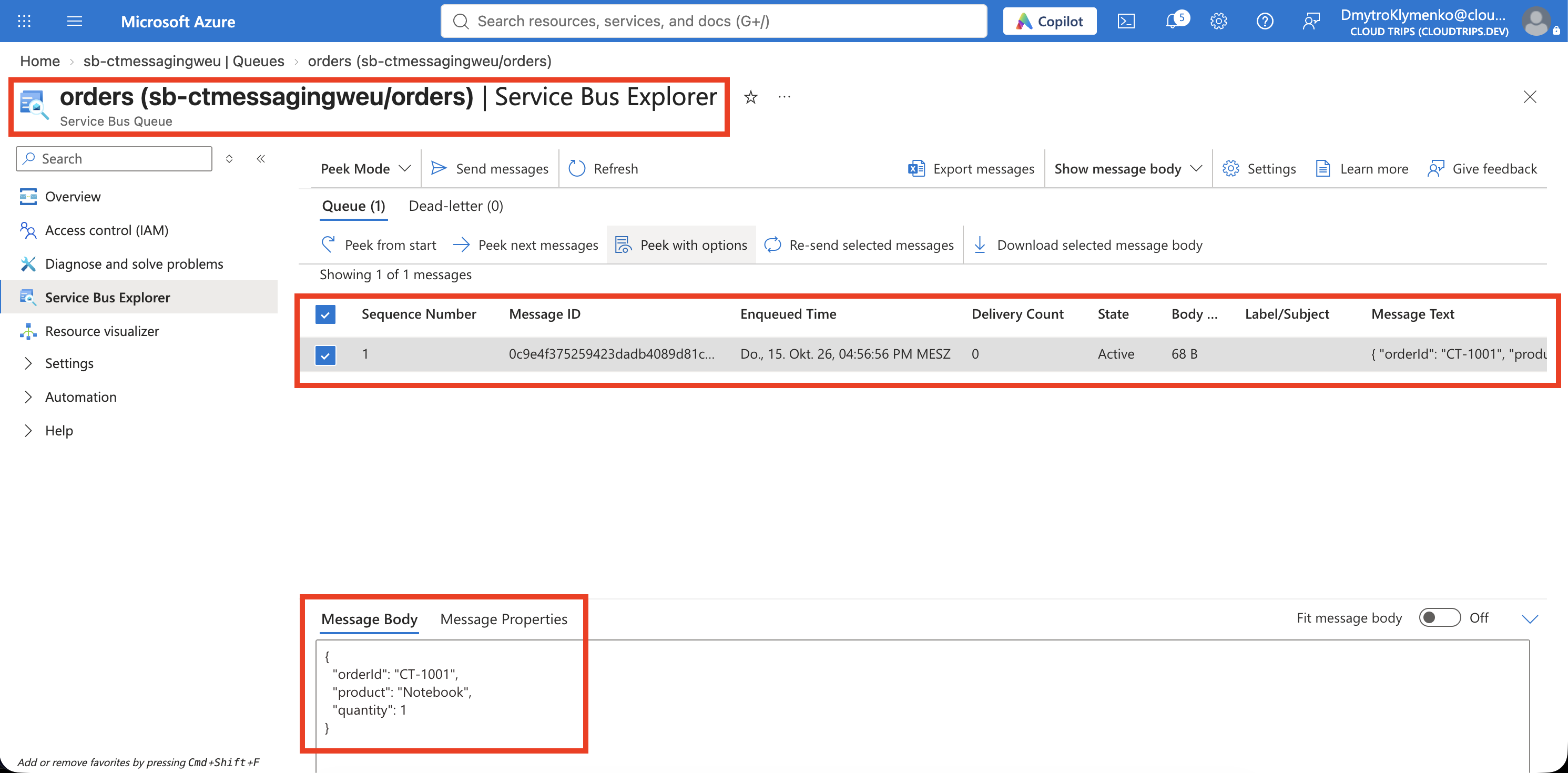
Send once, with repeat sending disabled. Switch to Peek Mode → Peek from start, then select the message to inspect its body.
Peek is a preview: the order remains available for a receiver. The JSON is just the task description; Service Bus does not ship the order or run business logic itself.
Screenshot 2: Service Bus Explorer showing the queued order and its JSON body.
Receive and Complete It
Switch to Receive Mode → Receive messages. Choose PeekLock, request 1 message, and receive it. Select the received row and choose Complete while its lock is still valid. In this lab, Complete stands in for the worker confirming that it finished the order.
| Operation | What happens to the message |
|---|---|
| Peek | Shows it without claiming or removing it. |
| Receive with PeekLock | Temporarily reserves it for this receiver. |
| Complete | Confirms successful processing and removes it. |
| Abandon lock, or let the lock expire | Allows another delivery attempt. Repeated failures can eventually move it to the dead-letter queue. |
Avoid ReceiveAndDelete here: it removes the message on receipt, before a worker can confirm successful processing. With PeekLock, a failed worker can leave work available for retry. Receivers must still handle duplicate deliveries—for example, by checking whether order CT-1001 has already been processed.
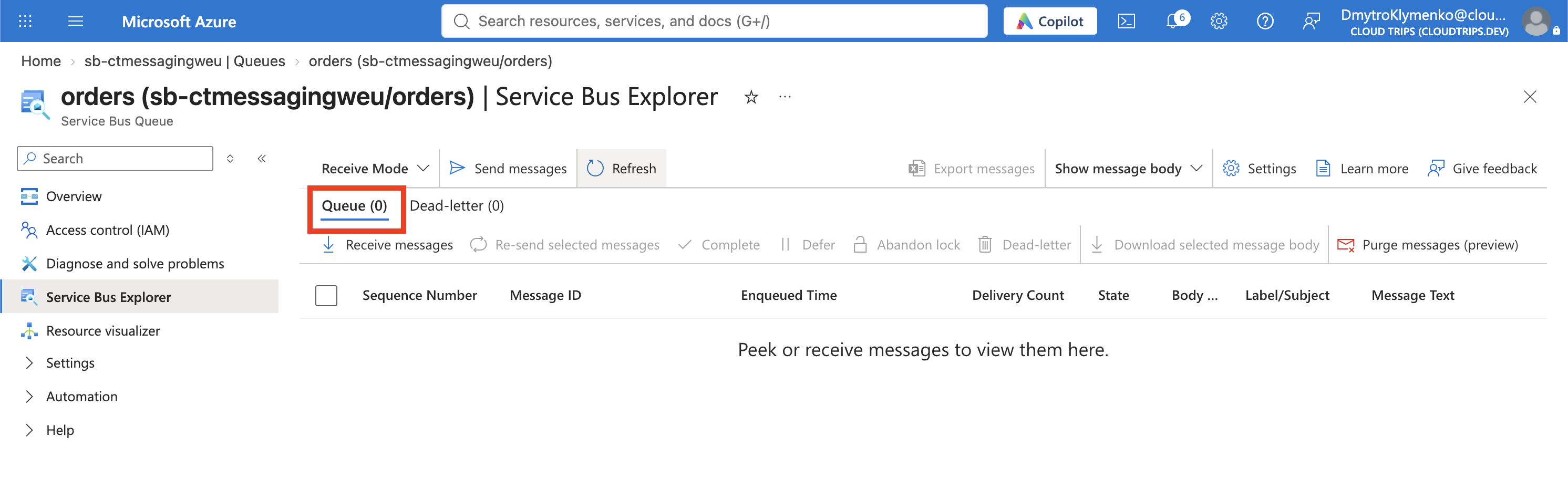
If Complete reports an expired lock, receive the message again and complete it promptly. Return to Peek Mode → Peek from start to confirm no message remains. Refresh the queue overview; its Active message count can take a little time to update.
Screenshot 3: The orders queue after completion, showing zero active messages.
Finish
You sent work independently of a receiver, inspected it without removing it, then acknowledged successful processing. Keep the namespace for the next messaging trips, or delete rg-cloudtrips-servicebus-test-weu when finished to stop ongoing namespace charges.