Business Partners Exchange EDI Documents? Create an Integration Account and B2B Workflow
EDI (Electronic Data Interchange) lets companies exchange structured business documents that their systems can process automatically. A buyer sends a purchase order in an agreed format; the supplier’s system reads it without someone copying information from an email or PDF. X12 and EDIFACT are common EDI standards.
In this lab, CTBuyer sends an X12 850 purchase order to CloudTrips. The workflow converts the EDI text into XML. We use HTTPS directly for the test; AS2 transport, certificates, and a real partner system are not required.
| Part | What it does here |
|---|---|
| Integration Account | Holds reusable B2B definitions |
| Partners | Identify the buyer and supplier |
| Agreement | Defines how these partners exchange and validate X12 messages |
| Schema | Describes the purchase order’s structure and fields |
| Logic App | Receives the document and runs the decoder |
An Integration Account stores configuration; the Logic App executes the workflow. We use a new Consumption app, so the paid Standard hosting plan from the previous trip is not required.
Create the Integration Account
In the Azure portal, search for Integration accounts → Create:
Subscription: CloudTrips TEST
Resource group: rg-cloudtrips-b2b-test-weu
Integration account name: ia-ctb2b-weu
Region: West Europe
Pricing tier: Free
The Free tier is for development and testing, with limited artifacts and no production SLA. It is enough for these two partners, one agreement, and one schema. Workflow operations are still billed separately. If Free is unavailable because you already have a free account in this region, reuse that account for the lab rather than creating a paid tier unintentionally.
Add the Schema and Partners
Download Microsoft’s EDI schema archive and extract it. This is a large ZIP containing many document definitions; you only need:
MicrosoftEdiXSDTemplates/X12/00401/X12_00401_850.xsdNo SDK, Visual Studio, or BizTalk installation is needed. In your Integration Account, open Settings → Schemas → Add. Use X12_00401_850 as the name, choose Small file, and upload that XSD file. The name means X12, version 4010, document type 850 (purchase order).
Open Settings → Partners → Add and create these two entries. For both, select the X12 qualifier ZZ – Mutually Defined, sometimes displayed as Mutually Defined (X12):
| Partner name | Qualifier | Business identity value |
|---|---|---|
| CloudTrips | ZZ | CLOUDTRIPS |
| CTBuyer | ZZ | CTBUYER |
Use the identity values exactly as shown, without padding spaces. These are agreed business identifiers, not Azure sign-in accounts or passwords.
Create the X12 Agreement
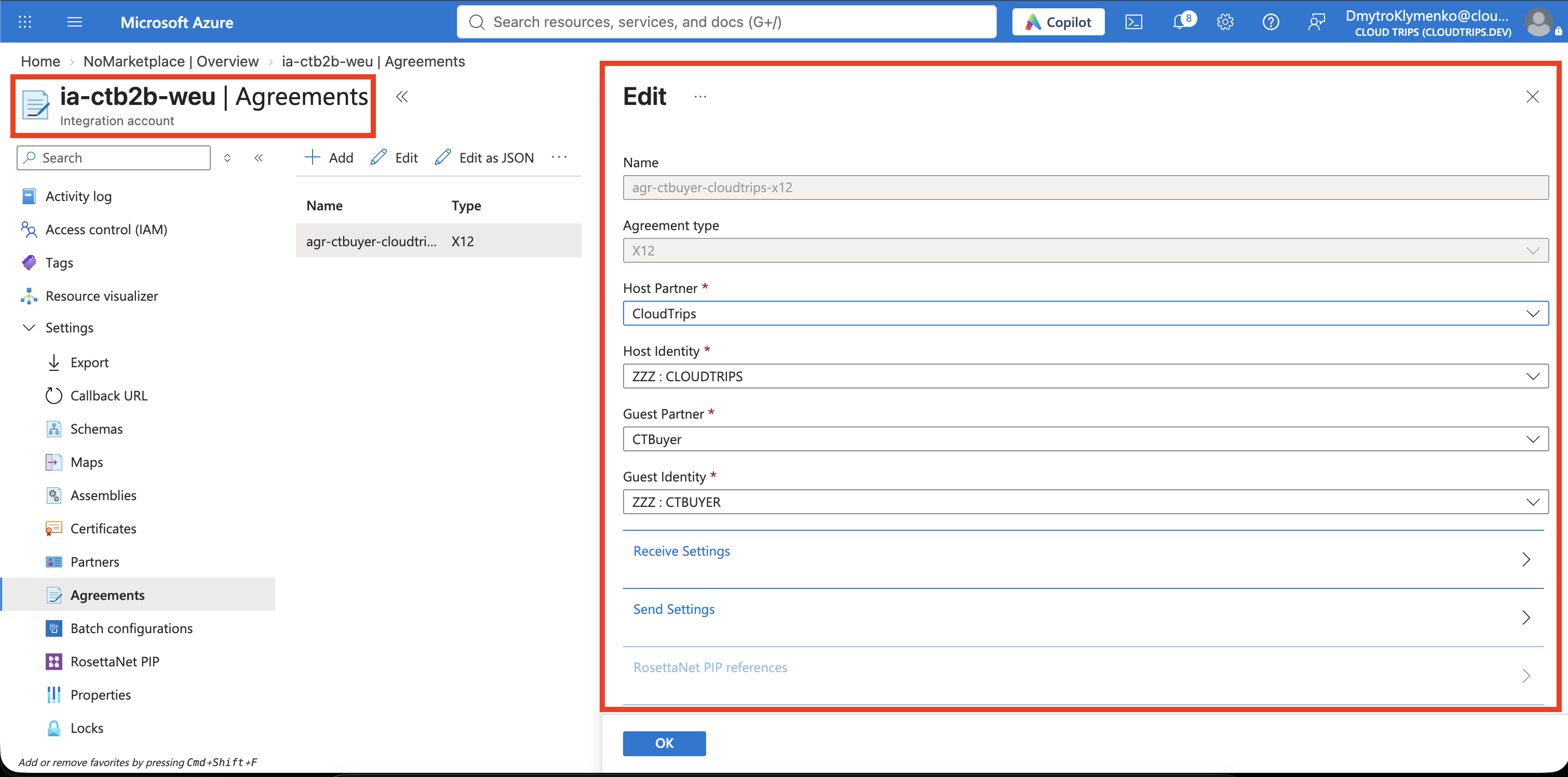
Open Settings → Agreements → Add:
Name: agr-ctbuyer-cloudtrips-x12
Agreement type: X12
Host partner: CloudTrips
Host identity: ZZ / CLOUDTRIPS
Guest partner: CTBuyer
Guest identity: ZZ / CTBUYER
The host is our organization. Configure Receive settings, the direction CTBuyer → CloudTrips. Under Schemas, add:
Version: 00401
Transaction Type (ST01): 850
Sender Application (GS02): CTBUYER
Schema: X12_00401_850
The schema version is 00401; the sample’s group header uses 004010. Keep each value as shown.
For this receive direction, set or verify:
| Setting | Lab value |
|---|---|
| Authorization qualifier (ISA1) / Security qualifier (ISA3) | 00 / 00 |
| ISA11 usage | Standard Identifier |
| TA1 Expected / FA Expected | Off / Off |
| Disallow interchange, group, and transaction-set control number duplicates | Off for repeatable testing |
| Default EDI Validation | On |
| Trailing Separator Policy | Optional |
| Interchange processing | Split Interchange as transaction sets – suspend transaction sets on error |
Leave other settings at their defaults and save. We are only receiving in this lab, so no custom Send settings are needed. Duplicate checks are off so you can resend the same sample; a production agreement should handle duplicates deliberately. We are also not generating EDI acknowledgments in this first workflow.
Create and Link the Logic App
Create a Logic App → Consumption:
Resource group: rg-cloudtrips-b2b-test-weu
Logic App name: la-ctb2b-receive-weu
Region: West Europe
Plan type: Consumption
Use the same subscription and region as the Integration Account. Optional Log Analytics is not needed for this lab.
Open the Logic App → Settings → Workflow settings → Integration account. Select ia-ctb2b-weu and save. Reopen the designer after linking.
Build Request → Decode → Response
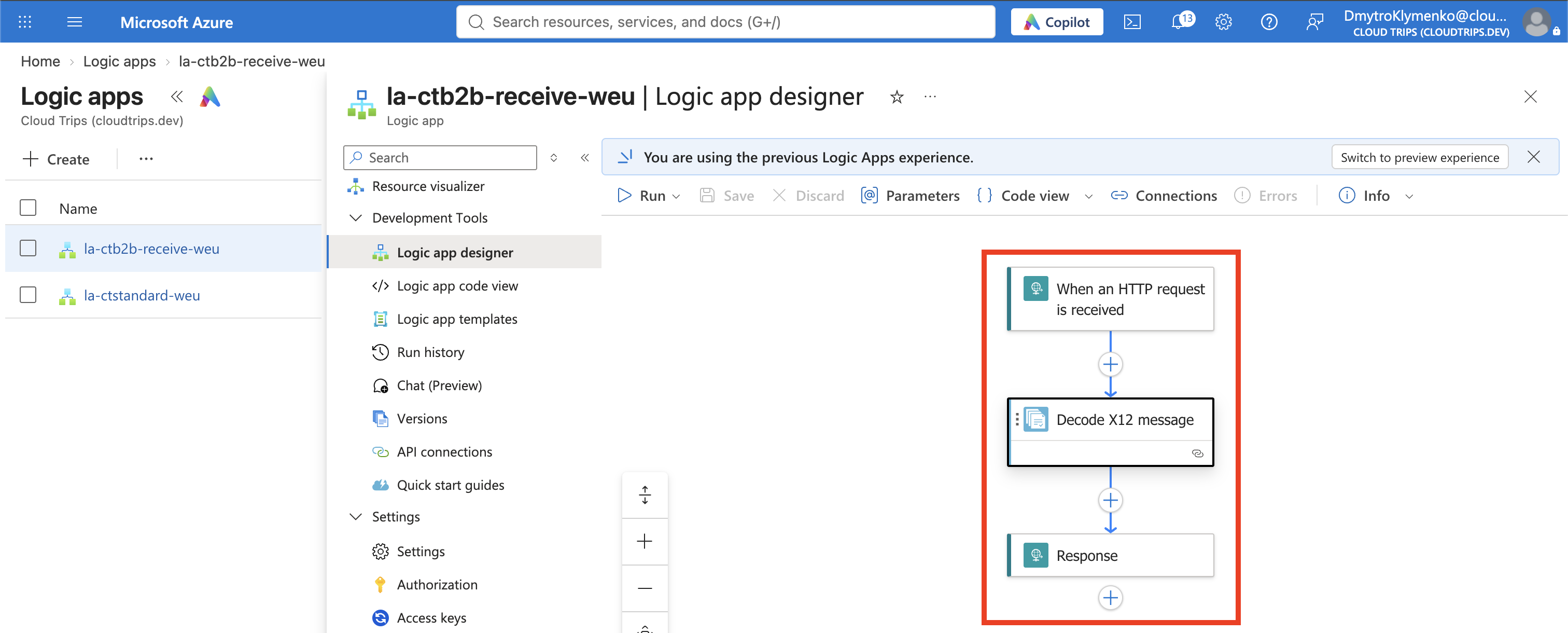
In Logic app designer, start a blank workflow. Add Request → When an HTTP request is received, set Method: POST, and leave Request Body JSON Schema empty: the incoming body will be EDI text, not JSON.
Decode X12 message is an action. Below the Request trigger, select + → Add an action, search for X12, and choose Decode X12 message. If prompted, create a connection:
Connection name: x12-ctb2b
Integration Account ID: the resource ID of ia-ctb2b-weu
Integration Account SAS URL: its generated callback URL
Find the ID under the Integration Account’s Overview → JSON View. Find the SAS URL under Settings → Callback URL. Copy the complete values into the connection form. The SAS URL grants access to the account; keep it out of screenshots.
For X12 flat file message to decode, select Body from the Request trigger’s dynamic content. The decoder identifies the agreement from the sender and receiver in the message.
Add Request → Response after Decode:
Status Code: 200
Headers:
  Content-Type: application/json
Body: select Body from Decode X12 message in dynamic content
Select the decoder’s entire Body, not the trigger body or the GoodMessages array. Leave asynchronous response disabled and keep the default run-after behavior: respond after Decode succeeds. Save and copy the Request trigger’s generated HTTP POST URL. This signed URL is also a secret; collapse its settings before capturing the designer.
Send the Sample Order
Download cloudtrips-order-850.edi. It contains order CT-11001 for two NOTEBOOK items at 12.50 each.
The ISA header identifies CTBUYER and CLOUDTRIPS. ST*850 identifies a purchase order, BEG contains the order number, and PO1 contains the order line. * separates fields and ~ ends segments. Keep the file unchanged: spaces in the ISA header are significant.
Open Azure Cloud Shell → Bash and use Manage files → Upload to upload the downloaded file. Then run:
read -r -s -p 'Paste the HTTP POST URL, then press Enter: ' ct_edi_url
printf '\n'

curl --include --max-time 90 \
  --request POST "$ct_edi_url" \
  --header 'Content-Type: text/plain' \
  --data-binary @cloudtrips-order-850.edi

unset ct_edi_url
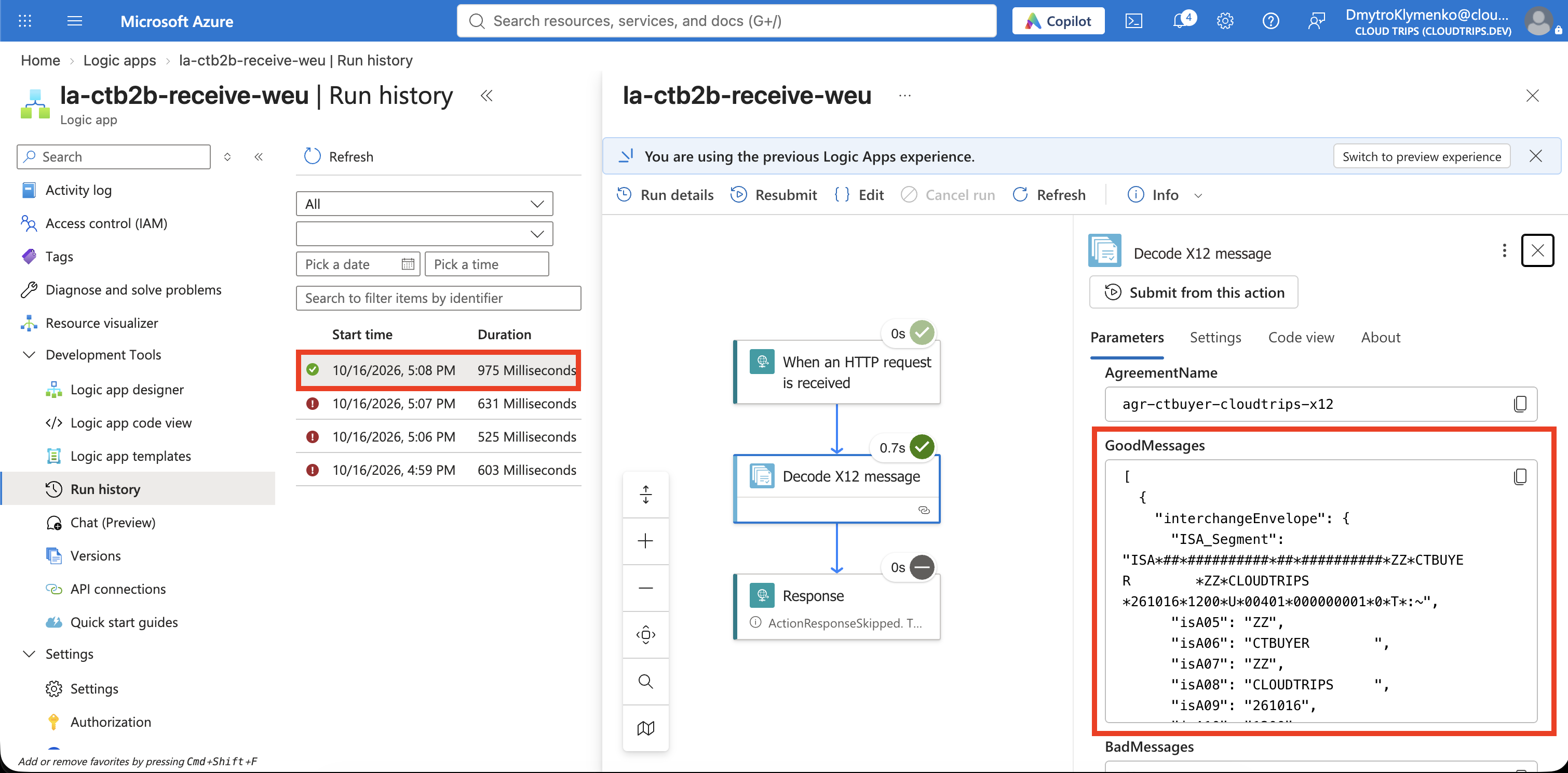
The response contains the decoder’s result. HTTP 200 only confirms that the Response action ran. Check that GoodMessages contains one message and BadMessages is empty. The result should identify agr-ctbuyer-cloudtrips-x12 as the agreement.
Verify the Decoded Document
In the Logic App’s Overview → Runs history, open the latest run. Expand Decode X12 message → Outputs and inspect the accepted message under GoodMessages. Check the sender, receiver, agreement name, and transaction-set control number 0001. Its Payload carries the decoded XML, which the connector can represent as Base64 text in the JSON output. That representation is not an error or encryption; the acceptance check here is one GoodMessages entry and no BadMessages.
If no agreement is found, compare the ZZ / CTBUYER → ZZ / CLOUDTRIPS identities and confirm the receive direction. For an unknown document type, check the uploaded schema and the 00401 / 850 / CTBUYER schema row. If BadMessages contains an entry, inspect its Exception before treating the run as successful. If the decoder itself fails and the HTTP call times out, inspect the failed action in run history.
You have received and decoded an EDI purchase order. A real integration would now map the XML to an internal order format, store it, and implement the partner’s acknowledgment and transport requirements.
Finish
Delete rg-cloudtrips-b2b-test-weu when finished; it contains the lab account, Logic App, and API connection. If you reused an existing Integration Account elsewhere, leave that shared account in place and remove only this lab’s agreement, partners, and schema when no longer used.