Events Need Automatic Archiving? Configure Event Hubs Capture
Event Hubs retention keeps events available in the stream for a limited time. Capture writes incoming events to Storage files automatically, so you can keep them for later analysis without writing an archiving application.
Reuse evhns-ctstreamweu, telemetry, and event-hubs-demo.py from the previous trip. Keep the namespace on Standard; Basic does not support Capture. Standard Capture adds charges beyond namespace capacity, and stored files incur Storage charges. Review the portal’s estimate before enabling it.
Capture works independently of your demo receiver. You do not need to run the reader or create another consumer group. This lab sends new events after enabling Capture, then locates the generated archive files in Storage.
Create the Archive Storage
Create a new Storage account in CloudTrips TEST → rg-cloudtrips-eventhubs-test-weu:
Storage account name: stctcaptureweu
Region: West Europe
Performance: Standard
Redundancy: LRS
Account type: StorageV2
Advanced → Hierarchical namespace: Enabled
Use an available globally unique name and substitute it throughout. Enabling hierarchical namespace makes this an Azure Data Lake Storage Gen2 account. Keep public network access enabled for this lab and anonymous blob access disabled.
On the Storage account’s Access control (IAM), assign your signed-in user Storage Blob Data Contributor so you can create the container and inspect files with Microsoft Entra authentication. Then open Data storage → Containers → + Container and create eventhub-capture, with private access.
Allow Event Hubs to Write Files
Open the Event Hubs namespace → Identity → System assigned, set Status: On, and save.
On the Storage account → Access control (IAM), assign Storage Blob Data Contributor to the namespace’s managed identity evhns-ctstreamweu. Choose Managed identity when selecting the assignee. This assignment is separate from your user’s role. Allow a few minutes for new assignments to propagate.
Enable Capture on telemetry
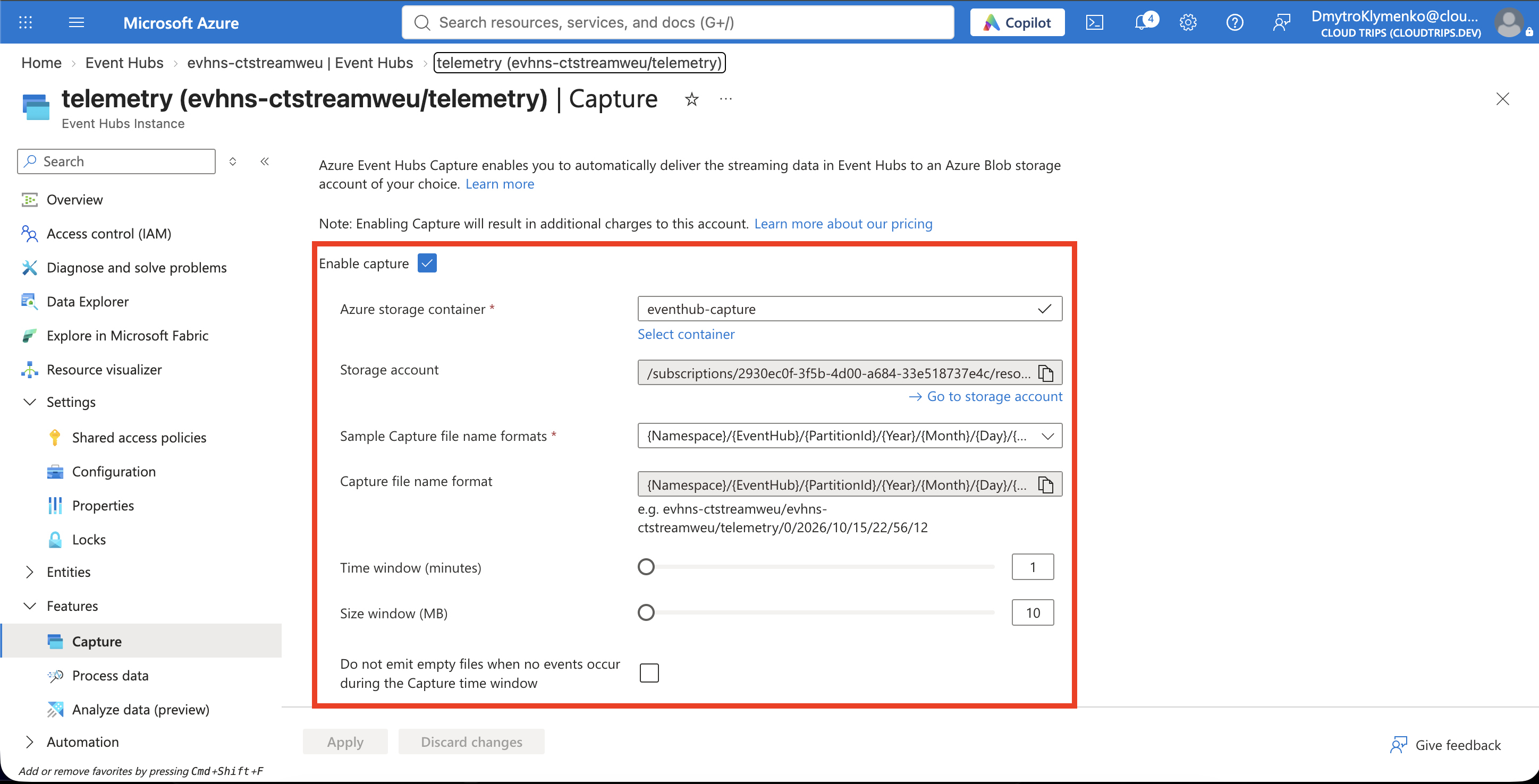
Open evhns-ctstreamweu → Entities → Event Hubs → telemetry → Capture and configure:
Capture: On
Output event serialization format: Avro
Capture provider: Azure Storage
Authentication: System Assigned managed identity
Storage account: stctcaptureweu
Container: eventhub-capture
Time window: 1 minute
Size window: 10 MB
Emit empty files: Off (or Skip empty archives: On)
Keep the default file-name format and save. Use Select container to choose your actual account and container. The identity must be selected for Capture authentication as well as enabled on the namespace.
Each partition creates files independently. A file is written when either the time window or size window is reached, whichever happens first. Ten small events will use the time window; they do not need to reach 10 MB.
Send Fresh Events
Open Cloud Shell → Bash. If needed, download the Event Hubs example again and upload it using Cloud Shell’s Upload/Download files → Upload. Run the complete block below, replacing the namespace name if yours differs. If the account check requires login, run az login --use-device-code first.
cd "$HOME"
az account show --output table
az account set --subscription 'CloudTrips TEST'

python3 -m venv /tmp/ct-eventhubs
source /tmp/ct-eventhubs/bin/activate
python -m pip install 'azure-eventhub>=5.12,<6' 'azure-identity>=1.17,<2' 'aiohttp>=3.9,<4'

python event-hubs-demo.py --namespace evhns-ctstreamweu --mode send
Record the printed Run ID. The send mode finishes after sending ten events; it does not start the receiver. Capture continues on Azure after the script exits. It does not backfill events sent before Capture was enabled, so use this fresh batch for verification.
Find the Archive
Allow a few minutes for the first file, then open stctcaptureweu → Containers → eventhub-capture and refresh. Follow the folders beneath your namespace and telemetry:
<namespace>/telemetry/<partition>/<year>/<month>/<day>/<hour>/<minute>/<second>.avroThe default path uses UTC time. Capture creates these folders automatically. Our example uses one partition key, so only one of the two partitions may contain files with events. With empty files disabled, an idle partition need not produce a file.
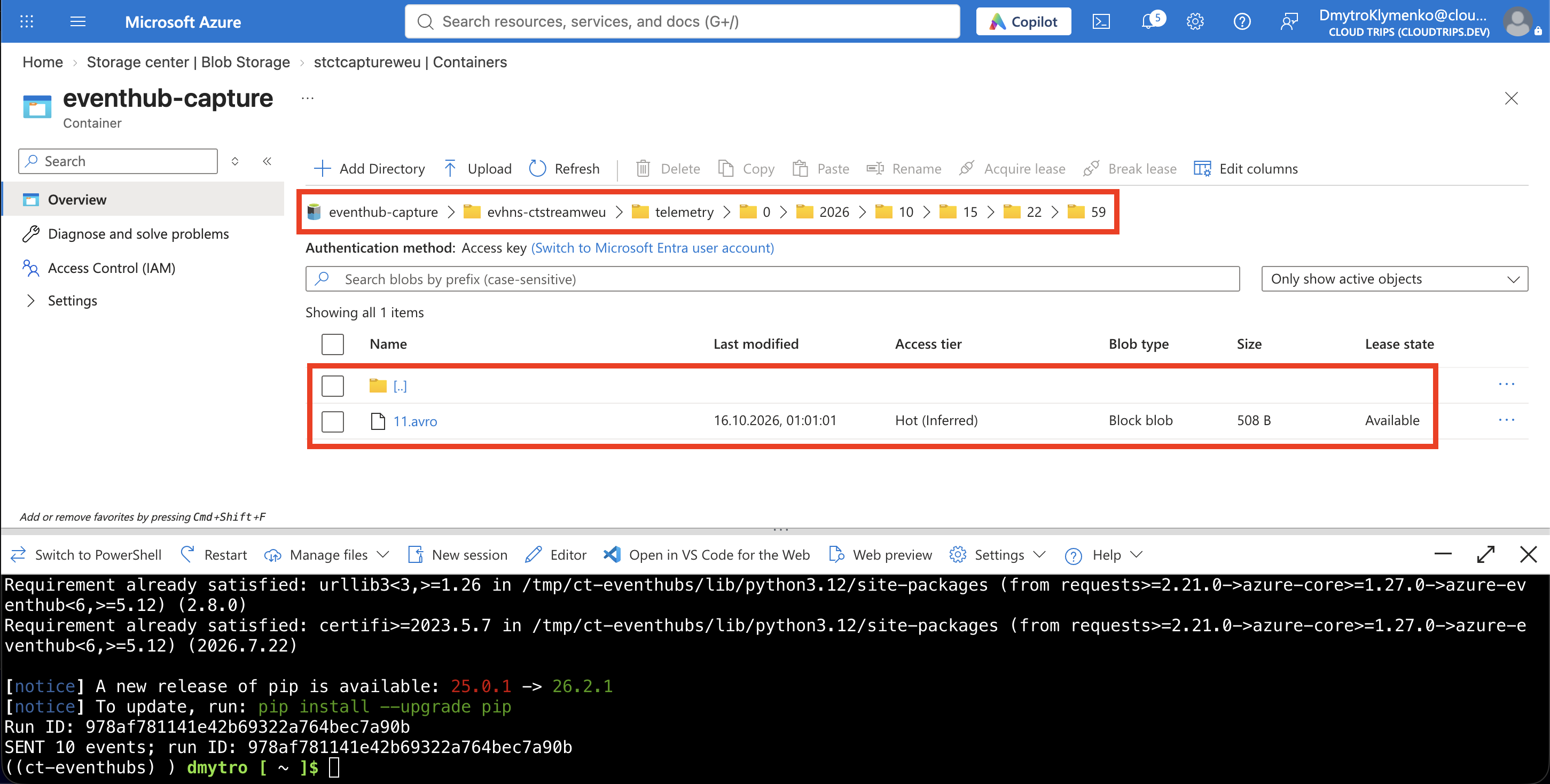
If no file appears, confirm Capture was saved before sending, the chosen identity has its Storage role, and the destination permits network access. After correcting a setting, send a fresh batch and wait again. A nonzero file size alone is not proof of captured events: an Avro file can contain a schema header but zero records.
Finish
The archive has its own lifetime. Expiring an event from the event hub does not delete its captured Storage file. Storage lifecycle rules or explicit deletion control how long those files remain.
Set telemetry → Capture → Off and save if you are finished archiving. Existing files remain and continue to incur Storage charges; namespace capacity charges also continue. Delete rg-cloudtrips-eventhubs-test-weu when you no longer need either the stream or its archive. Download any files you want to keep first.