App Needs Certificate Authentication? Upload Certificate Credential
A backend app needs to authenticate to Microsoft Entra ID.
It should not use a long-lived client secret.
The Microsoft Entra pattern is:
Create app registration -> generate certificate key pair -> upload public certificate -> keep private key secure -> authenticate with certificateThis is used when:
- no user is present
- the app runs as itself
- the app can securely store or access a private key
- a managed identity is not available
- a client secret would be too weak for the environment
Certificate Credential vs Client Secret
A client secret is a shared password.
Anyone who has the secret can authenticate as the app until the secret expires or is revoked.
A certificate credential uses asymmetric cryptography.
The app keeps the private key.
Microsoft Entra stores the public certificate.
At sign-in time, the app signs a client assertion with the private key.
Entra validates that signature with the uploaded public certificate.
The private key is never uploaded to Entra.
Create or Open the App Registration
Go to:
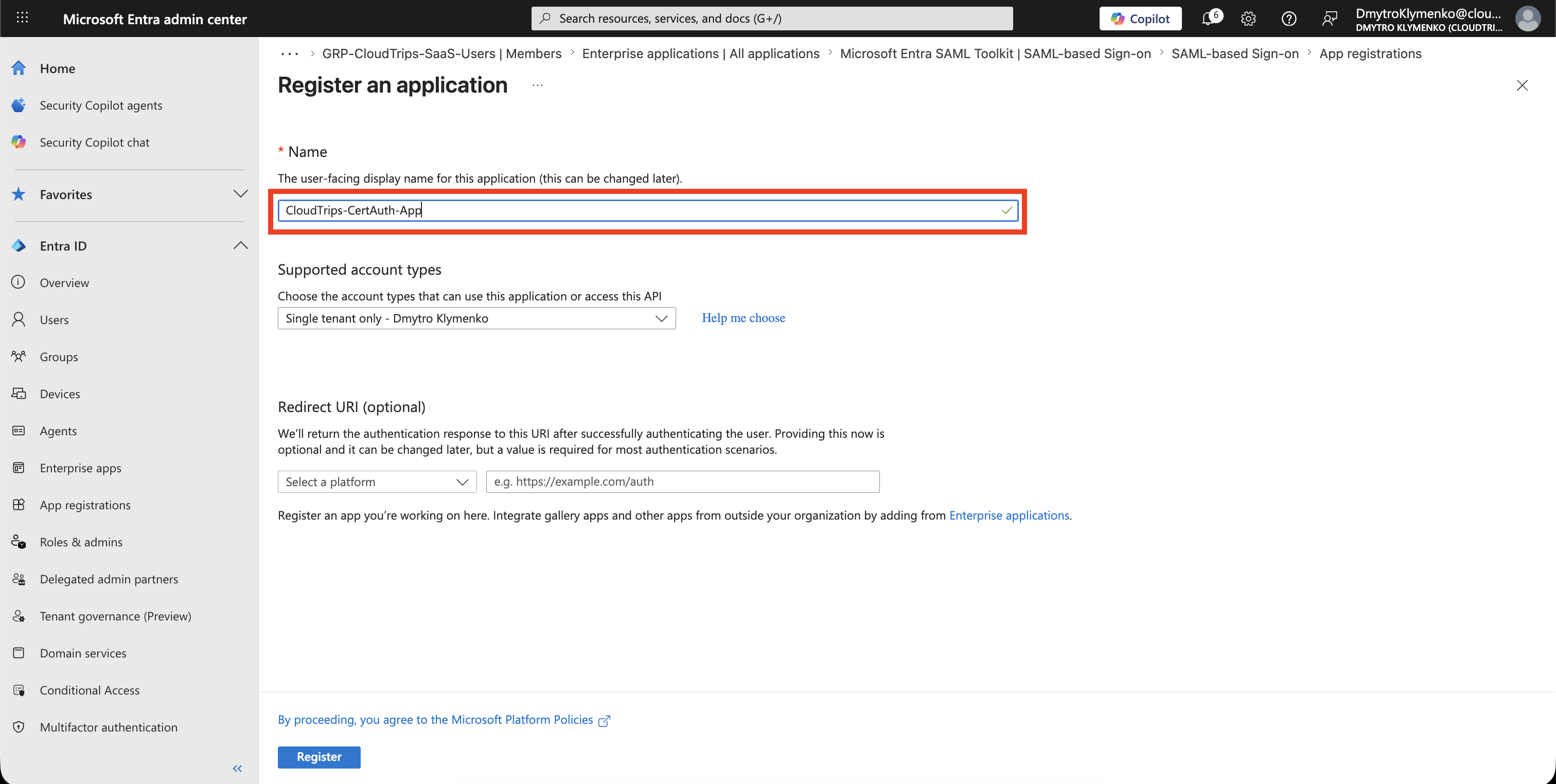
Entra ID > App registrationsCreate or open the application that needs certificate authentication.
Example:
CloudTrips-CertAuth-AppThis app registration represents the workload that will request tokens.
Check the App Identifiers
Open:
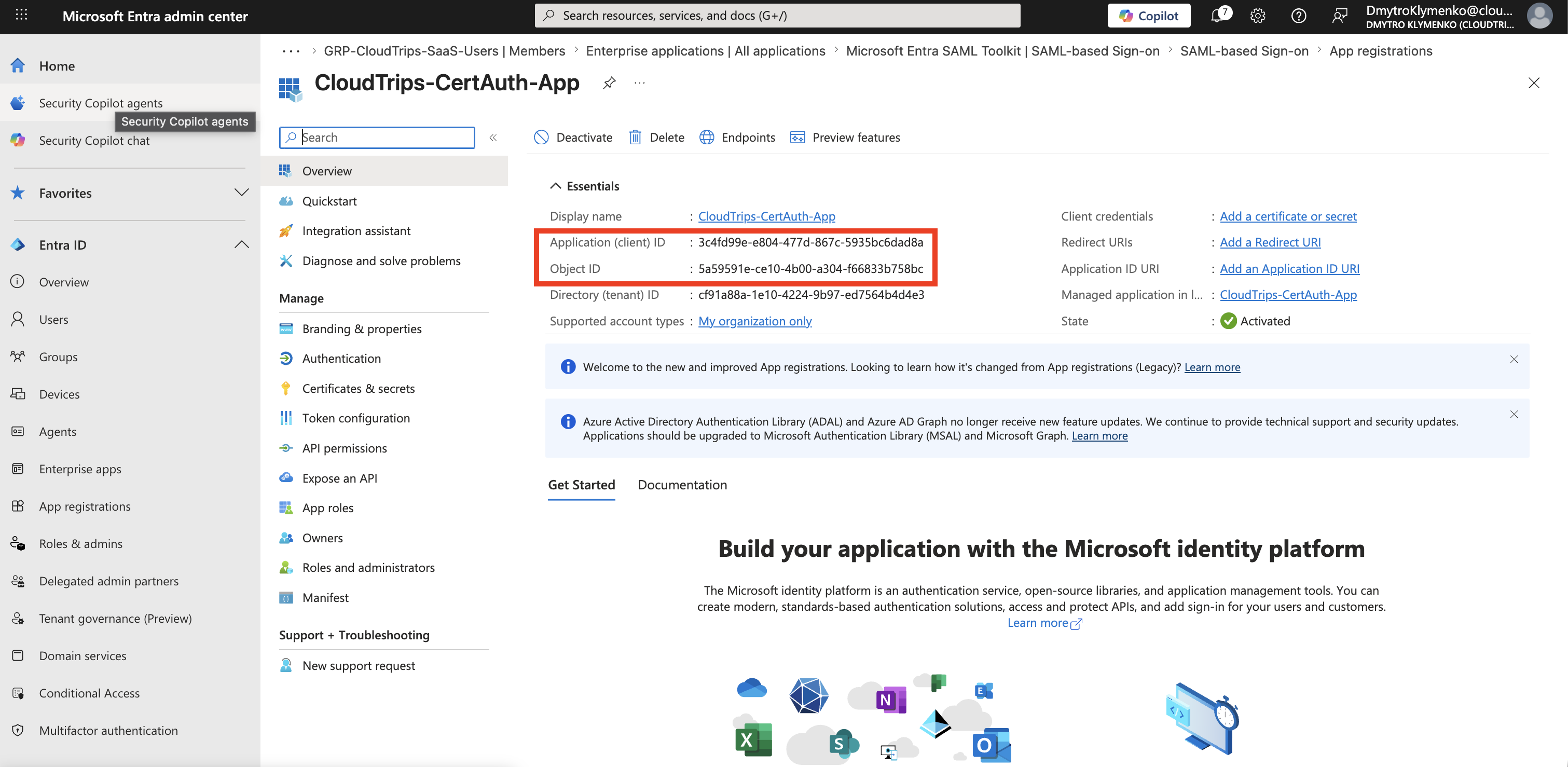
OverviewKeep these values for the application configuration:
Application (client) ID
Directory (tenant) ID
The app uses these values when it requests a token from Microsoft Entra ID.
Prepare the Certificate
Generate or obtain a certificate key pair.
For Entra app authentication, you upload only the public certificate file.
Common public certificate file formats include:
.cer
.pem
.crt
The application must keep the matching private key in a secure place, such as:
- Azure Key Vault
- a managed certificate store
- a protected deployment secret store
- a hardware security module, when required
Do not upload a .pfx file with the private key to Entra.
Open Certificates and Secrets
Inside the app registration, open:
Certificates & secrets > CertificatesSelect:
Upload certificate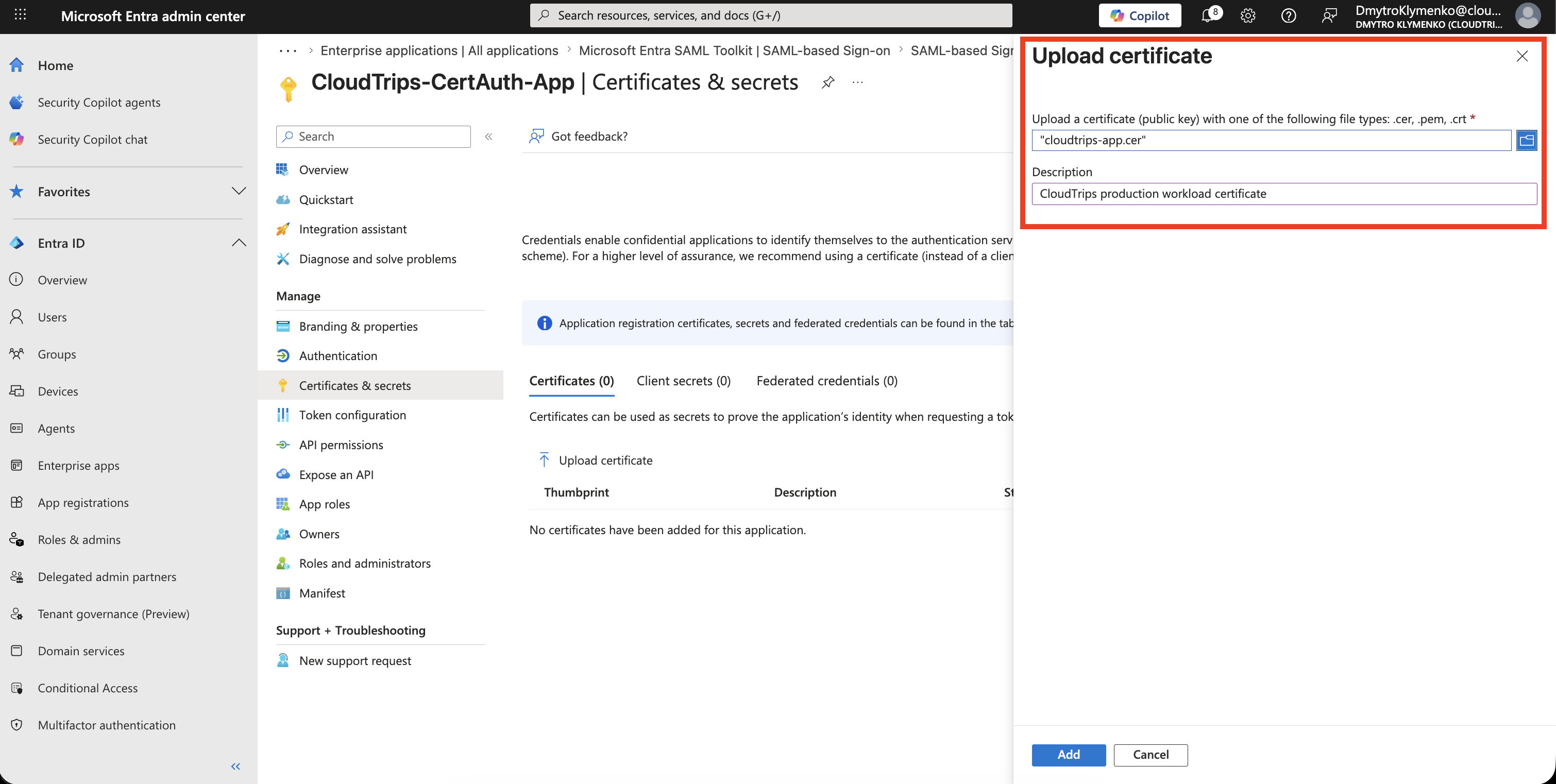
Upload the Public Certificate
Select the public certificate file.
Add a description that explains ownership or rotation purpose.
Example:
CloudTrips production workload certificateUpload the certificate.
Confirm the Certificate Credential
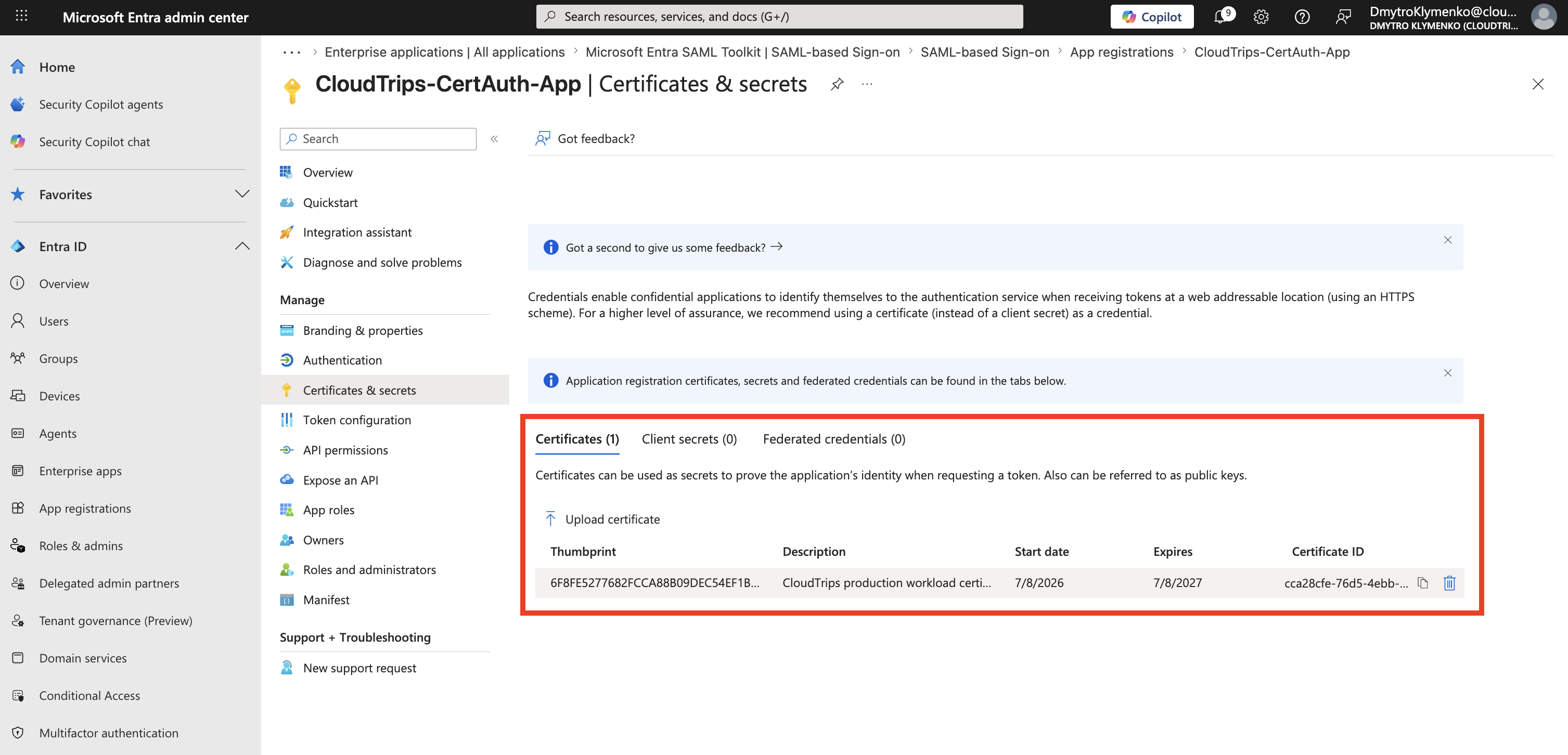
After upload, Entra shows the certificate credential.
Check:
Thumbprint
Start date
Expires
Certificate ID
The thumbprint is useful when the application selects a certificate from a certificate store.
The expiration date is operationally important.
If the certificate expires, the application can no longer authenticate with that credential.
Configure the Application
The application needs:
Tenant ID
Client ID
Private key or certificate reference
Certificate thumbprint or key identifier
The exact setting names depend on the runtime and identity library.
For example, an app using Microsoft Authentication Library can authenticate with:
client_id
tenant_id
private_key_certificate
scope=resource/.default
grant_type=client_credentials
The important difference from a secret-based app is:
client_secret is not used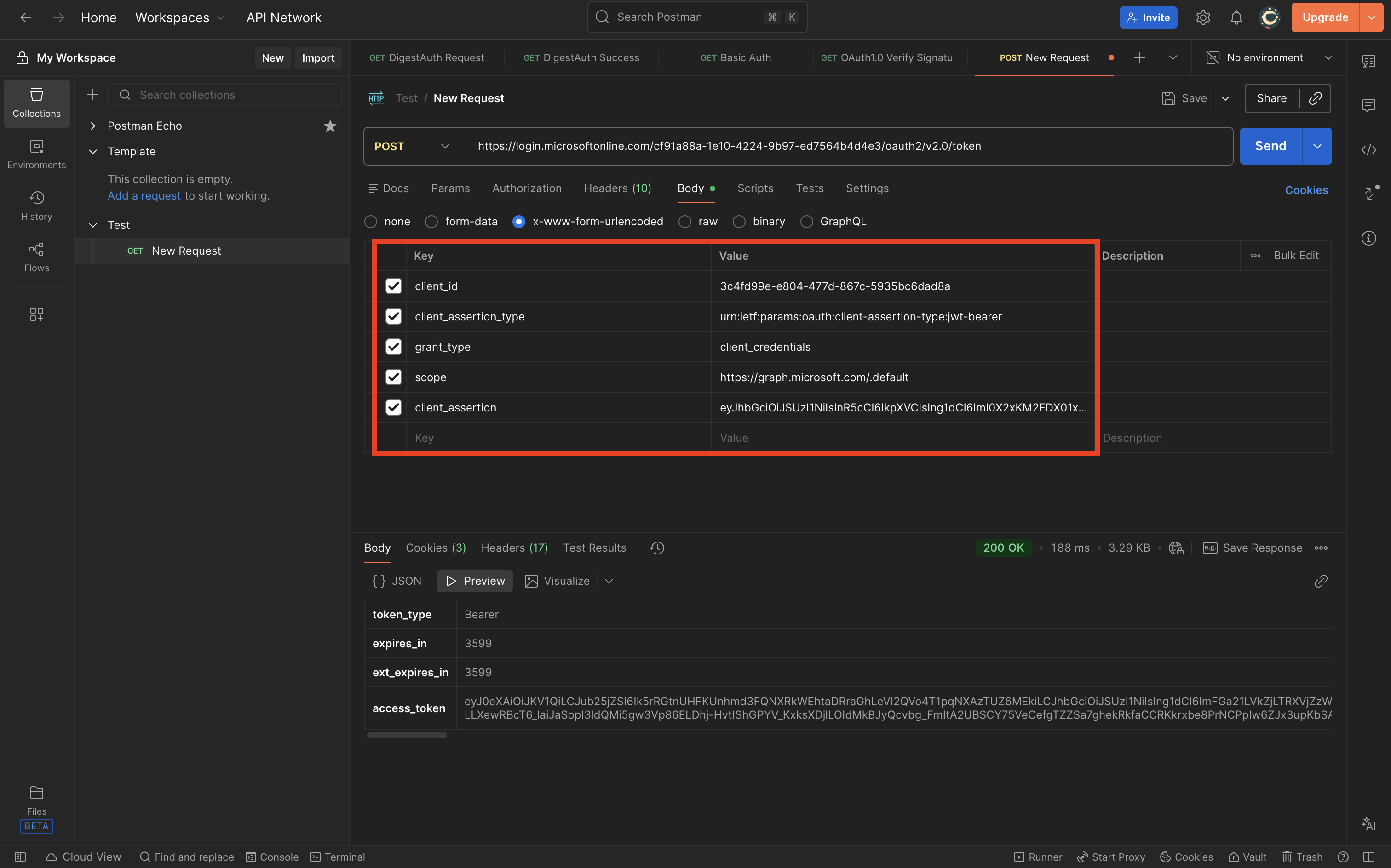
Test Certificate Authentication
Run the workload or a small token request test.
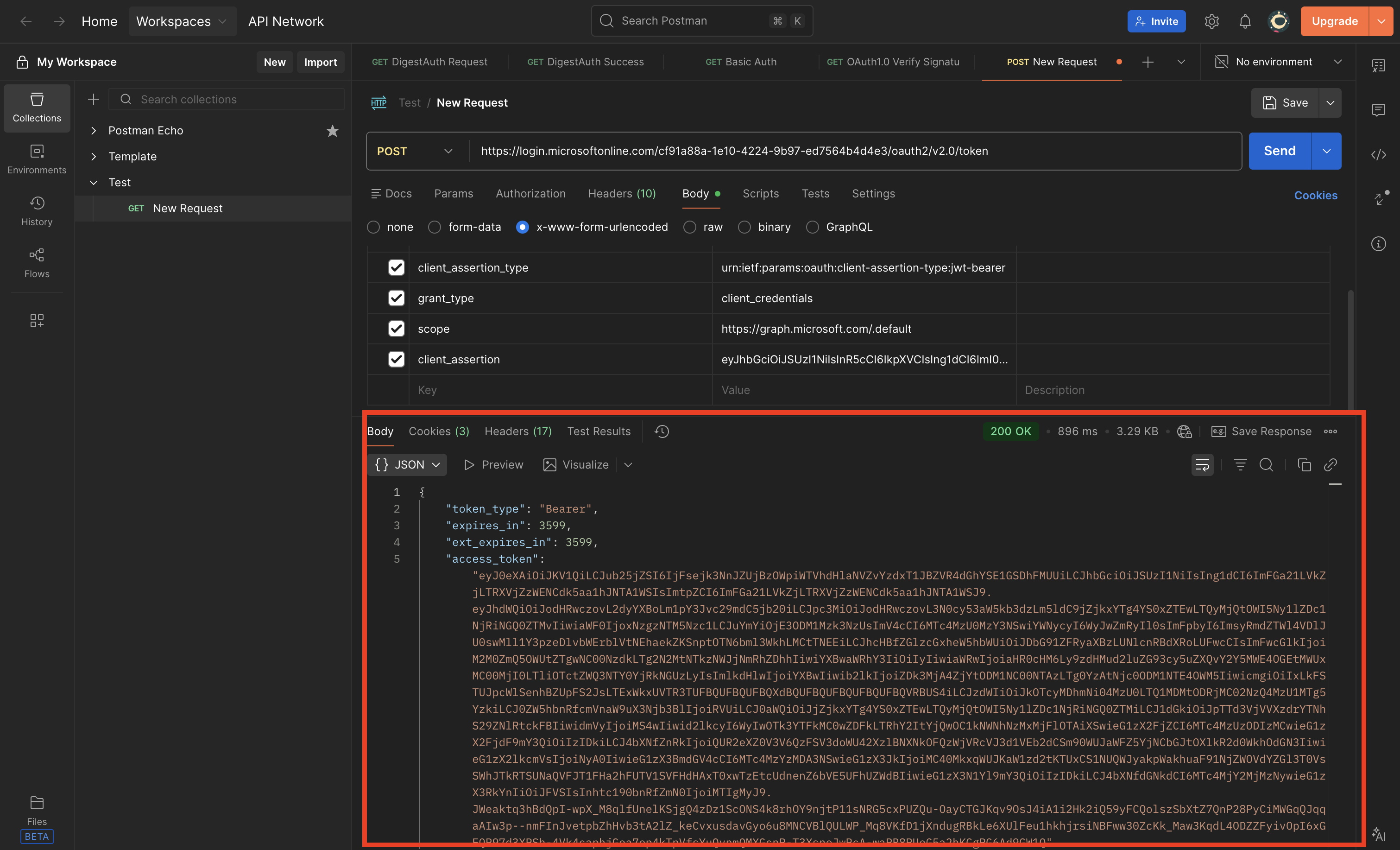
The app should request a token using the certificate credential.
At runtime, the app signs a client assertion with the private key.
Microsoft Entra validates that assertion against the uploaded public certificate.
If validation succeeds, Entra issues an application token.
Rotate Before Expiration
Certificate credentials need rotation planning.
A safe rotation pattern is:
- Upload a new public certificate before the old one expires.
- Deploy the app with the new private key or certificate reference.
- Confirm token requests work with the new certificate.
- Remove the old certificate credential after the rollout is complete.
This avoids downtime during rotation.
Enterprise Note
Certificate authentication is stronger than a client secret, but it is not magic.
The security depends on how well the private key is protected.
Recommended checklist:
- upload only the public certificate to Entra
- store the private key in a secure location
- restrict who can read or export the private key
- monitor certificate expiration
- rotate certificates before expiry
- remove unused certificate credentials
- prefer managed identity or workload identity federation when the platform supports it