Admin Tasks Need Stronger Login? Require Authentication Strength
Not all MFA methods provide the same protection.
SMS, voice, and push approvals can reduce password-only risk, but they are not the strongest defense against phishing.
For privileged access, the stronger Microsoft Entra pattern is:
Require an authentication strength.
This trip merges two related ideas:
Company wants phishing-resistant login -> use phishing-resistant methods
Admin tasks need stronger login -> enforce an authentication strength
The registration side is covered in the passkey trip.
This trip covers the enforcement side.
What Authentication Strength Means
An authentication strength is a Conditional Access grant control.
It defines which authentication method combinations are strong enough for a specific resource or scenario.
Microsoft Entra includes built-in strengths such as:
Multifactor authentication
Passwordless MFA
Phishing-resistant MFA
For admin access, the important built-in option is:
Phishing-resistant MFAThis can be satisfied by methods such as:
- passkey (FIDO2) security key
- Windows Hello for Business or platform credential
- certificate-based authentication, multifactor
The idea is:
Sensitive access -> Conditional Access policy -> Require phishing-resistant MFAAuthentication Methods vs Authentication Strength
Authentication methods answer:
Which methods are users allowed to register and use?Authentication strengths answer:
Which methods are acceptable for this specific app, action, or sign-in condition?So the normal order is:
Enable/register passkeys first
Then require phishing-resistant MFA where it matters
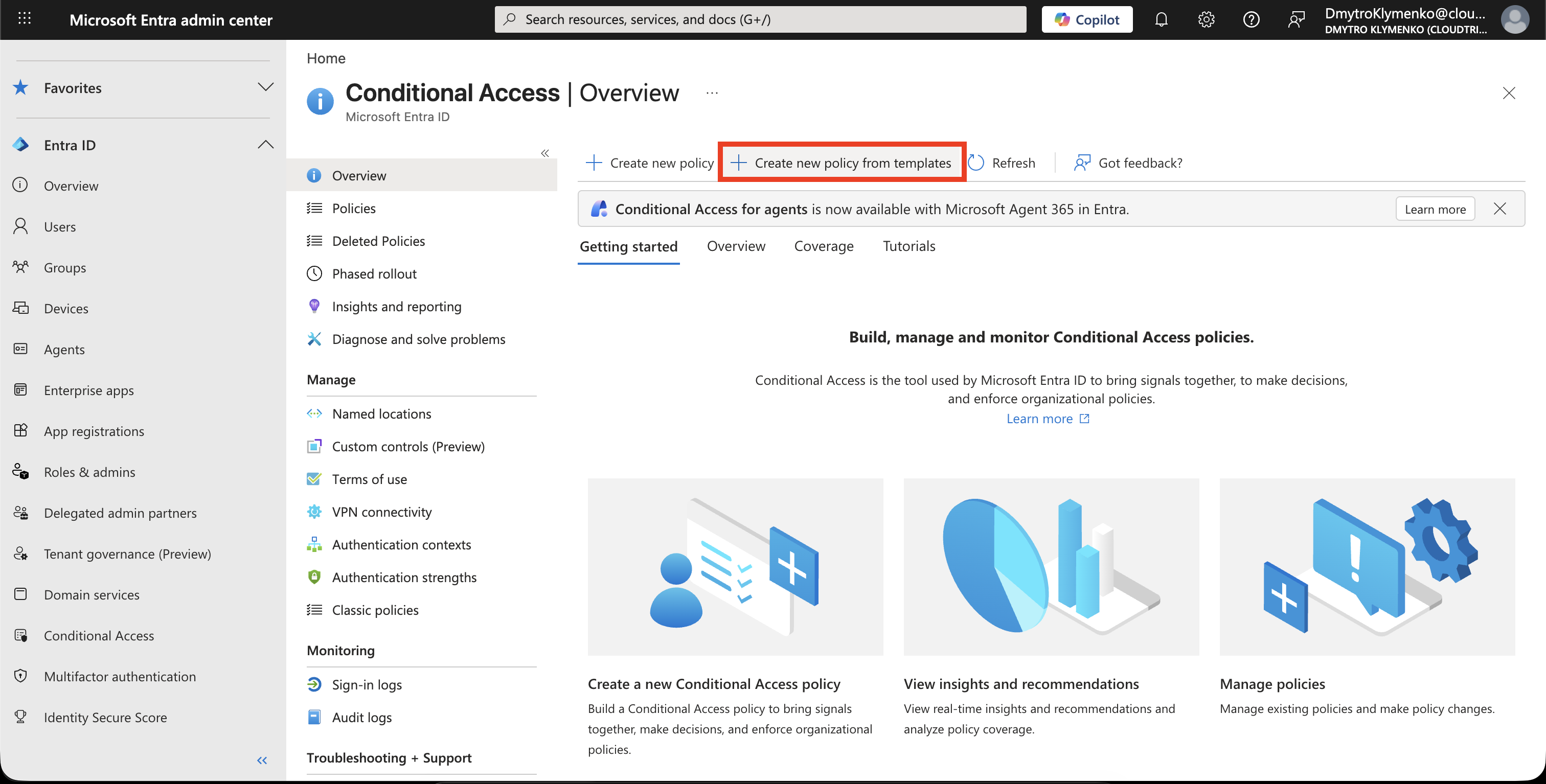
Open Conditional Access
Go to:
Entra ID > Conditional Access > PoliciesSelect:
New policy from templateThis opens Microsoft’s Conditional Access policy templates.
Select the Phishing-Resistant Admin Template
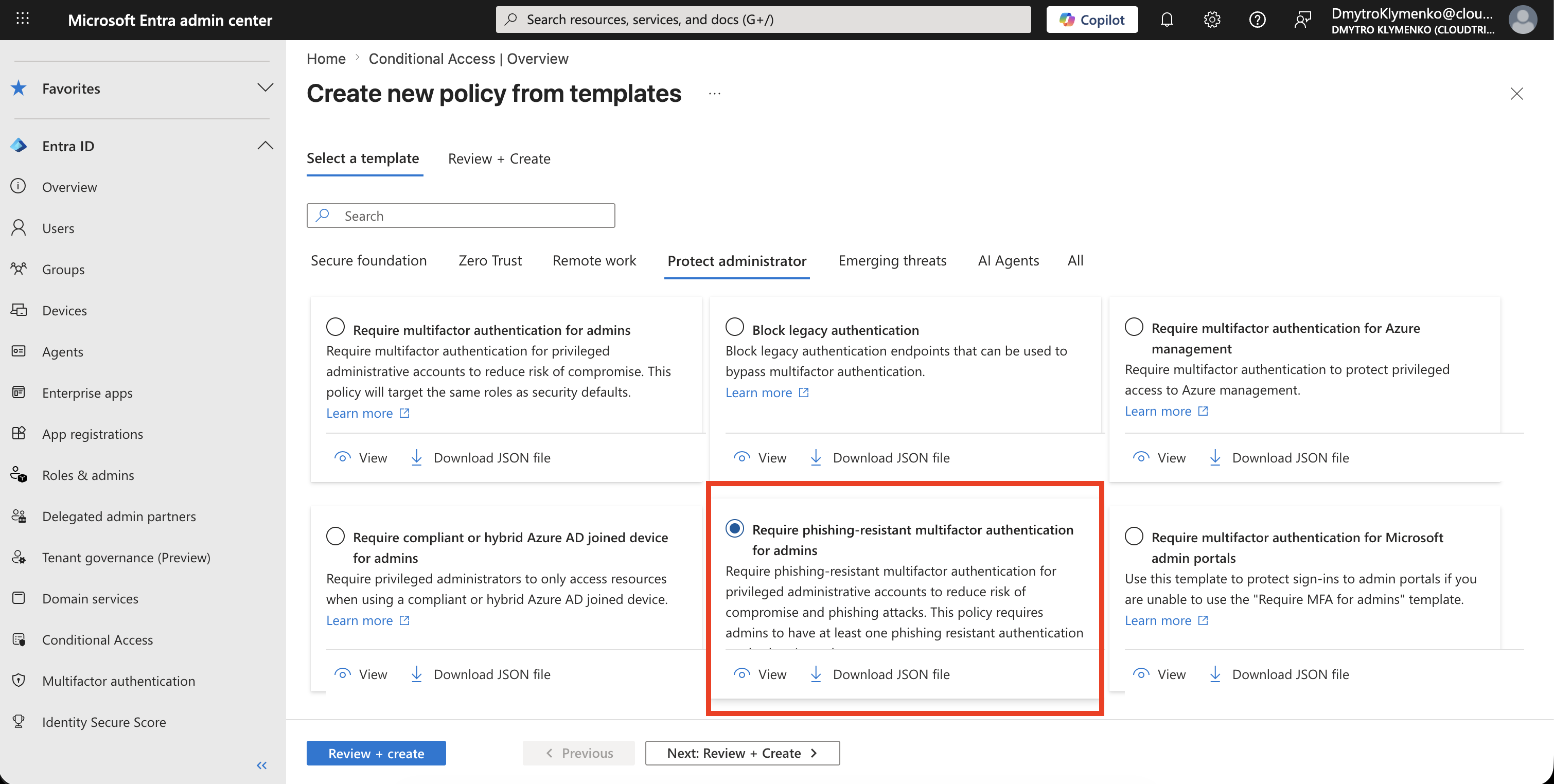
Choose the template:
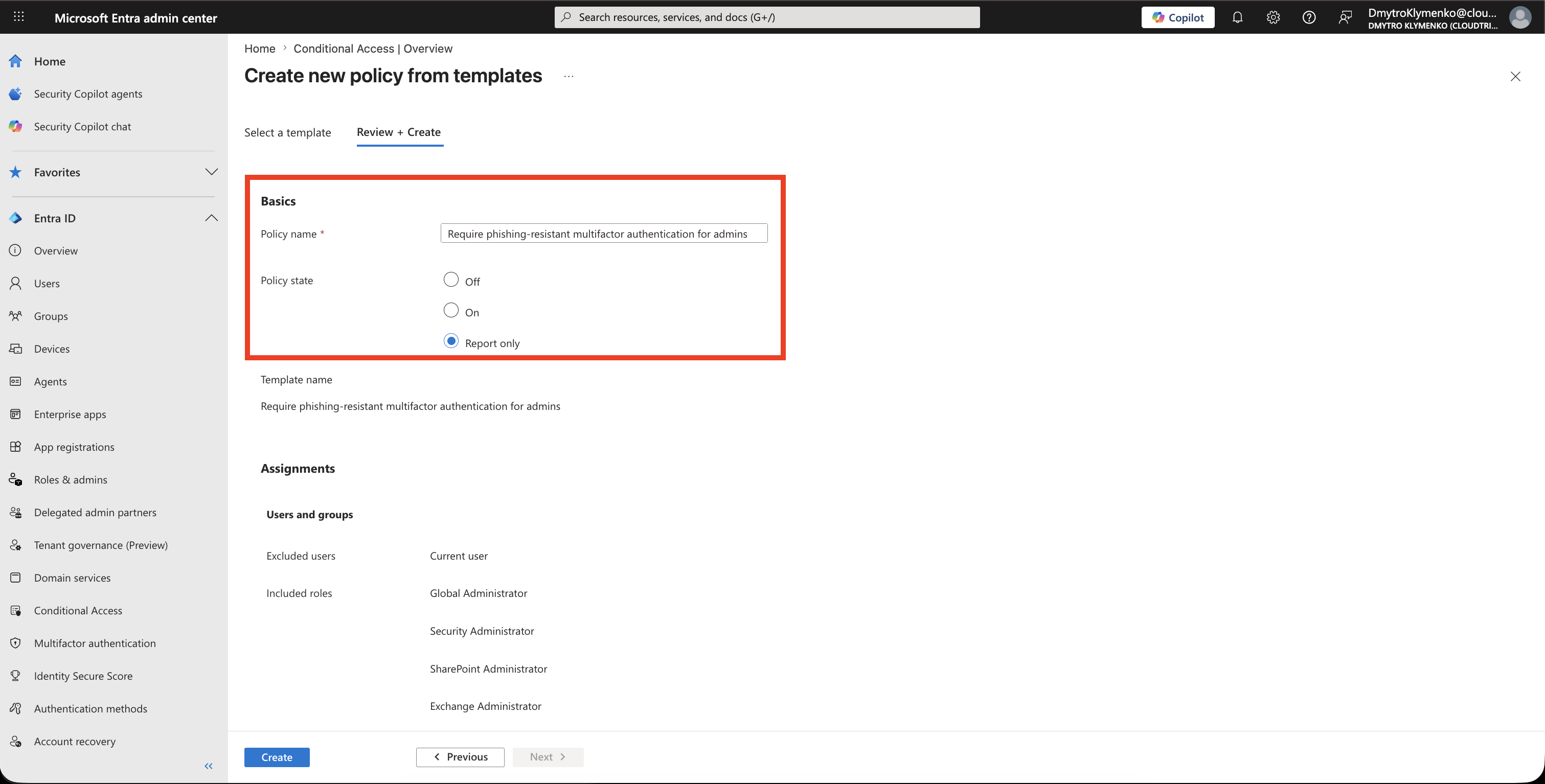
Require phishing-resistant multifactor authentication for adminsThis template is designed to protect privileged administrator roles with phishing-resistant MFA.
Review the Created Policy
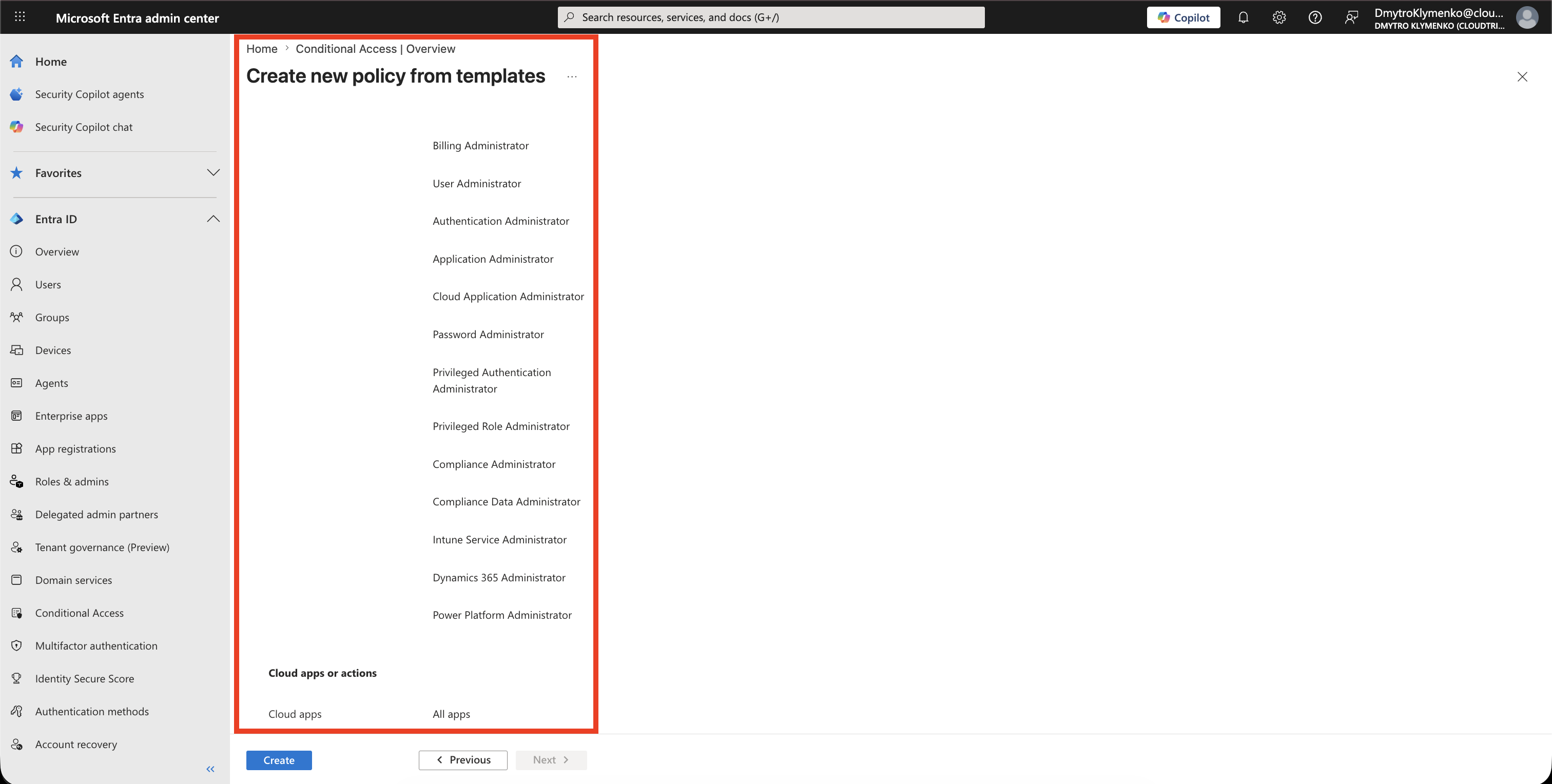
After selecting the template, review the created policy.
The policy targets privileged administrator roles.
Typical targeted roles include:
Global Administrator
Privileged Role Administrator
Conditional Access Administrator
Security Administrator
Application Administrator
User Administrator
The exact list can change as Microsoft updates the template, so review it before saving.
Exclude Emergency Access Account
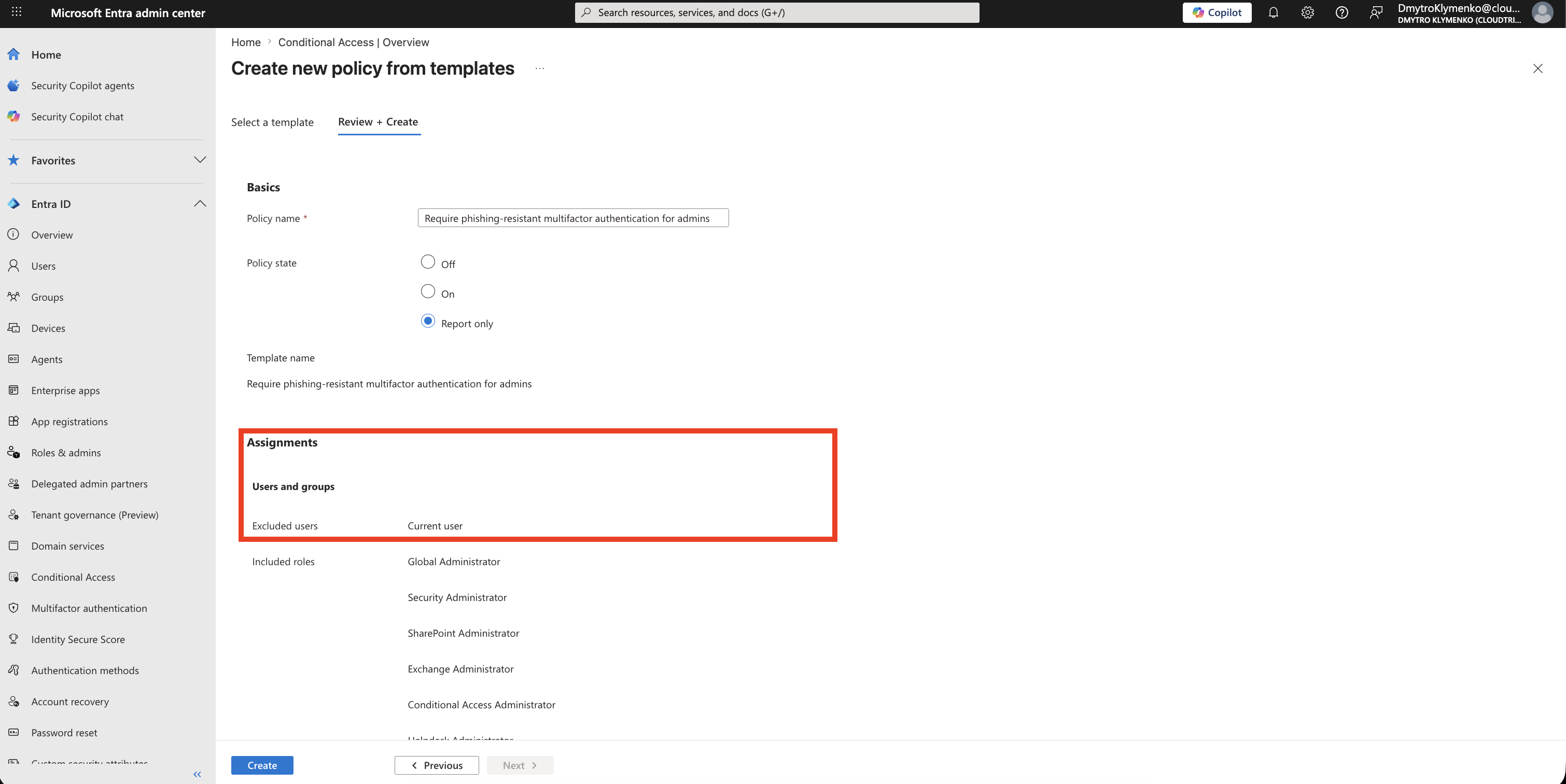
Before enforcing the policy, exclude your emergency access account.
This account is often called a break-glass account.
It should be protected and monitored separately, but excluded from Conditional Access policies that could lock out administrators.
Require Authentication Strength in Grant Controls
When you create a policy from a template, the portal may not let you adjust every grant option during the creation step.
Create the policy first.
Then open the created policy and edit it.
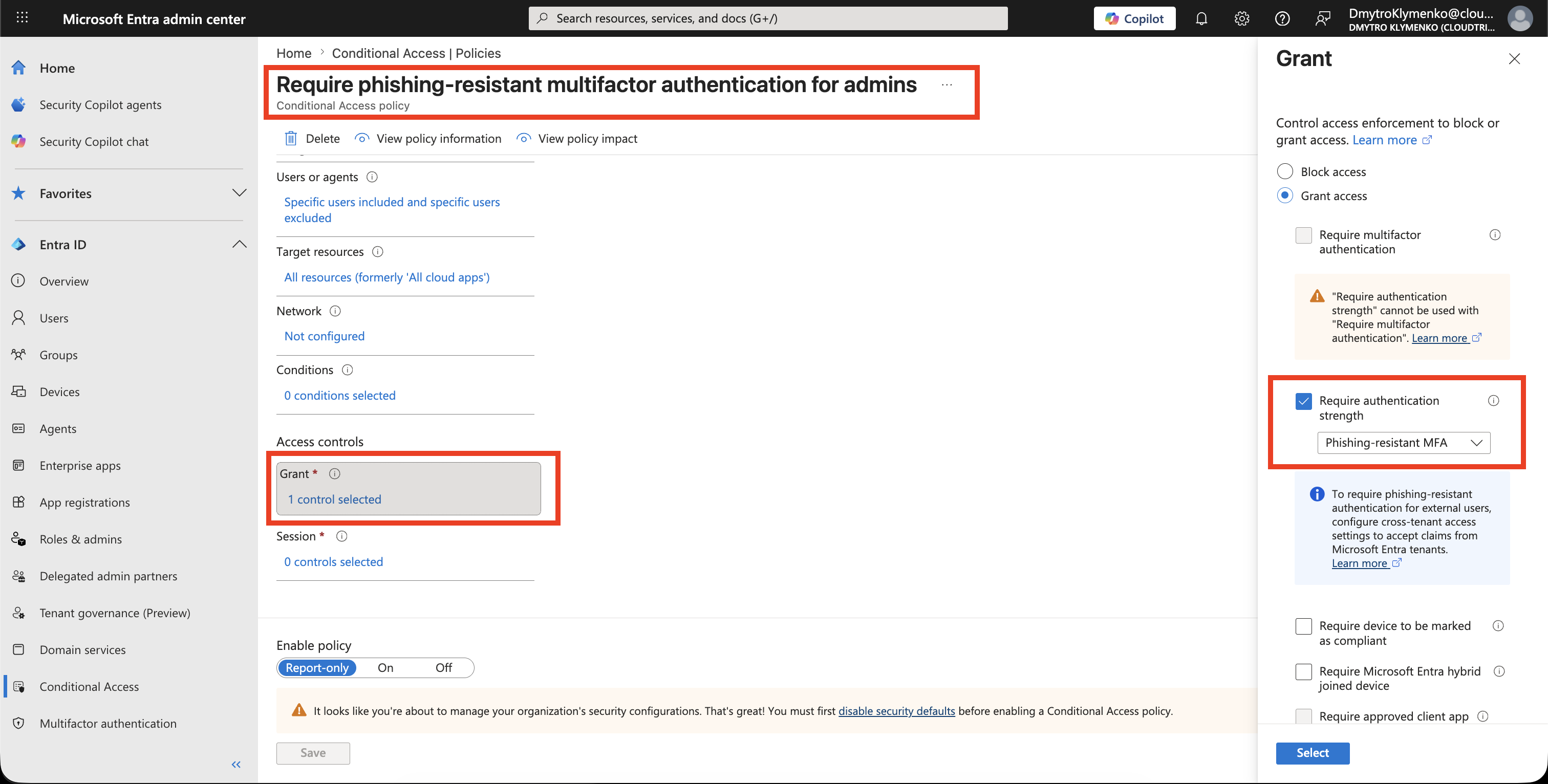
The template should configure the grant control for you, but do not assume it.
Open the policy grant controls:
GrantThe policy only enforces authentication strength when this grant control is selected:
Grant access
Require authentication strength
Phishing-resistant MFA
If Require authentication strength is not selected, select it manually and choose:
Phishing-resistant MFAThis is the important edit step when you want to use the existing Microsoft template but still adjust the final policy to match your tenant.
Do not also select:
Require multifactor authenticationAuthentication strength replaces the generic MFA grant control for this policy.
Start in Report-Only Mode
Set the policy state to:
Report-onlyReport-only mode lets you verify impact before enforcing the policy.
Check sign-in logs to confirm which users would be blocked or challenged.
Review Sign-In Logs
Open:
Entra ID > Monitoring > Sign-in logsReview the Conditional Access result.
Look for:
Policy: CA-Require-Phishing-Resistant-MFA-Admins
Grant control: Require authentication strength
Result: Report-only success or failure
Use this before changing the policy from Report-only to On.
Turn Policy On
After testing, change:
Policy state: OnNow targeted admin access requires phishing-resistant MFA.
Enterprise Note
Do not enforce this policy before users have a valid phishing-resistant method.
Recommended rollout:
- enable passkeys or other phishing-resistant methods
- register a pilot group
- test with report-only mode
- exclude emergency access account
- monitor sign-in logs
- enable for privileged roles
- expand to sensitive apps
Use this for high-value scenarios:
admin portals
privileged roles
sensitive finance or HR apps
security tooling
production management apps
The passkey trip teaches users how to register the method.
This trip teaches the tenant how to require the method.