User Left the Company? Disable the Entra Account and Revoke Sessions
When a user leaves the organization, the goal is to remove access immediately.
In Microsoft Entra ID, disabling the account alone is not always enough, because active tokens may still be valid for a while. That is why the real security step is to revoke sessions as well.
Find the User
Go to:
Entra ID > UsersThen select the user account that needs to be offboarded.
Example:
John Doe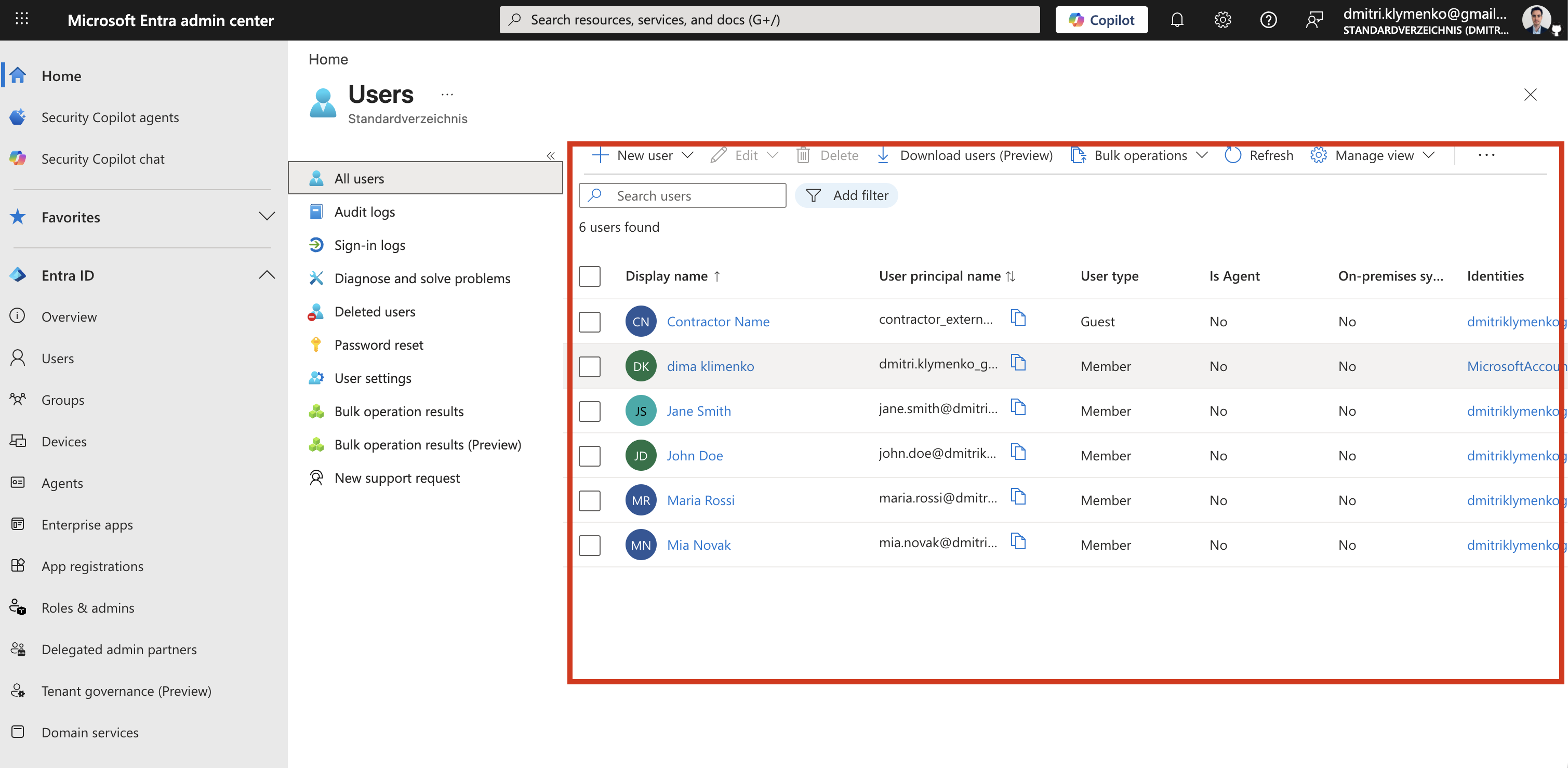
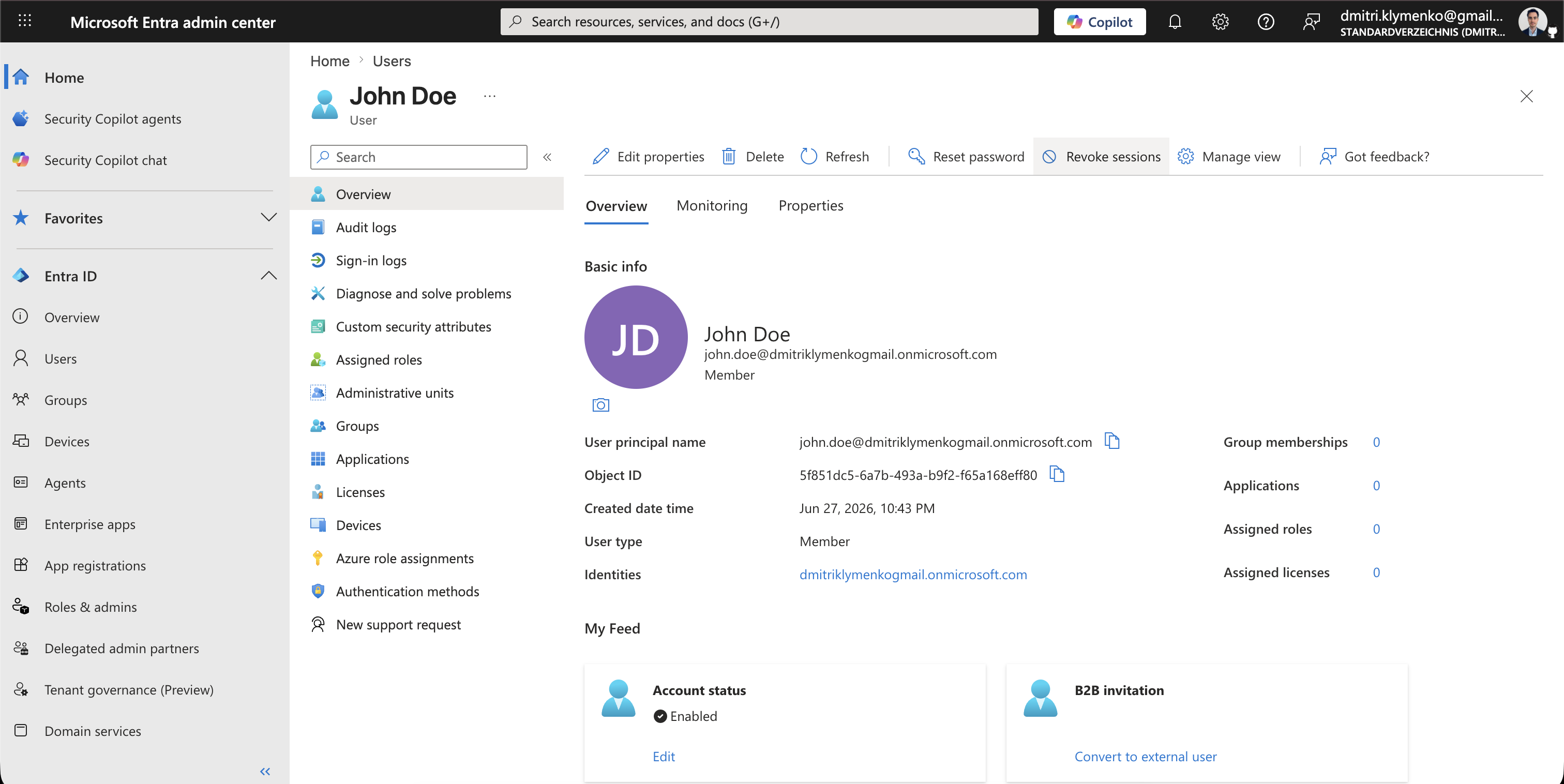
Open the User Profile
Inside the user profile, you can review the main account details, including:
- identity details
- authentication state
- session information
Disable the User Account
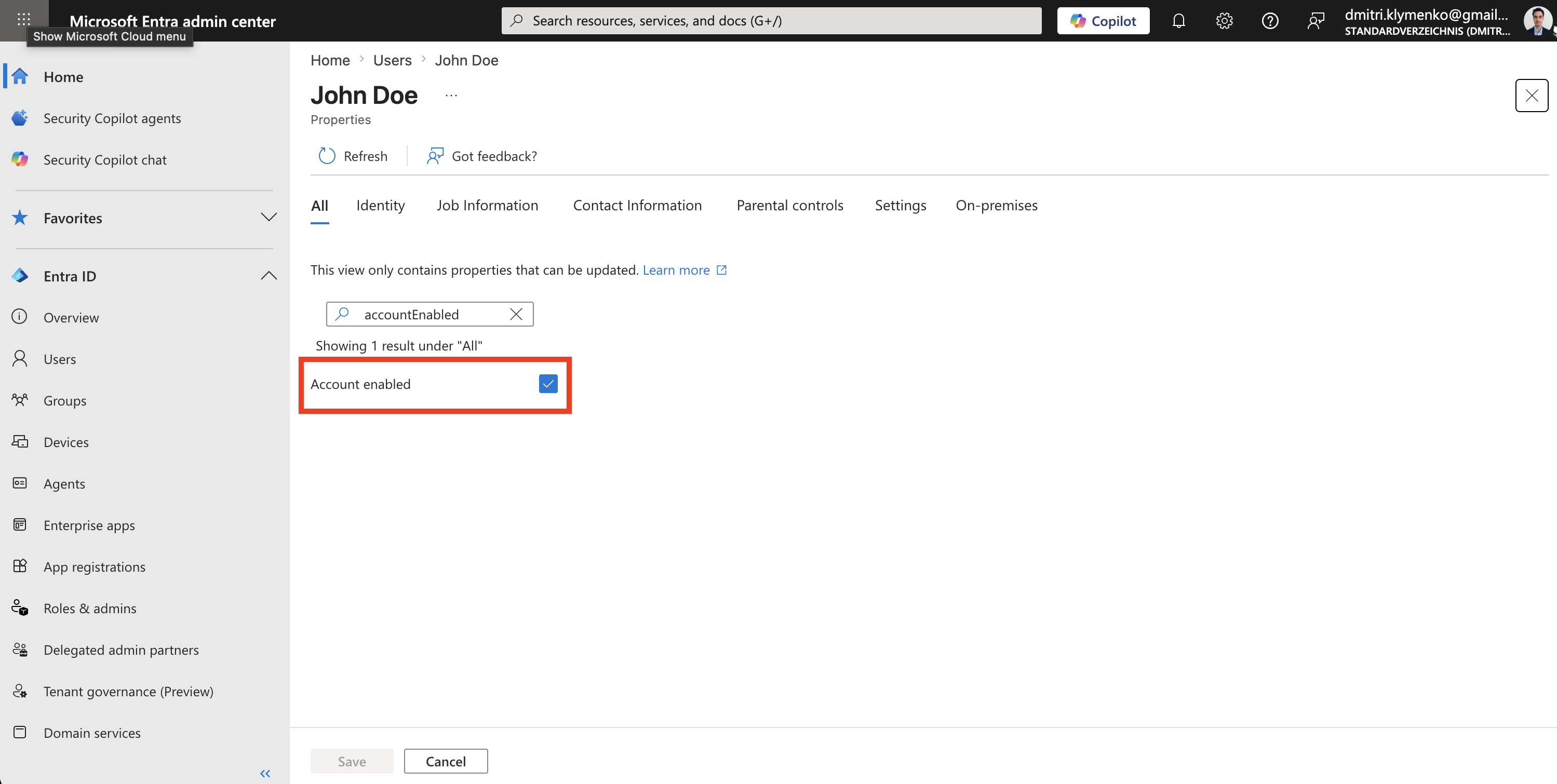
Set:
Account enabled -> FalseThis blocks new sign-ins and stops the account from being used for future authentication.
Revoke Sessions
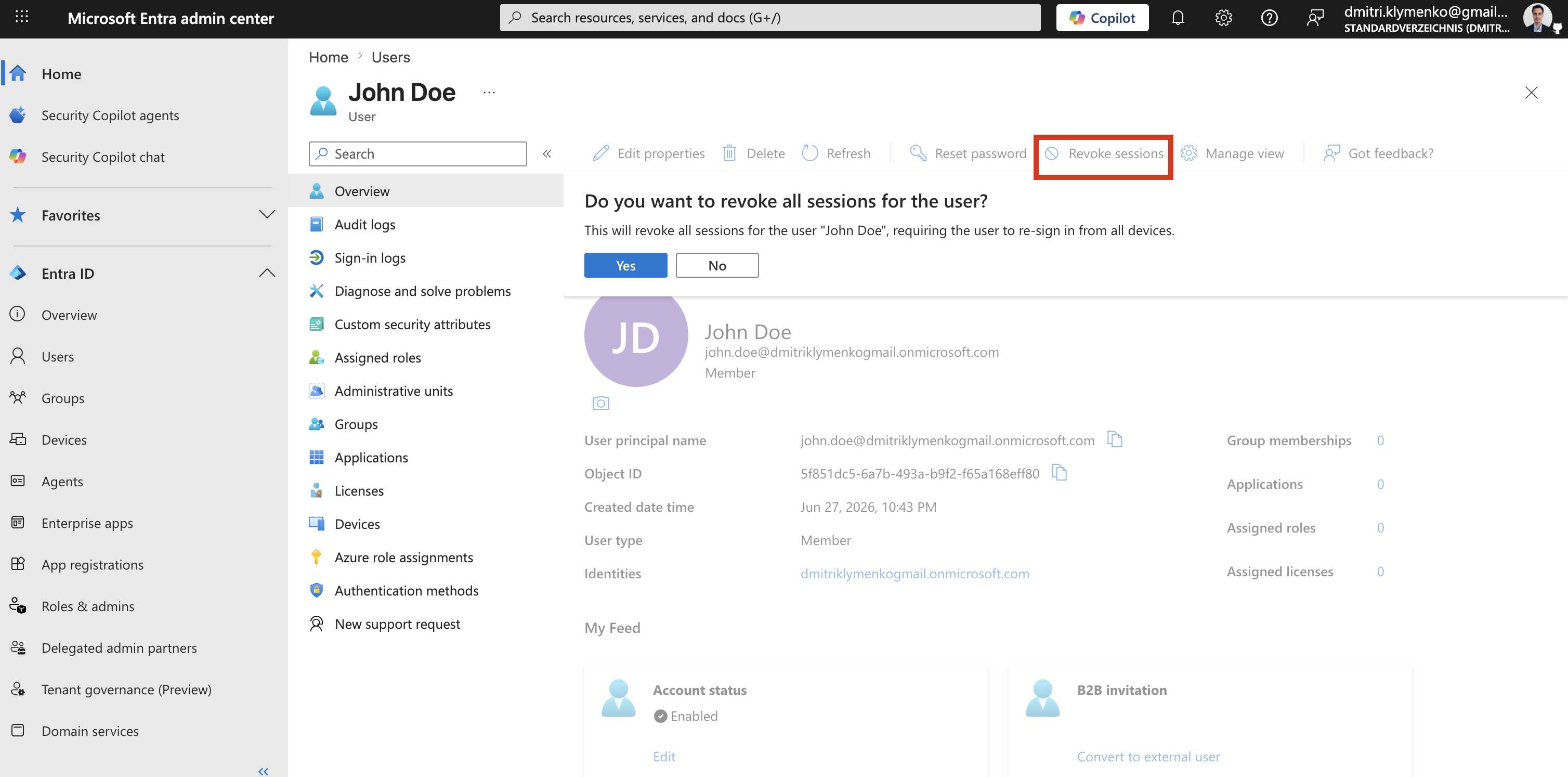
Now perform the session invalidation:
Revoke sessionsThis action invalidates active refresh tokens and forces the user to sign in again. In practice, that immediately cuts off access to services such as Outlook, Teams, and the Azure portal.
Enterprise Offboarding Context
In real environments, this is usually part of a structured offboarding flow:
- disable the account to block new access
- revoke sessions to invalidate active access
- remove group memberships
- remove app role assignments
- optionally delete or archive the account
Result
After these actions:
- the user cannot sign in anymore
- active sessions are invalidated
- access is fully cut off across services
- the account can remain for audit and compliance purposes