User Has No Phone Yet? Create Temporary Access Pass
A user may need to sign in before they have registered Microsoft Authenticator or another MFA method.
This often happens during onboarding, device replacement, or when a user gets a new phone.
In Microsoft Entra ID, this can be solved with a Temporary Access Pass.
A Temporary Access Pass is a time-limited sign-in method that allows the user to access the account and register stronger authentication methods.
Open Authentication Methods Policy
Go to:
Microsoft Entra ID > Protection > Authentication methods > PoliciesOpen:
Temporary Access PassBefore a TAP can be used, the method must be enabled in the Authentication methods policy.
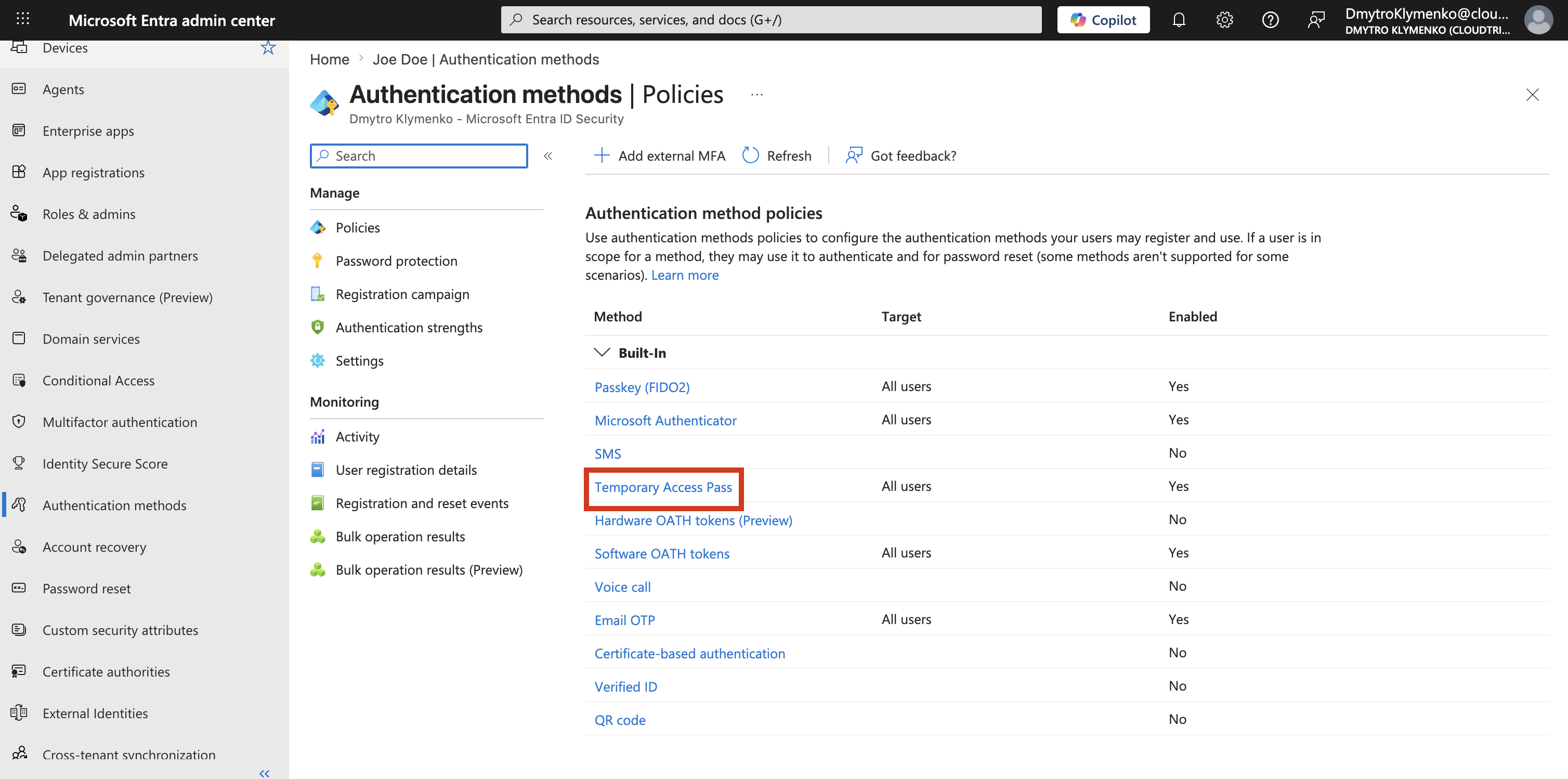
Enable Temporary Access Pass
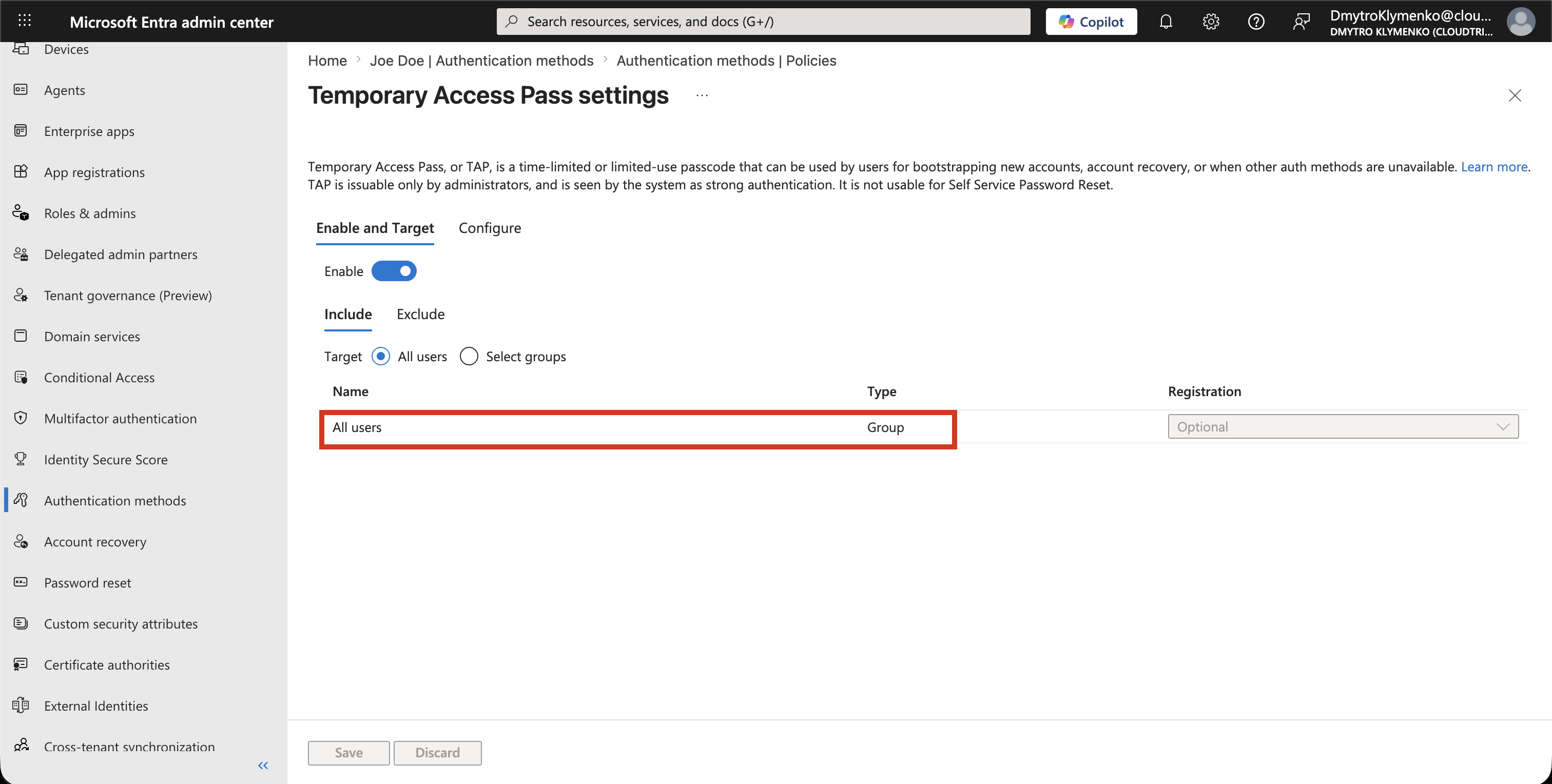
Enable the Temporary Access Pass method.
Choose whether it applies to:
All users
Selected users or groups
For production, a selected pilot or onboarding group is usually safer than enabling it for everyone.
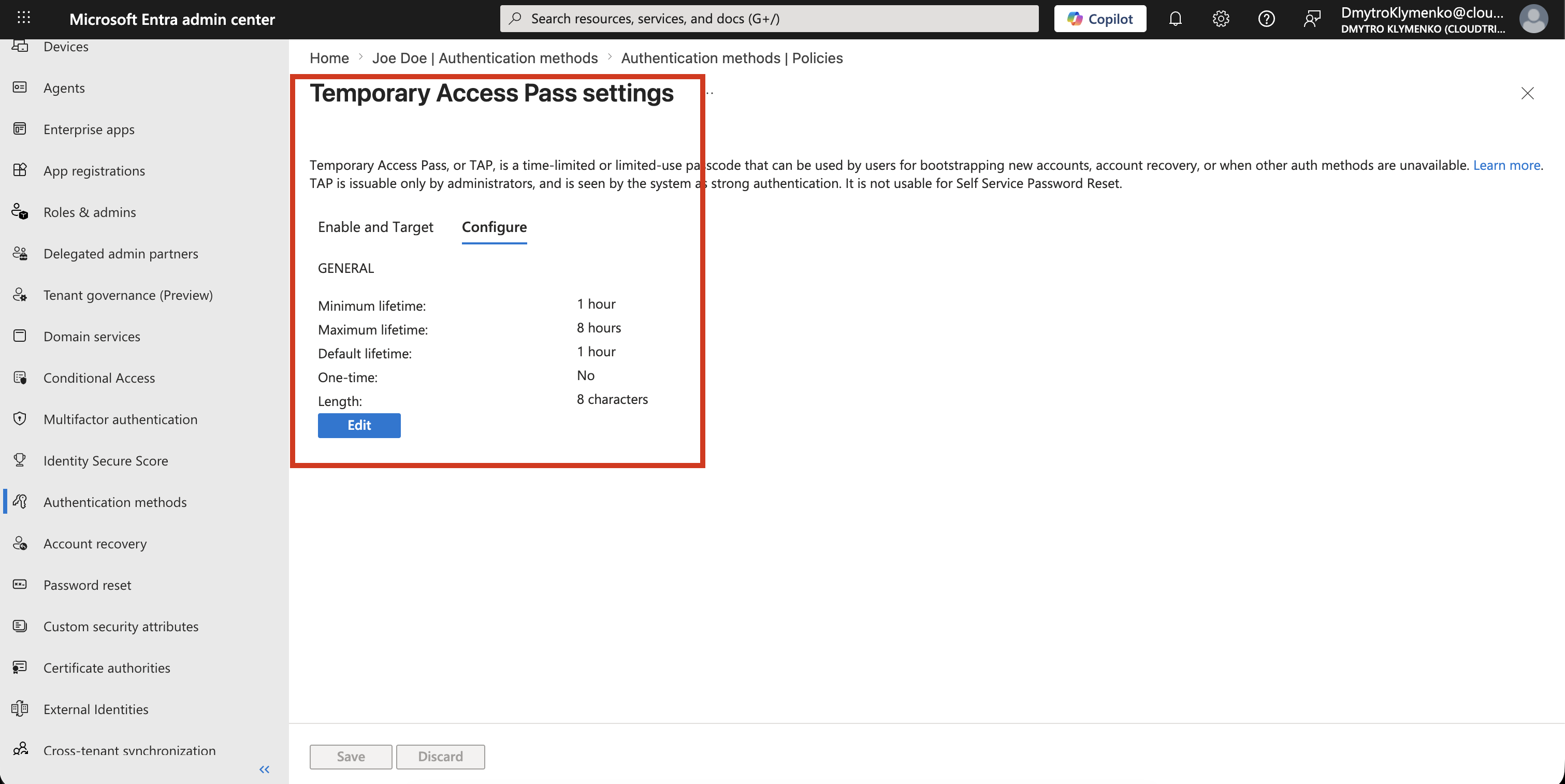
Configure TAP Settings
Temporary Access Pass can be configured with restrictions such as:
Default lifetime
Minimum lifetime
Maximum lifetime
One-time use
Length
For onboarding, a short lifetime is usually best.
The goal is not to create a permanent sign-in method.
The goal is to give the user temporary access so they can register Microsoft Authenticator or another strong method.
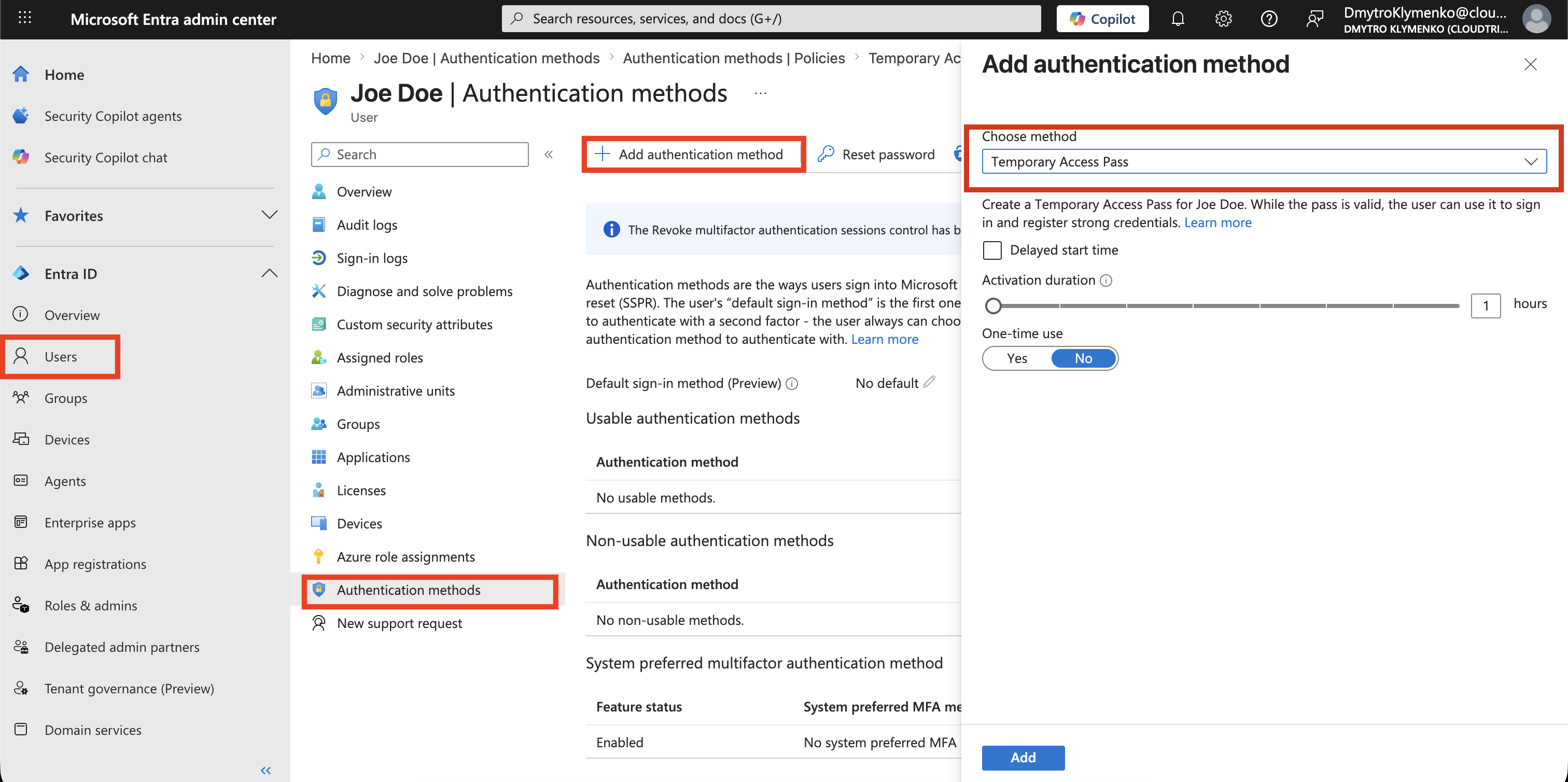
Create a Temporary Access Pass for the User
Go to:
Microsoft Entra ID > Users > Select user > Authentication methodsSelect:
Add authentication methodChoose:
Temporary Access PassThen create the pass.
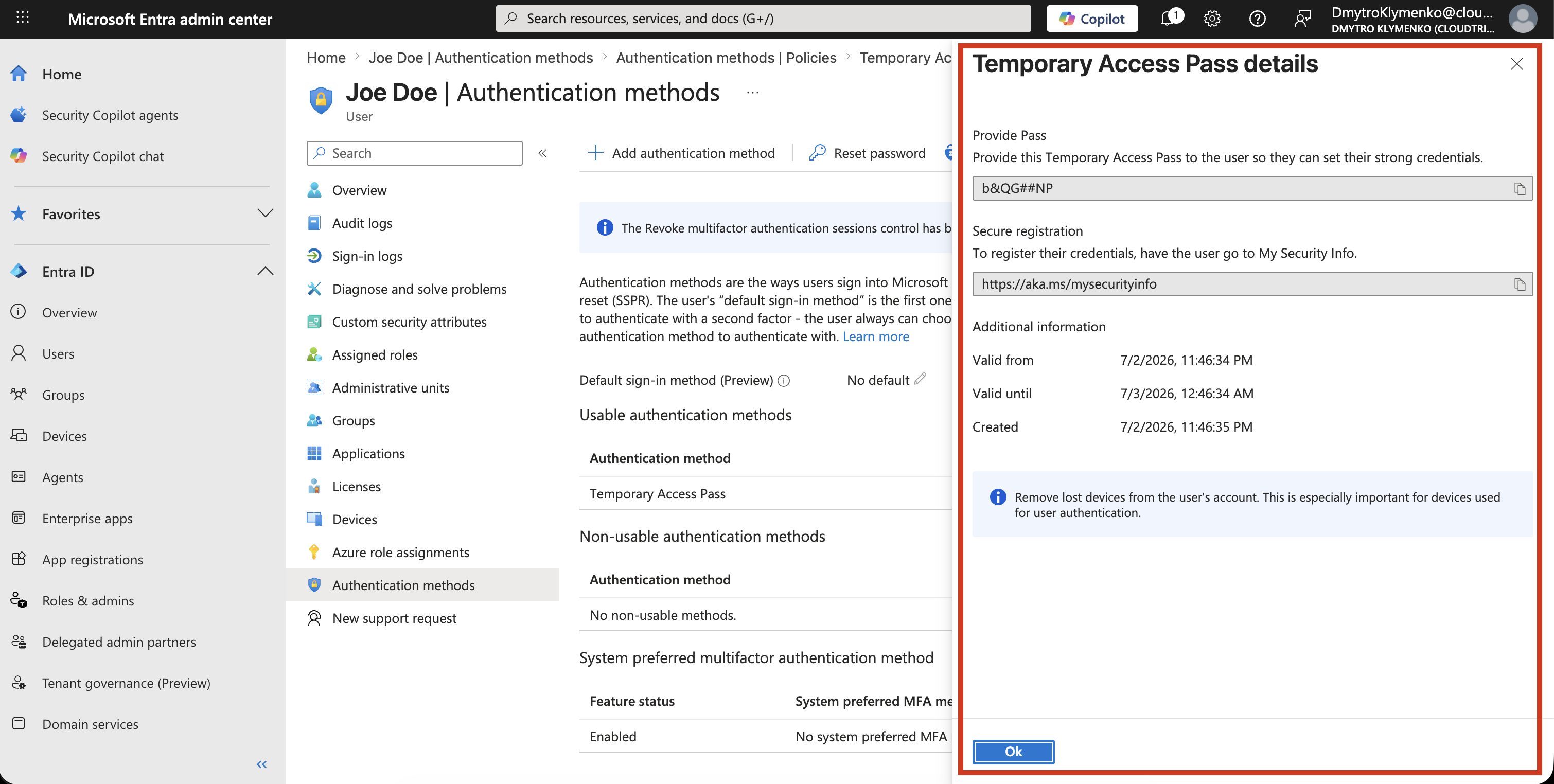
The TAP is created from the selected user’s Authentication methods page.
Copy the Temporary Access Pass
After the TAP is created, copy it immediately and provide it to the user through a secure channel.
The pass is temporary and should be handled like a sensitive credential.
User Registers MFA
The user signs in with the Temporary Access Pass and then registers a permanent authentication method, for example:
Microsoft Authenticator
Passkey
FIDO2 security key
After registration, the user should use the permanent method instead of the Temporary Access Pass.
Result
The user can sign in even without a phone or existing MFA method.
Temporary Access Pass solves the onboarding problem without weakening long-term security. Once the user registers a permanent method, the temporary pass is no longer the normal sign-in path.