Admin Role Should Be Temporary? Enable PIM
Admin roles should not be permanently active unless there is a strong reason.
Permanent admin access increases risk.
If the account is compromised, the attacker immediately receives privileged permissions.
The Microsoft Entra pattern is:
Configure PIM role settings -> assign admin as eligible -> admin activates role only when needed -> role expires automaticallyThis trip uses Privileged Identity Management for a Microsoft Entra admin role.
What PIM Changes
Without PIM:
User has active admin role all the timeWith PIM:
User is eligible for admin role
User activates when needed
Activation can require MFA, justification, ticket, or approval
Role is active only for a limited time
PIM supports Microsoft Entra roles, Azure resource roles, and PIM for Groups.
This trip focuses on Microsoft Entra admin roles.
Privileged Identity Management is part of Microsoft Entra ID Governance and requires the appropriate licensing.
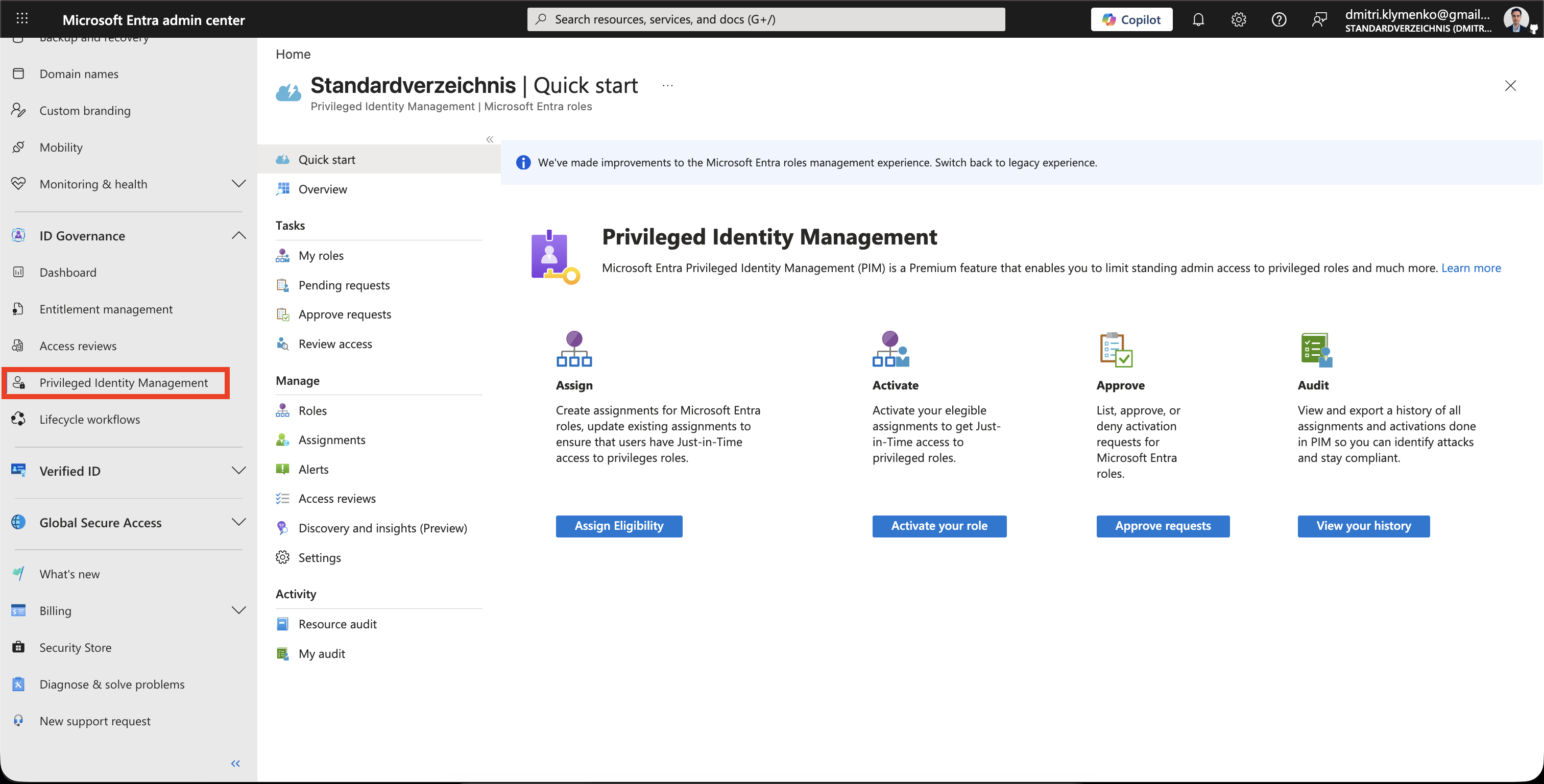
Open Privileged Identity Management
Go to:
Microsoft Entra admin center > ID Governance > Privileged Identity ManagementSelect:
Microsoft Entra rolesThis is where PIM manages directory admin roles such as User Administrator, Application Administrator, or Global Reader.
Open Role Settings
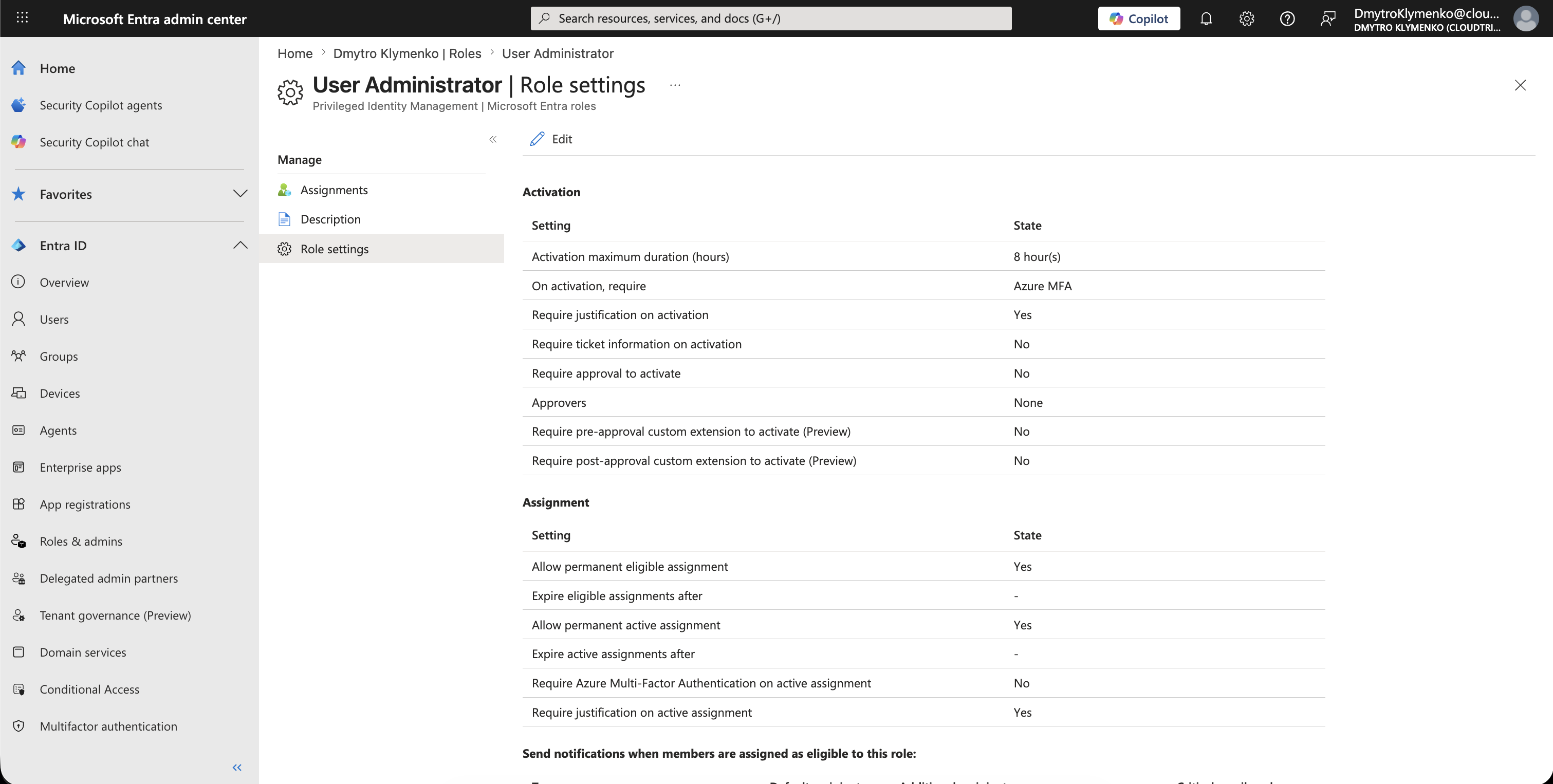
Open:
RolesSelect the role you want to protect.
Example:
User AdministratorThen open:
Role settingsRole settings define how eligible users activate this specific role.
Each role has its own PIM settings.
Configure Activation Settings
Select:
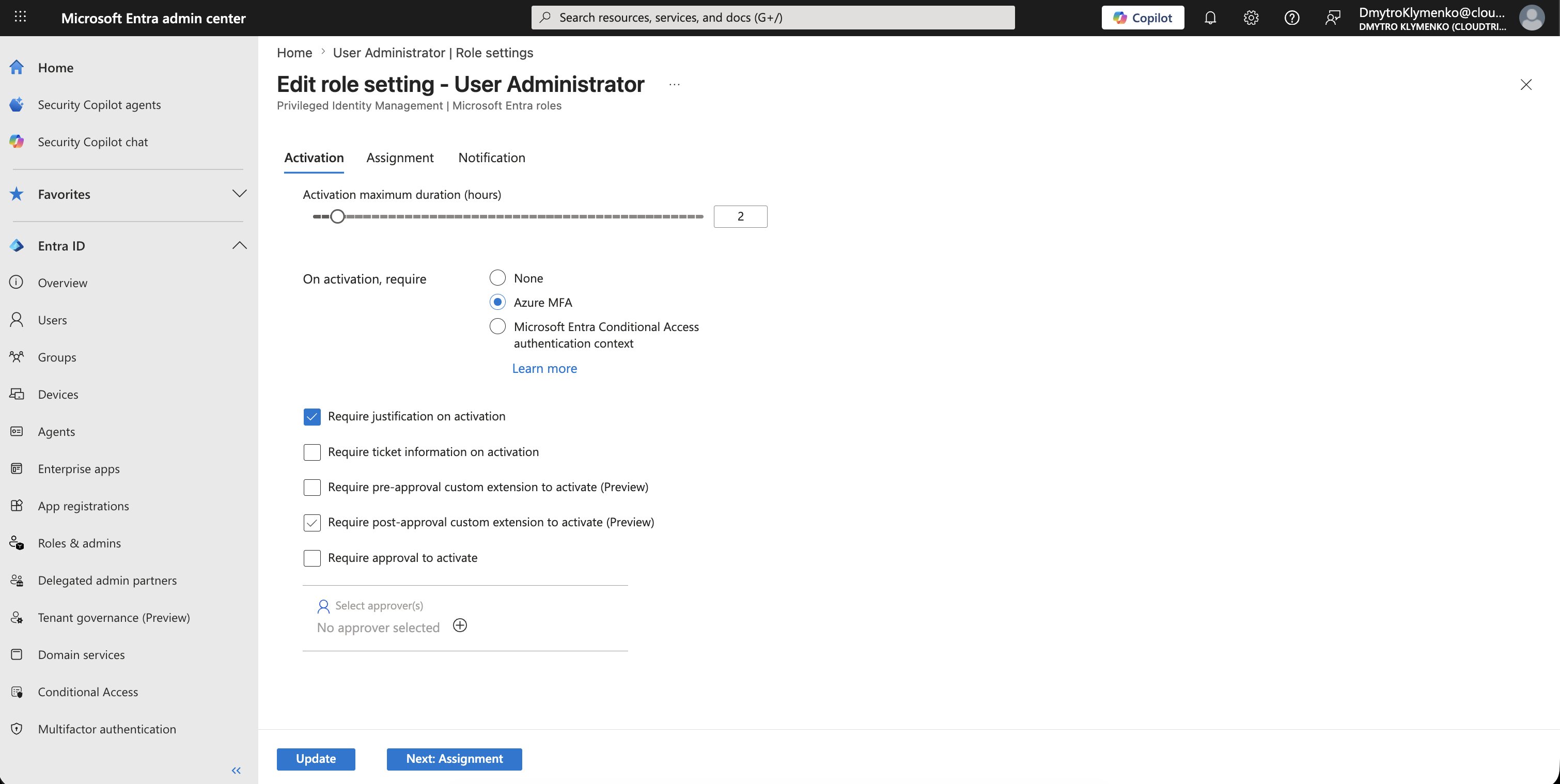
EditConfigure activation rules.
Example:
Activation maximum duration: 2 hours
On activation, require multifactor authentication: Yes
Require justification on activation: Yes
Require ticket information on activation: No
Require approval to activate: No
This means the admin must activate the role before using it, explain why, and loses the active role after the activation window ends.
For highly privileged roles, consider requiring approval.
If approval is required, configure specific approvers so eligible admins do not get stuck waiting for default approvers.
Configure Assignment Duration
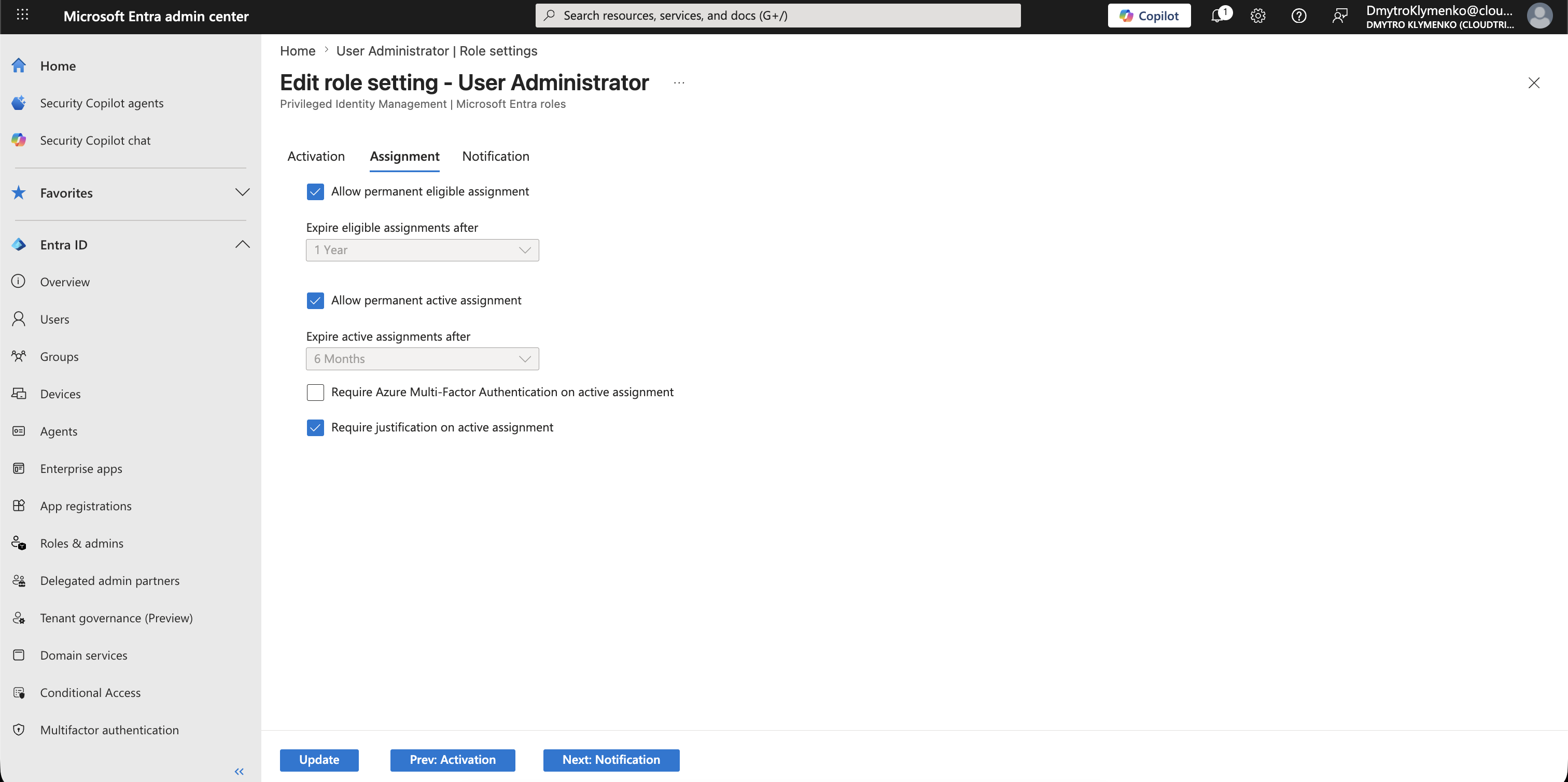
Set how long eligible and active assignments can exist.
For this trip:
Eligible assignment: Allow permanent eligible assignment
Active assignment: Expire active assignment after 8 hours
Permanent eligible does not mean permanent active admin access.
It means the user can request activation when needed.
The active permissions are still temporary.
For contractors or temporary admins, use a time-bound eligible assignment instead.
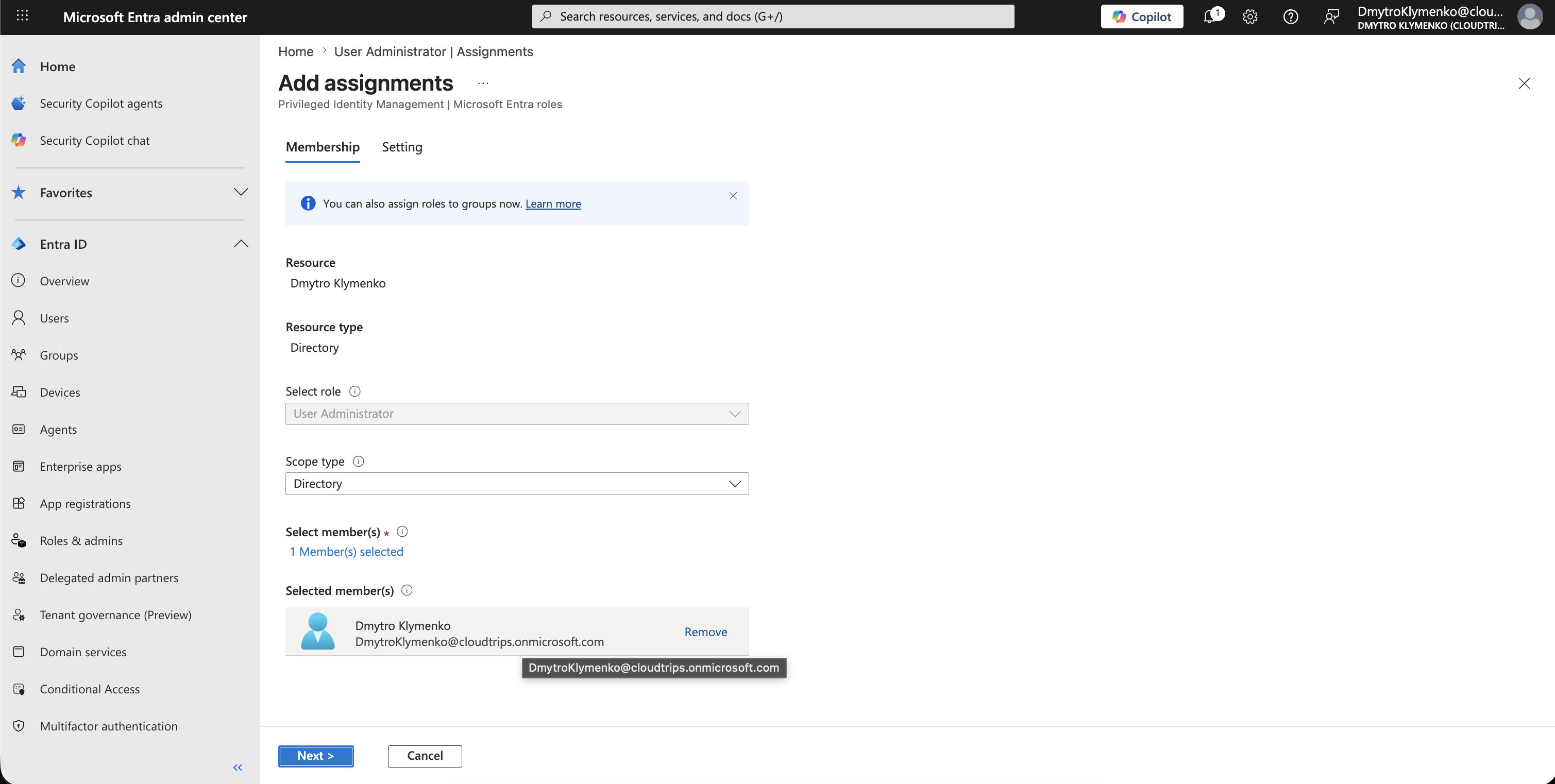
Assign the Admin as Eligible
Go back to:
Privileged Identity Management > Microsoft Entra roles > AssignmentsSelect:
Add assignmentsChoose:
Role: User Administrator
Member: <admin user>
Then select:
Assignment type: EligibleDo not choose Active unless the user really needs standing admin access.
Review Membership Settings
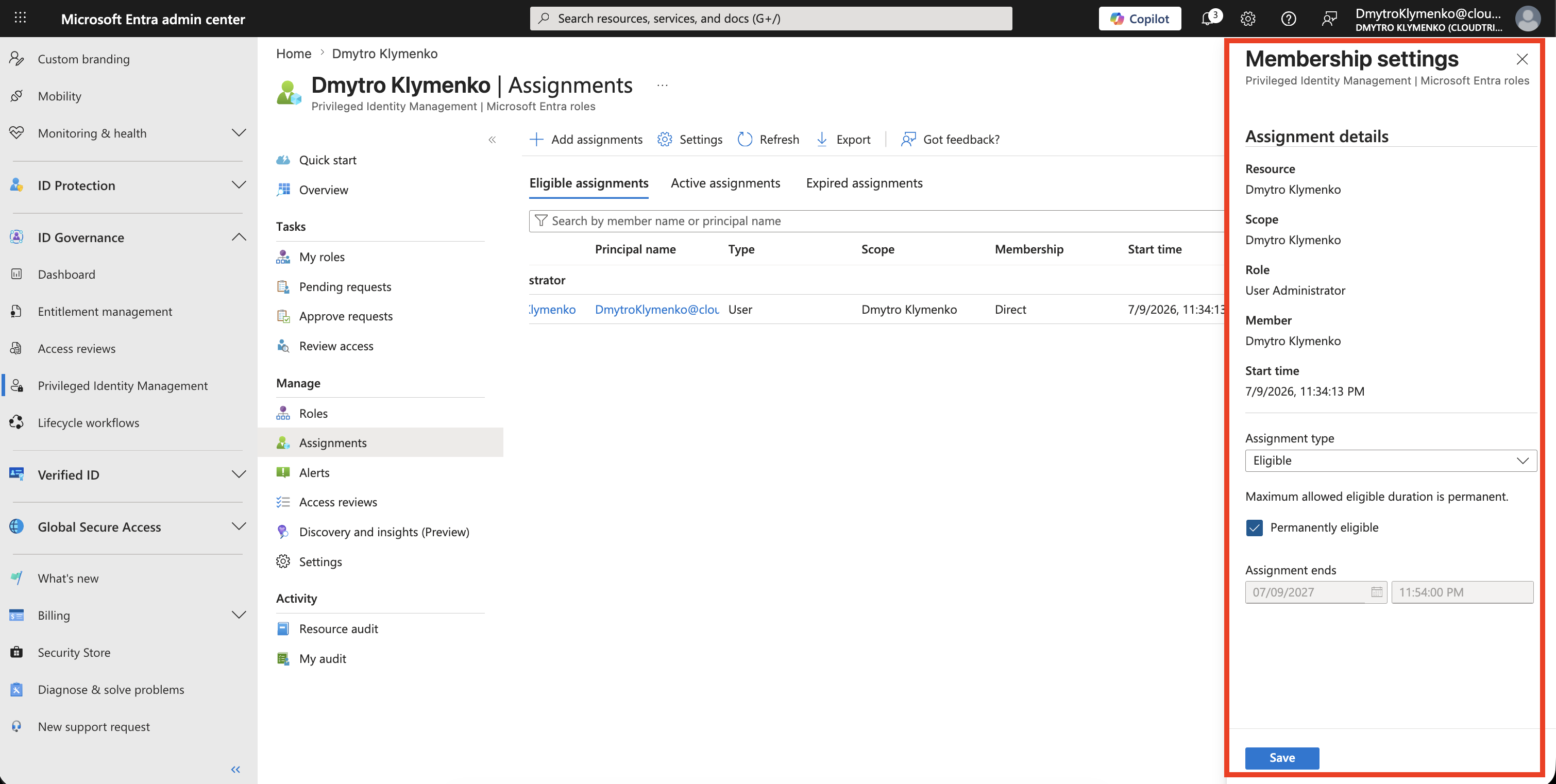
After the eligible assignment exists, select the assignment row under:
Assignments > Eligible assignmentsThen choose:
UpdateThe portal opens the edit pane:
Membership settingsYou can edit the assignment type and eligibility duration in this pane.
In this trip, you already set the important choice earlier by assigning the role as Eligible.
Confirm the assignment details.
Example:
Role: User Administrator
Member: <admin user>
Assignment type: Eligible
Permanently eligible: Selected
For a normal internal admin, Permanently eligible is acceptable because the role is not permanently active.
The admin still has to activate the role when they need it.
For temporary admin work, clear Permanently eligible and set:
Assignment ends: Specific date and timeAfter making changes, select:
SaveThe user is now eligible for the role, but does not have active admin permissions yet.
Activate the Role
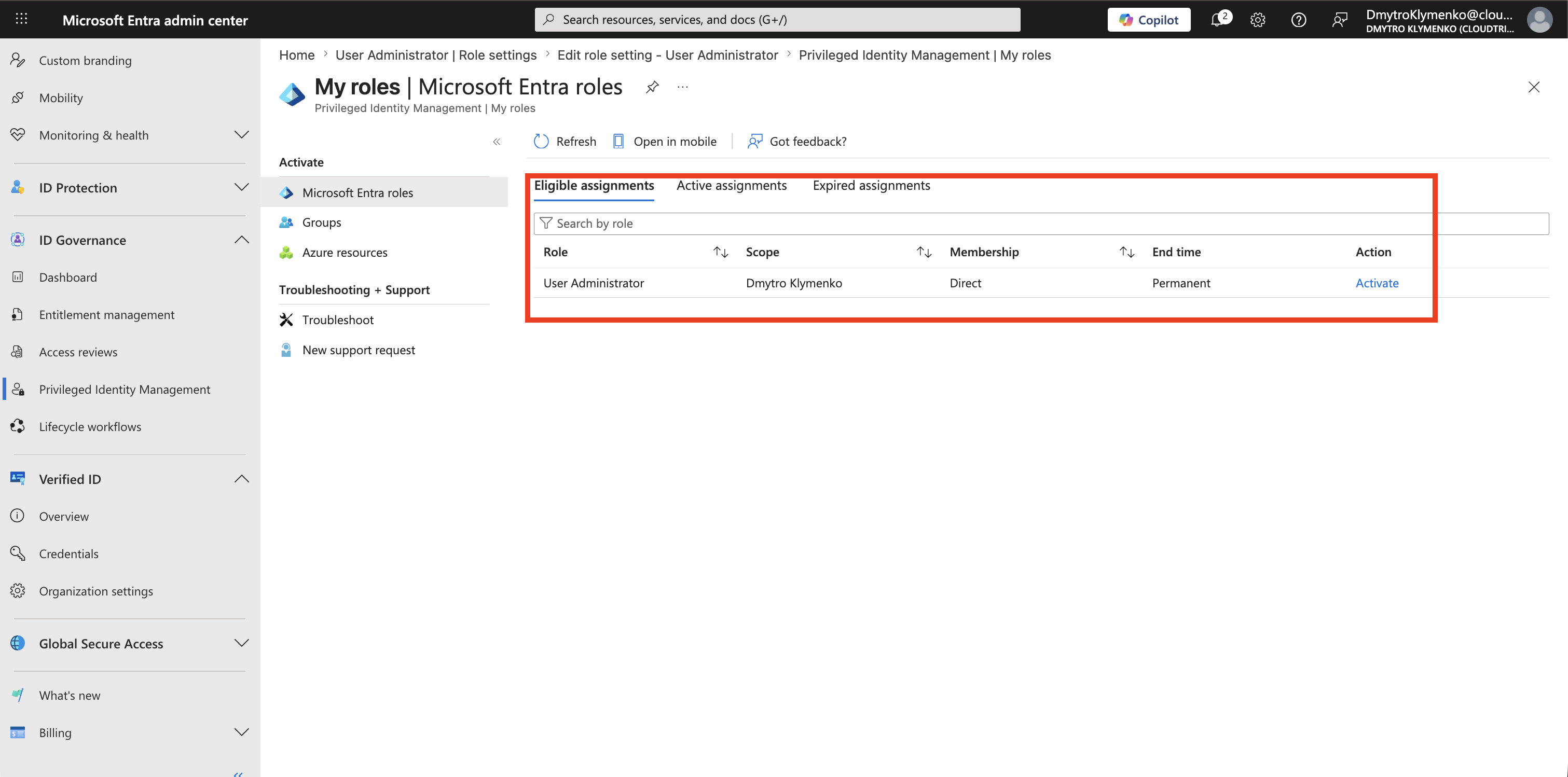
When the admin needs to perform the task, they open:
Microsoft Entra admin center > ID Governance > Privileged Identity Management > My rolesThey select the eligible role and choose:
ActivateDepending on role settings, they may need to:
- complete MFA
- enter justification
- enter ticket information
- wait for approval
Confirm Temporary Activation
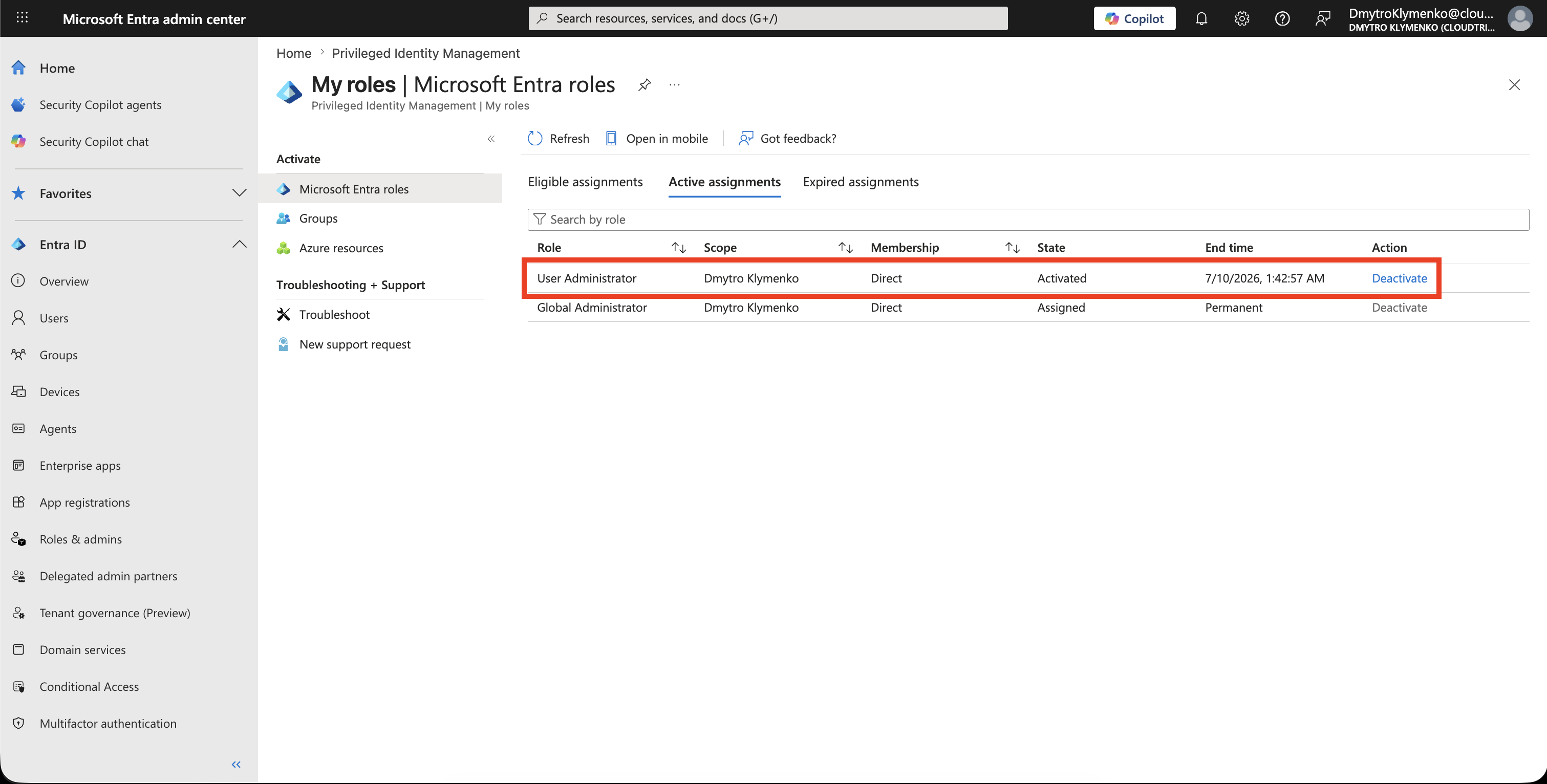
After activation, the role appears as active for the configured duration.
Example:
User Administrator active for 2 hoursAfter the activation expires, the user returns to eligible state.
They must activate again before performing privileged tasks.
Enterprise Note
PIM reduces standing privilege, but it does not replace good role design.
Recommended checklist:
- keep emergency access accounts outside normal PIM approval dependencies
- avoid permanent active admin assignments
- assign least-privileged admin roles
- use eligible assignments for normal administrators
- require MFA for activation
- require justification for activation
- require approval for highly privileged roles
- configure at least two approvers when approval is required
- review role assignments regularly
- monitor PIM activation and audit logs
Use the smallest role that supports the task.
For example, prefer:
User Administratorover:
Global Administratorwhen the admin only needs to manage users.