New Employee Needs Azure Access? Create a Microsoft Entra User
A new employee joins the company.
Before we give them access to Azure resources, groups, apps, they need one basic thing:
a Microsoft Entra user account.
This is their cloud identity. It is the account they use to sign in and later receive permissions.
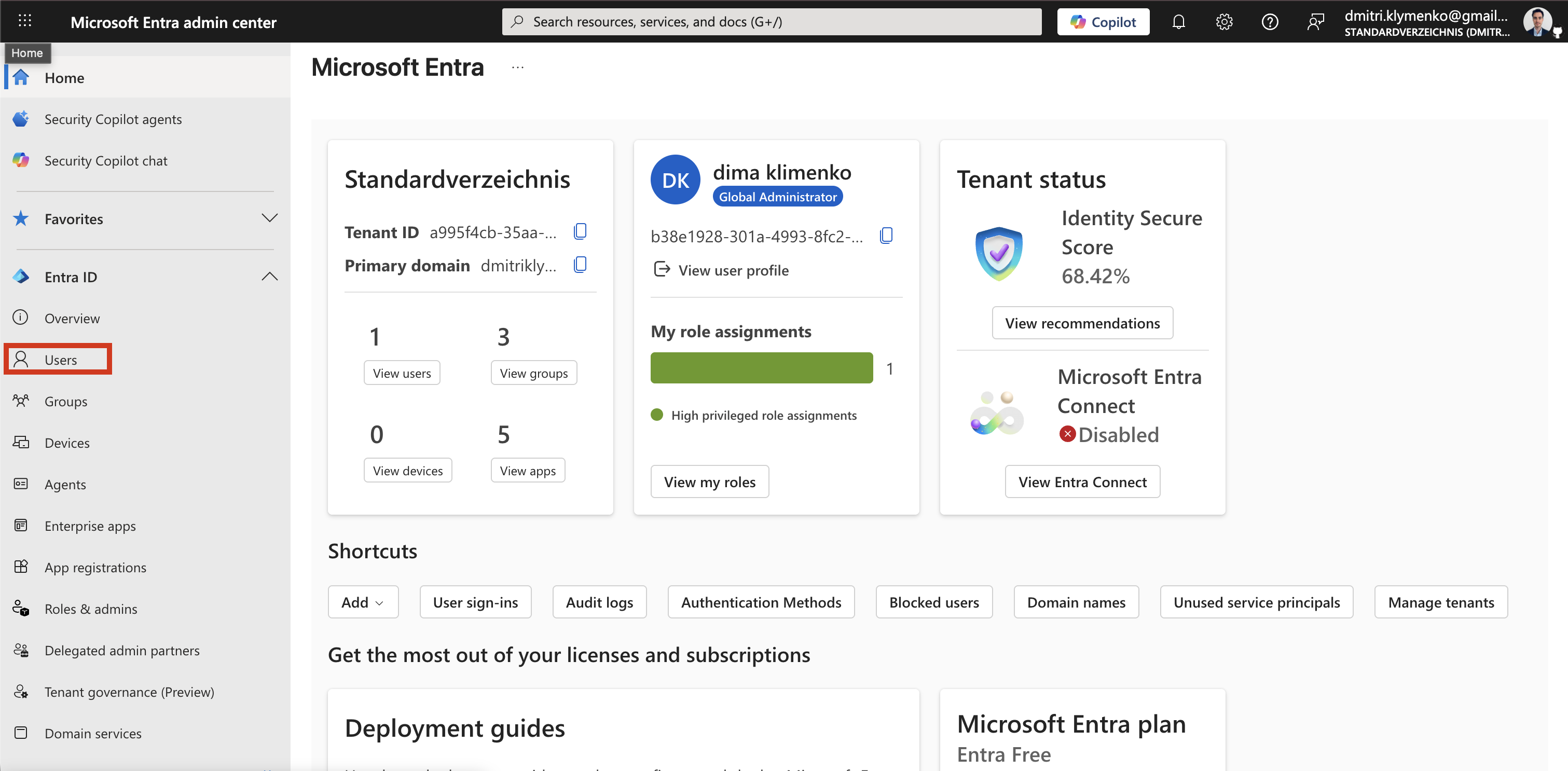
Open Users
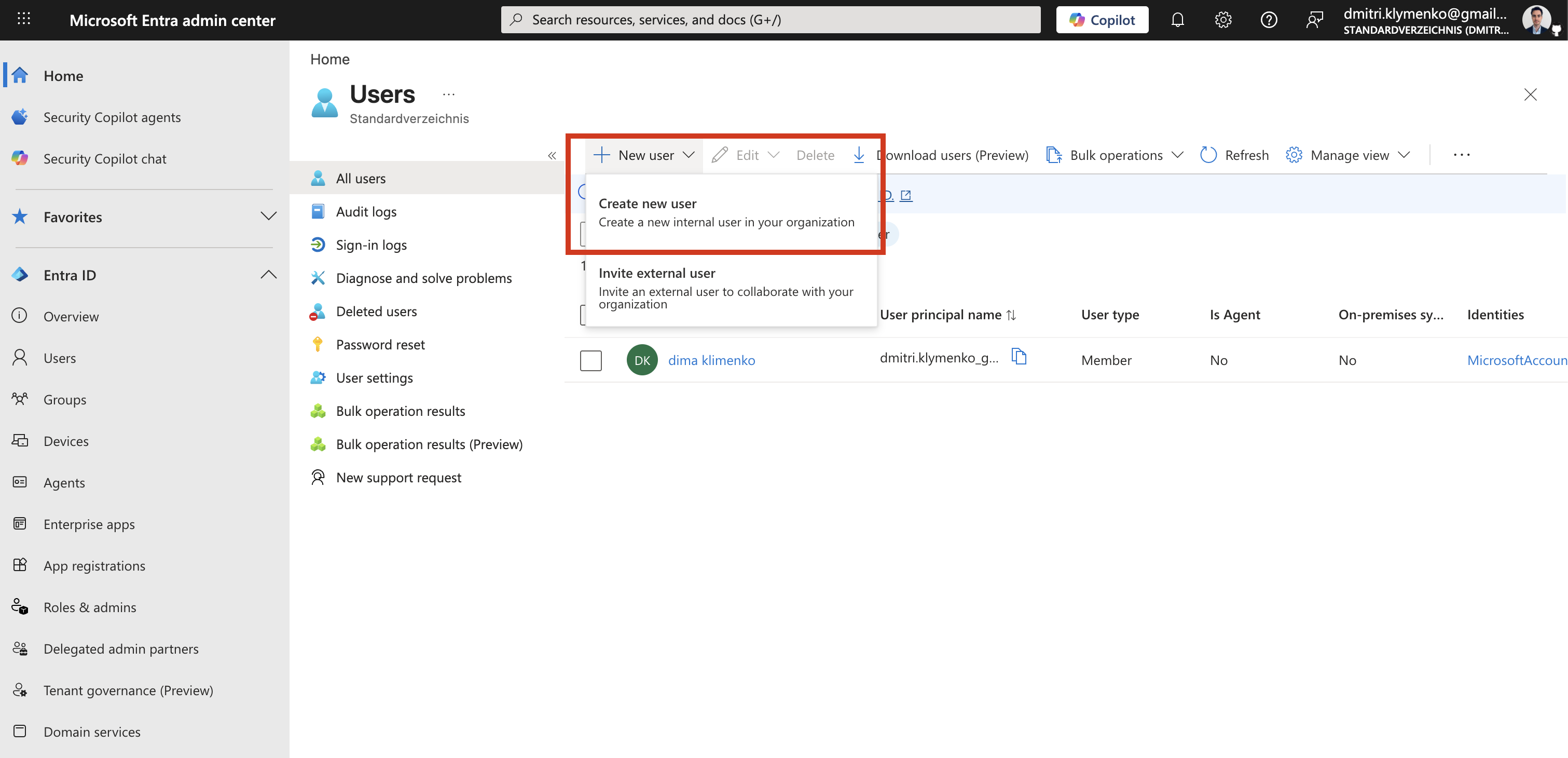
In the Microsoft Entra admin center, go to:
Entra ID > UsersThen click:
New user > Create new userMicrosoft’s current documentation lists this as the standard path for creating a new internal user, and says the admin should have at least the User Administrator role.1
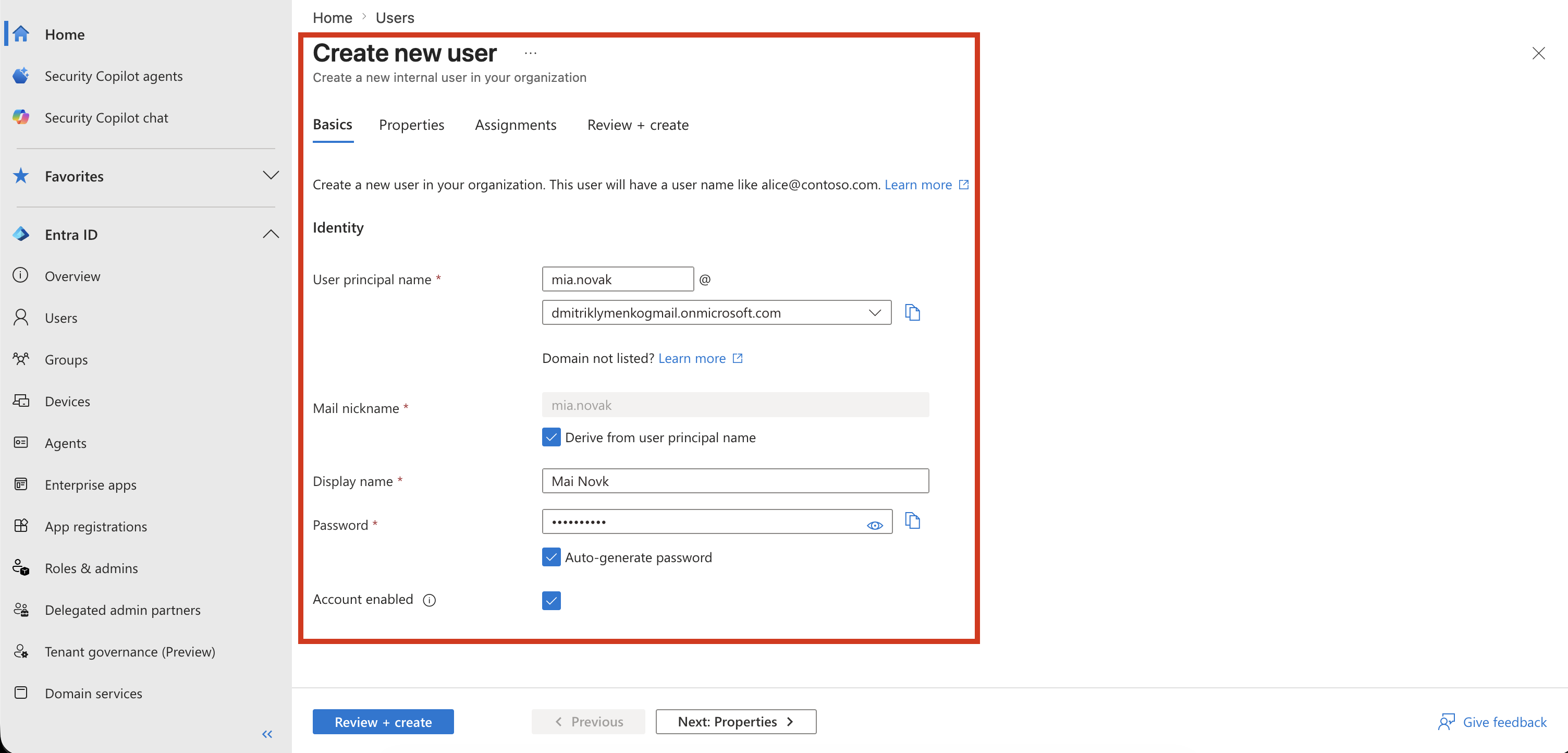
Add the Basic Details
Fill in the user details.
Example:
User principal name: mia.novak
Domain: dmitriklymenkogmail.onmicrosoft.com
Display name: Mia Novak
Password: Auto-generate password
Account enabled: Yes
The user principal name becomes the sign-in name, for example:
mia.novak@dmitriklymenkogmail.onmicrosoft.comKeep the account enabled if the employee should be able to sign in right away.
Create the User
Click:
Review + createCheck the name one last time.
Then click:
CreateThat’s it. The employee now has a Microsoft Entra user account.
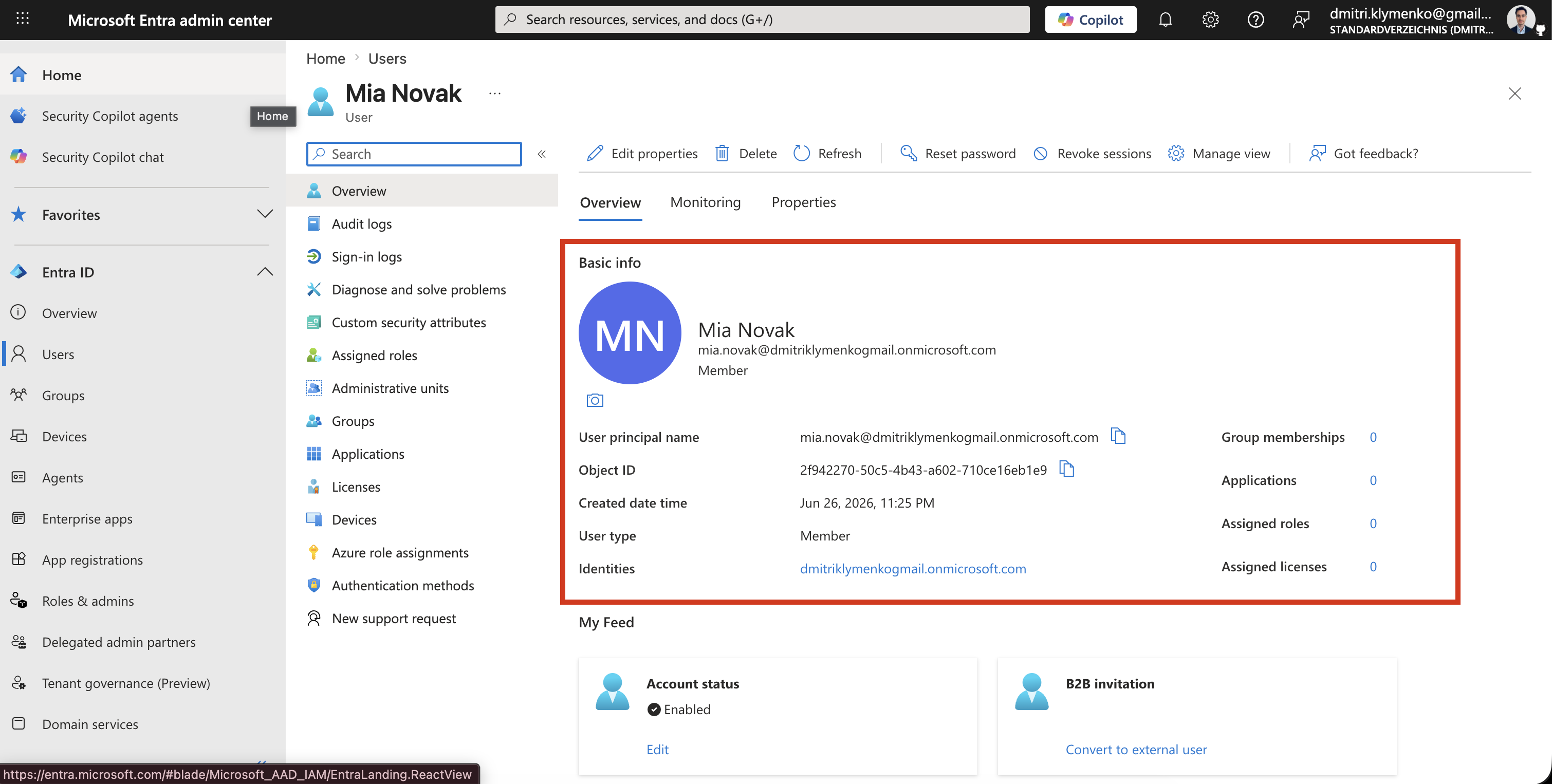
Tiny Reminder
Creating the user does not automatically give them Azure permissions.
It only creates the identity.
Access should come next, usually through groups and role assignments. But that is another topic.
For now, the clean flow is:
Create the user
Check the username
Share sign-in details safely
Move on to access assignment
Footnotes
-
How to create, invite, and delete users in Microsoft Entra ID, Microsoft Learn. ↩