Admin Needs Emergency Fallback? Create Emergency Access Account
Administrators can get locked out during an outage, Conditional Access mistake, federation issue, or MFA problem.
Create emergency access accounts so the tenant still has a controlled way back in.
Understand the Scope
Emergency access accounts are highly privileged accounts used only for break-glass scenarios.
Microsoft recommends maintaining at least two emergency access accounts. They should be cloud-only accounts that use the tenant’s .onmicrosoft.com domain and do not depend on federation or on-premises synchronization.
The basic pattern is:
create cloud-only users -> assign permanent Global Administrator -> register phishing-resistant auth -> exclude from blocking Conditional Access -> monitor usage -> validate regularlyUse these accounts only when normal admin accounts cannot be used.
Prerequisites
You need:
- a Global Administrator or Privileged Role Administrator account
- a secure naming convention for emergency accounts
- phishing-resistant authentication, such as FIDO2 security keys
- a secure storage process for credentials
- a monitoring process for sign-ins and audit activity
For a demo, create one account. In production, create at least two.
Create the Cloud-Only Account
In the Microsoft Entra admin center, go to:
Entra ID
> Users
> New user
> Create new user
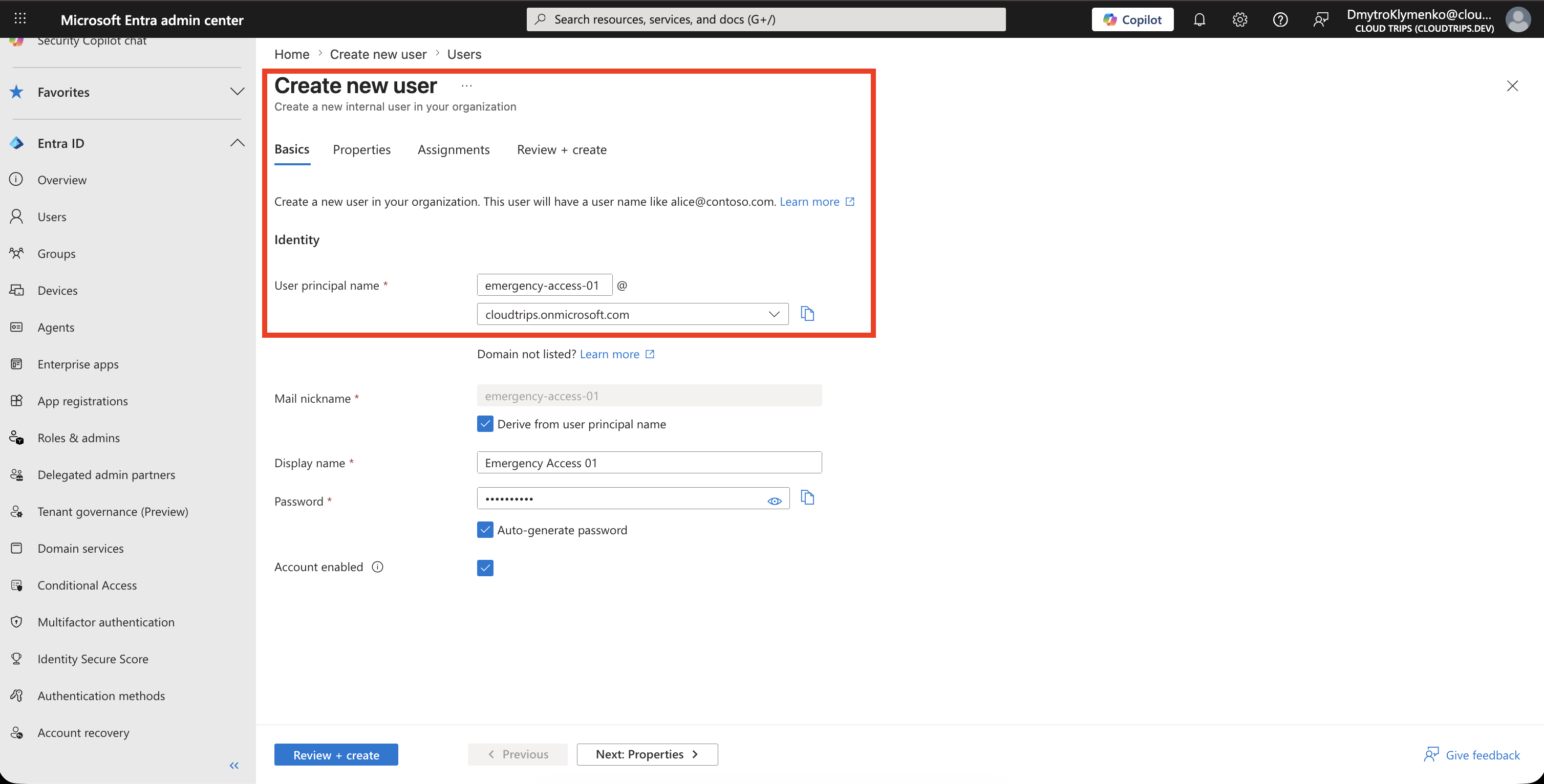
Create a cloud-only user that uses the tenant’s .onmicrosoft.com domain.
Example:
Display name: Emergency Access 01
User principal name: emergency-access-01@cloudtrips.onmicrosoft.com
Account enabled: Yes
Do not use a personal administrator name. Do not create this account from an on-premises synced identity.
Assign Global Administrator
Open:
Entra ID
> Roles and administrators
> Global Administrator
Select Add assignments and assign the emergency access account.
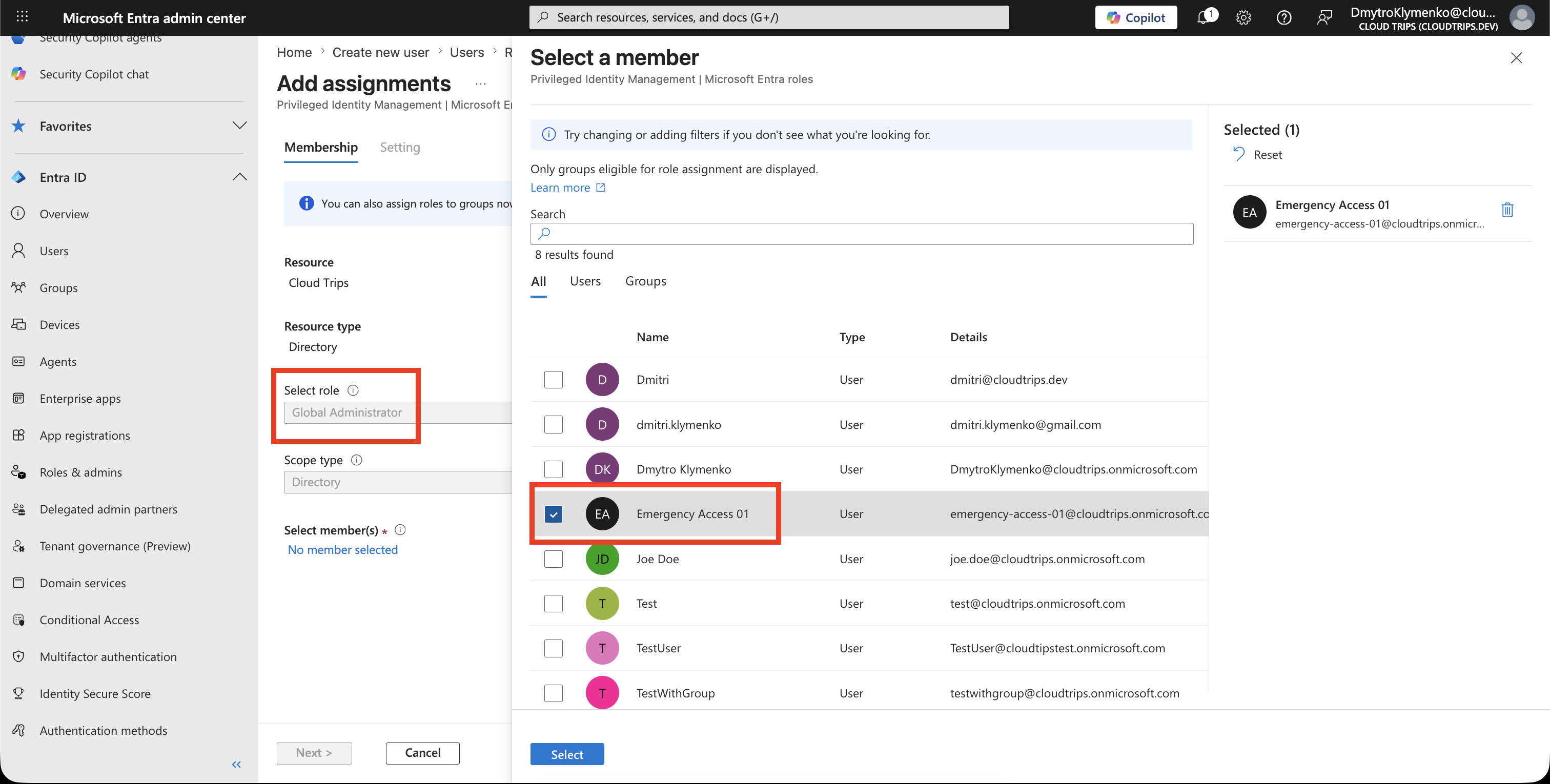
If Privileged Identity Management is used, keep the emergency access assignment active and permanent. Do not make it eligible-only, because emergency access must work when normal activation paths are unavailable.
Register Strong Authentication
Register a phishing-resistant authentication method for the account.
The emergency account needs an interactive session to register a passkey or security key. Use a Temporary Access Pass only as the first sign-in method.
As an administrator, open the emergency account:
Users
> emergency-access-01@cloudtrips.onmicrosoft.com
> Authentication methods
> Add authentication method
> Temporary Access Pass
Create a short-lived pass, for example one hour and one-time use.
Then open a private browser window, sign in as the emergency account with the Temporary Access Pass, and open:
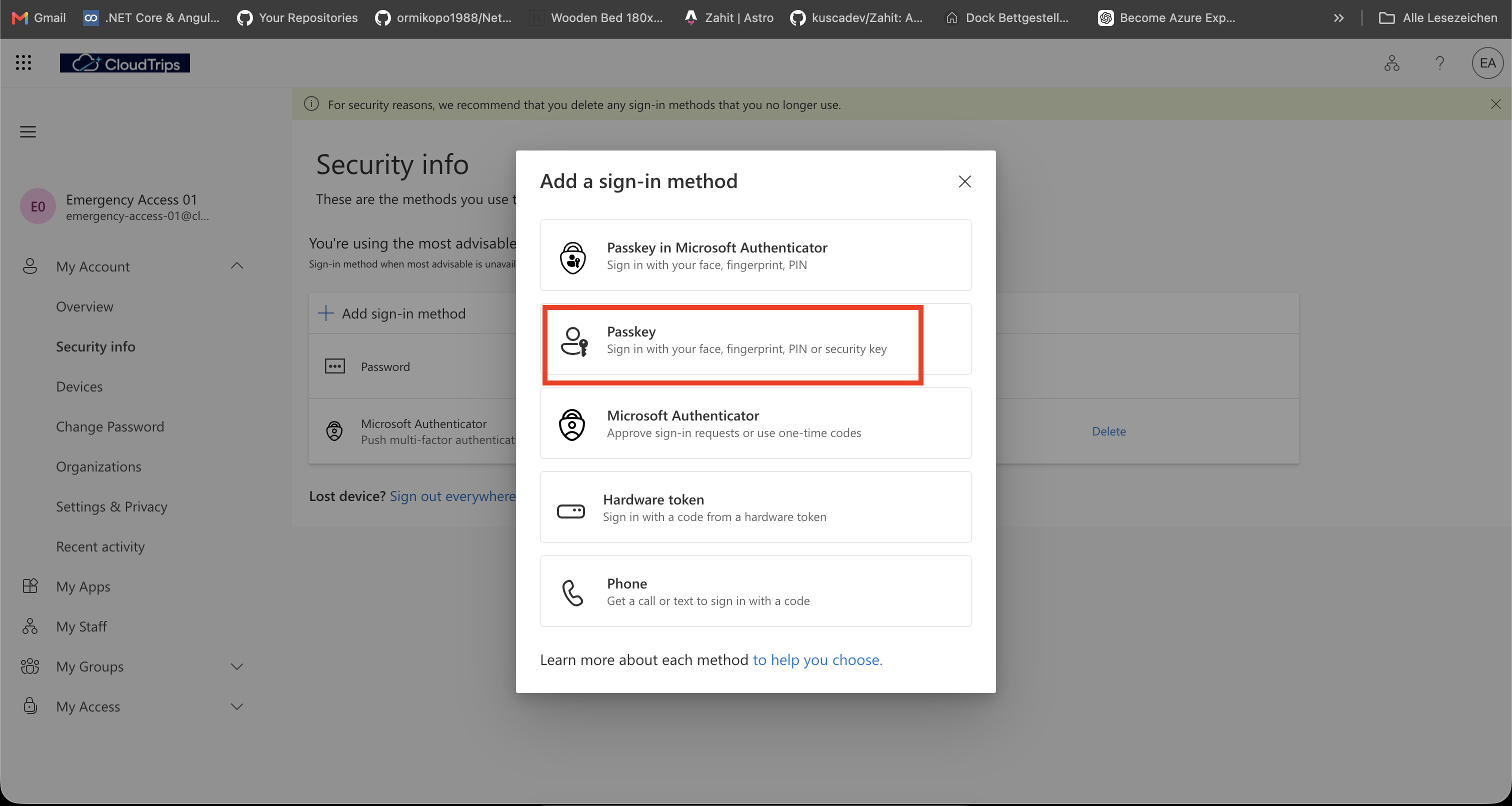
https://mysignins.microsoft.com/security-infoAdd the long-term method from the signed-in security page.
Recommended options:
Passkey (FIDO2)
Certificate-based authentication, if your organization already uses PKI
Use a method that is different from normal administrator authentication and does not depend on one person’s phone.
Store the credential or security key in a secure, documented location that authorized administrators can access during an emergency.
Exclude from Blocking Conditional Access
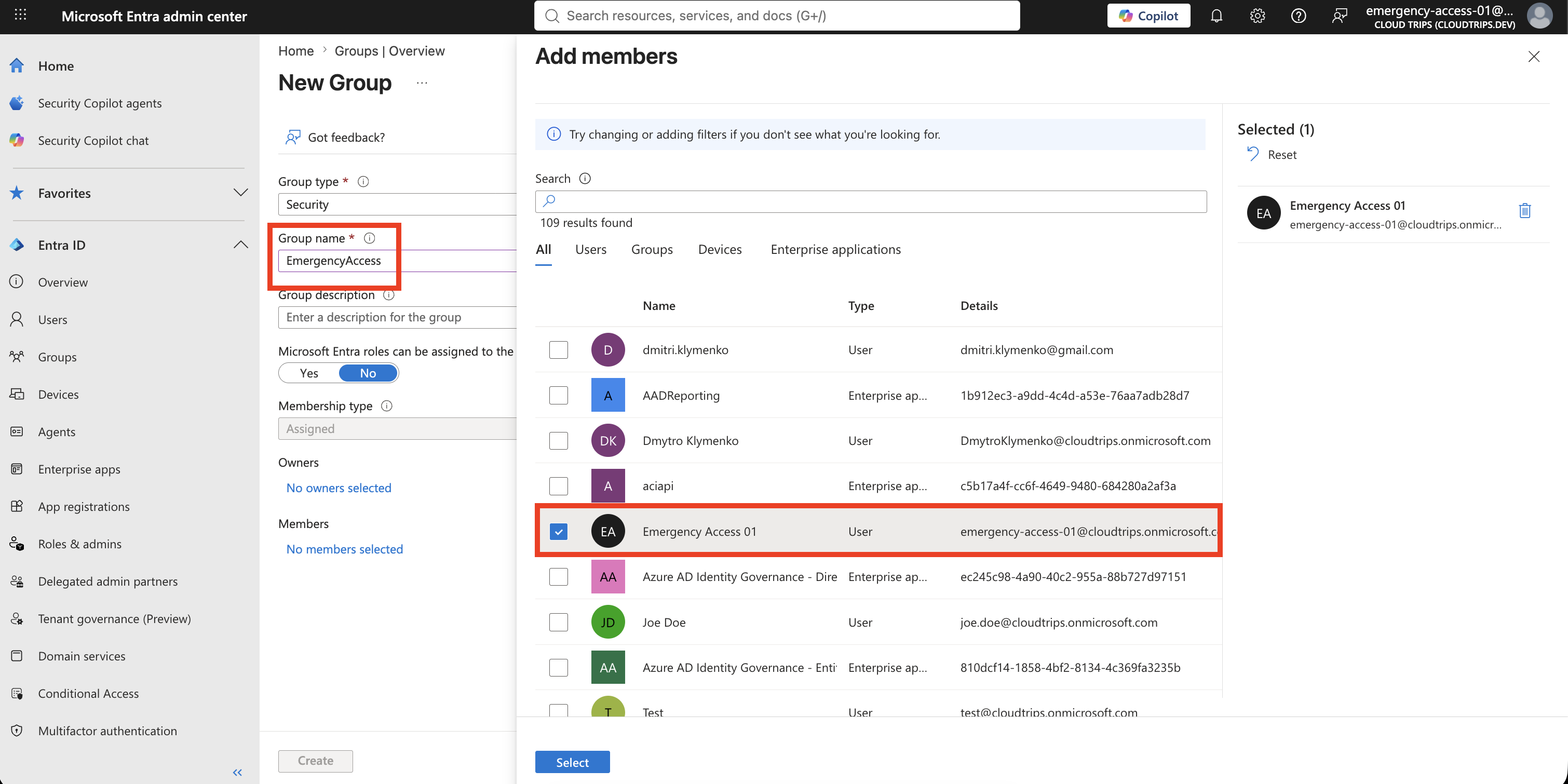
Create a dedicated group for emergency access accounts, for example:
EmergencyAccessAdd the emergency access account to the group.
Review Conditional Access policies that can block or restrict sign-in.
Exclude the EmergencyAccess group from policies that could make the account unusable during an emergency, such as policies that require compliant devices, trusted locations, or specific authentication methods.
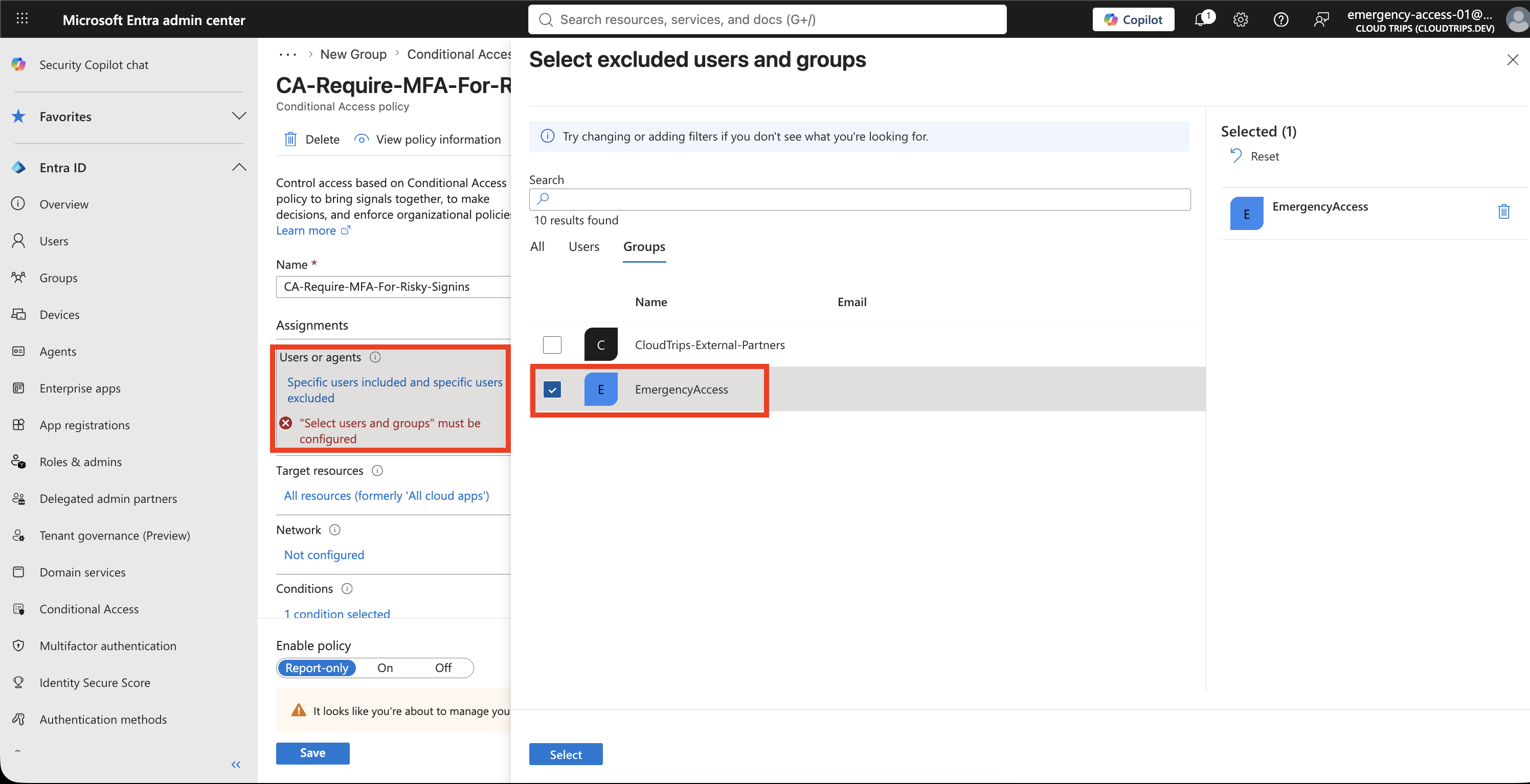
Report-only policies do not block sign-in and do not need an exclusion.
Test Sign-In
Open a private browser window and sign in with the emergency access account.
Confirm:
- sign-in succeeds
- the strong authentication method works
- the account can open the Microsoft Entra admin center
- the account can perform a small administrative validation task
Do not use the account for normal administration.
Monitor Emergency Account Use
Open:
Entra ID
> Monitoring & health
> Sign-in logs
Filter by the emergency access account.
Create alerting through Azure Monitor, Microsoft Sentinel, or your security operations tooling so every emergency access sign-in is reviewed.
Validate Regularly
Review the emergency access accounts on a schedule.
At least every 90 days, confirm:
- credentials are still available to authorized people
- authentication still works
- Conditional Access exclusions still allow sign-in
- role assignment is still active
- monitoring still detects sign-in
- documentation is current
Enterprise Note
- maintain at least two emergency access accounts
- use cloud-only
.onmicrosoft.comaccounts - assign Global Administrator intentionally and keep the assignment documented
- protect accounts with phishing-resistant authentication
- exclude accounts from blocking Conditional Access policies
- store credentials in separate secure locations
- monitor every sign-in and audit event
- validate accounts at least every 90 days
- review every real emergency use afterward
Emergency access accounts are not convenience admin accounts. They are controlled recovery accounts for rare situations where normal administration is unavailable.