Devices Should Join Group Automatically? Create a Dynamic Device Group
Microsoft Entra ID allows you to automatically assign devices to groups using dynamic device rules.
These rules evaluate device attributes such as:
- operating system
- device type
- enrollment state
This is used for:
- Intune policy targeting
- application deployment
- conditional access
- device-based access control
Open Groups in Entra
Go to:
Entra ID > GroupsThen select:
New group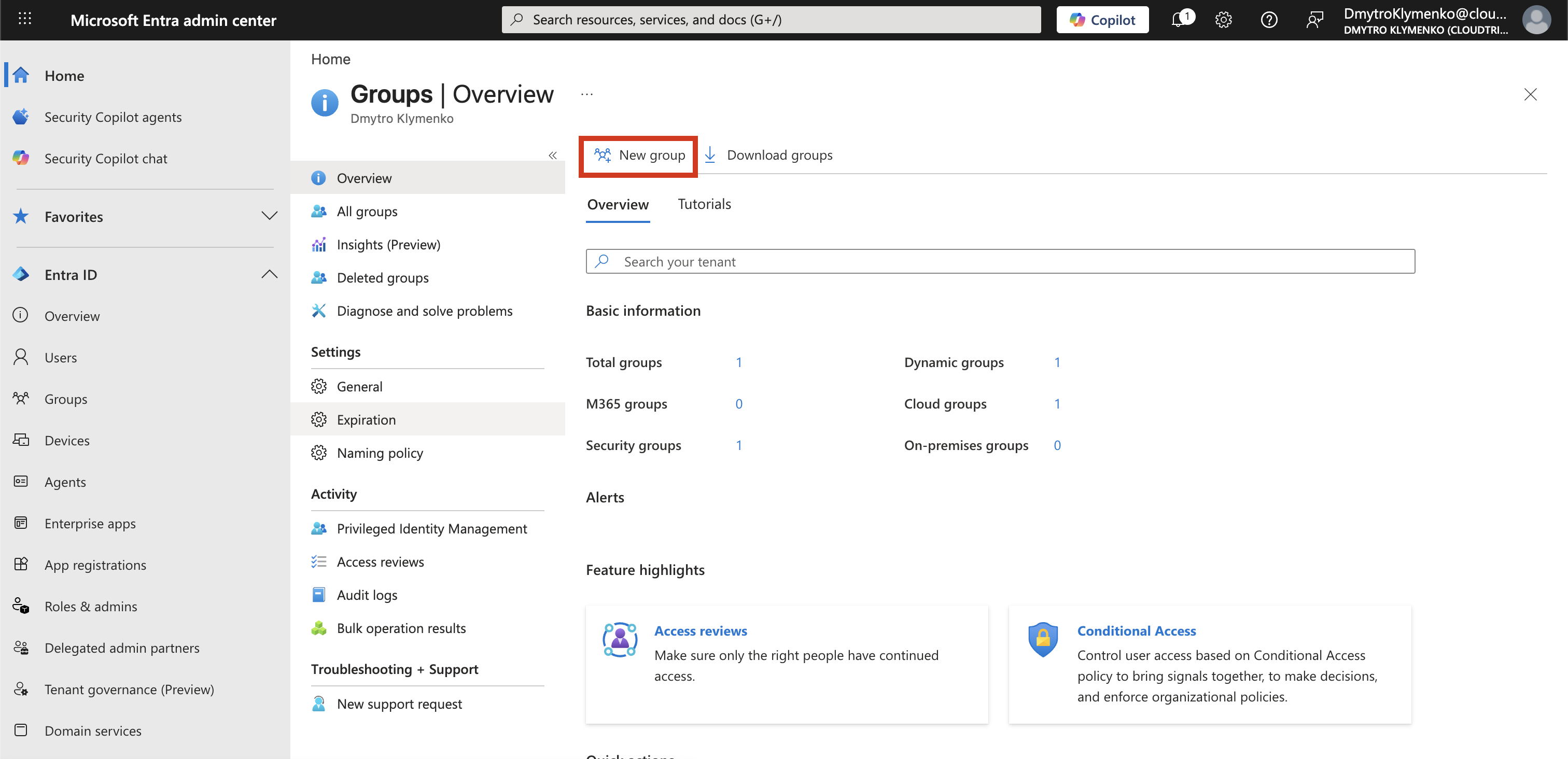
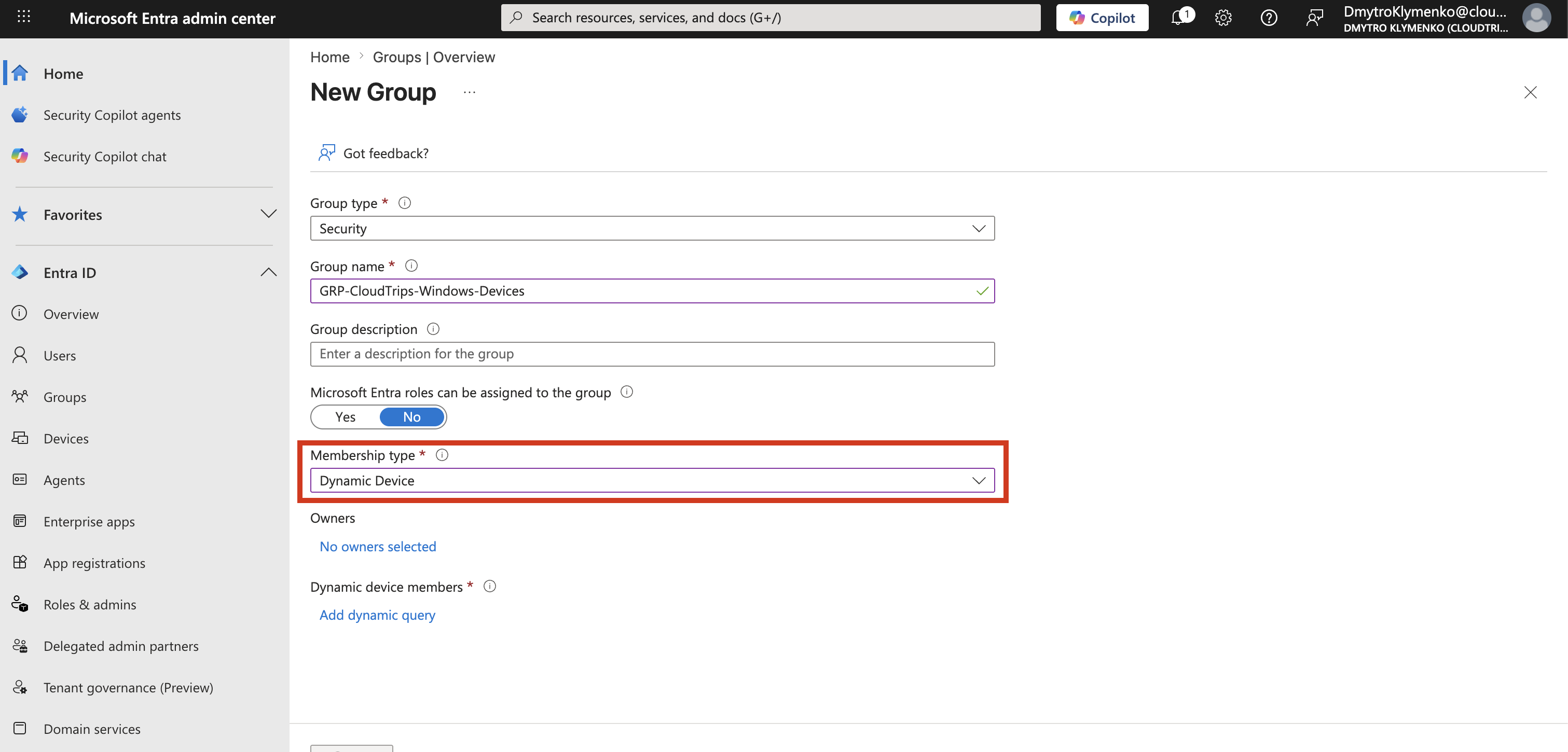
Create Dynamic Device Group
Configure the group:
Group type: Security
Group name: GRP-CloudTrips-Windows-Devices
Membership type: Dynamic Device
This tells Entra that membership is calculated automatically based on device properties.
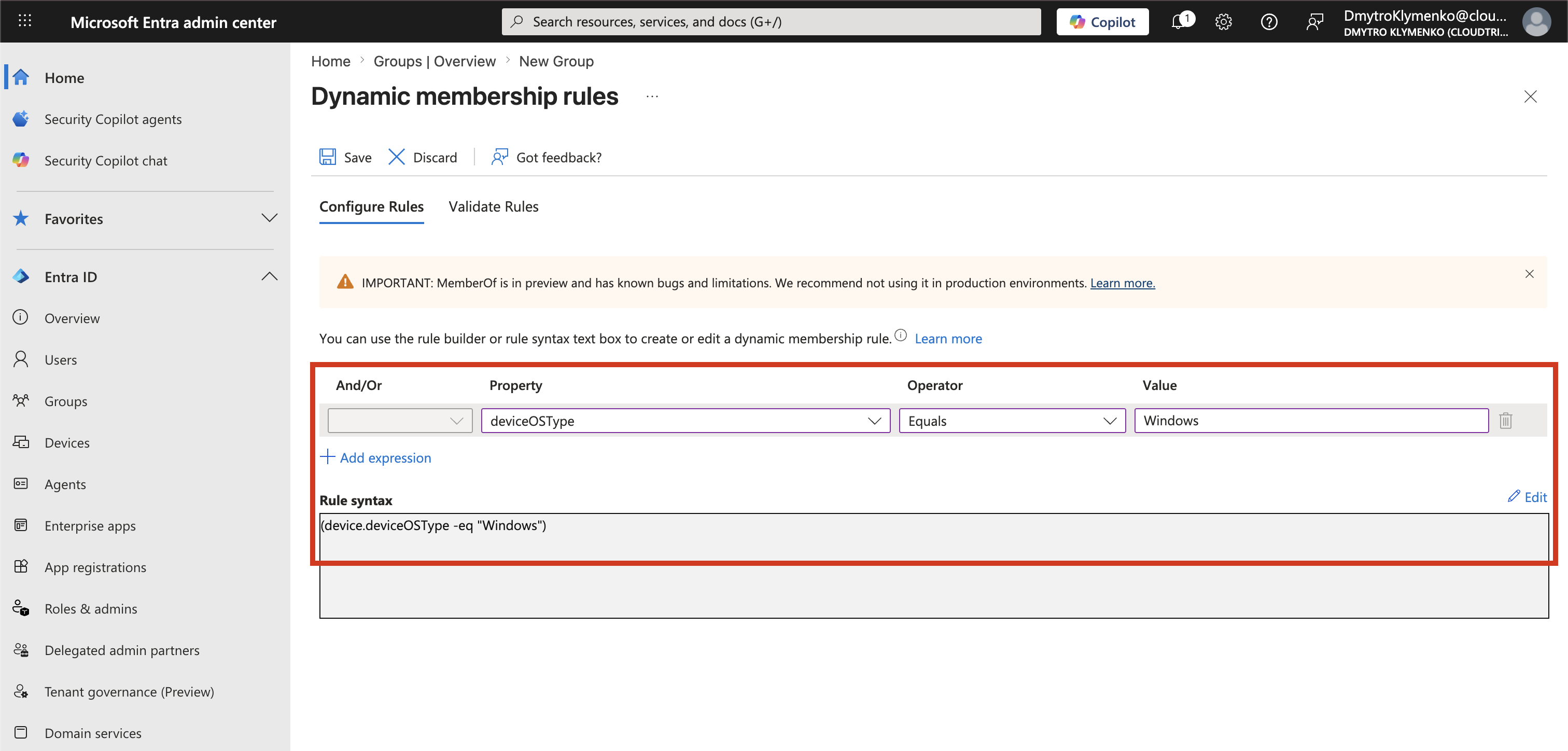
Define Device Rule
Example rule:
(device.operatingSystem -eq "Windows")This ensures only Windows devices are included in the group.
Create the Group
Click:
CreateEntra evaluates device objects in the background and automatically assigns matching devices to the group.
Important Concept: Where Devices Come From
Devices are not created by groups.
A dynamic device group can only work with existing device objects in Microsoft Entra ID.
This means the group does not generate devices. It only evaluates devices that already exist in the tenant.
Before a device can appear in any group, it must be onboarded into Entra ID.
How Devices Enter Entra ID
A device becomes part of Entra ID only after it is registered or joined.
There are three main types:
1. Entra ID Joined
This is a fully company-managed device.
It happens when:
- Windows device is set up with a work account
- user signs in during device setup, OOBE
- device is directly joined to Entra ID
Result:
- cloud-native identity
- fully managed by organization
- highest trust level
2. Entra Registered
This is a personal device used for work access.
It happens when:
- user signs into Microsoft apps, such as Teams, Outlook, or Office
- device is registered in Entra ID
Result:
- visible in Entra ID
- limited management control
- lower trust level than joined devices
3. Hybrid Entra Joined
This is an enterprise device connected to both on-prem AD and Entra ID.
It happens when:
- device is joined to on-prem Active Directory
- Entra Connect sync is enabled
Result:
- exists in AD and Entra simultaneously
- common in hybrid enterprise environments
- mixed management model
Key Rule for Dynamic Device Groups
A dynamic device group only works if:
Device exists in Entra ID + has matching attributesIf no devices exist:
- group is created successfully
- rule is valid
- but membership remains empty
Example Behavior
Rule:
(device.operatingSystem -eq "Windows")If:
- no Windows devices are enrolled, the group is empty
- a Windows device is enrolled later, it is automatically added