Risky Sign-In Detected? Configure Sign-In Risk Policy
Sometimes the account is not necessarily compromised, but the current login attempt looks suspicious.
That is sign-in risk.
The Microsoft Entra pattern is:
Risky sign-in detected -> Conditional Access policy -> require MFA or stronger verificationIn this example:
- CloudTrips wants to protect users during suspicious sign-ins
- Sign-in risk is evaluated for the current login attempt
- Conditional Access requires extra verification when risk is medium or high
This trip is about the login attempt.
The separate user-risk trip is about the account being likely compromised over time.
Sign-In Risk vs User Risk
Sign-in risk answers:
Does this specific login attempt look risky?User risk answers:
Is this user account likely compromised?Keep the policies separate.
For sign-in risk, the normal response is:
Require MFA or authentication strengthFor user risk, the normal response is:
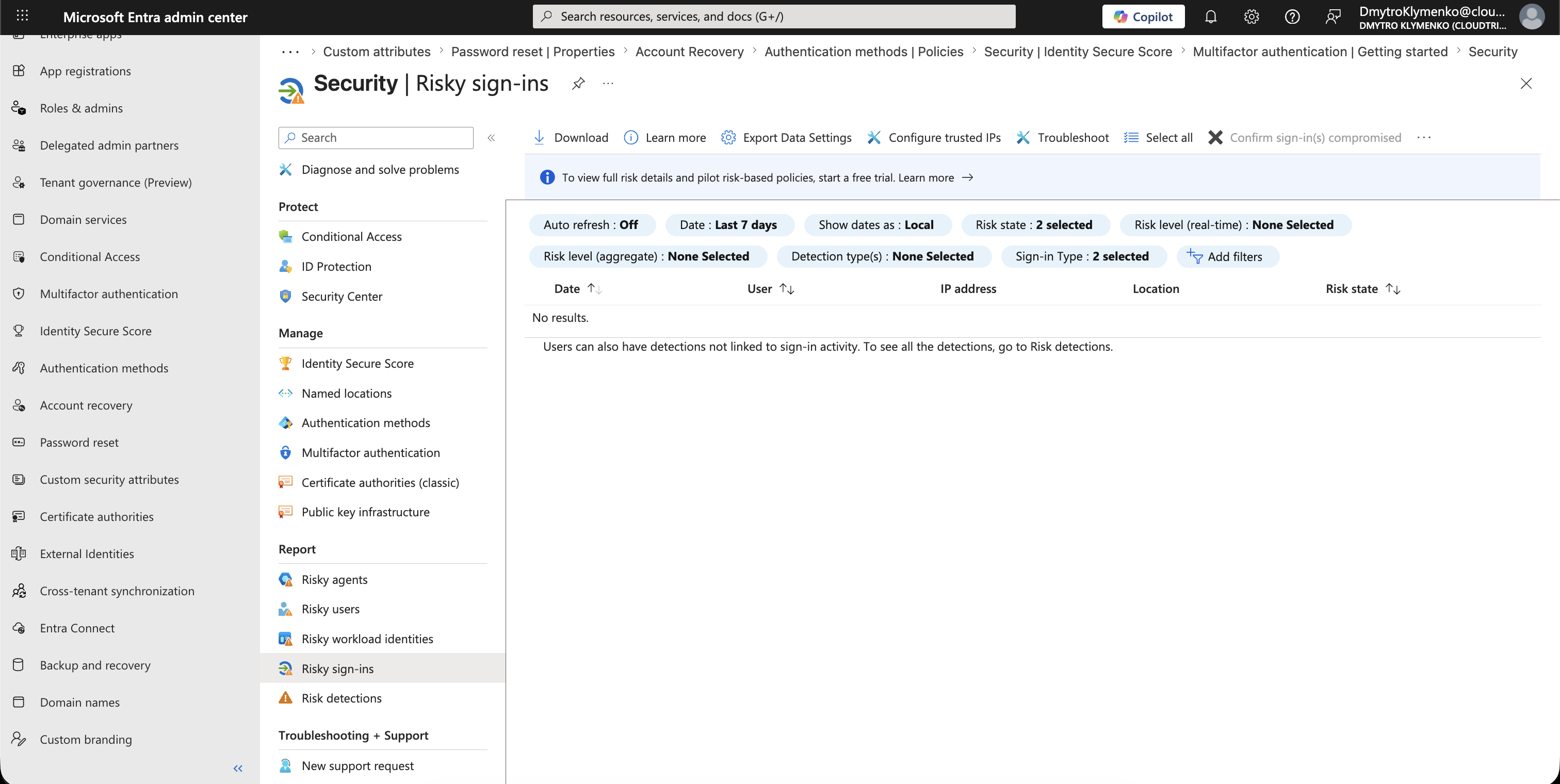
Require secure password changeReview Risky Sign-Ins
Go to:
Entra ID > Identity Secure Score > Risky sign-insReview the risky sign-ins before creating or changing policy.
Look at:
Date
User
IP address
Location
Risk state
Open a risky sign-in to see more details, such as risk detections, application, and conditional access results.
Create the Conditional Access Policy
Go to:
Entra ID > Conditional Access > PoliciesCreate a new policy.
Example name:
CA-Require-MFA-For-Risky-Signins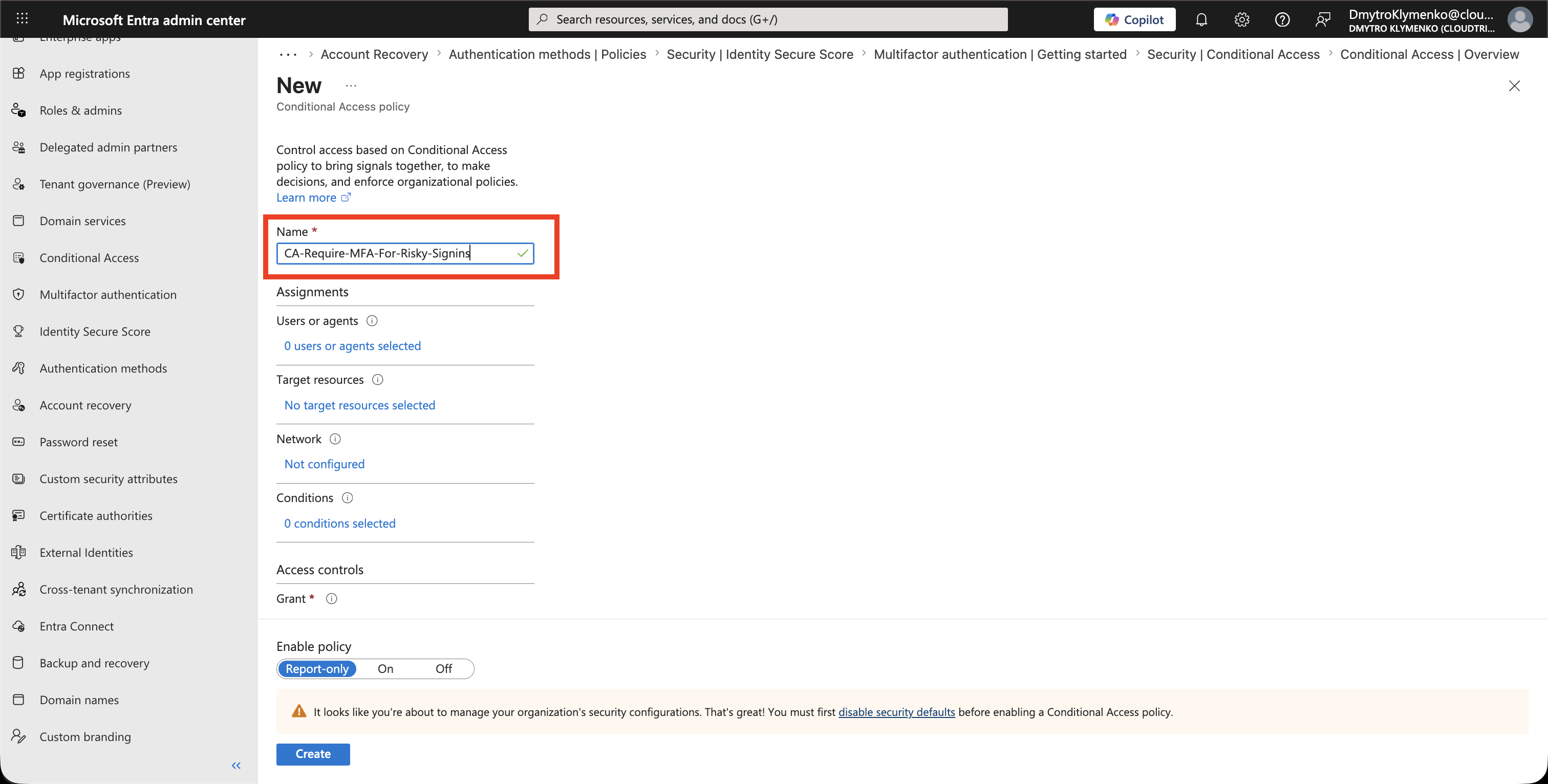
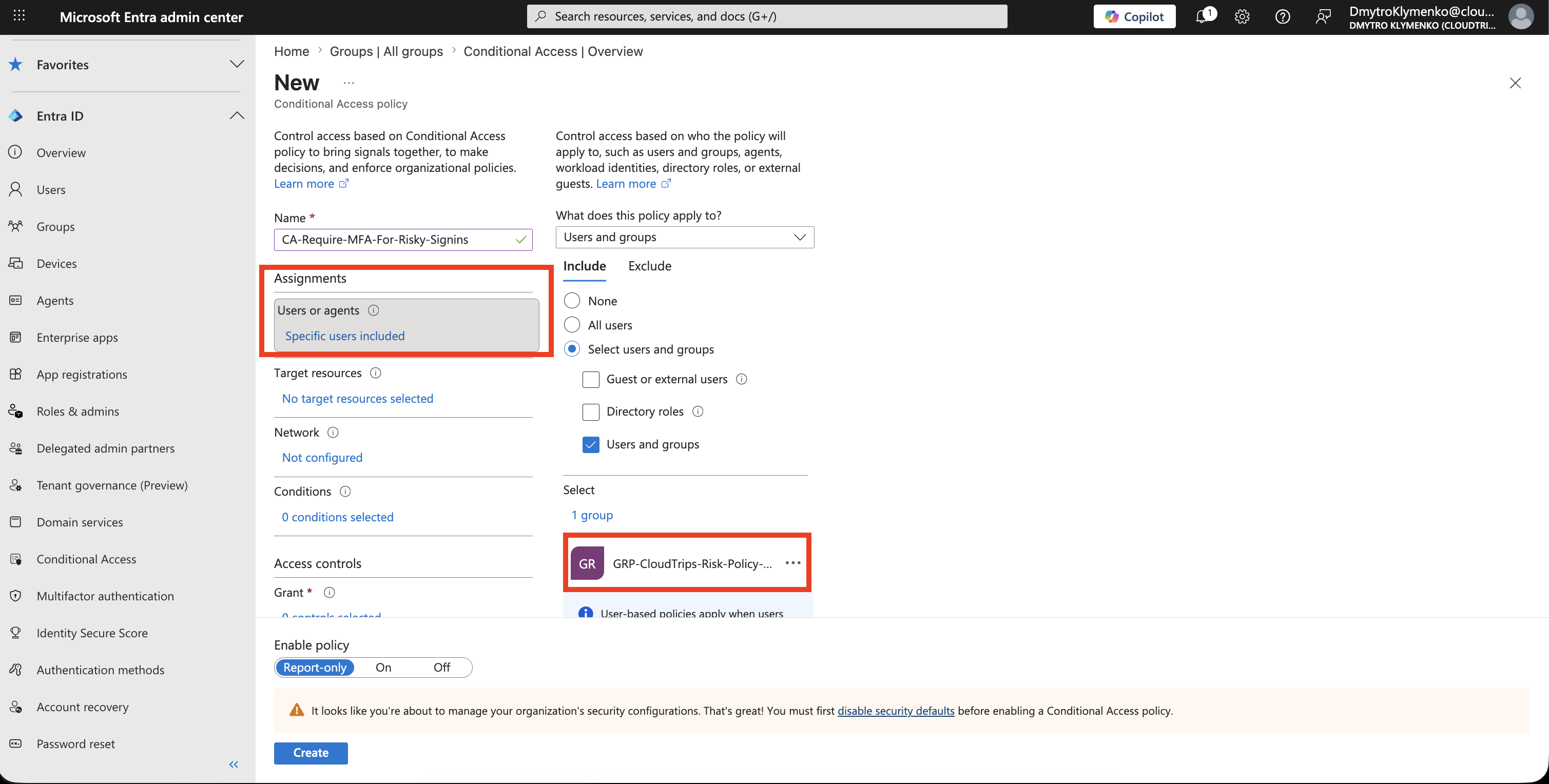
Assign Users
Under:
Users and groupsStart with a pilot group.
Example:
Include: GRP-CloudTrips-Risk-Policy-Pilot
Exclude: Emergency access accounts, if your tenant has them
After testing, you can expand the policy to all users.
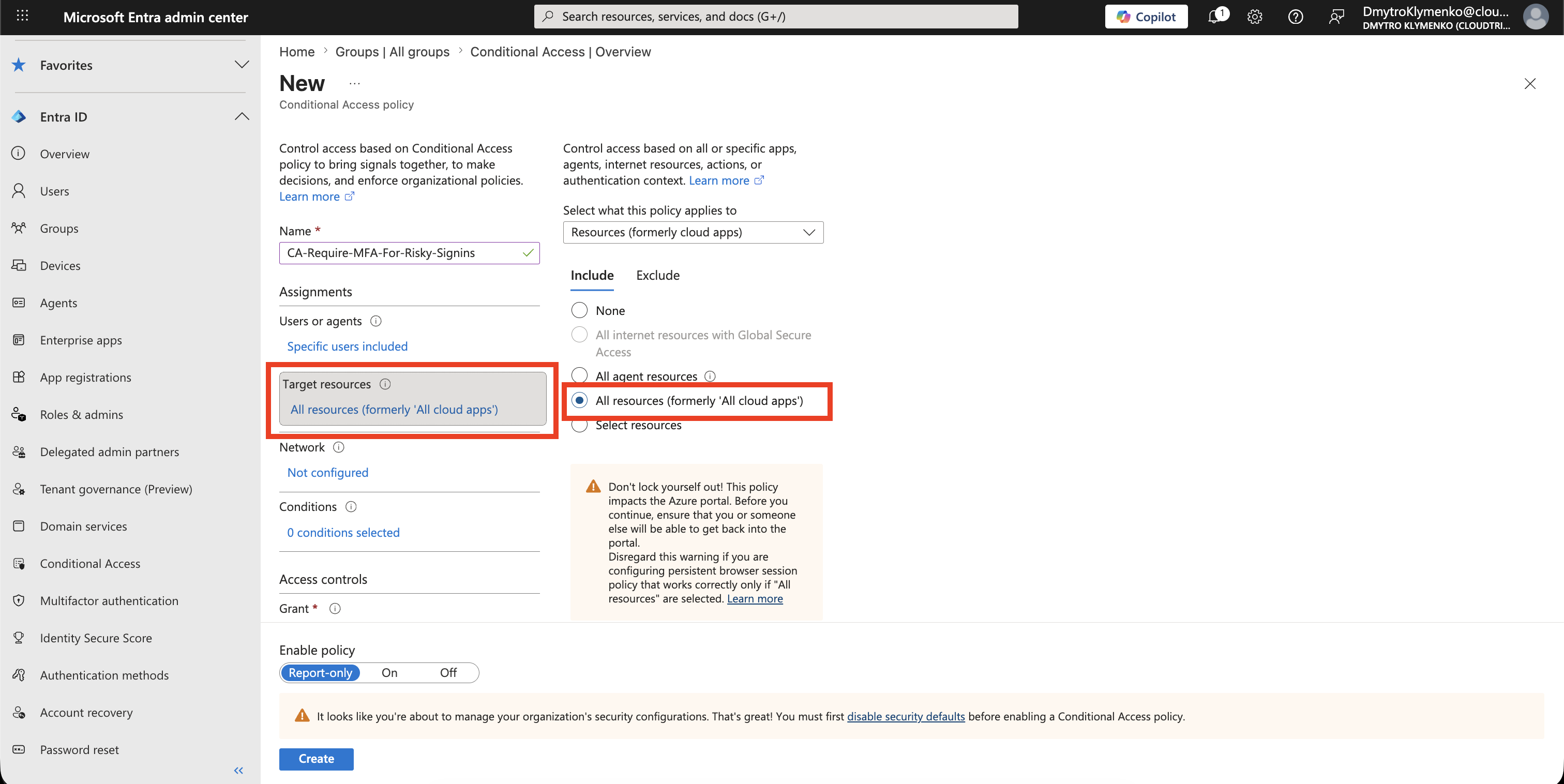
Target Resources
Under:
Target resourcesChoose what the policy protects.
For broad protection, select:
All resourcesFor a safer rollout, start with important apps first.
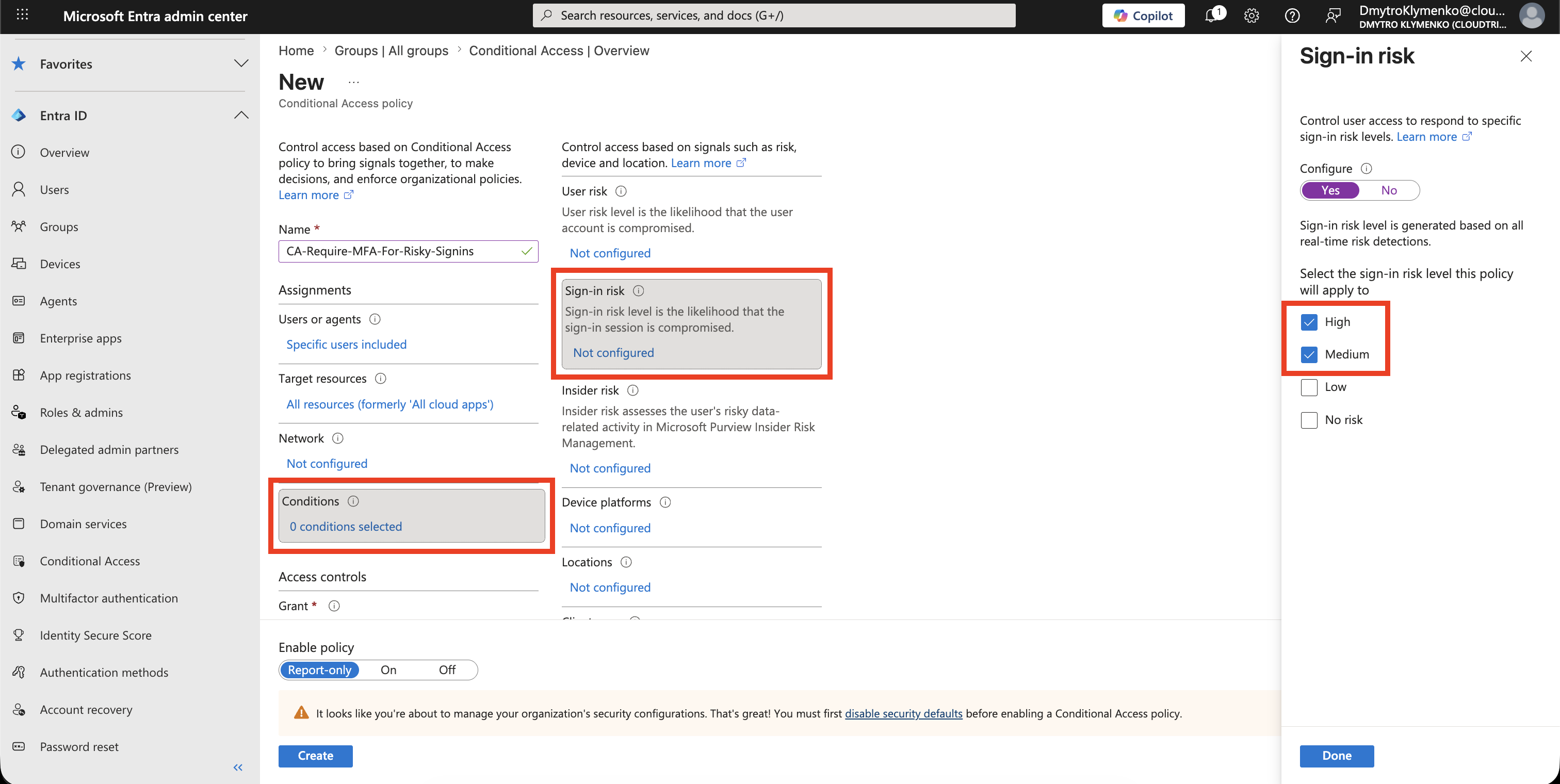
Configure Sign-In Risk
Under:
Conditions > Sign-in riskSelect:
Medium
High
This means the policy applies only when Microsoft Entra evaluates the current sign-in attempt as risky enough.
Require Stronger Verification
Under:
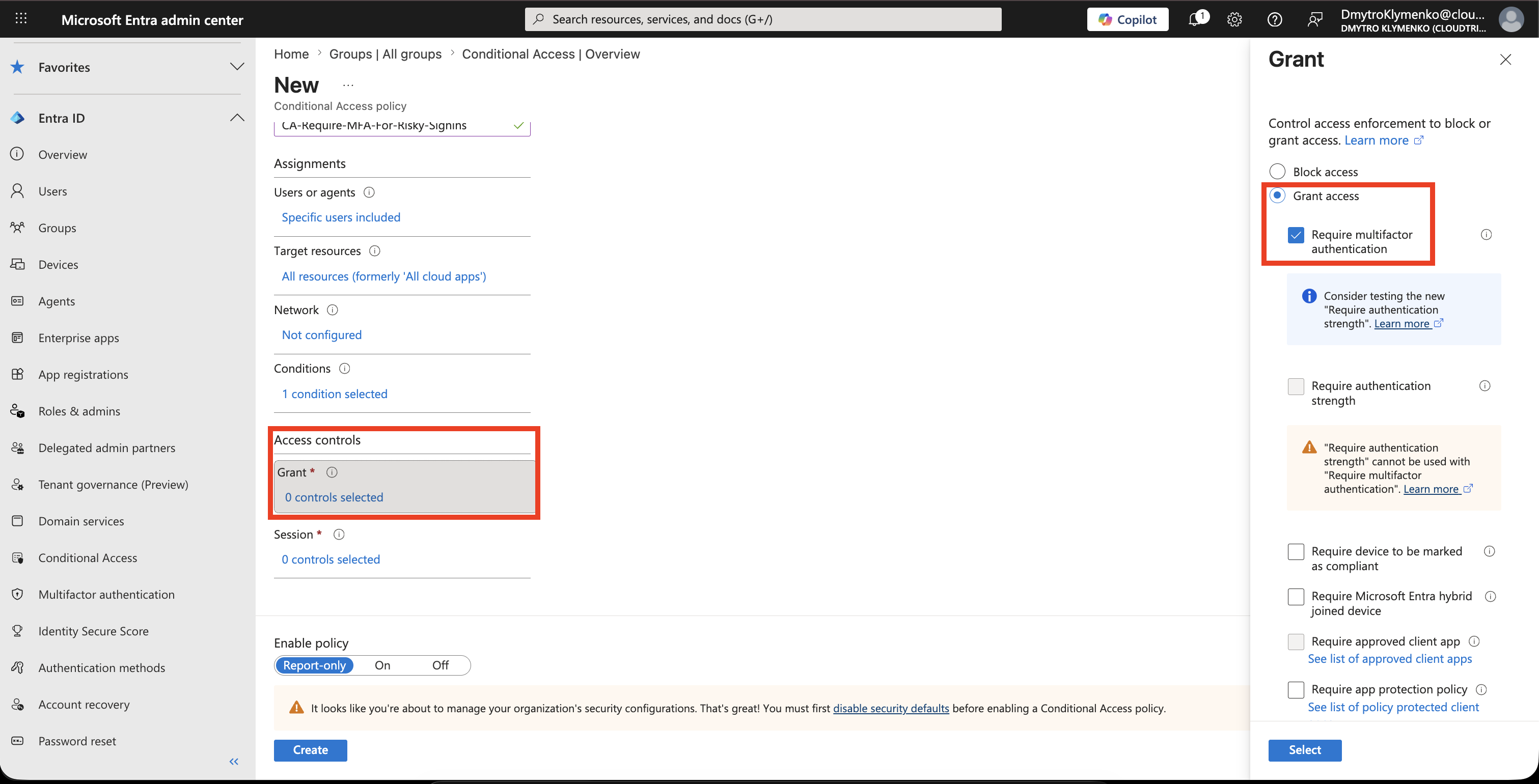
Access controls > GrantFor a normal remediation policy, select:
Grant access
Require multifactor authentication
If this is a sensitive admin or privileged scenario, use:
Require authentication strength
Phishing-resistant MFA
Do not choose Block access as the first rollout unless the business is ready for hard blocks.
Start in Report-Only Mode
Set:
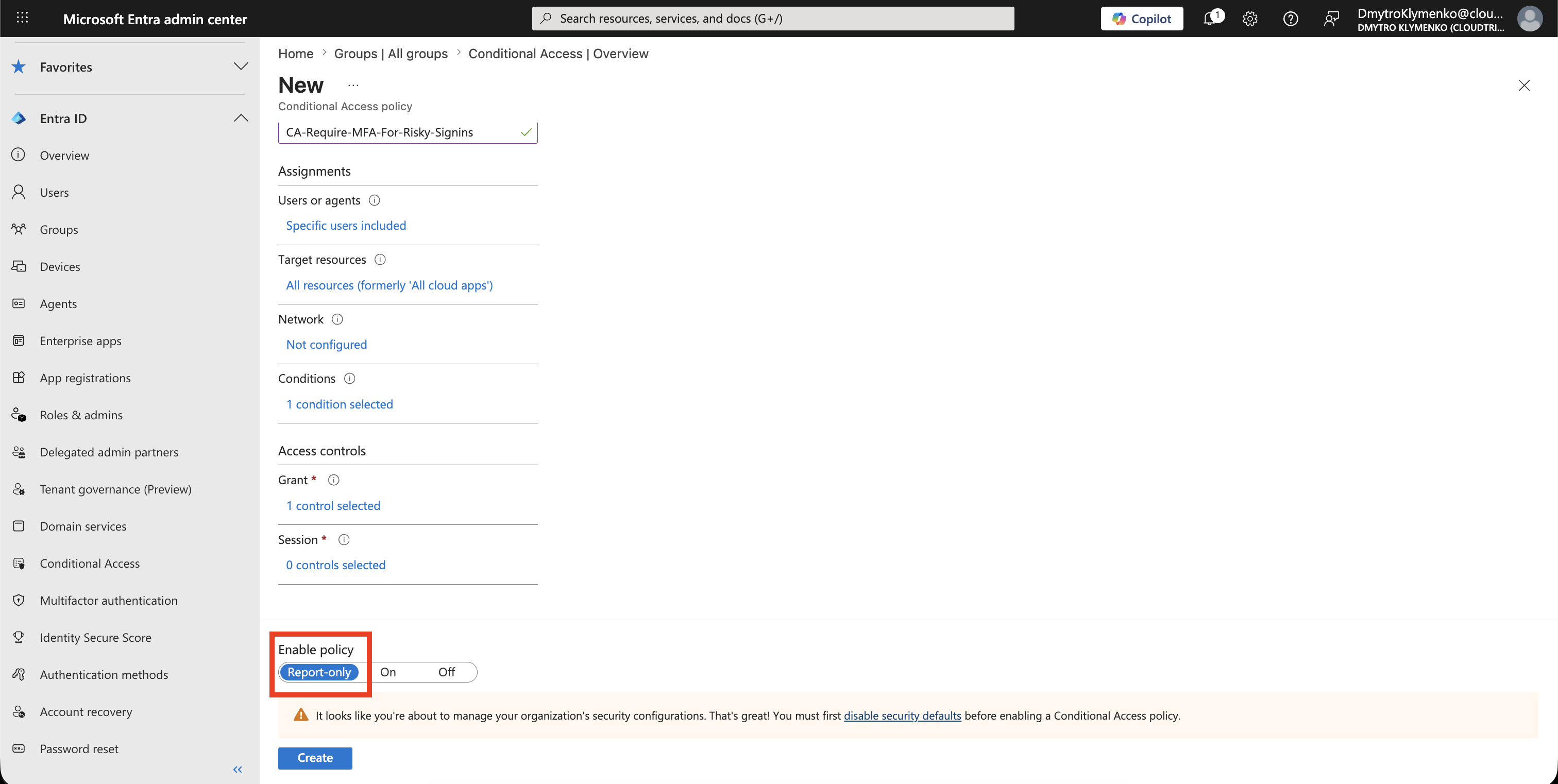
Enable policy: Report-onlyReport-only lets you see who would be challenged before enforcing the policy.
If your lab has no risky sign-ins yet, that is fine.
The important test for this trip is that the policy is configured and left in report-only mode.
Validate Without a Risky Sign-In
You do not need to generate a risky sign-in to complete this trip.
Confirm the policy summary shows:
Users and groups: pilot group
Target resources: selected apps or all resources
Conditions: Sign-in risk = Medium and High
Grant: Require multifactor authentication
Enable policy: Report-only
When real risky sign-ins happen later, review them in:
Entra ID > Monitoring & health > Sign-in logsand check the Conditional Access tab for the policy result.
Turn Policy On
After testing, change:
Enable policy: OnNow risky sign-ins are challenged with the selected grant control.
Enterprise Note
Sign-in risk policy protects the current sign-in attempt.
It is not the same as user risk policy.
Recommended rollout:
- start with a pilot group
- exclude emergency access accounts if your tenant has them
- use report-only mode first
- choose
MediumandHighfor balanced protection - require MFA for normal users
- require phishing-resistant authentication strength for privileged scenarios
- keep user-risk remediation as a separate policy