App Needs Microsoft Graph Access? Configure API Permissions
An app needs to call Microsoft Graph.
It might need to list group membership for the signed-in user or run background directory automation.
The Microsoft Entra pattern is:
Open app registration -> add Microsoft Graph permission -> choose delegated or application permission -> grant consent when required -> request token -> call GraphThis trip focuses on Microsoft Graph permissions.
It is different from exposing your own API scope.
Here, Microsoft Graph is the resource API.
Your app is the client that asks Entra for access to Graph.
Delegated vs Application Permissions
Microsoft Graph permissions come in two main types.
Delegated permissions
Use them when:
- a user is signed in
- the app acts on behalf of that user
- Graph access should be limited by the user’s own permissions
- tokens contain the
scpclaim
Example:
GroupMember.Read.AllApplication permissions
Use them when:
- no user is present
- a background app or daemon calls Graph
- the app acts as itself
- tokens contain the
rolesclaim - admin consent is normally required
Example:
User.Read.AllChoose the least privileged permission that supports the scenario.
Open the App Registration
Go to:
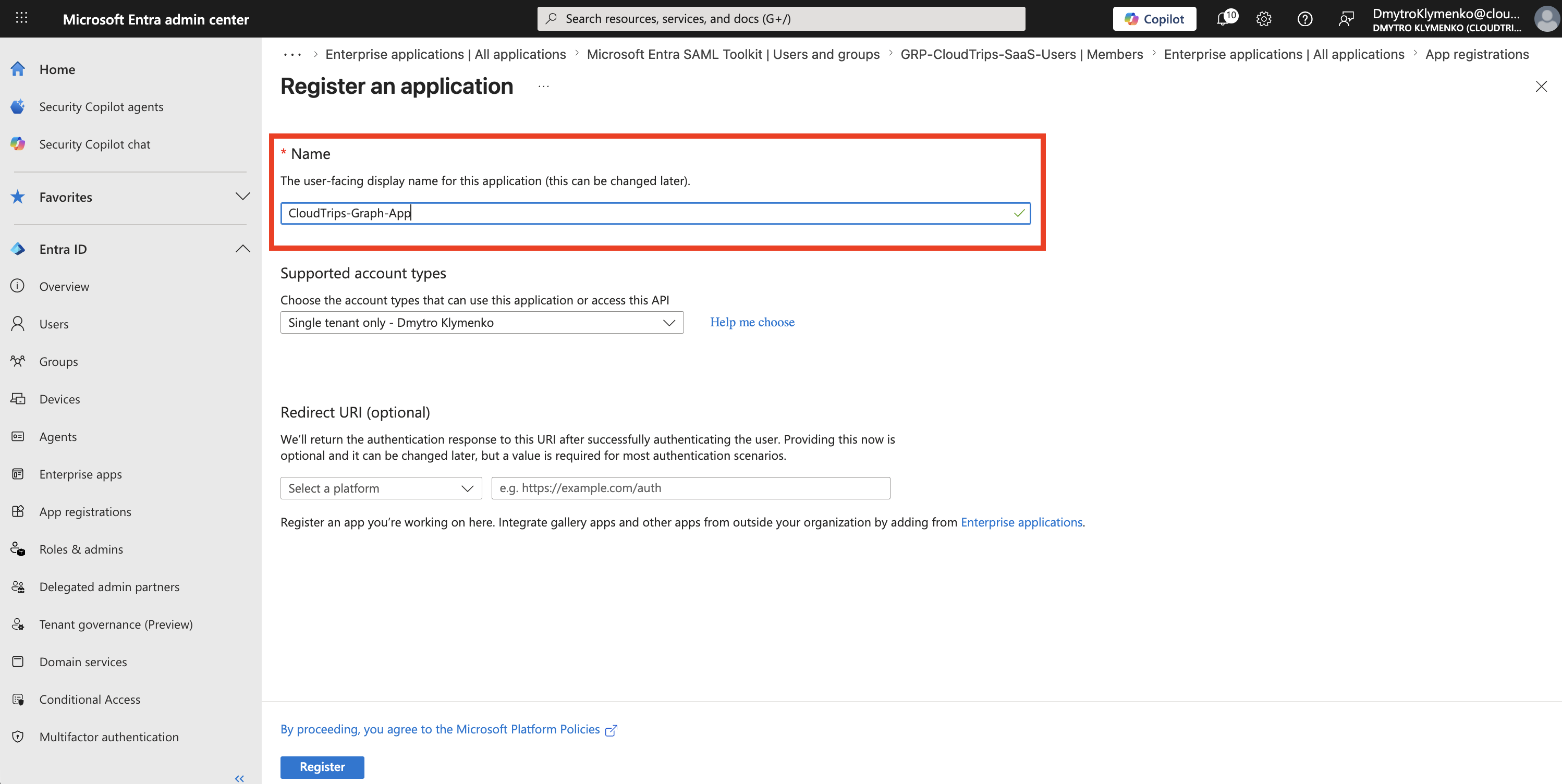
Entra ID > App registrationsCreate or open the application that needs Microsoft Graph access.
Example:
CloudTrips-Graph-AppThis app registration is the client application that will request a Graph access token.
Open API Permissions
Inside the app registration, open:
API permissionsThis page shows the APIs and permissions already configured for the app.
Select:
Add a permission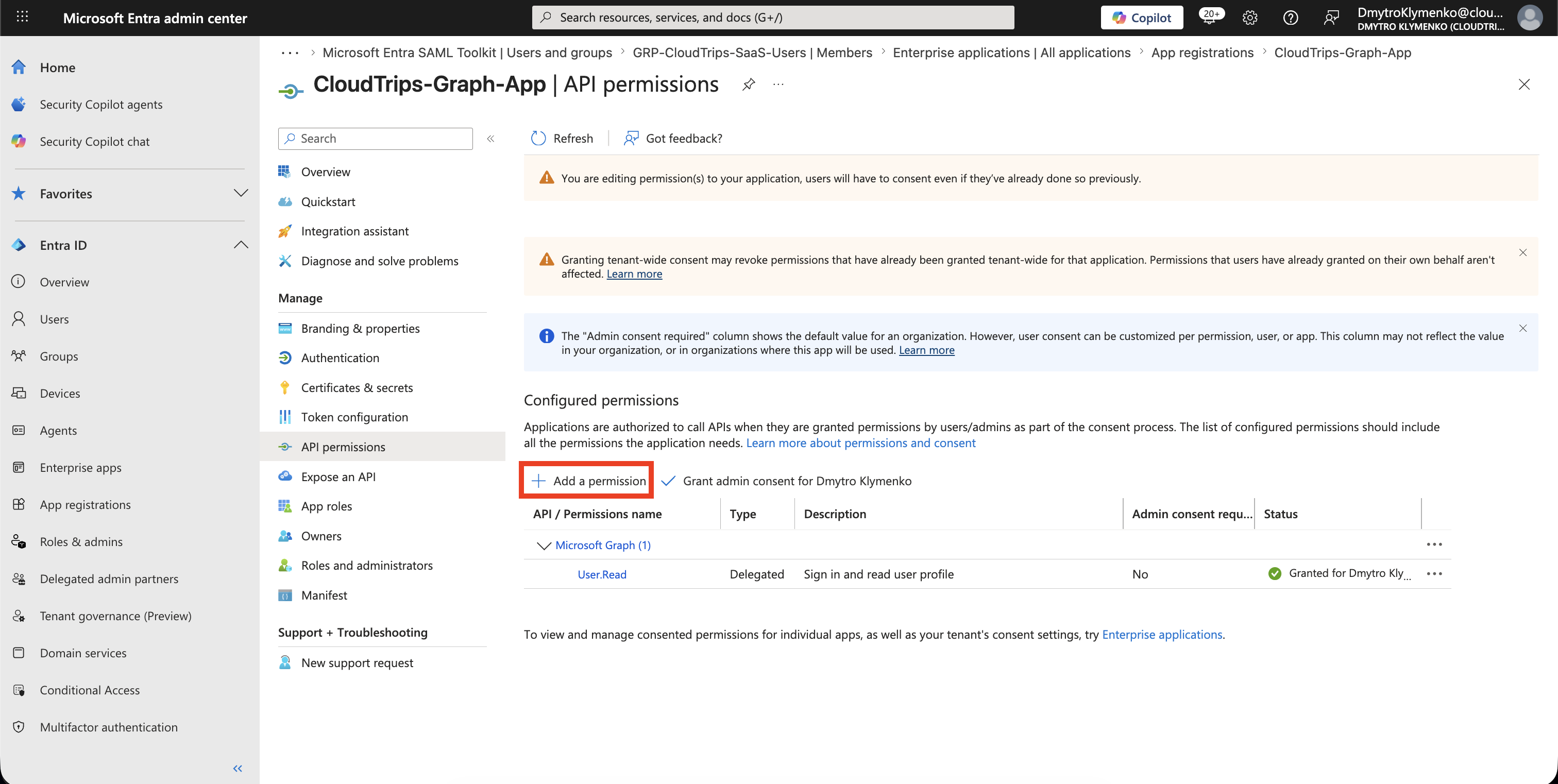
Choose Microsoft Graph
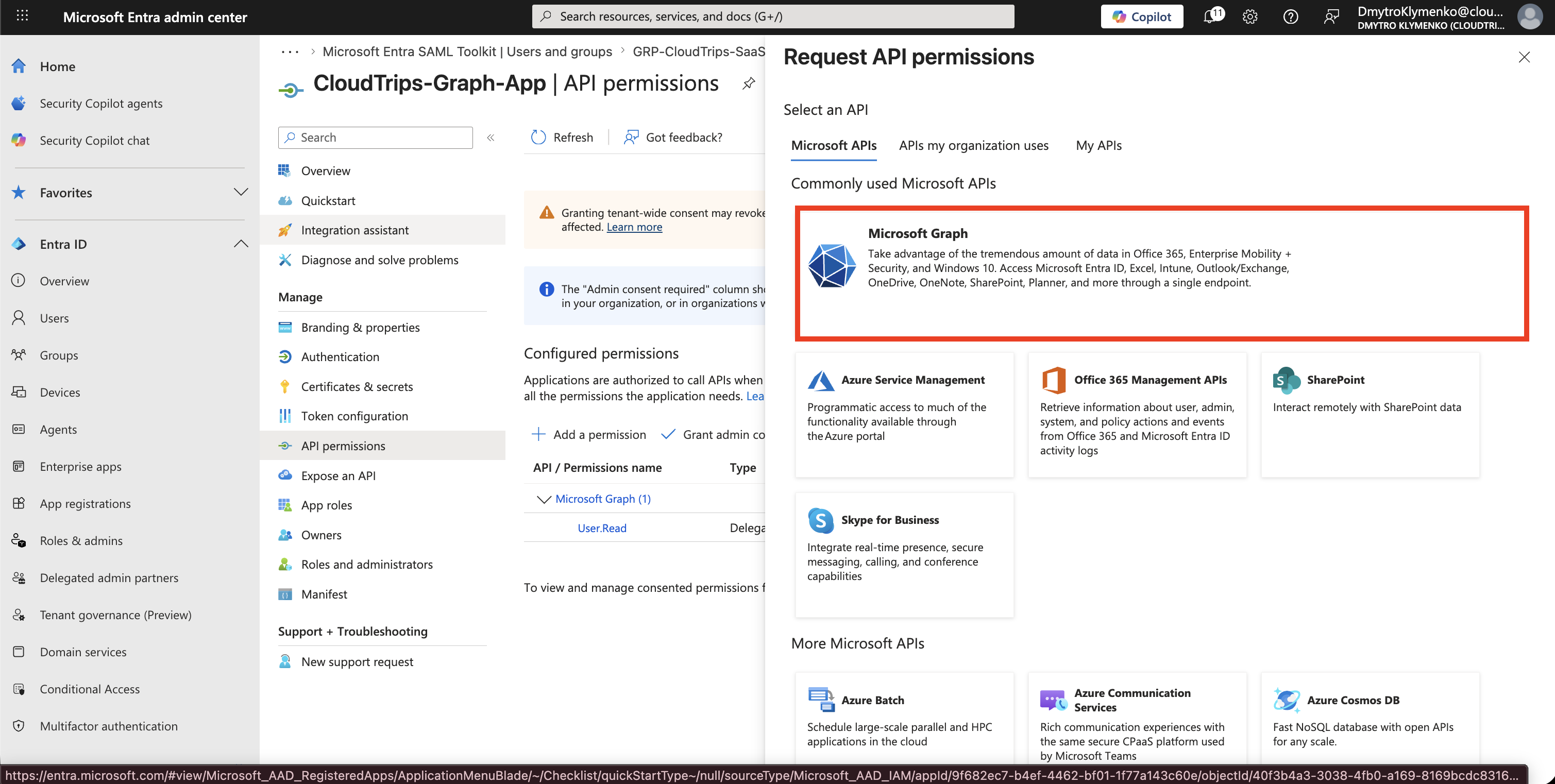
On the request API permissions page, choose:
Microsoft APIs > Microsoft GraphMicrosoft Graph is the API surface for Microsoft 365 and Entra directory data.
Choose Permission Type
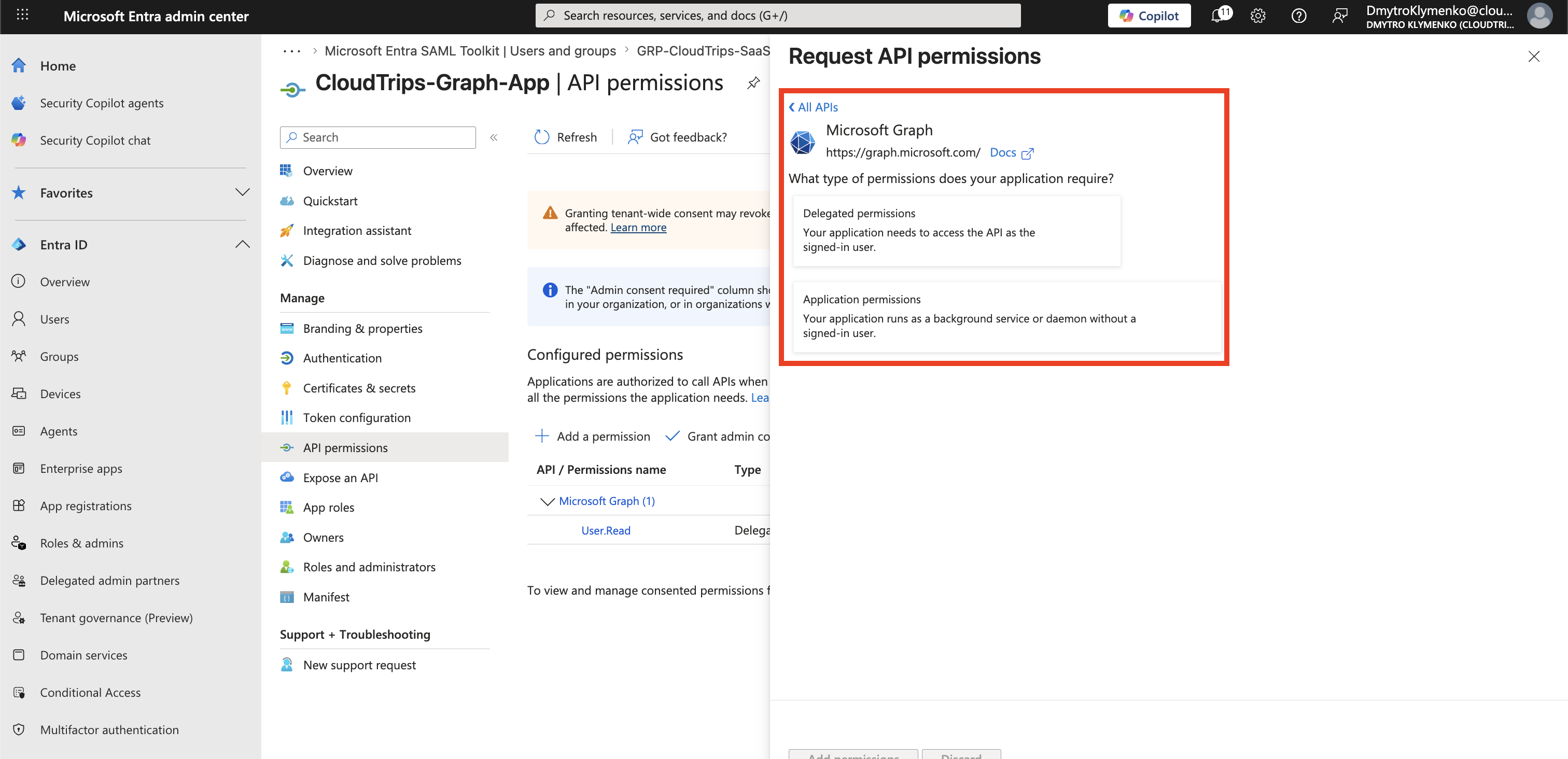
Choose the permission type that matches the runtime scenario.
For a user-facing app:
Delegated permissionsFor a background app:
Application permissionsDo not choose application permissions only because they look more powerful.
They often grant tenant-wide access and usually require admin consent.
Add a Delegated Permission
For a simple signed-in user scenario, choose:
Delegated permissions > GroupMember.Read.AllThis allows the app to read group memberships on behalf of the signed-in user.
The access token later contains:
scp=GroupMember.Read.All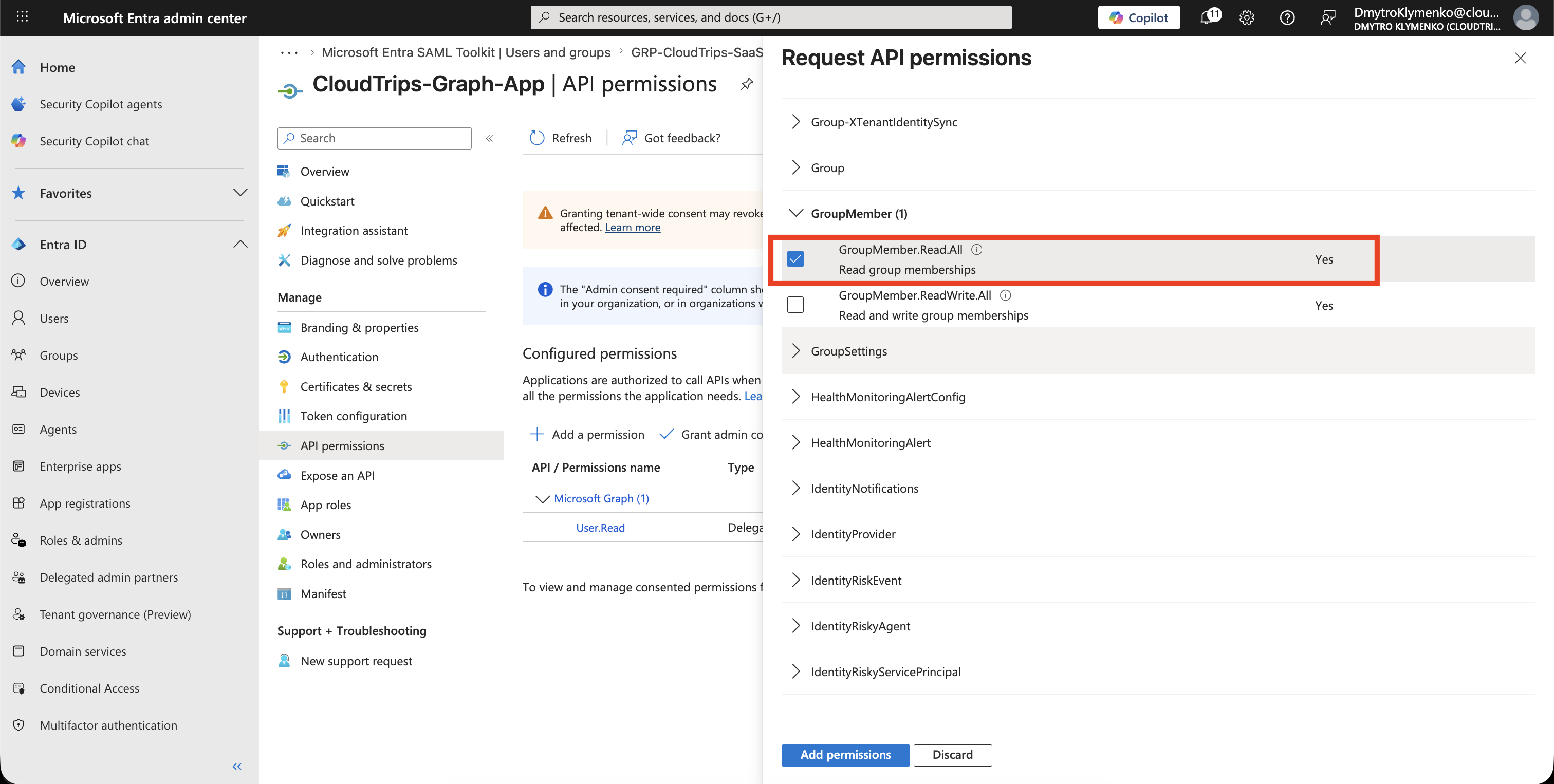
Add an Application Permission
For an automation scenario, choose an application permission only if the app really needs app-only access.
Example:
Application permissions > User.Read.AllThis allows the app to read user profiles without a signed-in user, after admin consent.
The access token later contains a Graph role claim such as:
roles=["User.Read.All"]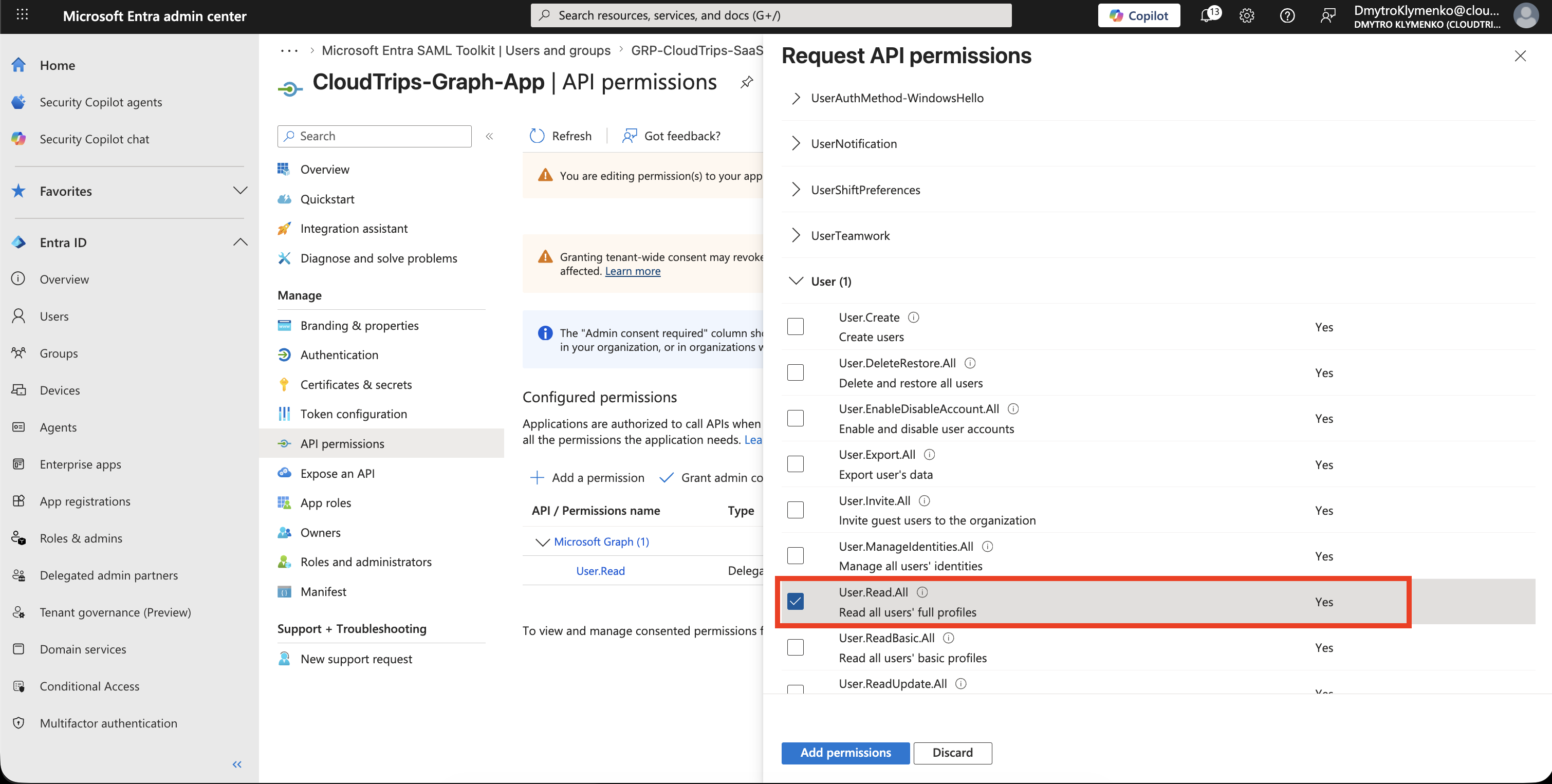
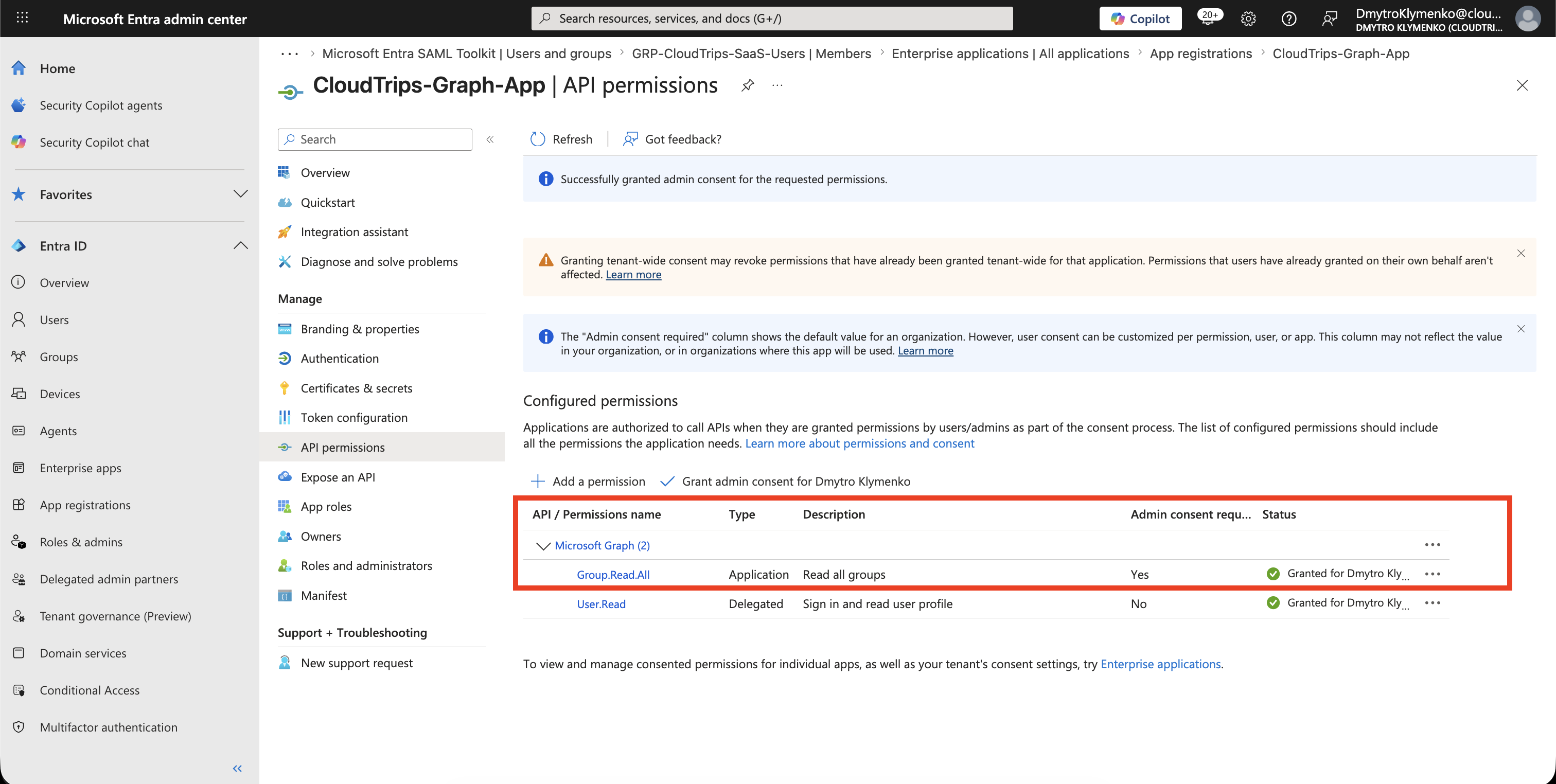
Grant Admin Consent
After adding permissions, return to:
API permissionsSome permissions need admin approval before the app can use them.
Select:
Grant admin consentAfter consent is granted, the status should show that consent was granted for the tenant.
Confirm Token Claims
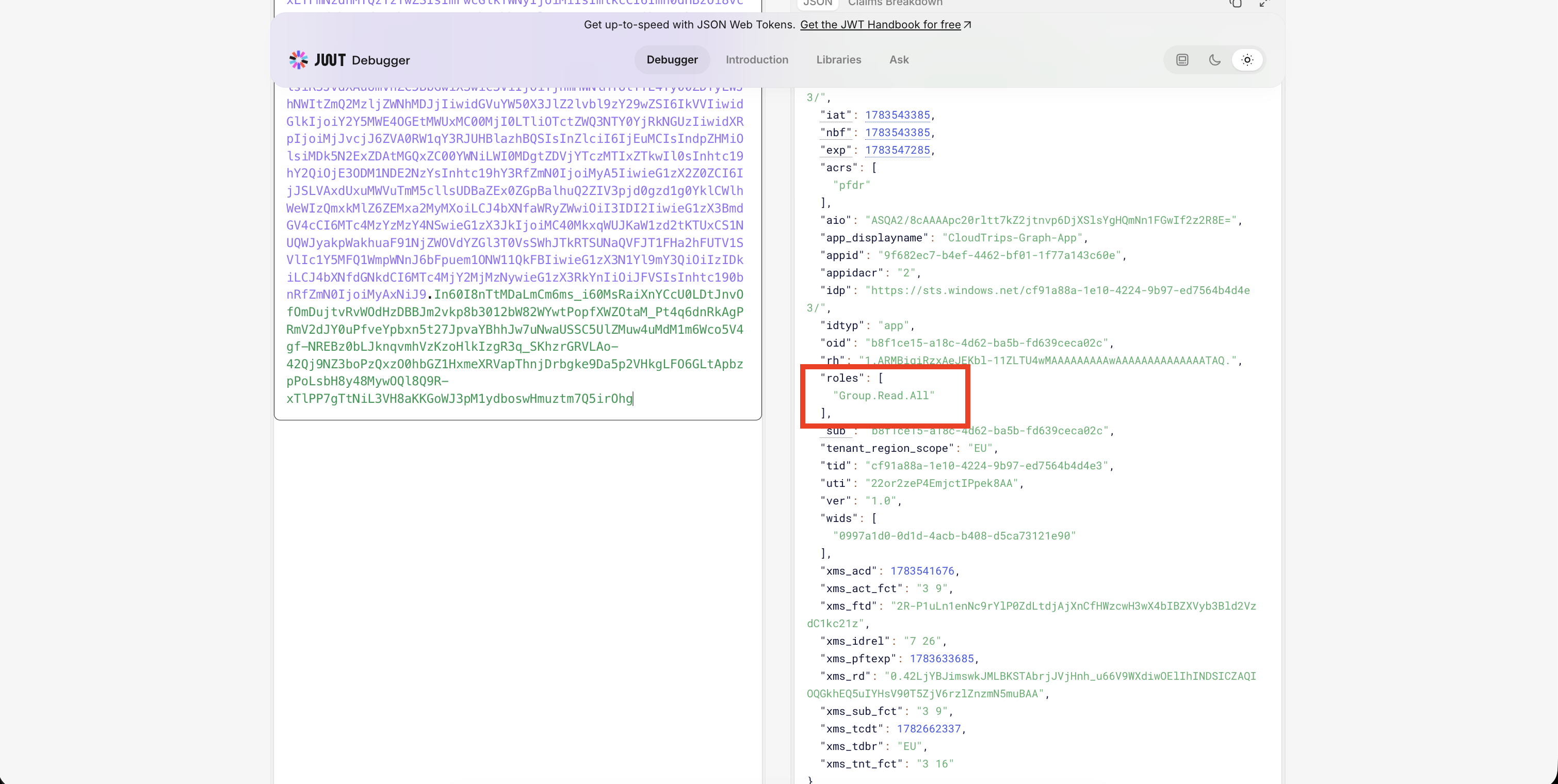
Request a token for Microsoft Graph.
For delegated permissions, the token should contain:
{
  "aud": "https://graph.microsoft.com",
  "scp": "GroupMember.Read.All"
}
For application permissions, the token should contain:
{
  "aud": "https://graph.microsoft.com",
  "roles": [
    "User.Read.All"
  ]
}
This proves the app received a token for Graph with the configured permission.
Enterprise Note
Microsoft Graph permissions can expose sensitive tenant data.
Recommended checklist:
- choose delegated permissions when a user context is required
- choose application permissions only for app-only automation
- use the least privileged Graph permission
- document why each permission is needed
- grant admin consent intentionally
- periodically review app permissions and consent
- remove unused permissions
- monitor audit logs for consent and app permission changes