Partner Needs Access? Configure Cross-Tenant Access
A partner needs access to an application in your tenant.
Do not loosen the cross-tenant defaults for every external organization.
Create organization-specific settings for the partner tenant instead.
The Microsoft Entra pattern is:
Identify partner tenant -> add organization -> configure inbound access -> review trust settings -> invite and assign partner user -> test accessThis trip uses B2B collaboration in a Microsoft Entra workforce tenant.
What Cross-Tenant Access Controls
Cross-tenant access settings control:
- which external users and groups can access your tenant
- which applications they can access
- whether your tenant trusts MFA and device claims from the partner tenant
- which of your users can access resources in the partner tenant through outbound B2B collaboration
Inbound and outbound settings are independent.
For this scenario, the partner user is coming into your tenant, so configure Inbound access in your tenant.
Cross-tenant access settings do not create the guest account or grant application permissions by themselves. The partner user still needs to be invited or provisioned and assigned to the required application or resource.
Why Configure This If You Can Invite a Guest?
For a simple scenario, inviting the guest may be enough.
The three controls solve different problems:
Guest invitation: Who gets an identity in your tenant?
Application or Azure assignment: What can the guest access?
Cross-tenant access settings: Which external identities are allowed through the collaboration boundary, and which security claims does your tenant trust?
For one partner user who needs one application, the normal flow can be:
Invite external user -> assign guest to application -> apply Conditional AccessThe default cross-tenant settings normally handle this without an organization-specific partner configuration.
Create organization-specific cross-tenant settings when you need an additional tenant-level control, for example:
- allow only approved users or groups from a partner tenant
- allow that partner to access only selected applications
- block everyone else from the partner tenant
- trust MFA completed in the partner’s home tenant
- trust approved compliant-device or hybrid-join claims
- create an exception to restrictive tenant-wide defaults
- control which external tenants your own users can access through outbound settings
Example:
Partner tenant has 2,000 users
Only the approved consultant group may collaborate
Only the Project Application is allowed
Partner MFA is trusted after security review
The approved consultants still need guest identities and application assignments. The cross-tenant policy adds a second boundary around that access.
Collect the Partner Tenant Details
Ask the partner for one of these values:
Microsoft Entra tenant ID
Verified domain name
Prefer the tenant ID because it uniquely identifies the organization.
Also confirm:
- which partner users or groups need access
- which application they need
- whether the partner enforces MFA
- whether your security team accepts the partner’s MFA or device controls
Do not enable trust settings based only on the partner’s name or an informal request.
Open Cross-Tenant Access Settings
Sign in with at least the Security Administrator role.
Go to:
Microsoft Entra admin center > Entra ID > External Identities > Cross-tenant access settingsOpen:
Organizational settingsOrganization-specific settings override the default settings for that partner.
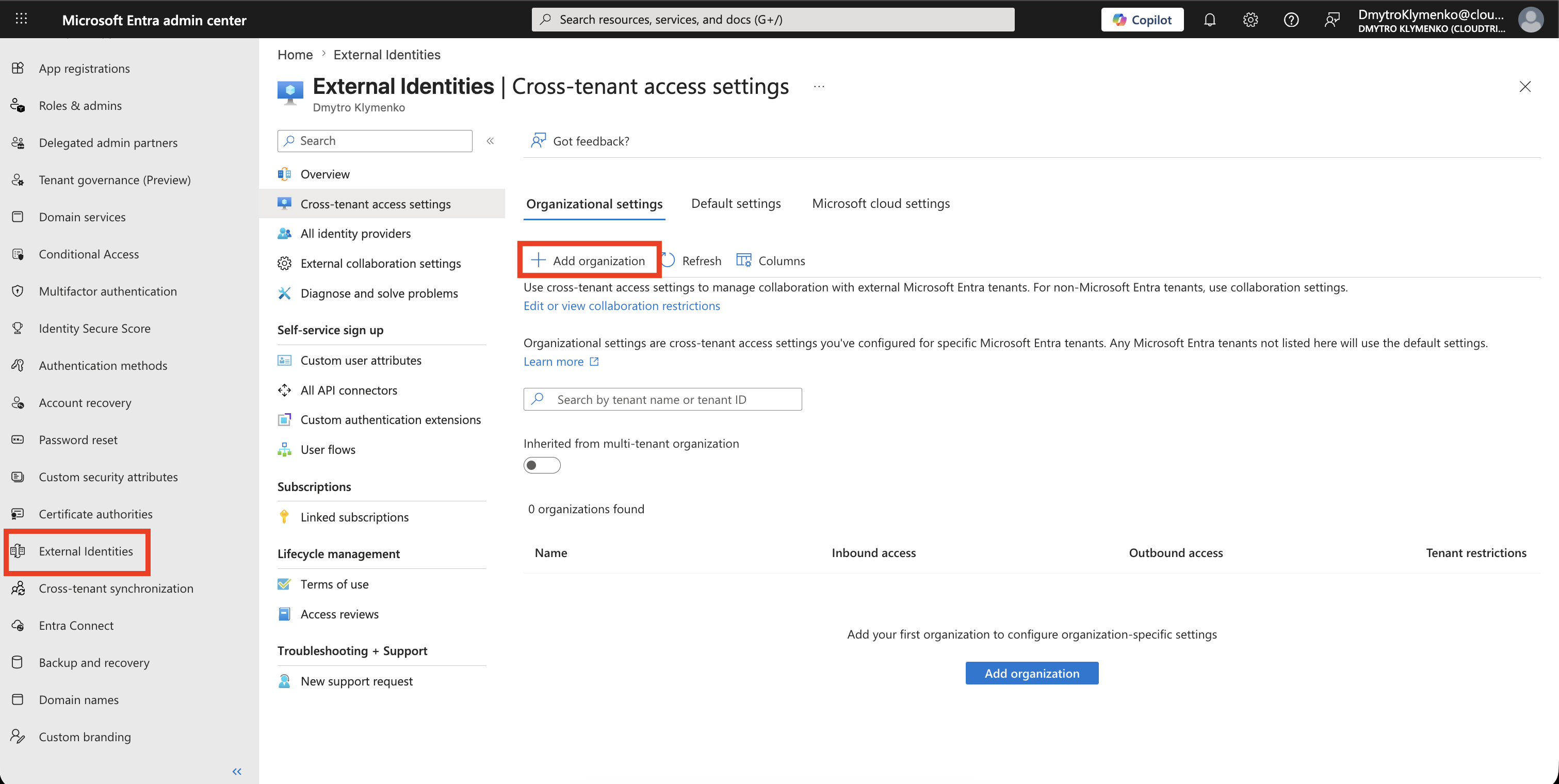
Add the Partner Organization
Select:
Add organizationEnter the partner’s tenant ID or verified domain, select the correct organization, and choose Add.
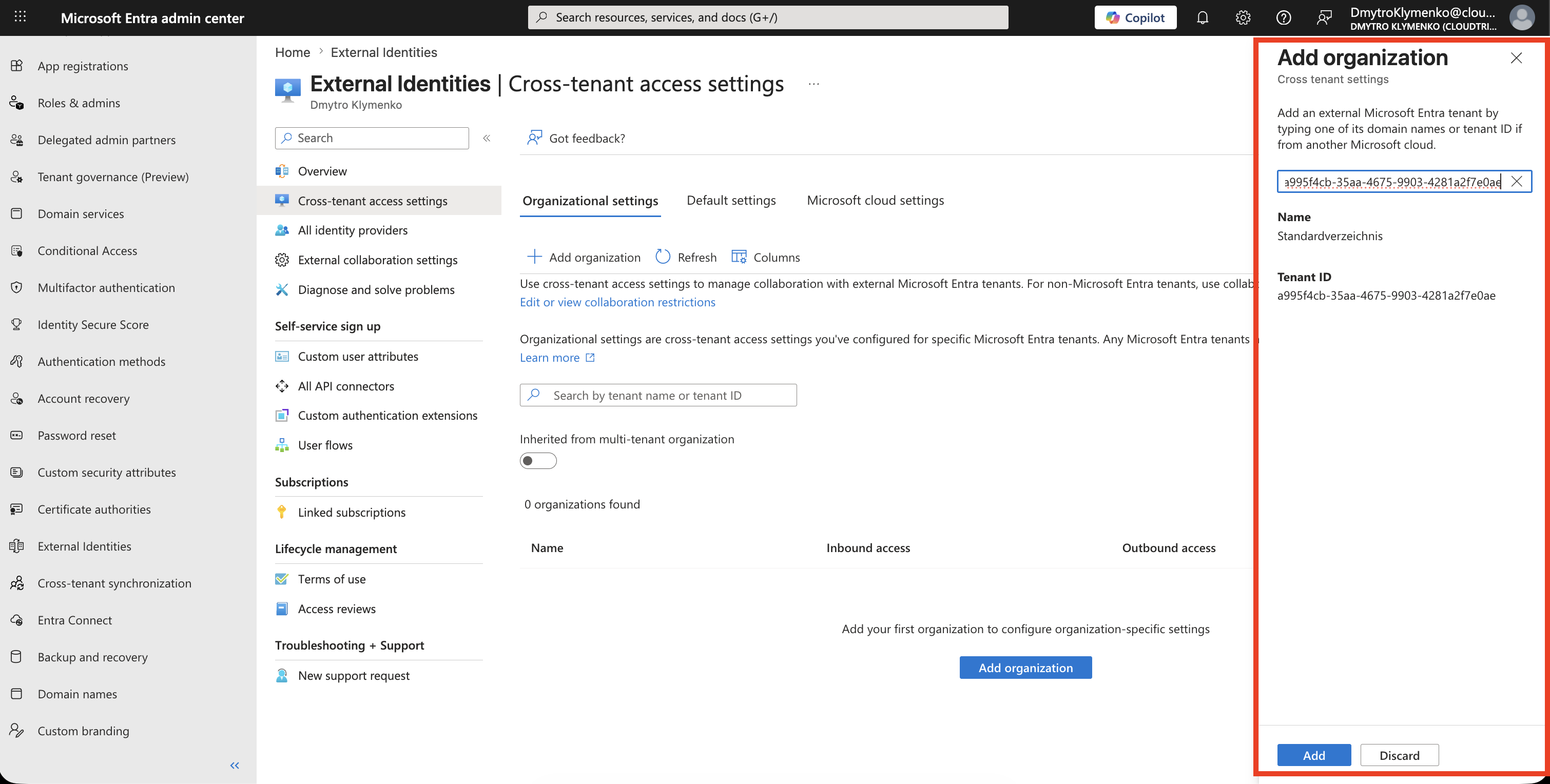
Verify the organization name and tenant ID before continuing. A similar domain or company name is not sufficient evidence that you selected the intended tenant.
The new organization initially inherits your default inbound and outbound settings.
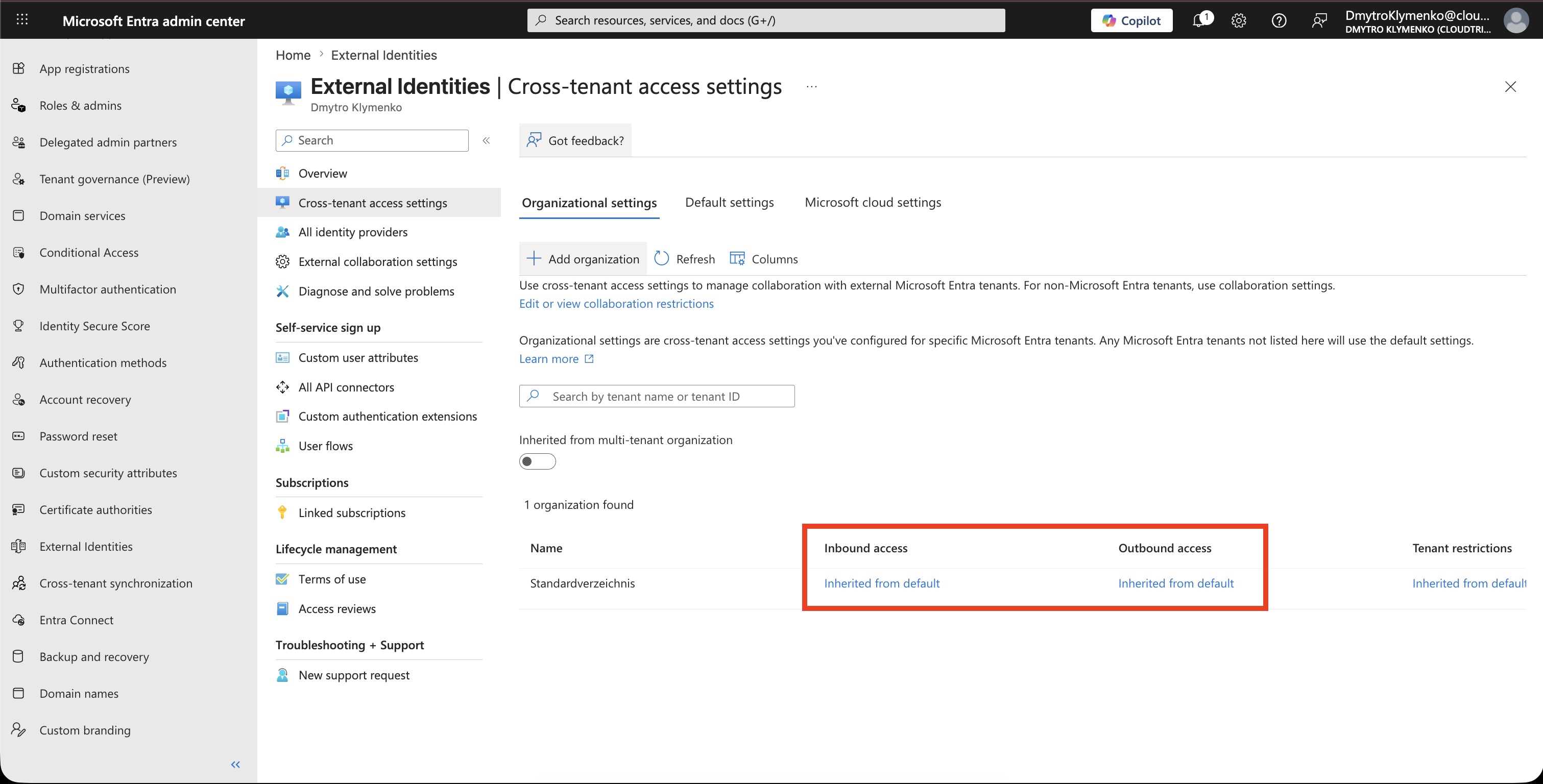
Configure Inbound B2B Collaboration
In the partner row, select the link under:
Inbound accessOpen B2B collaboration and select:
Customize settings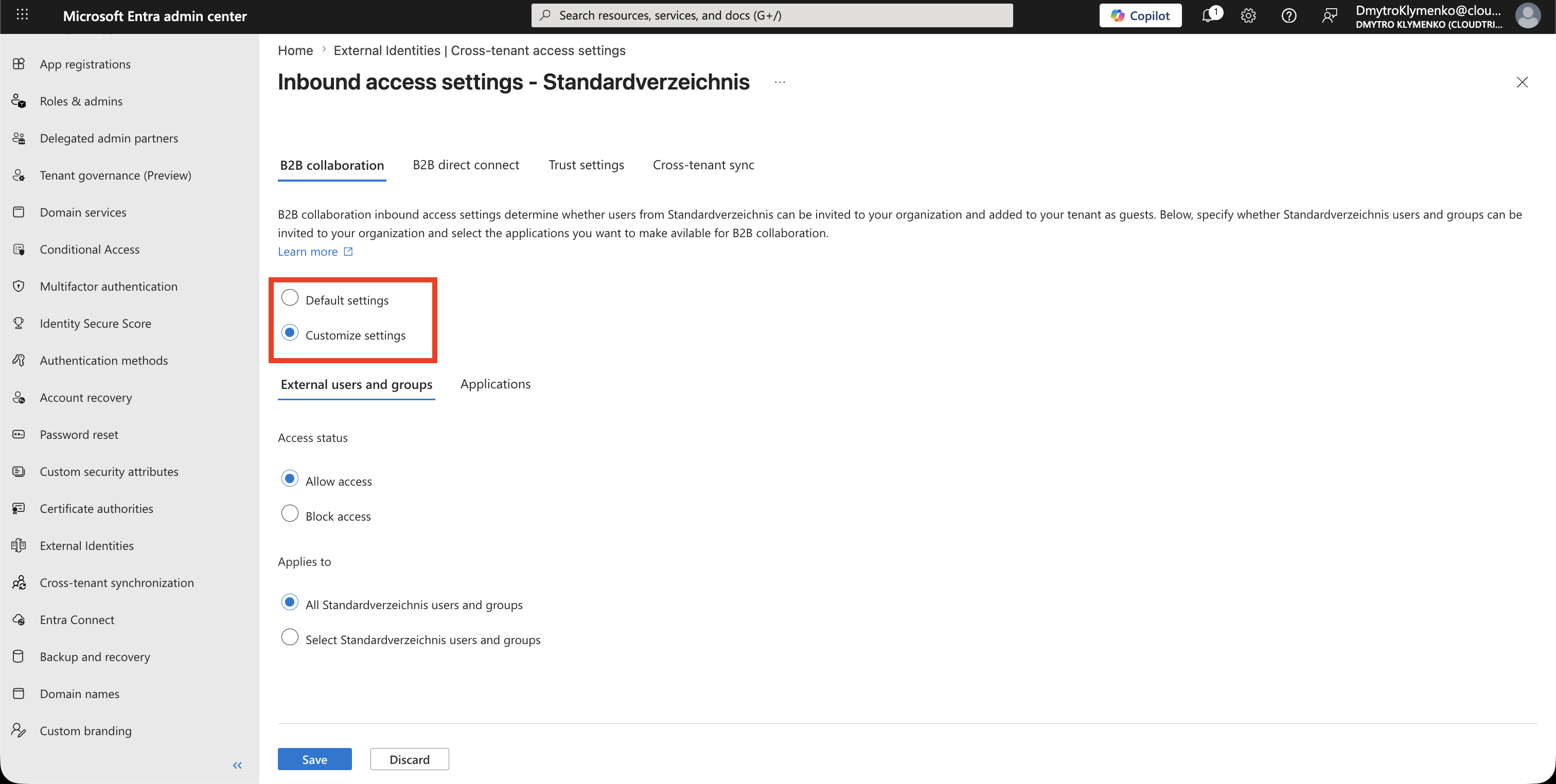
Under External users and groups, configure:
Access status: Allow access
Applies to: Select external users and groups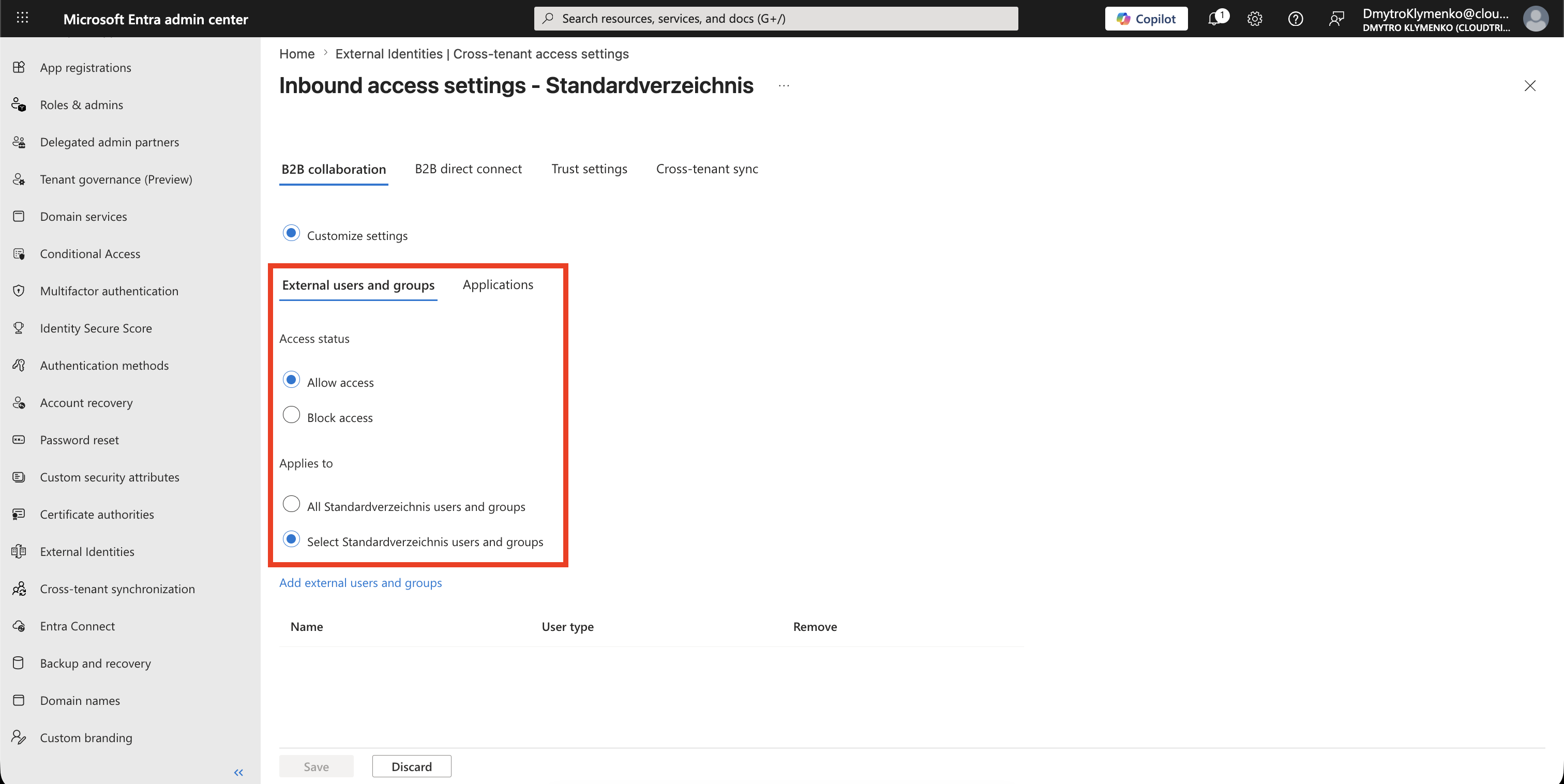
Add only the partner users or groups that need access.
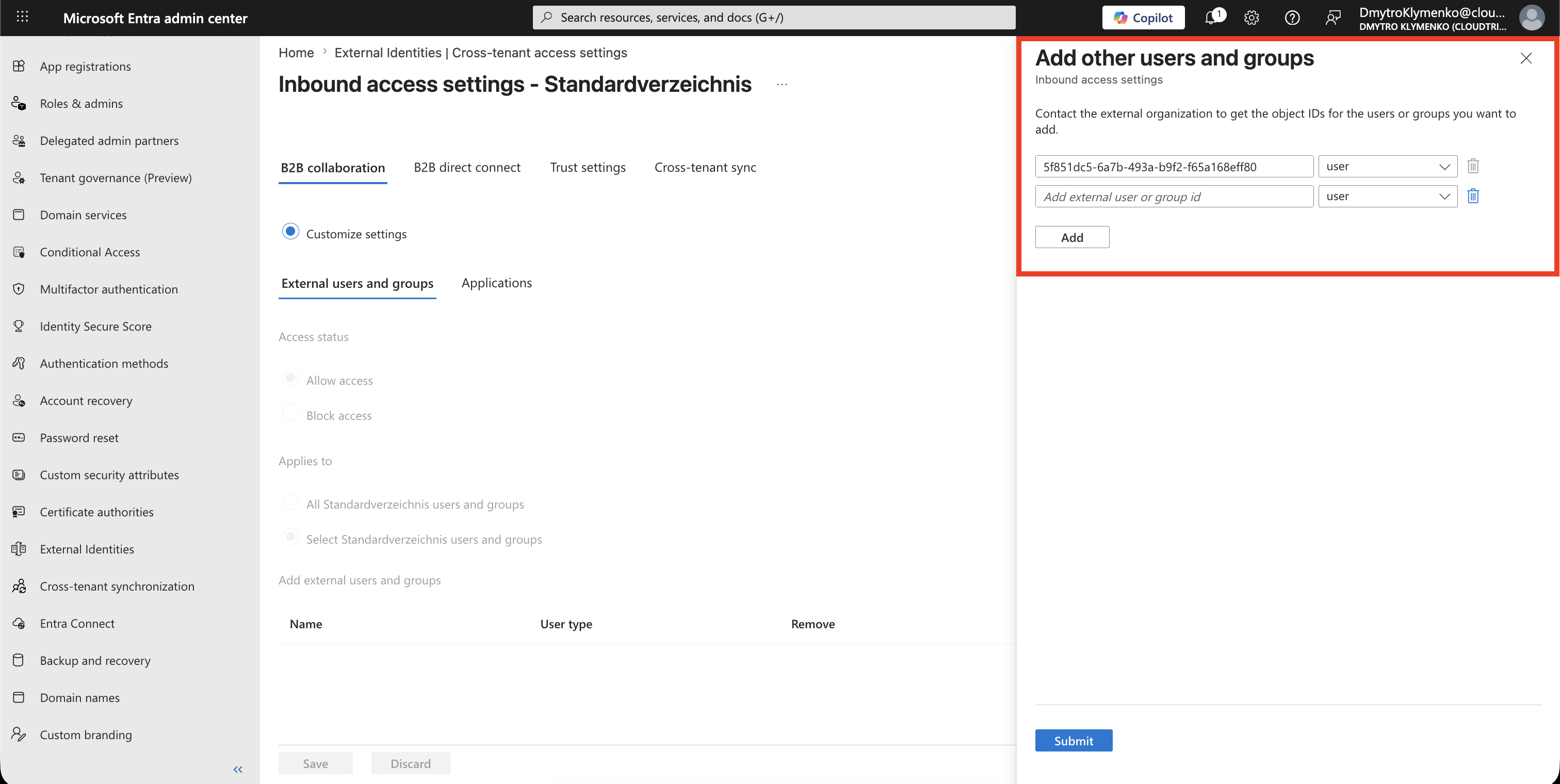
Selecting specific external users and groups requires Microsoft Entra ID P1 or P2. If that licensing is unavailable, use the narrowest supported control and compensate with guest lifecycle reviews and application assignments.
Restrict the Applications
Open the Applications tab and configure:
Access status: Allow access
Applies to: Select applications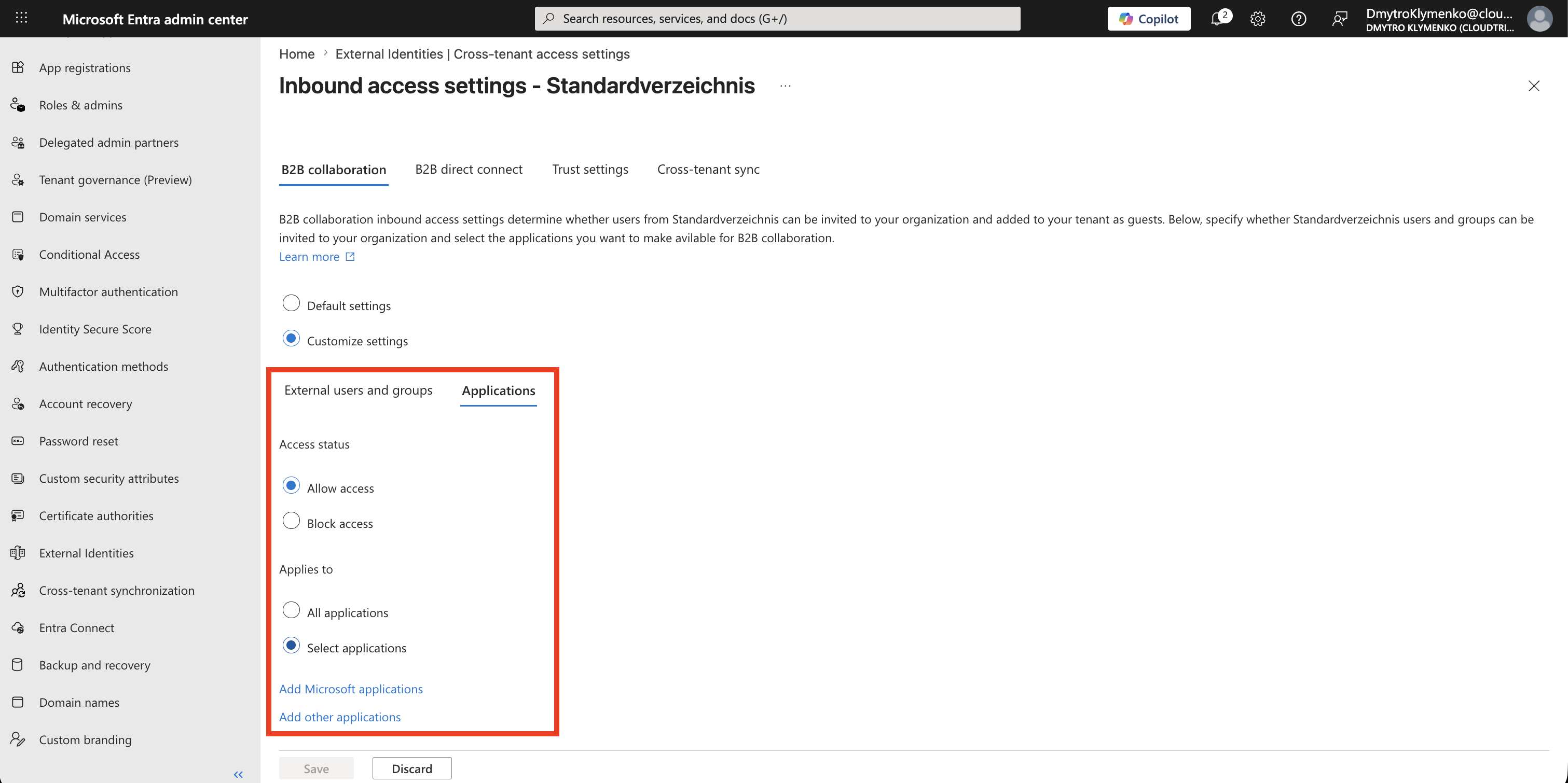
Select only the application the partner needs.
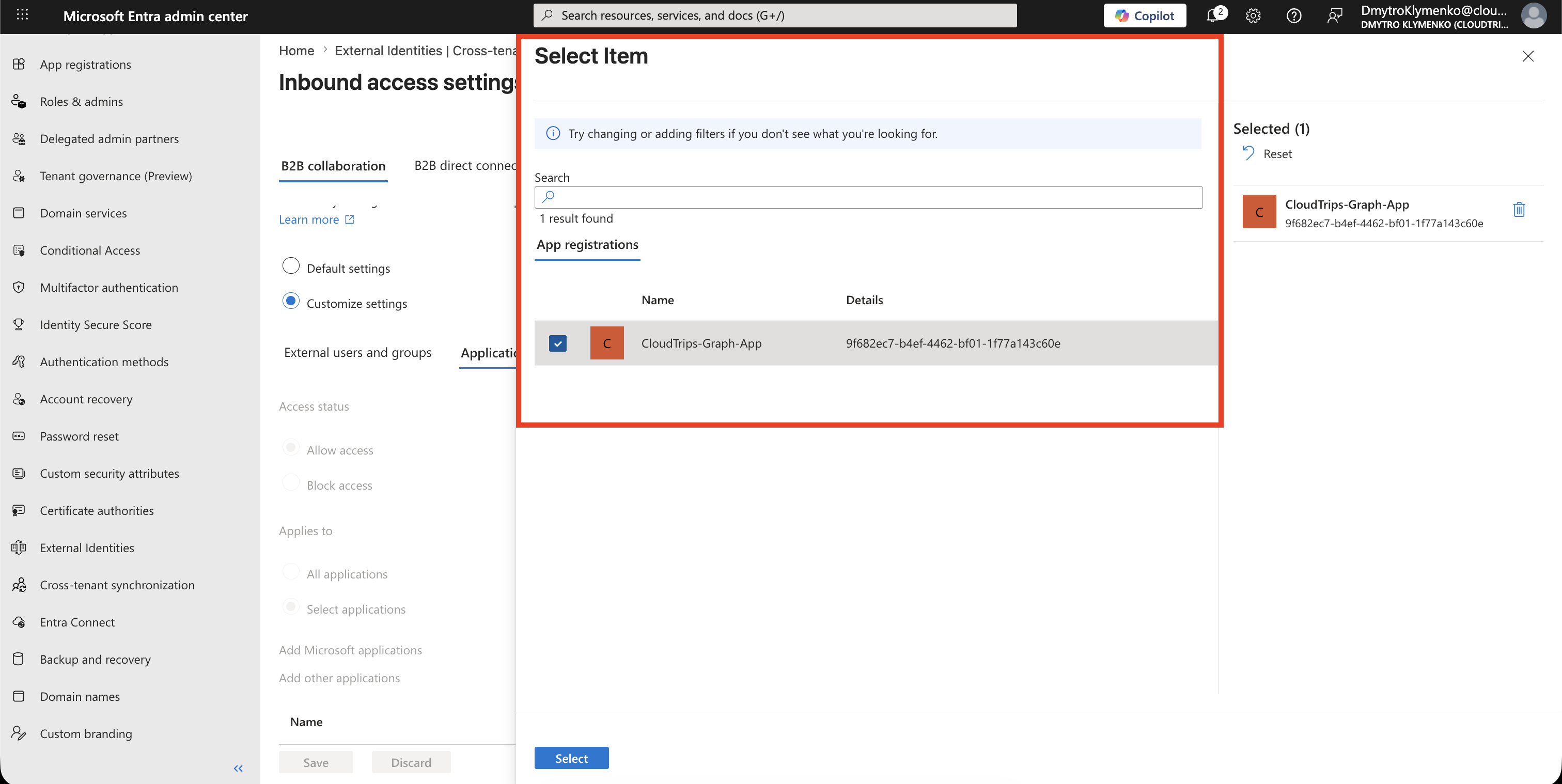
An application allowlist can require supporting Microsoft applications for sign-in, invitation redemption, My Apps, or security registration. Test the complete user journey before production rollout.
Do not select All applications simply because the partner needs one application.
Select Save.
Decide Whether to Trust Partner Claims
Open the partner’s inbound Trust settings.
You can choose to trust claims from the partner tenant for:
Multifactor authentication
Compliant devices
Microsoft Entra hybrid joined devices
Example for a partner whose MFA controls your organization has verified:
Trust multifactor authentication from Microsoft Entra tenants: Yes
Trust compliant devices: No
Trust Microsoft Entra hybrid joined devices: No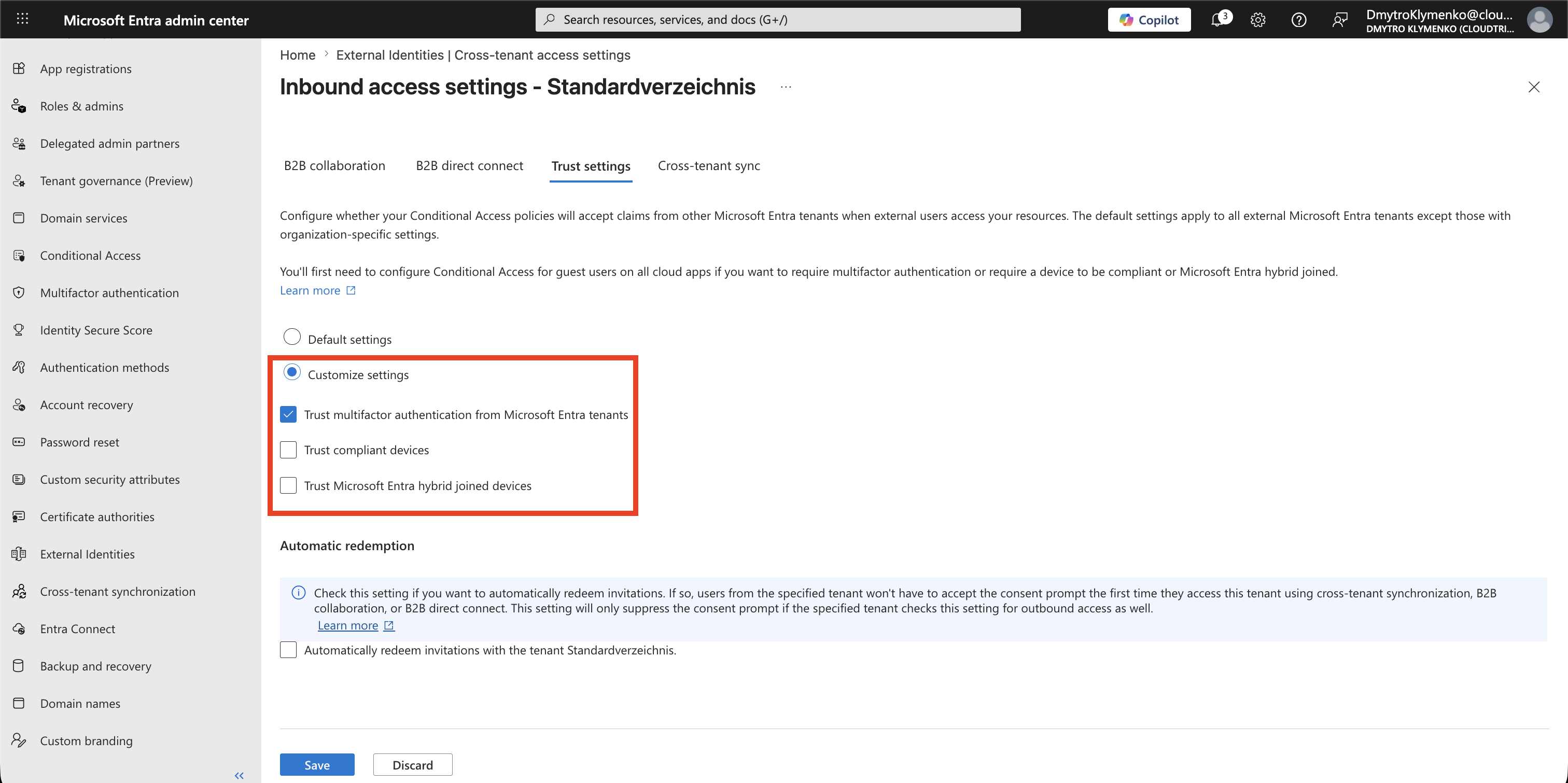
Trusting a claim means your Conditional Access policies can accept the partner tenant’s claim instead of requiring the user to satisfy that control again in your tenant.
Enable only the claims covered by an explicit security agreement. If you do not trust the partner’s MFA claim, your own Conditional Access policy can require the guest to complete MFA.
Select Save.
Invite and Assign the Partner User
The cross-tenant policy now permits the configured collaboration, but the partner user still needs resource access.
Complete the normal B2B onboarding steps:
Invite or provision the external user
Assign the guest to the application or resource
Apply the required Conditional Access policies
For multiple partner users, use a dedicated group where the application supports group-based assignment.
Enterprise Note
Recommended checklist:
- use organization-specific settings instead of broad default access
- allow only required partner users, groups, and applications
- verify the partner tenant ID out of band
- trust partner MFA or device claims only after security review
- keep Conditional Access protection for guest users
- assign resource access separately from the cross-tenant policy
- define an owner and end date for the partnership
- review guest accounts and assignments regularly
- remove organization-specific access when the partnership ends
Cross-tenant access defines the collaboration boundary. Application assignments and Conditional Access still decide what the partner can actually use and under which conditions.