App Needs Role-Based Access? Assign App Roles to Users and Groups
Some apps need more than sign-in.
They need to know what the signed-in user is allowed to do inside the application.
For application-level role-based access, the Microsoft Entra pattern is:
Assign app roles to users and groups.
This pattern is used when:
- a user is present
- the app needs role-based authorization
- access should be managed through Microsoft Entra users or groups
- the application should receive a readable role claim
- authorization is based on the
rolesclaim in the token
In this example:
- CloudTrips App is the enterprise application
- GRP-CloudTrips-Approvers is the approver group
- Employee is a user in that group
The important part is:
Create app role -> assign user or group -> user signs in -> token contains rolesApp Roles vs Delegated Scopes
App roles and delegated scopes solve different authorization problems.
Delegated scopes answer:
What permission did the client app receive to call this API for the signed-in user?In tokens, delegated scopes appear in:
scpApp roles answer:
What role does this user or group have inside the application?In tokens, app roles appear in:
rolesUse scopes for API permission boundaries.
Use roles for business/application authorization.
Example:
{
  "scp": "Trips.Read",
  "roles": ["Trips.Approver"]
}
This means:
scp=Trips.Read       -> client can call read operations
roles=Trips.Approver -> user can approve trips in the app
Create CloudTrips App Registration
Create the application that will define the roles.
Go to:
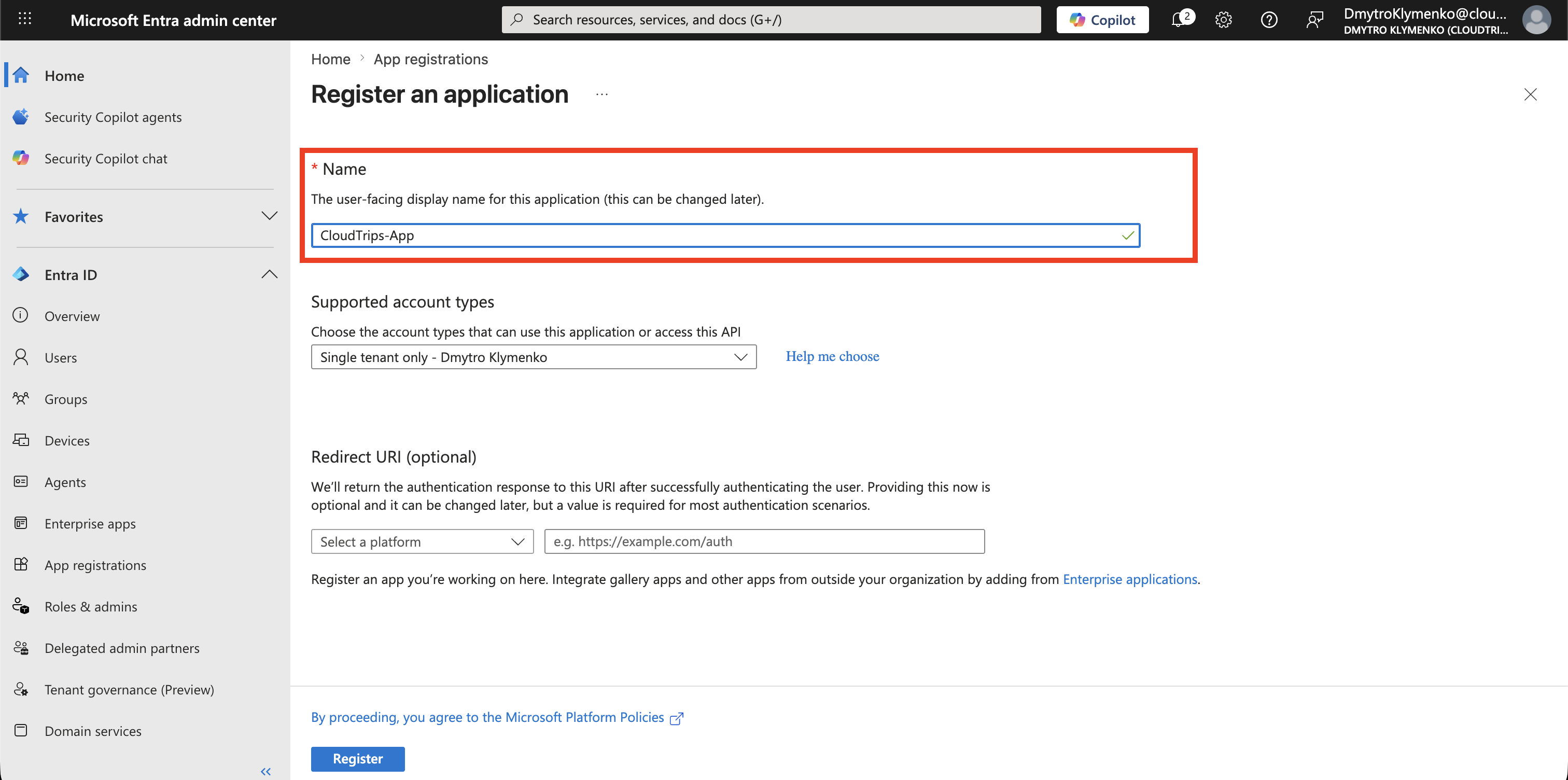
Entra ID > App registrations > New registrationCreate an application:
Name: CloudTrips-App
Supported account types: Single tenant
This app registration contains the app role definitions.
Create App Role
Inside CloudTrips-App, open:
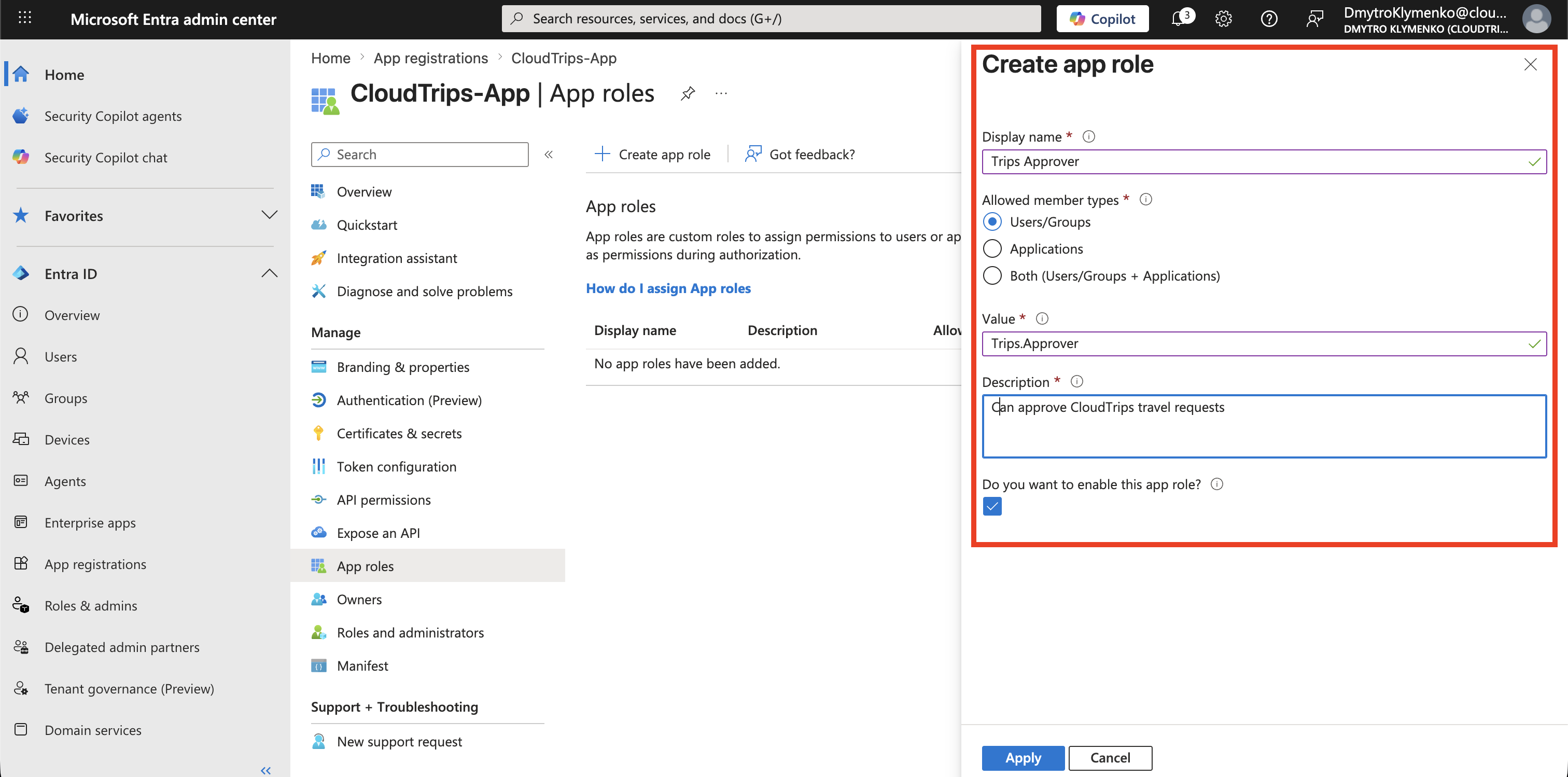
App roles > Create app roleCreate a role:
Display name: Trips Approver
Allowed member types: Users/Groups
Value: Trips.Approver
Description: Can approve CloudTrips travel requests
Do you want to enable this app role: Yes
The Value is what appears in the token’s roles claim.
Create Security Group
Create a group for users who should receive this role.
Go to:
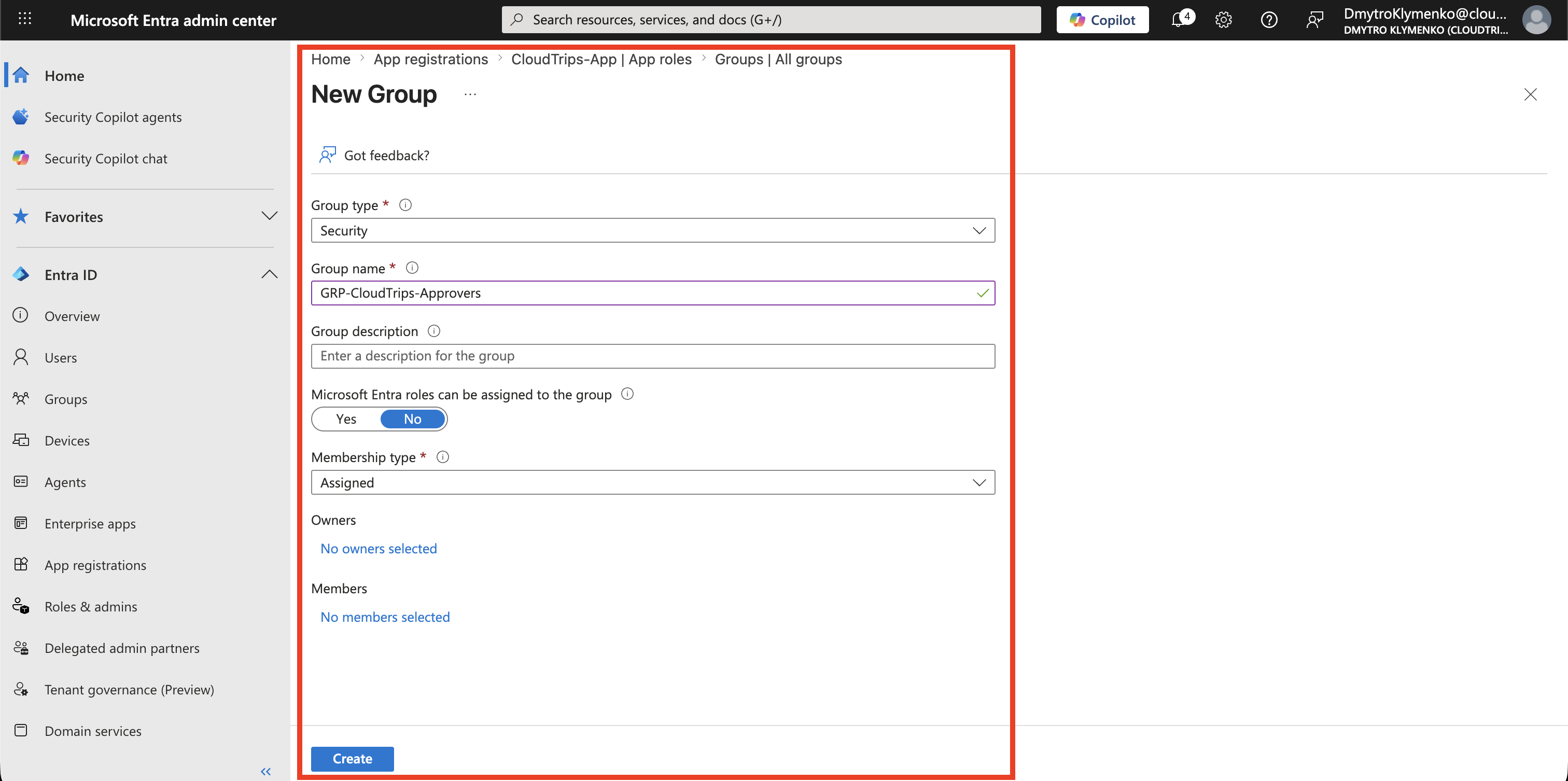
Entra ID > Groups > New groupCreate a security group:
Group type: Security
Group name: GRP-CloudTrips-Approvers
Membership type: Assigned
Using a group keeps role assignment manageable when users change teams.
Add User to Group
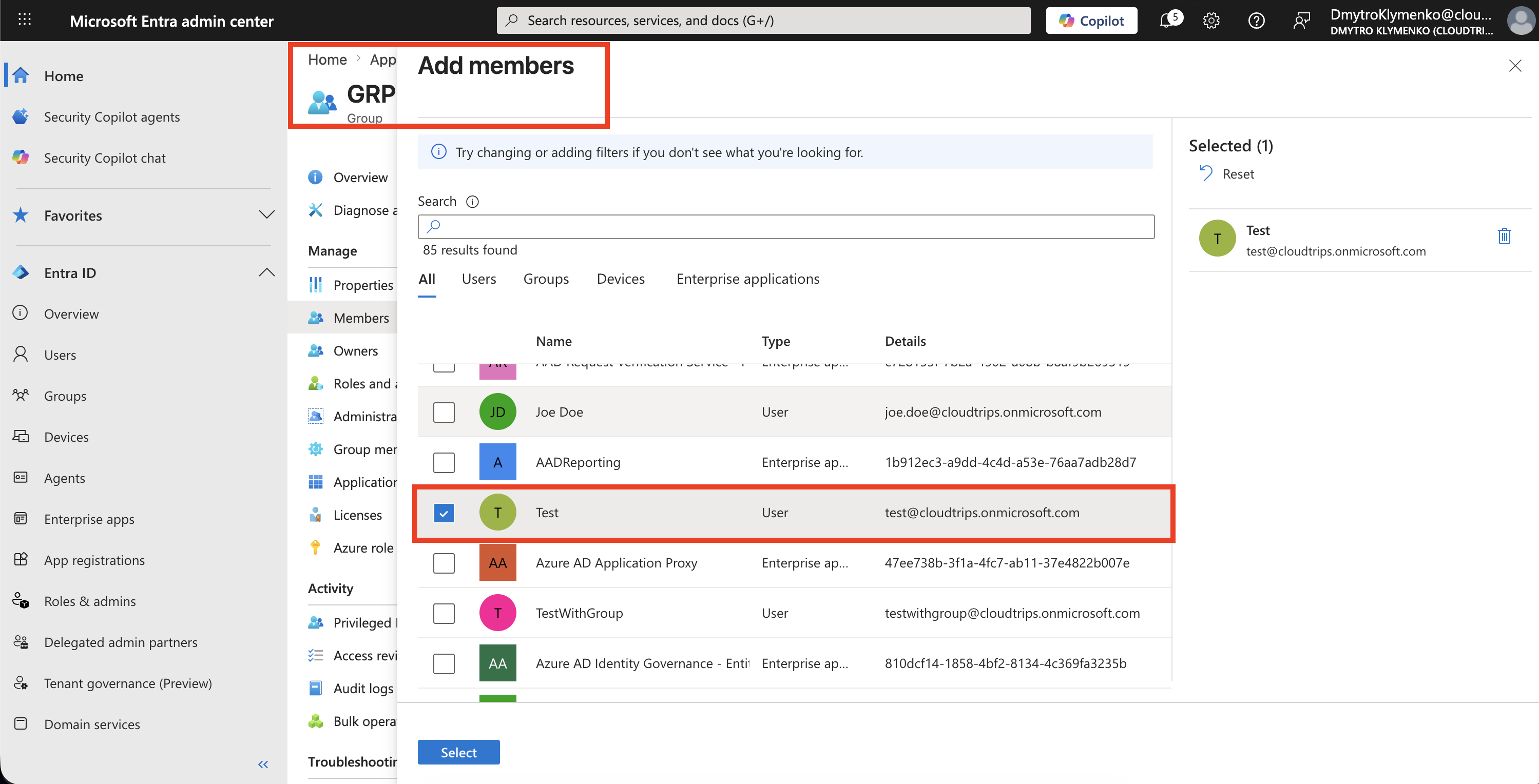
Open the group:
GRP-CloudTrips-Approvers > Members > Add membersAdd the employee user.
After this, the user is a member of the group, but the group still needs to be assigned to the app role.
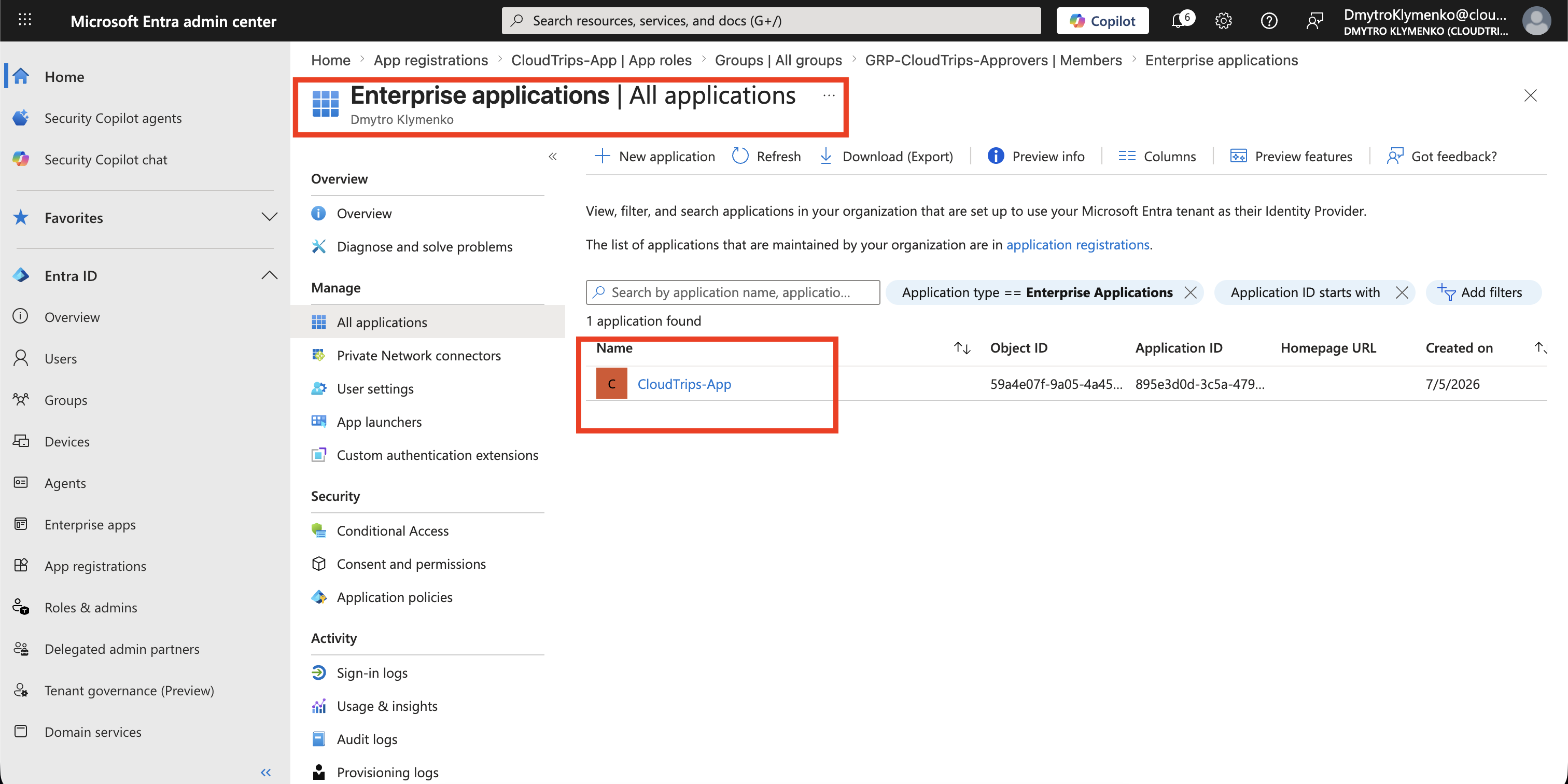
Open Enterprise Application
App role assignment is done on the Enterprise Application.
Go to:
Entra ID > Enterprise applicationsOpen:
CloudTrips-AppThe app registration defines the role.
The enterprise application is where users and groups are assigned to that role.
Assign Group to App Role
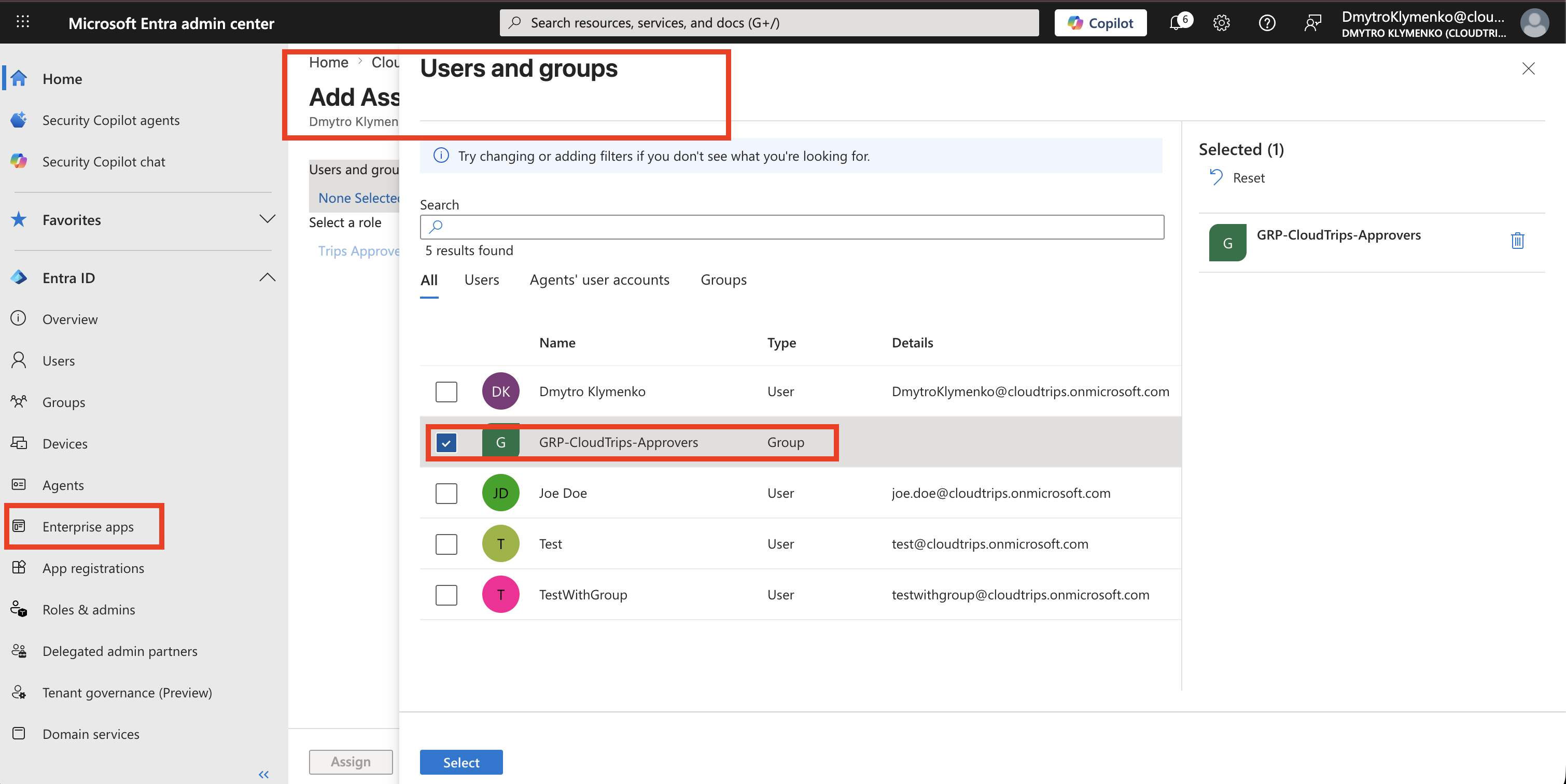
Inside the Enterprise Application, open:
Users and groups > Add user/groupSelect:
Users and groups: GRP-CloudTrips-Approvers
Role: Trips Approver
Save the assignment.
Now every user in that group can receive the Trips.Approver role claim when signing in to the app.
Confirm Assignment
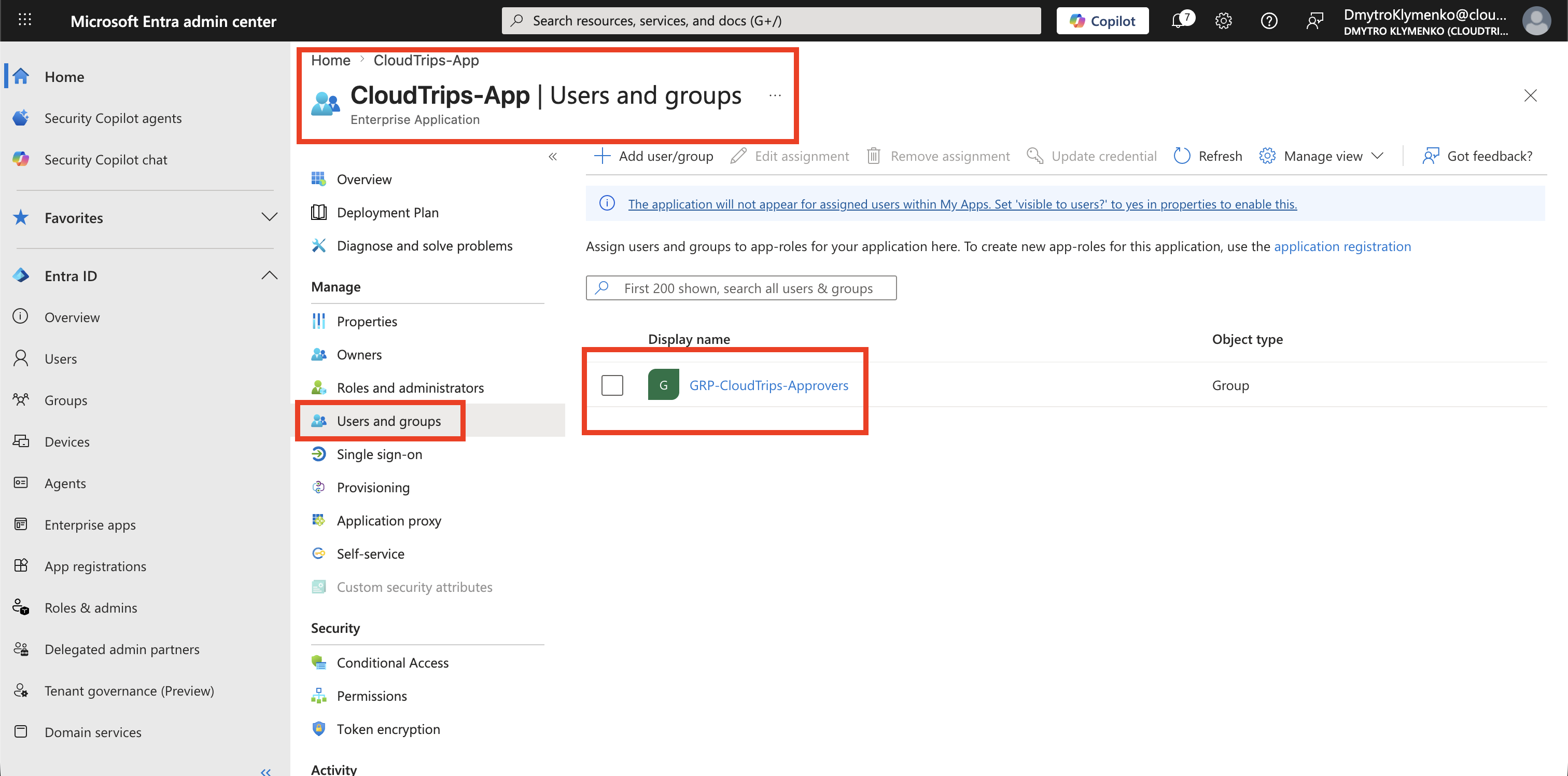
The Enterprise Application should now show:
GRP-CloudTrips-Approvers -> Trips ApproverThe user may need to sign out and sign in again before the role appears in a new token.
Role Claim in Token
After sign-in, the app can receive a token with:
{
  "roles": [
    "Trips.Approver"
  ]
}
If the app also requests delegated API scopes, the token can contain both:
{
  "scp": "Trips.Read",
  "roles": [
    "Trips.Approver"
  ]
}
Use the role claim in application code:
Allow approval workflow if roles contains Trips.ApproverWhy Use App Roles Instead of Group IDs
The application could check group IDs directly, but app roles are usually cleaner.
App roles provide:
- readable authorization values
- stable app-specific role names
- easier code checks
- simpler audit conversations
- less coupling to raw tenant group object IDs
Group IDs are tenant-specific and harder to understand in code.
Large group memberships can also cause token overage behavior, where the token does not contain all groups directly.
App roles avoid that by giving the app the role value it actually needs.
Enterprise Note
Use groups for assignment, not individual users, when possible.
A good pattern is:
GRP-CloudTrips-Readers
GRP-CloudTrips-Approvers
GRP-CloudTrips-Admins
Then map those groups to app roles:
Trips.Reader
Trips.Approver
Trips.Admin
For production, document:
- what each role allows
- which groups are assigned
- who owns each group
- whether role membership is reviewed regularly
- which app screens or API endpoints require the role