Resource Must Not Be Modified? Create a Read-Only Lock
A critical resource is configured correctly and must not be accidentally changed or deleted, even by users with broad Azure RBAC permissions.
Create a read-only management lock on:
Subscription: Azure subscription 1
Resource group: rg-customer-portal-dev-weu
Resource: stcloudtripsdev01
Lock name: lock-readonly-cloudtrips-storage
Lock type: Read-only
Choose the Correct Lock Type
Azure management locks provide two levels:
| Portal lock type | Effect |
|---|---|
| Delete | Authorized users can read and modify the resource but cannot delete it |
| Read-only | Authorized users can read the resource but cannot update or delete it |
This scenario requires Read-only because both modification and deletion must be blocked.
A lock is different from Azure RBAC. RBAC grants actions to identities; a management lock adds a restriction that overrides the permissions of all users and roles at its scope.
Users who are authorized to manage locks can still remove the lock and then modify the resource. A lock protects against accidental or unapproved changes, not a fully privileged administrator acting intentionally.
Understand the Scope
Locks can be applied at subscription, resource-group, or resource scope. Child scopes inherit locks from their parents.
Apply this lock directly to stcloudtripsdev01 so unrelated resources in rg-customer-portal-dev-weu remain manageable.
The lock applies to Azure Resource Manager control-plane operations. It does not generally protect storage data-plane operations. Blobs, files, queues, and tables can still be modified or deleted through supported data-plane requests.
Use storage data-protection features such as soft delete, versioning, immutability policies, and appropriate data-plane RBAC separately when the stored data also requires protection.
Review Storage Account Effects
A read-only lock on a storage account can block more than configuration edits:
- listing storage account keys is blocked because it uses a control-plane POST operation
- assigning Azure RBAC roles at the storage account or a storage container scope is blocked
- creating a blob container through a control-plane operation is blocked
- portal access that previously relied on account keys can require Microsoft Entra credentials and an appropriate storage data role
Confirm that applications, administrators, and automation do not depend on these operations before applying the lock.
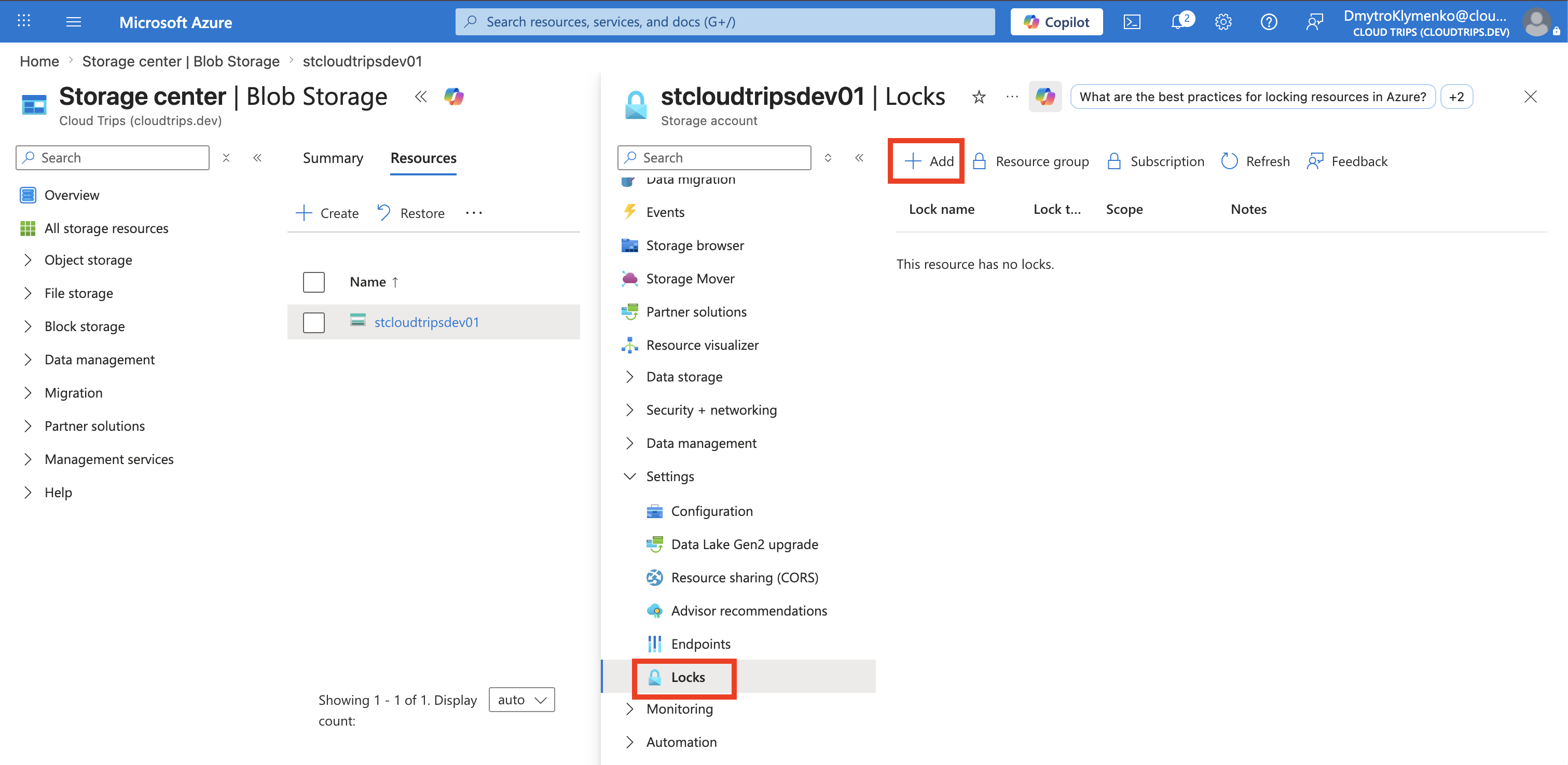
Open Resource Locks
In the Azure portal, open:
Storage accounts
> stcloudtripsdev01
> Settings
> Locks
Select Add.
Create the Read-Only Lock
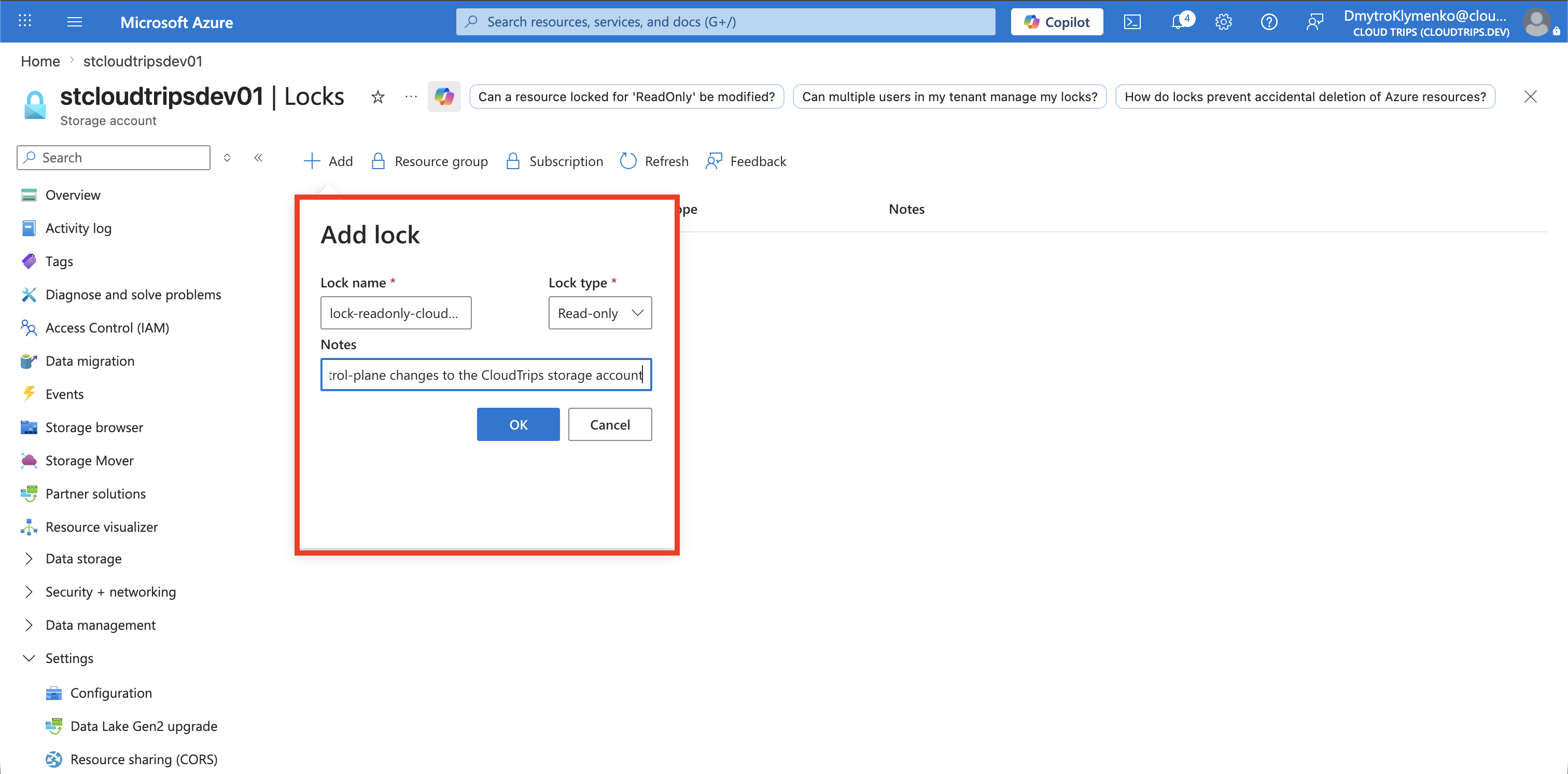
Configure:
Lock name: lock-readonly-cloudtrips-storage
Lock type: Read-only
Notes: Prevent unapproved control-plane changes to the CloudTrips storage account
Select OK or Save.
Verify the Lock
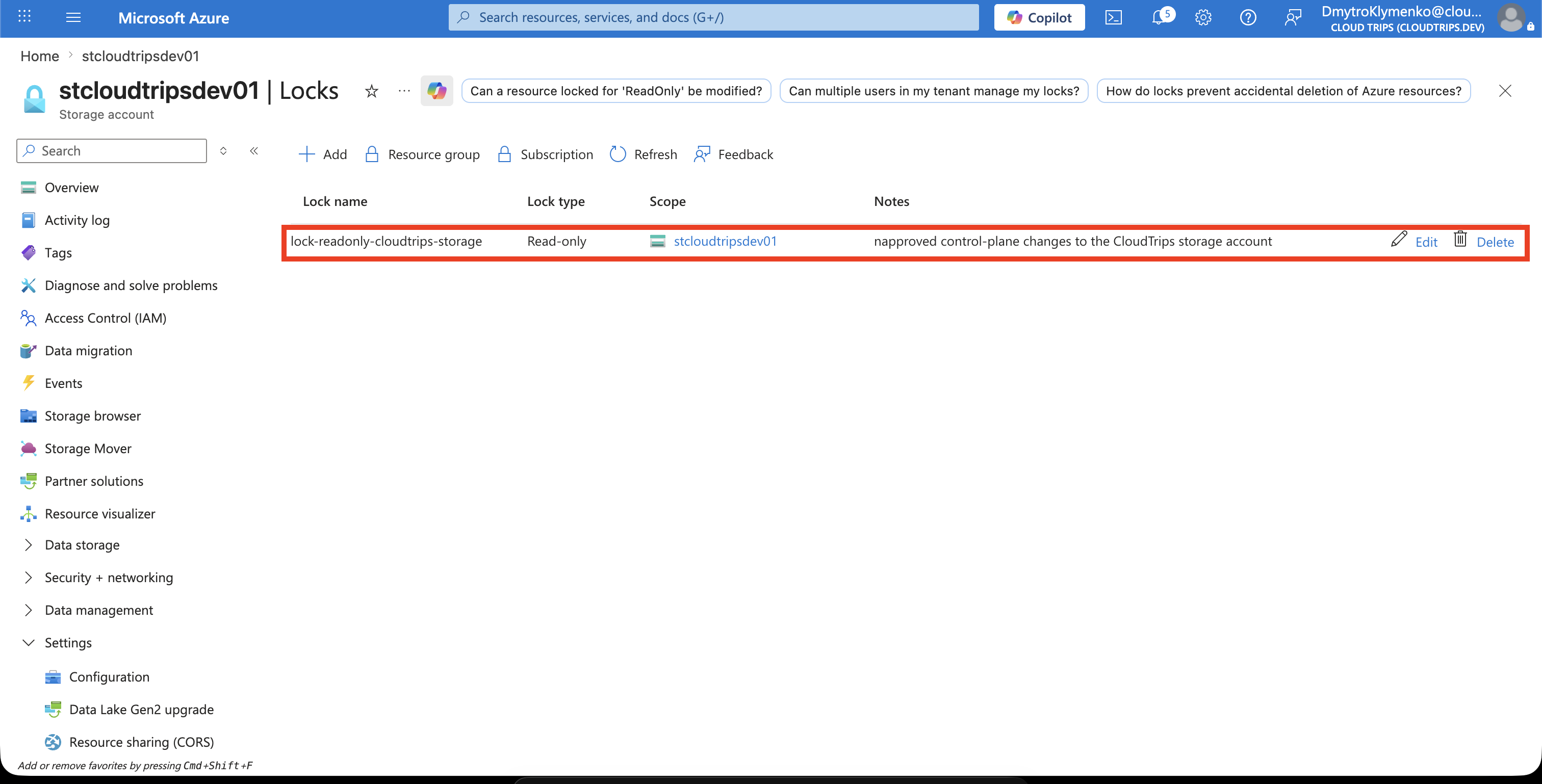
Confirm that the lock appears on the Locks page with:
Name: lock-readonly-cloudtrips-storage
Lock type: Read-only
Scope: stcloudtripsdev01
Also check for inherited locks. Multiple locks combine at the most restrictive level.
Test a Safe Modification
Test the lock with a reversible control-plane change instead of attempting to delete the storage account.
Open Tags, add a temporary tag, and try to save:
LockTest: BlockedAzure should reject the update because the resource is read-only. Do not remove or replace the existing Department: Engineering tag during the test.
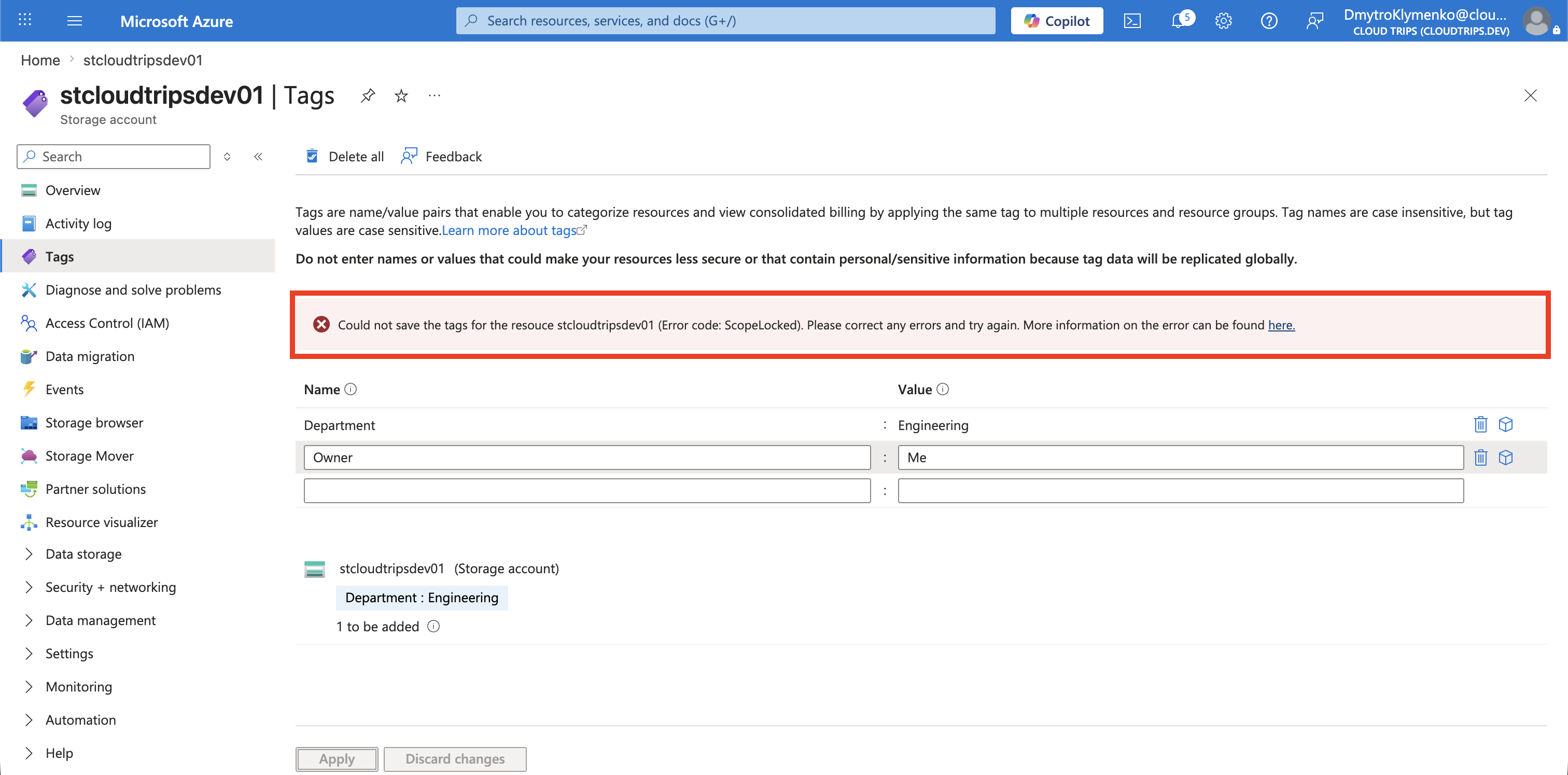
Confirm that the temporary tag was not saved and that normal read operations still work.
Remove the Lock for an Approved Change
When an authorized maintenance change is required:
- Document and approve the change.
- Open the resource’s Locks page.
- Delete
lock-readonly-cloudtrips-storage. - Make and verify the approved change.
- Recreate the read-only lock.
- Confirm the lock is active again.
Avoid leaving the resource unlocked after maintenance. Record lock removal and recreation through the Azure activity log or your change-management process.
The storage account configuration is now protected from accidental control-plane updates and deletion while its data plane remains governed separately.