Monthly Spend Must Be Controlled? Create an Azure Budget
Cloud spending should be monitored before the invoice arrives. Create a monthly budget for Azure subscription 1 and notify the responsible team as actual or forecasted costs approach the approved amount.
This trip uses:
Scope: Azure subscription 1
Budget name: budget-cloudtrips-monthly
Reset period: Monthly
Budget amount: €100
Alert recipients: cloud-ops@cloudtrips.dev
Use an amount and currency appropriate for your billing account. The Azure portal displays the billing currency for the selected scope.
Understand What a Budget Does
An Azure budget compares accumulated or forecasted cost with a defined amount and sends notifications when configured thresholds are crossed.
A budget does not provide a hard spending cap. Crossing 100% does not automatically stop virtual machines, delete resources, reject deployments, or prevent further charges.
Subscription and resource-group budgets can optionally trigger an Azure Monitor action group for automation. Any automated shutdown requires separate design, testing, and safeguards.
Review Current Spending
Before choosing an amount, open:
Subscriptions
> Azure subscription 1
> Cost Management
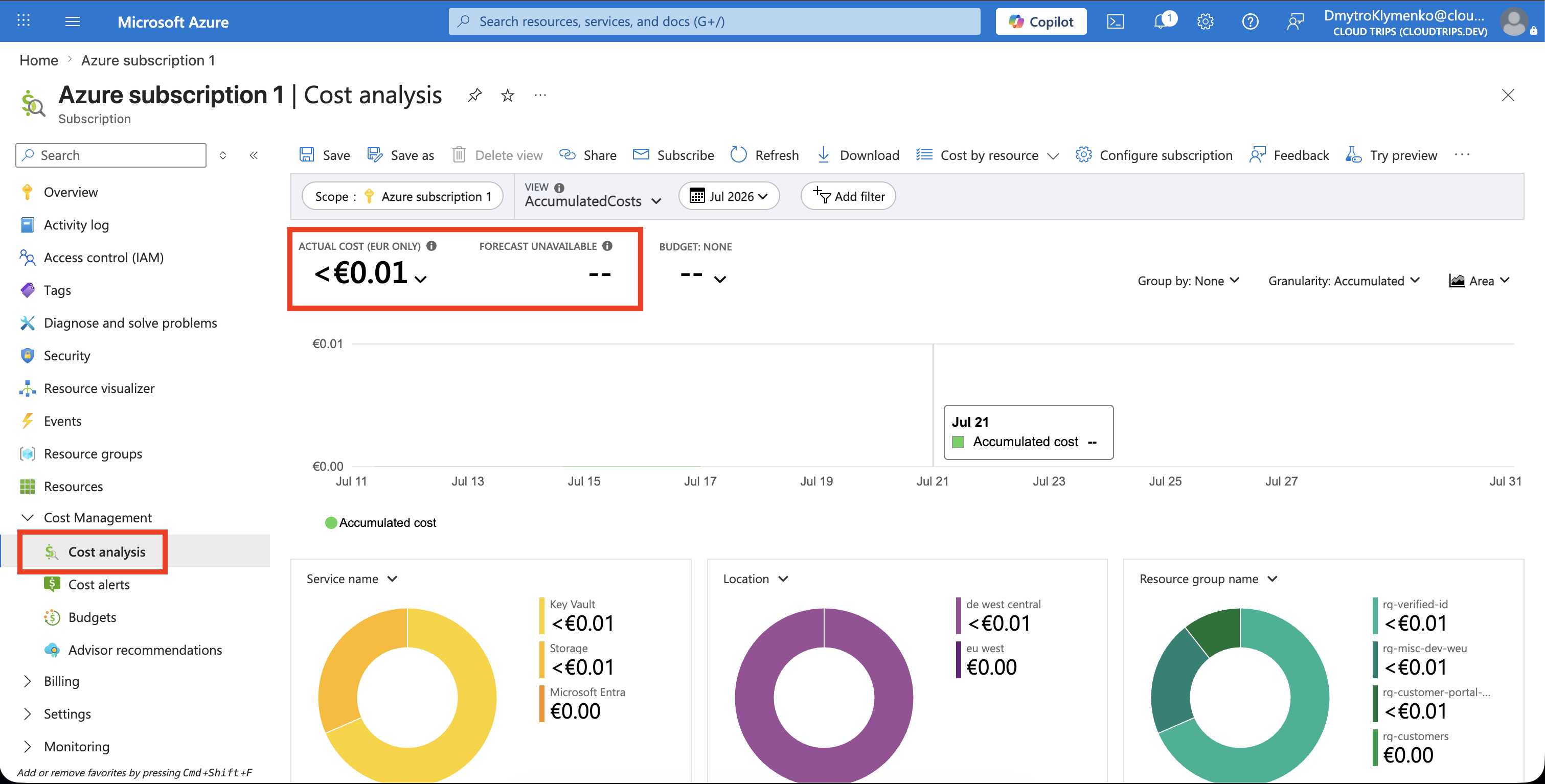
> Cost analysis
Review recent monthly cost, forecast, major services, and recurring charges. Base the budget on expected workload cost rather than an arbitrary number.
Cost data is not real time. Usage can take hours to appear, and pay-as-you-go data can sometimes take longer. Treat the current open billing period as estimated.
Create an Action Group
Create the action group before starting the budget so it is available in the budget alert conditions.
An action group is a reusable set of notification and automation actions. A budget alert can invoke it when a threshold is reached.
In the Azure portal, open:
Monitor
> Alerts
> Action groups
> Create
Configure:
Subscription: Azure subscription 1
Resource group: rg-customer-portal-dev-weu
Region: Global
Action group name: ag-cloudtrips-budget
Display name: CloudBudget
On Notifications, add:
Notification type: Email/SMS message/Push/Voice
Name: Email Cloud Ops
Email: cloud-ops@cloudtrips.dev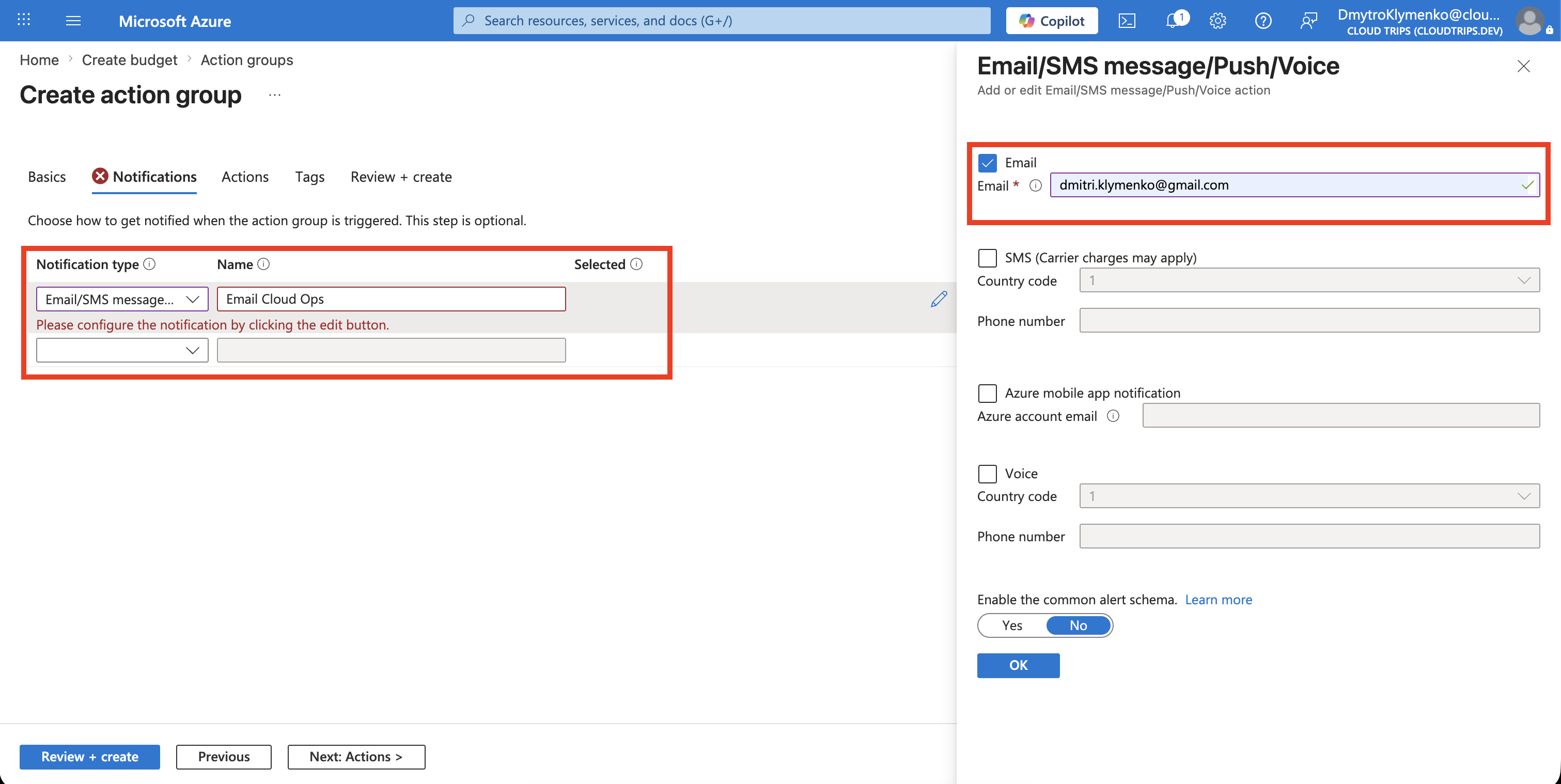
Select Review + create, then Create. Wait until ag-cloudtrips-budget appears in the action-groups list before creating the budget.
Action groups can also trigger webhooks, Azure Functions, Logic Apps, Automation runbooks, or other supported actions. Do not add automatic shutdown or deletion to this trip. Cost data and budget evaluation are delayed, so automation is not an immediate hard spending limit. Design and test any cost-remediation workflow separately.
Open Budgets
Go to:
Azure subscription 1
> Cost Management
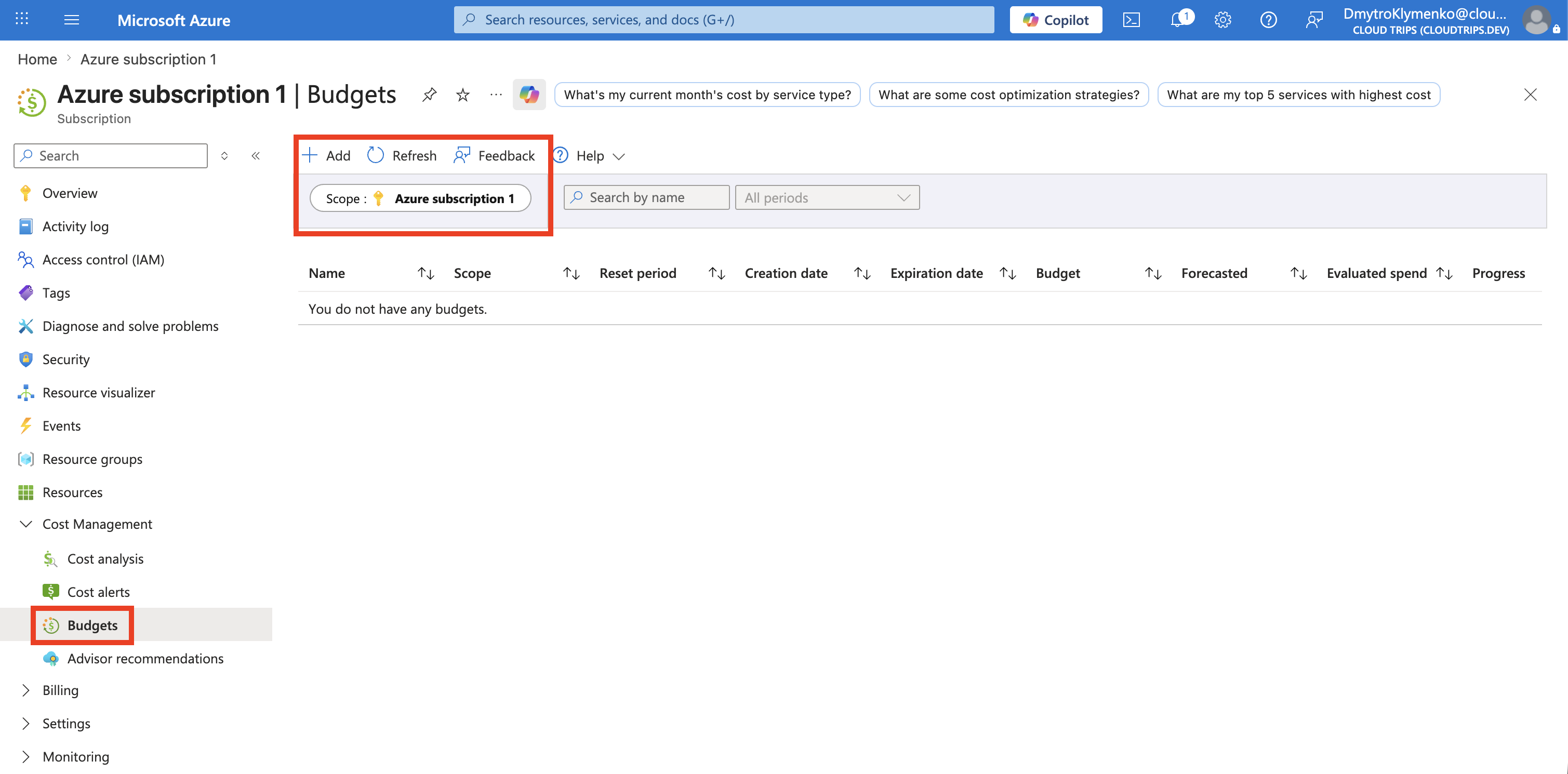
> Budgets
Confirm that the scope shown at the top is Azure subscription 1, then select Add.
Configure the Budget
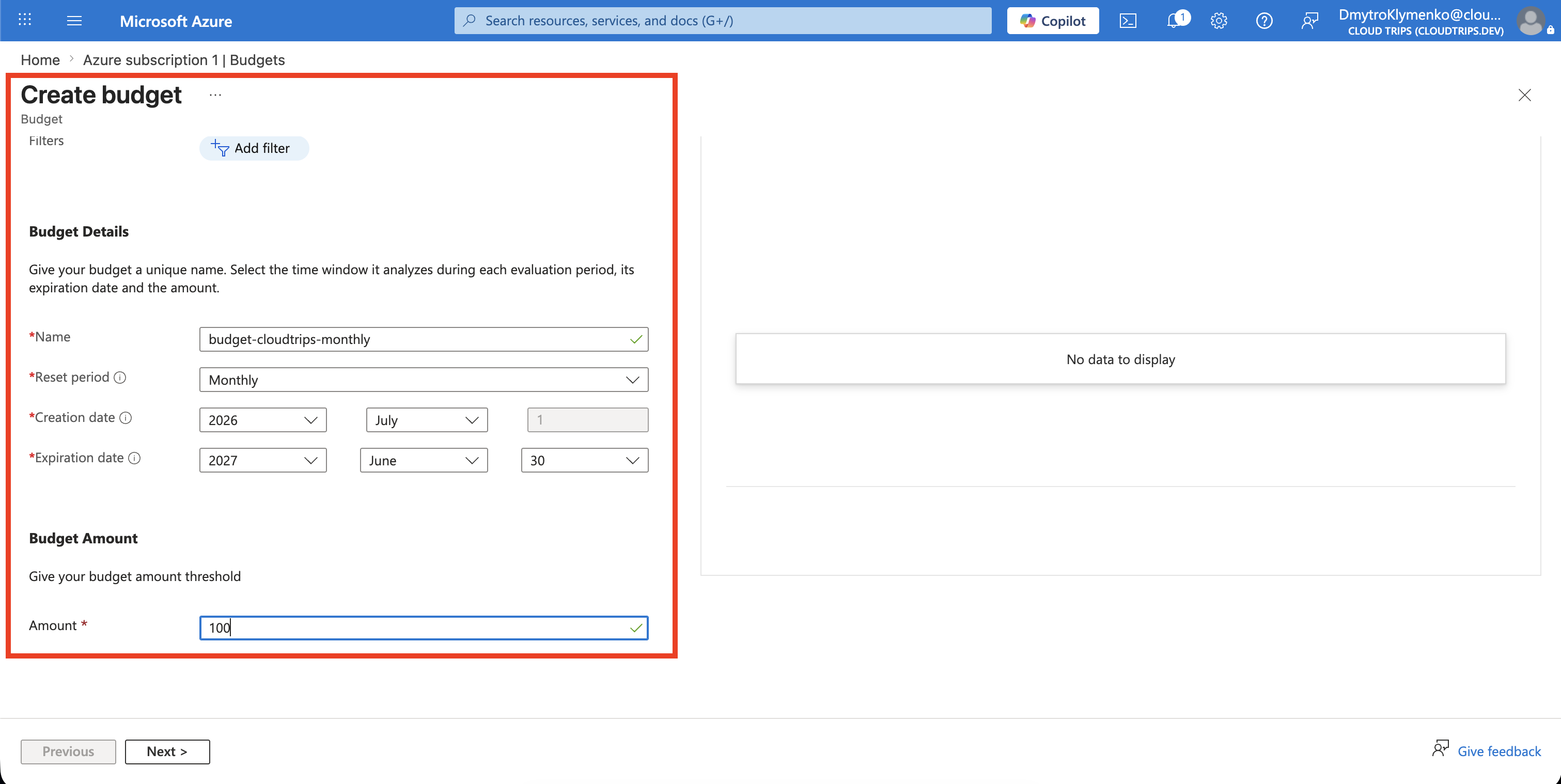
On Create budget, configure:
Budget name: budget-cloudtrips-monthly
Reset period: Monthly
Creation date: Current date
Expiration date: One year from creation
Budget amount: 100
The reset period controls how often budget evaluation starts again. A monthly budget resets its comparison at the start of each budget month; unused budget does not roll over.
If filters are available, leave them empty to monitor the entire subscription. Add filters only when the budget should cover specific resource groups, services, regions, tags, or other supported dimensions.
Configure Alert Thresholds
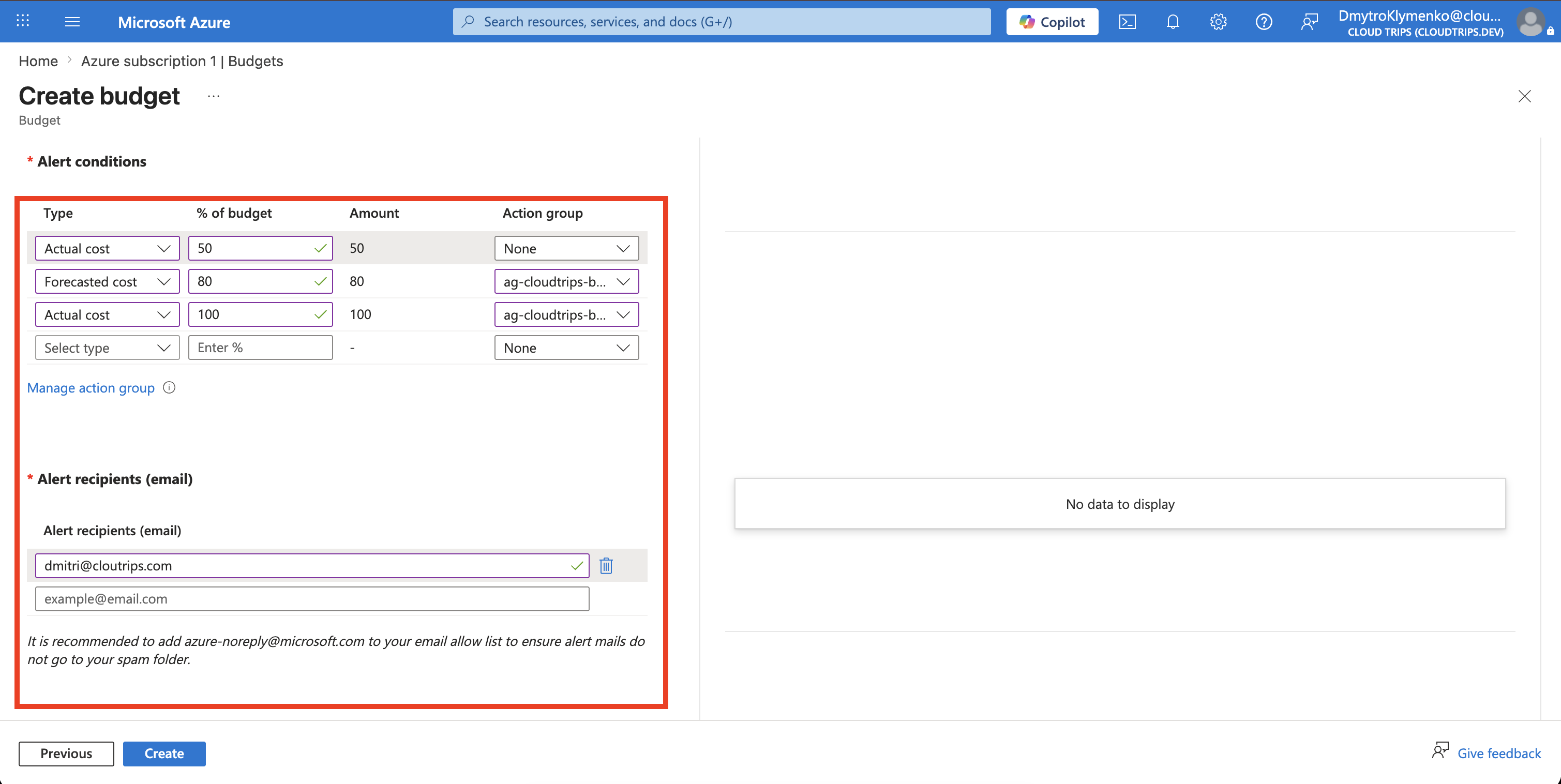
Select Next and add alerts that provide time to react:
| Threshold | Type | Action group |
|---|---|---|
| 50% | Actual | None |
| 80% | Forecasted | ag-cloudtrips-budget |
| 100% | Actual | ag-cloudtrips-budget |
For each alert, enter:
Email recipient: cloud-ops@cloudtrips.devActual alerts compare processed cost with the budget. Forecasted alerts use Azure’s estimate of where cost is heading before the period ends.
Avoid configuring only a 100% alert. By the time it arrives, additional usage might already be processing.
Select ag-cloudtrips-budget for the 80% forecasted and 100% actual conditions.
Verify Monitoring
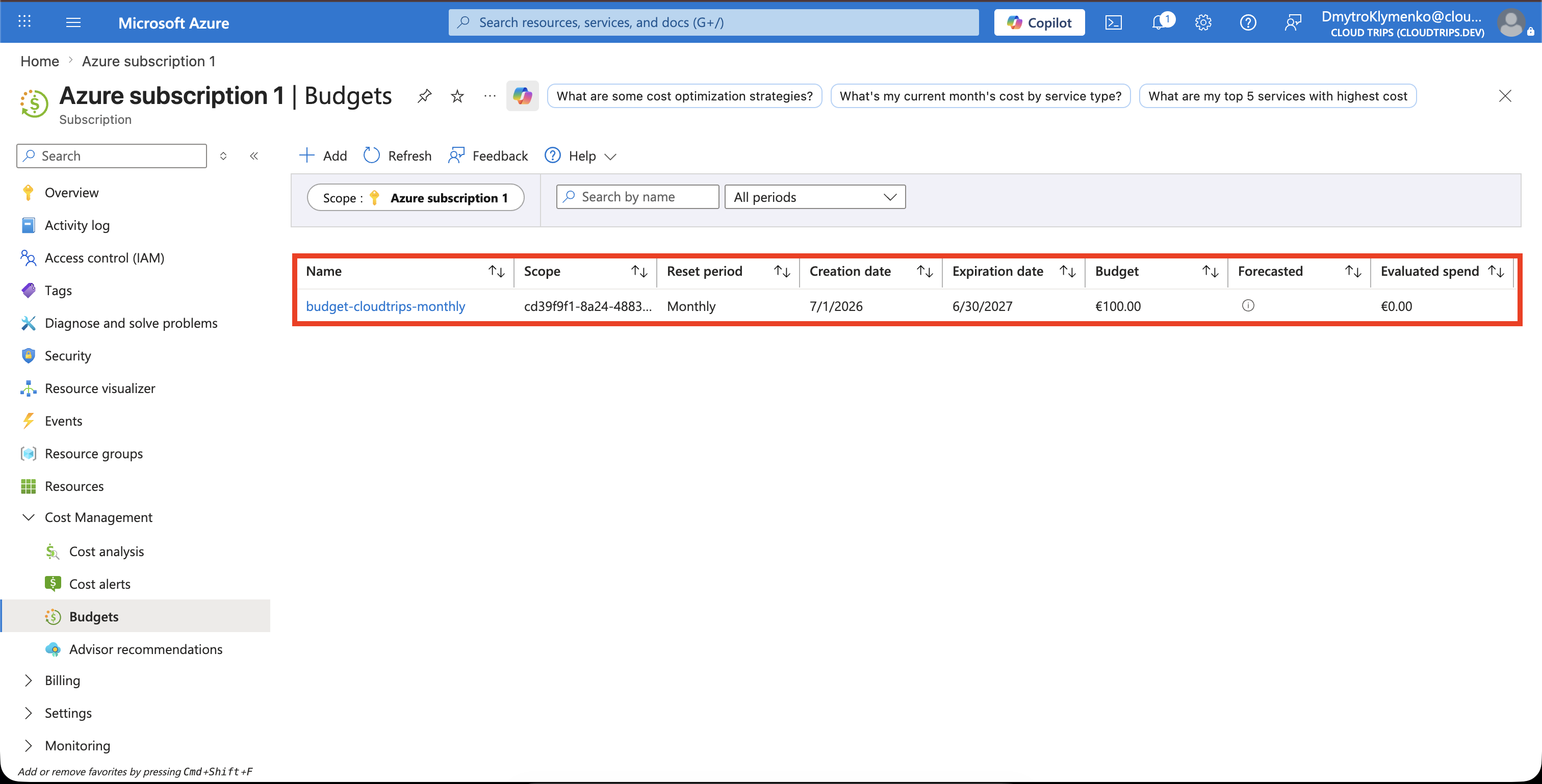
Return to Budgets and confirm that budget-cloudtrips-monthly appears with:
- the correct monthly amount
- current spending against the budget
- the configured expiration date
- alert conditions and recipients
Azure evaluates budget thresholds periodically rather than continuously. When a threshold is detected, notification delivery can also take time. Do not use a budget as the only protection against runaway resources.
When an alert arrives, open Cost analysis, identify the service or resource driving the increase, confirm whether it is expected, and take an approved optimization or remediation action.
Review the budget whenever the workload, pricing, subscription ownership, or approved monthly spend changes.