Multiple Subscriptions Need a Hierarchy? Create a Management Group
When an organization has multiple Azure subscriptions, managing access and policy separately on every subscription does not scale.
Create a management group above the subscriptions. Azure role assignments and policies applied at this scope can be inherited by its child management groups, subscriptions, resource groups, and resources.
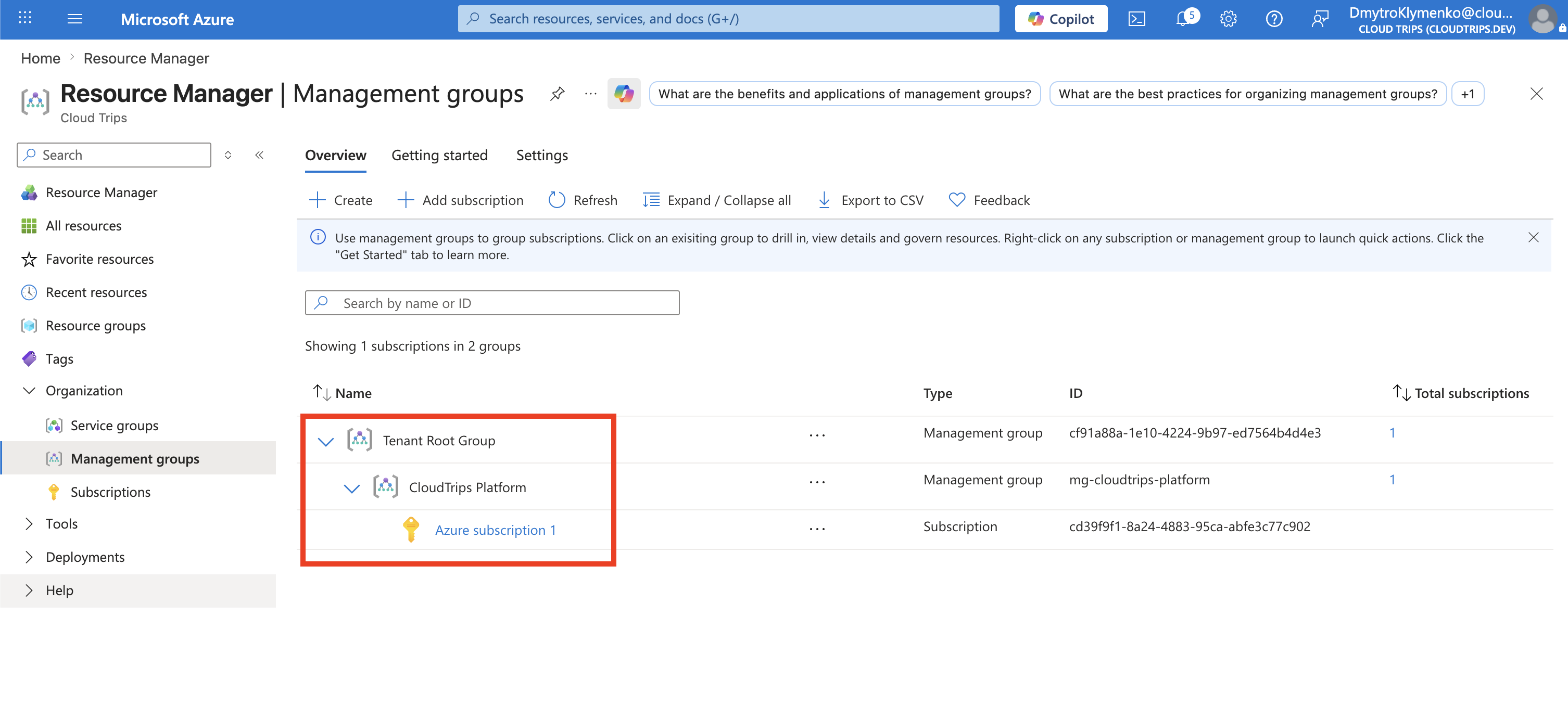
The hierarchy becomes:
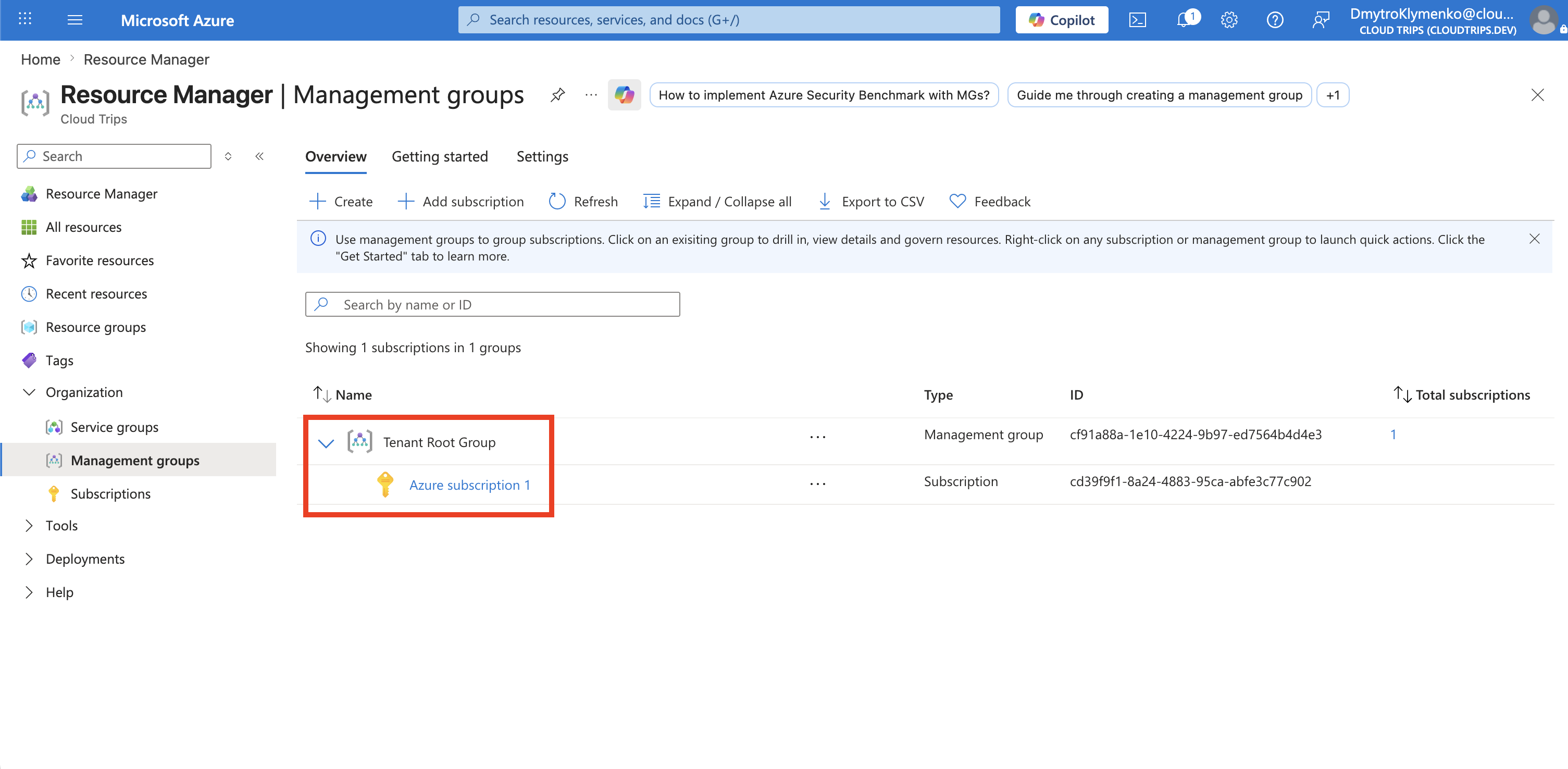
Tenant root group
└── CloudTrips Platform
    └── Azure subscription 1
All subscriptions in one management-group hierarchy must trust the same Microsoft Entra tenant.
Plan the Management Group
Use a stable ID and a readable display name:
Management group ID: mg-cloudtrips-platform
Display name: CloudTrips Platform
Parent: Tenant root group
The management group ID must be unique in the directory and cannot be changed after creation. The display name can be changed later.
Avoid applying broad access or restrictive policies at the tenant root without careful review, because assignments at that level affect the entire hierarchy.
Open Management Groups
Sign in to the Azure portal and go to:
All services
> Management + governance
> Management groups
The first use of management groups in a tenant can take several minutes while Azure initializes the service and creates the tenant root group.
Add a Management Group
Open the parent under which the new group should be created and select:
+ Add management group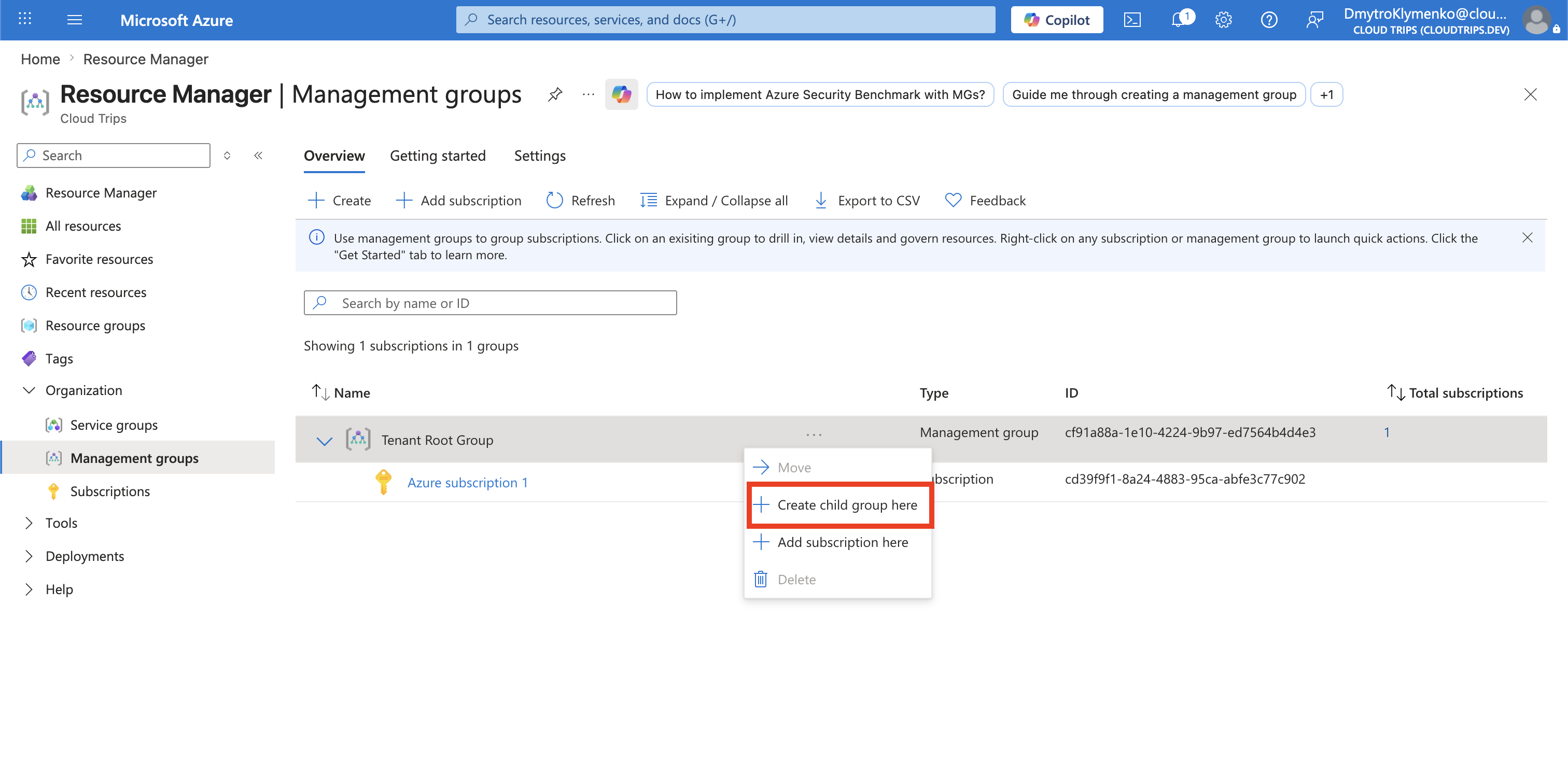
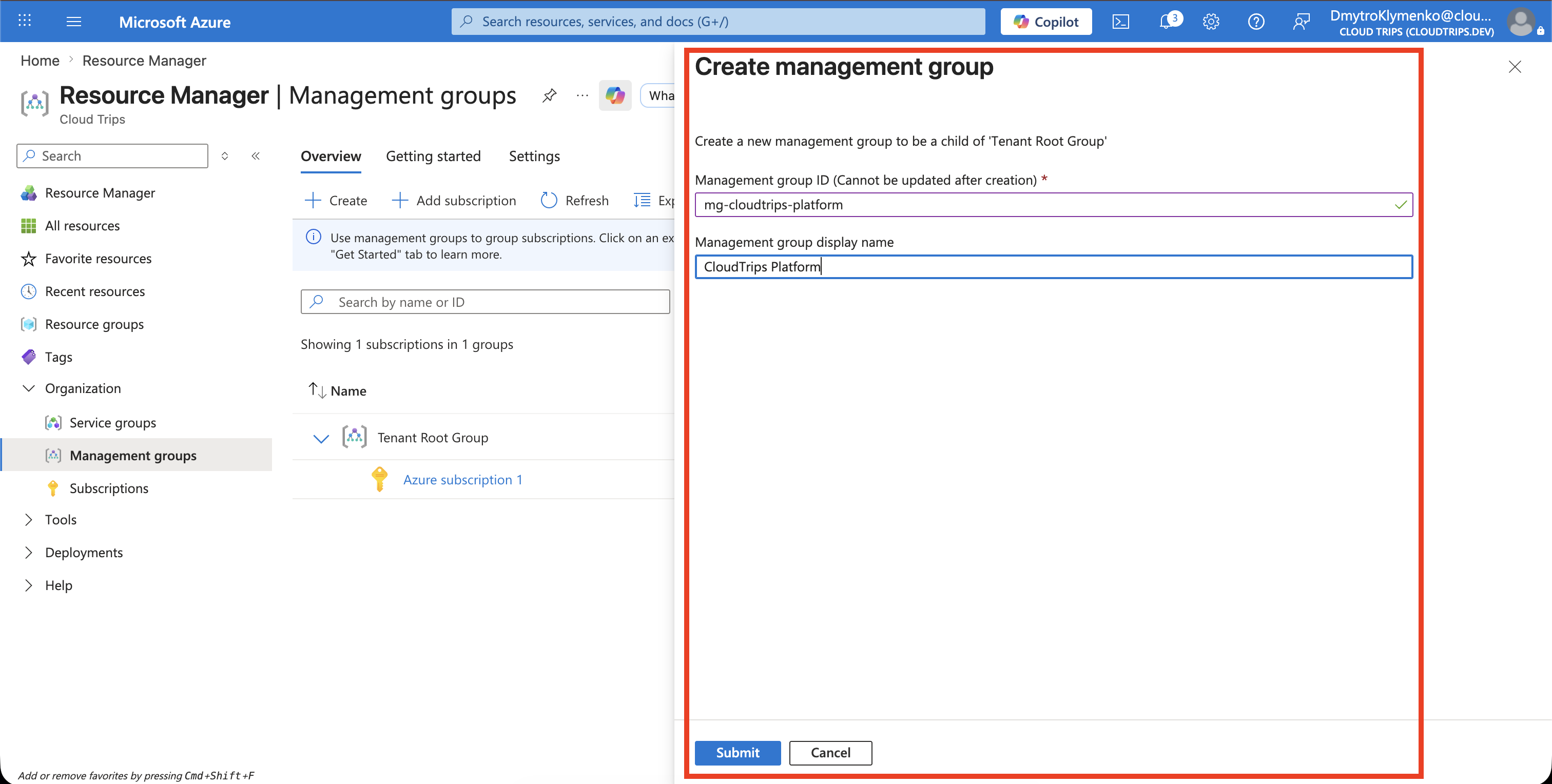
Keep Create new selected and enter:
Management group ID: mg-cloudtrips-platform
Management group display name: CloudTrips Platform
Select Save.
Verify the Hierarchy
Wait for the operation to finish and refresh the hierarchy if necessary. Confirm that CloudTrips Platform appears below the intended parent.
Move the Subscription to the New Management Group
The new management group is empty until a subscription is moved into it. On the Management groups hierarchy page, locate:
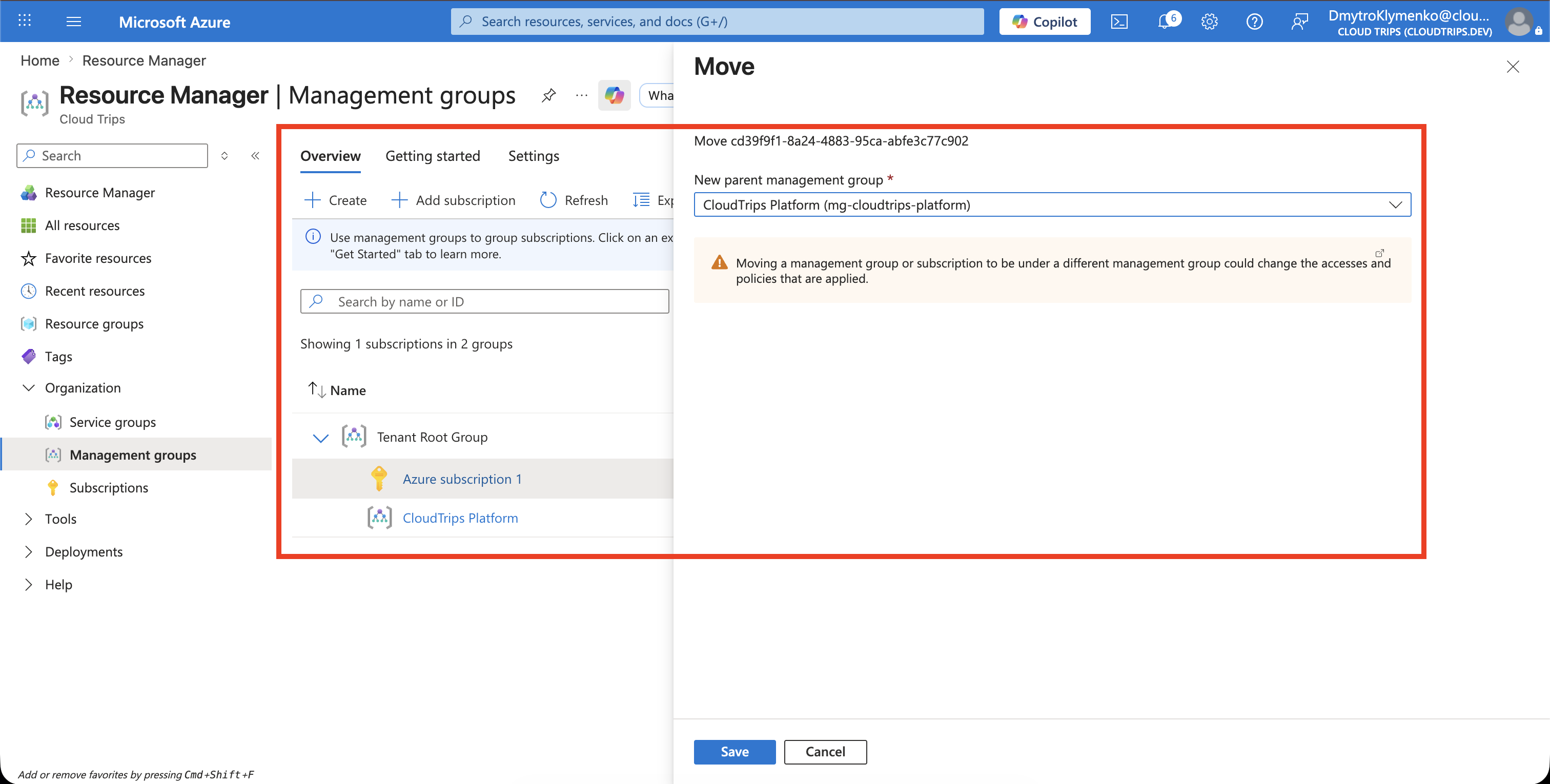
Azure subscription 1Select the subscription, choose Move, and then select the new parent management group:
CloudTrips PlatformSelect Save to move Azure subscription 1 from its current parent into CloudTrips Platform. This does not move or redeploy the resources inside the subscription. It only changes the subscription’s position in the management-group hierarchy.
You need appropriate permissions on the subscription and the management-group hierarchy. Before saving, review the Azure Policy and RBAC assignments inherited from CloudTrips Platform, because they apply to the subscription after the move.
Confirm Inheritance
Verify that:
- each subscription appears under the correct management group
- inherited policies have the intended effect
- inherited role assignments grant only the required access
- activity logs record the hierarchy changes
- workloads continue to deploy successfully
CloudTrips now has a hierarchy where shared governance can be defined once and inherited by multiple subscriptions.