Team Needs a Spend Warning? Create a Cost Alert
The CloudTrips team already has a monthly budget, but fixed thresholds might not reveal an unusual daily cost spike quickly. Create a cost anomaly alert for Azure subscription 1.
Use:
Scope: Azure subscription 1
Alert type: Anomaly
Alert name: CloudTrips daily cost anomaly
Recipient: DmytroKlymenko@cloudtrips.onmicrosoft.com
Understand the Cost Alert
A budget alert compares actual or forecasted spending with a fixed budget. An anomaly alert instead looks for an unexpected change in daily subscription usage, including a spike or a drop.
Azure evaluates subscription cost anomalies daily and compares usage with an expected total based on the previous 60 days. When it detects an anomaly, it sends one email for that detection with a summary and the largest resource-group cost changes.
An anomaly alert does not stop resources or spending. It tells the team to investigate.
Anomaly alerts are available only at subscription scope in the Azure public cloud. Creating one requires Cost Management Contributor or a role with Microsoft.CostManagement/scheduledActions/write. A subscription can have up to five anomaly alert rules.
Review Cost Anomalies
In the Azure portal, open:
Cost Management
> Scope: Azure subscription 1
> Cost analysis
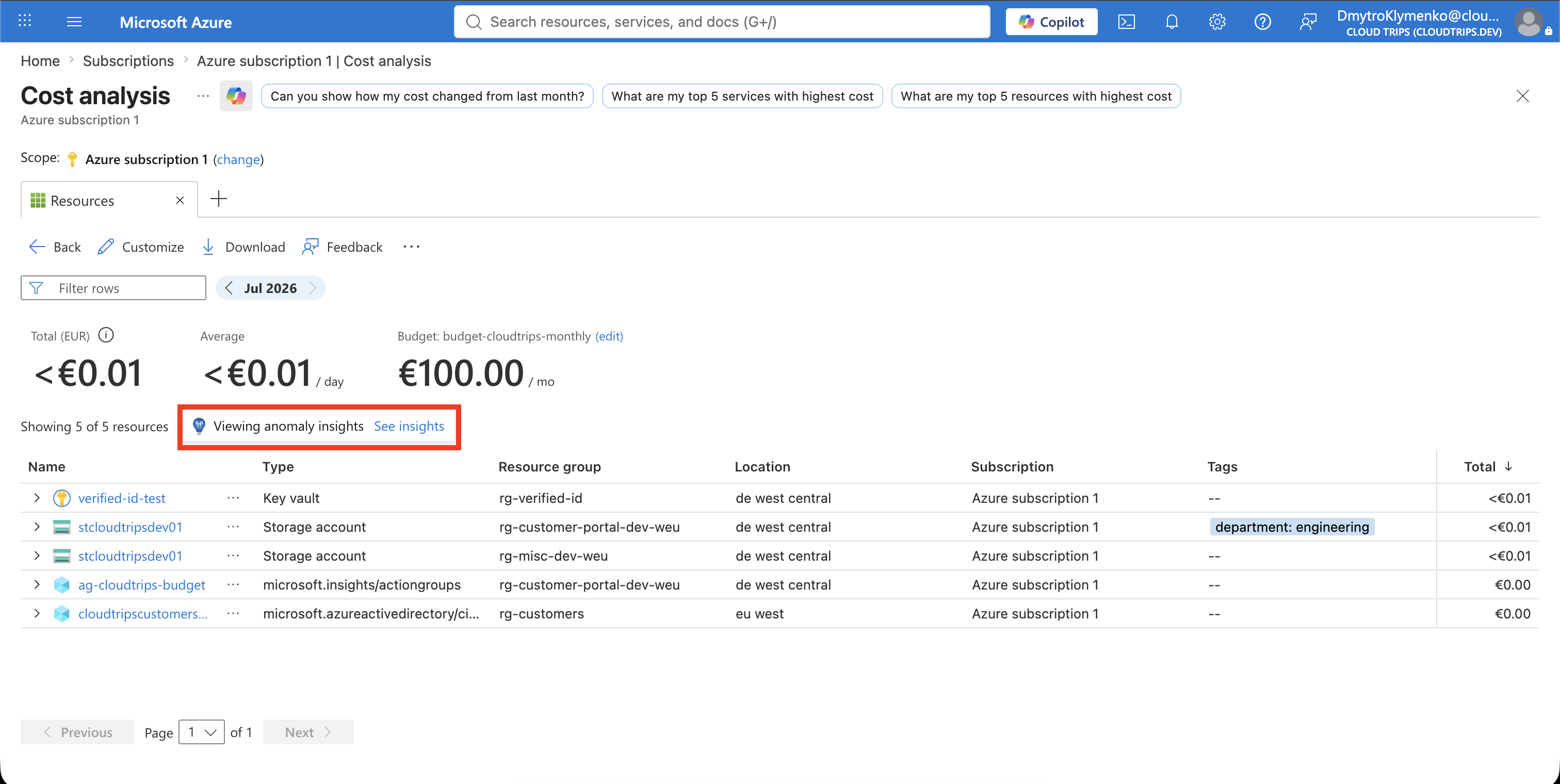
Select a view under Smart views and review Insights. Azure shows a detected anomaly or confirms that no anomaly was found for the evaluated dates.
You do not need an existing anomaly to create the alert rule.
Open Cost Alerts
With Azure subscription 1 still selected as the scope, open:
Cost Management
> Cost alerts
Select Add.
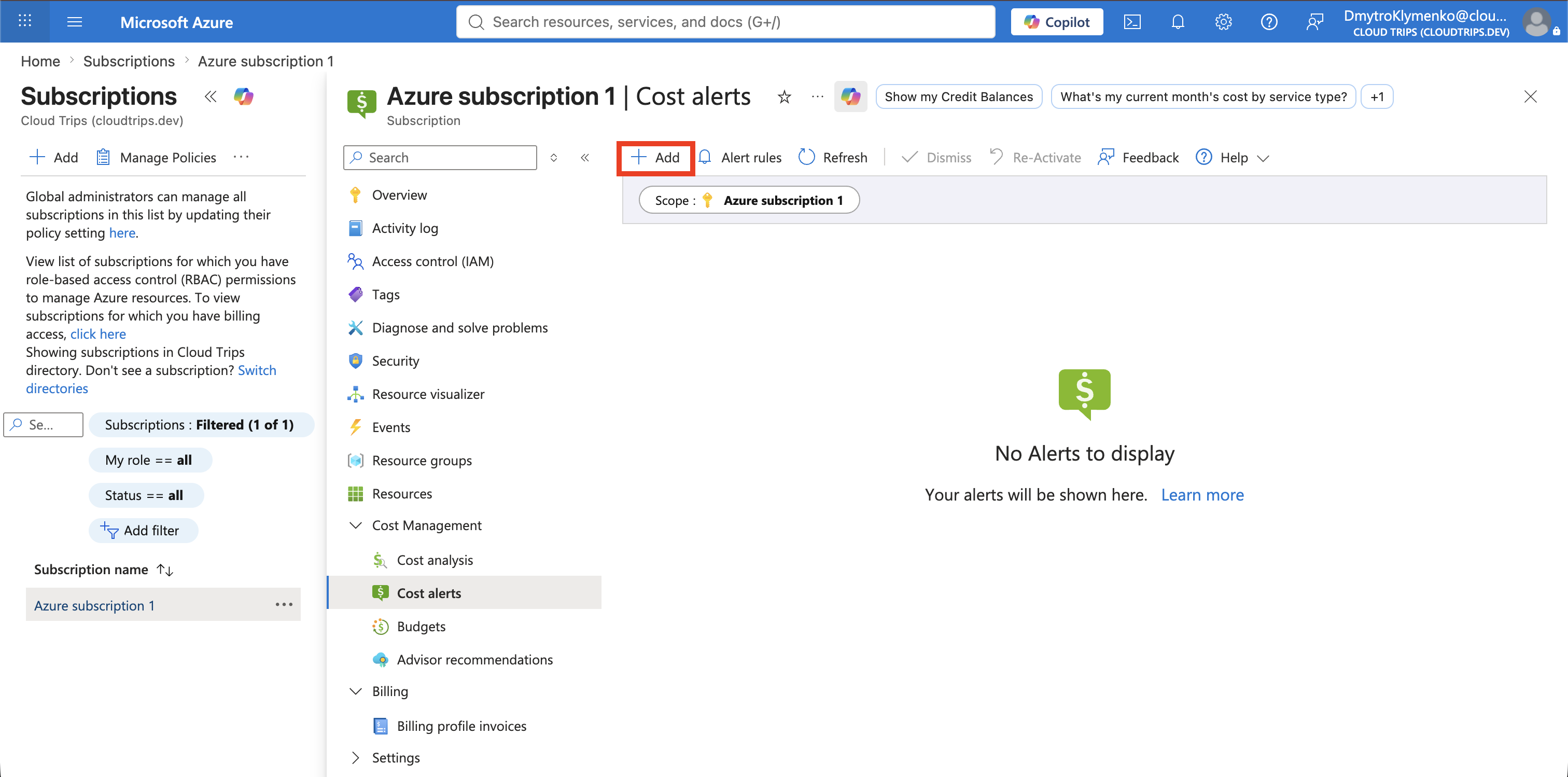
If Add is unavailable, verify the subscription scope and your Cost Management permissions. Anomaly rules cannot be created at a resource-group or billing-account scope.
Create the Anomaly Alert Rule
On Create alert rule, configure:
Alert type: Anomaly
Alert name: CloudTrips daily cost anomaly
Recipients: DmytroKlymenko@cloudtrips.onmicrosoft.com
Language: English
Add a distribution list or shared mailbox as the recipient when several team members own the response. Verify the address carefully; anomaly notifications are delivered by email rather than an Azure Monitor action group.
There is no monetary threshold to configure. Azure determines whether the daily change is unusual from the subscription’s cost history.
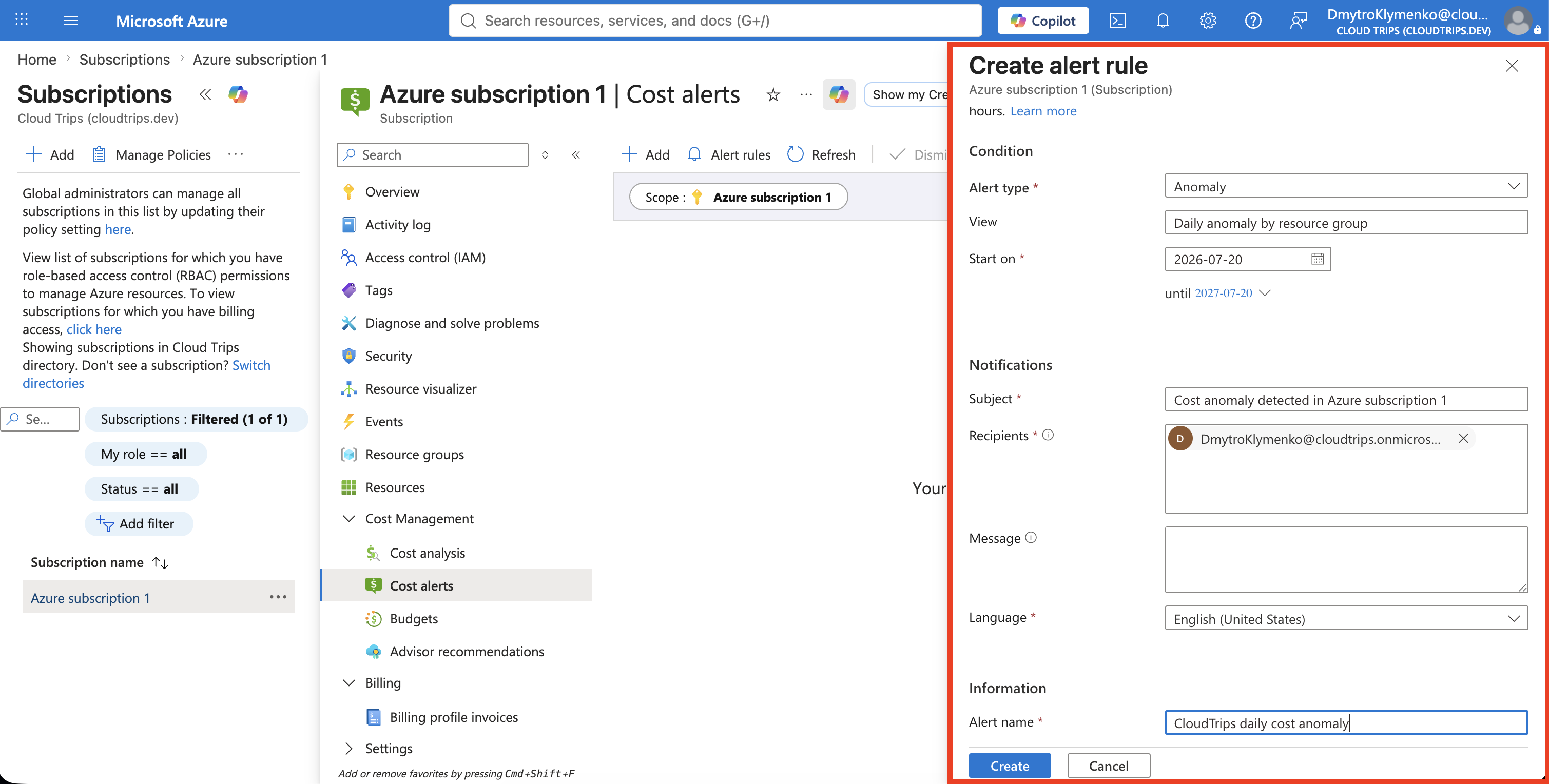
Select Create.
Verify the Alert Rule
Open:
Cost Management
> Alert rules
Confirm:
Name: CloudTrips daily cost anomaly
Type: Anomaly
Status: Enabled
Recipient: DmytroKlymenko@cloudtrips.onmicrosoft.com
Scope: Azure subscription 1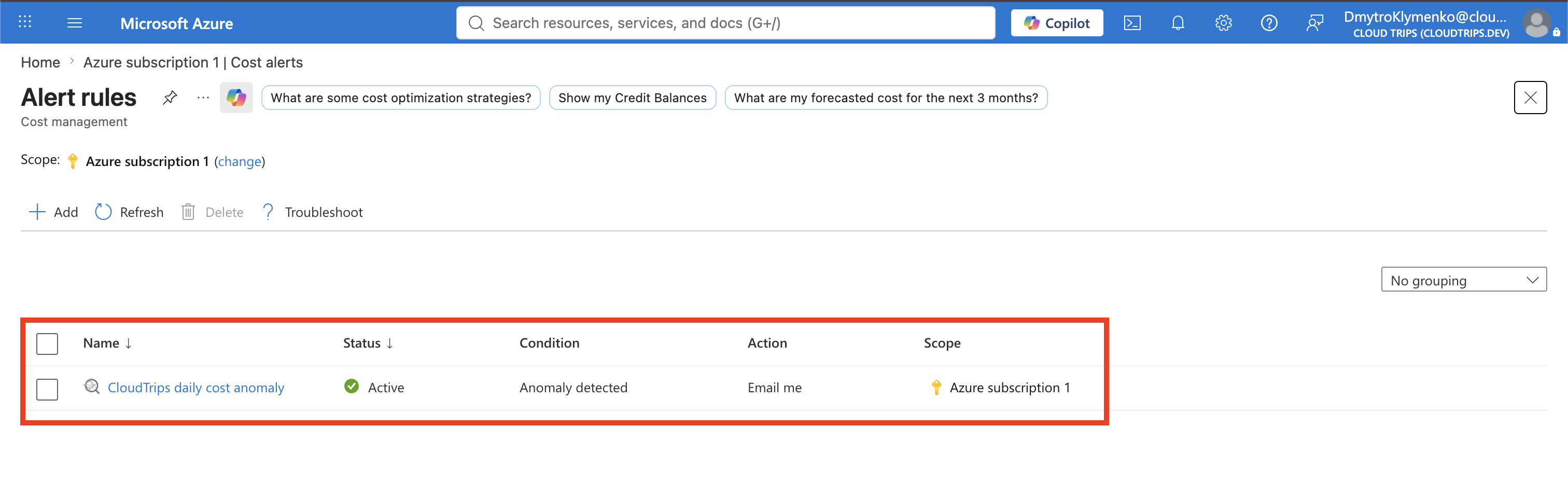
The rule cannot be safely forced by entering test cost data. Instead, verify the recipient and rule status. When a real alert arrives, open its Cost Management link, review the affected date and top resource-group changes, and compare the increase with recent deployments or configuration changes.
Also confirm that the rule creator keeps permission to read Cost Management data. Azure checks the creator’s current access when sending anomaly emails. Add microsoft-noreply@microsoft.com to approved senders if organizational mail filtering could block the notification.
CloudTrips now has complementary cost controls: the budget warns when spending approaches a planned amount, while the anomaly alert warns when the daily pattern changes unexpectedly.