Need to Know Why a User Has Access? Check Access Assignments
Joe Doe can access stcloudtripsdev01, but it is unclear which role assignment grants that access.
Use Check access to view assignments applied directly to the storage account and assignments inherited from its resource group, subscription, or management group.
Open Check Access
In the Azure portal, open:
Storage accounts
> stcloudtripsdev01
> Access control (IAM)
> Check access
> Check access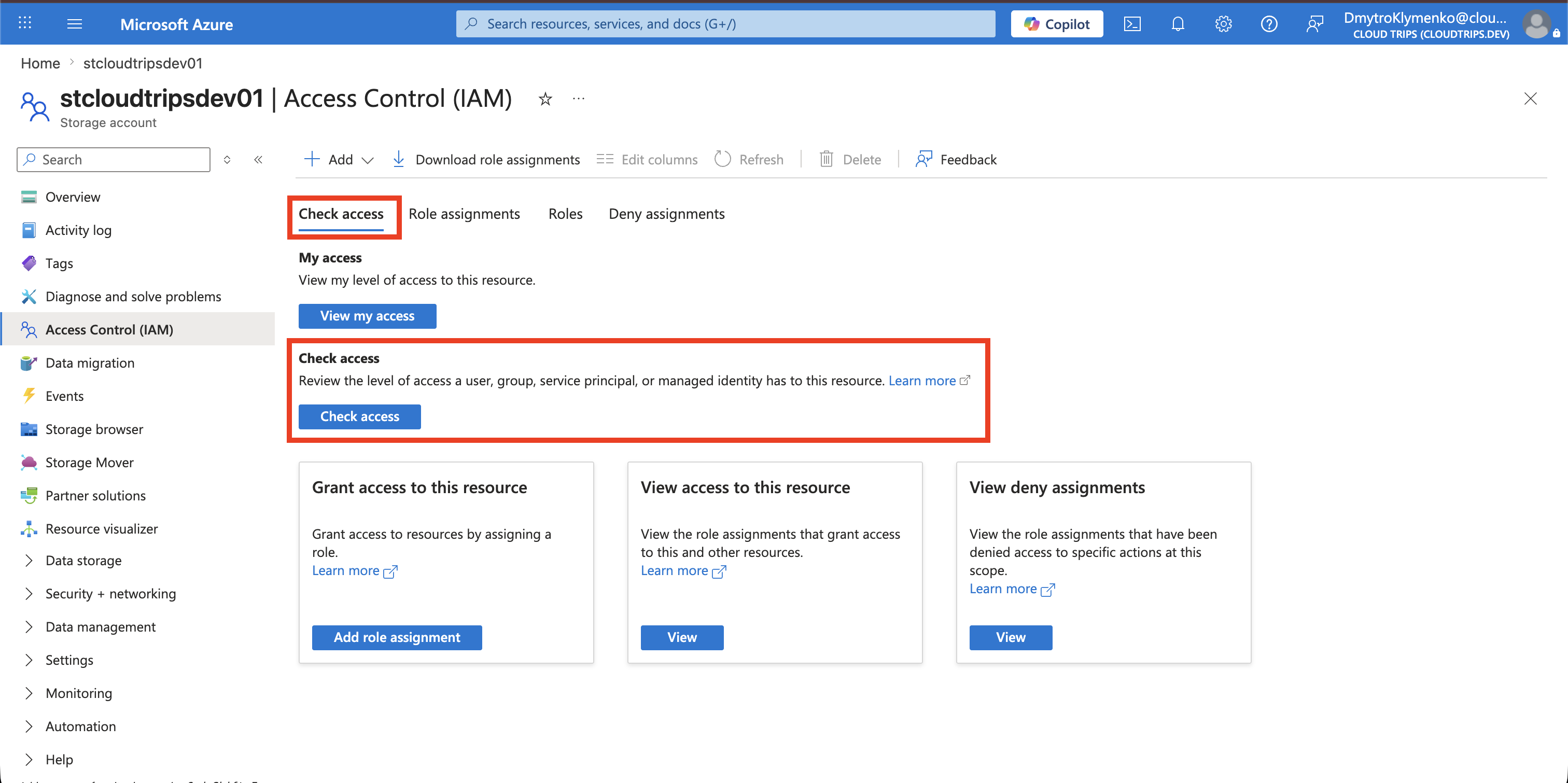
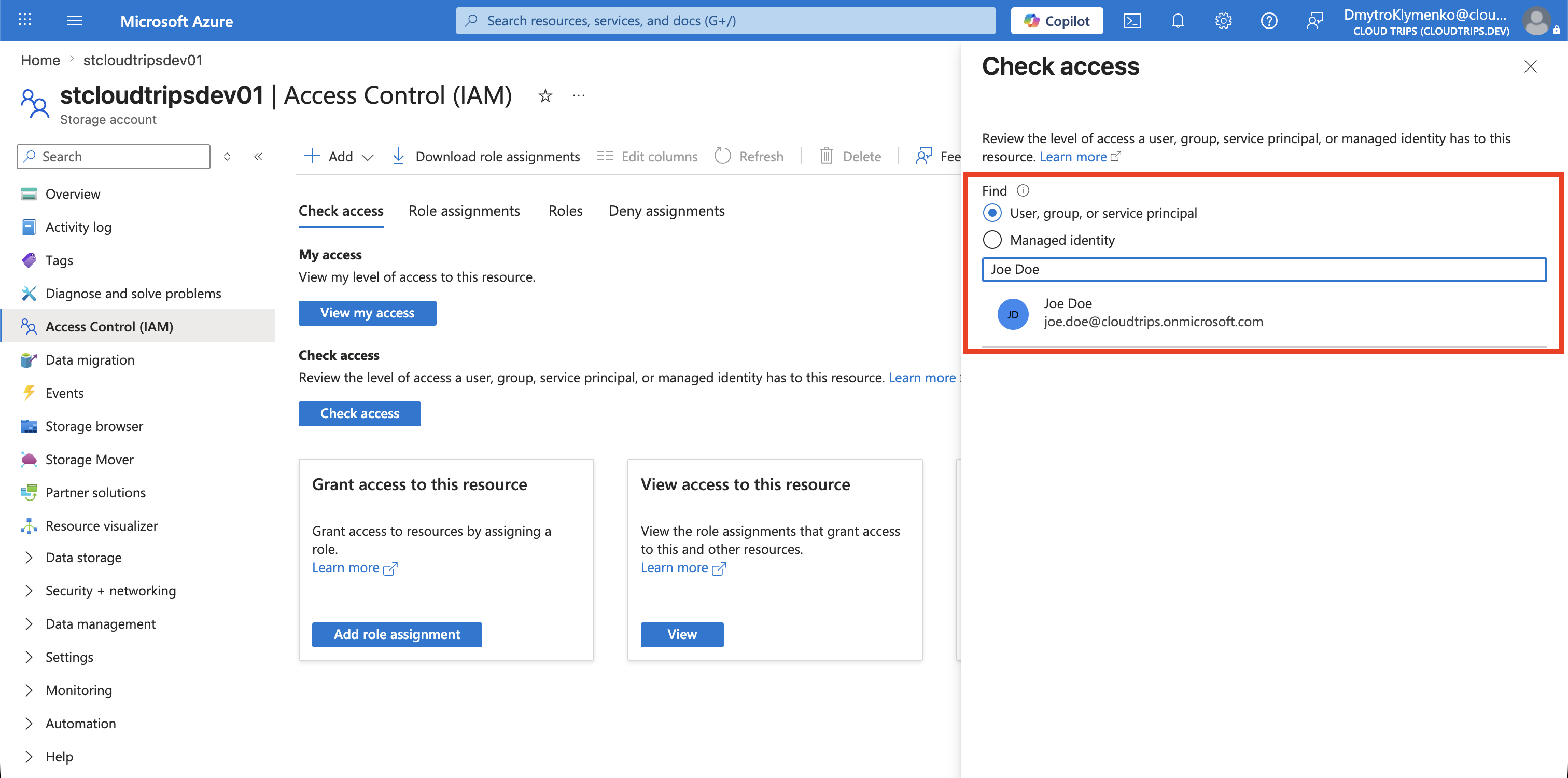
Select the User
Choose User, group, or service principal, search for Joe Doe, and select the correct account.
Identify the Assignment
Review each role assignment and check:
- Role — what the user can do
- Scope — where the assignment was created
- Assignment type — direct or inherited
- Via — whether access comes through a group
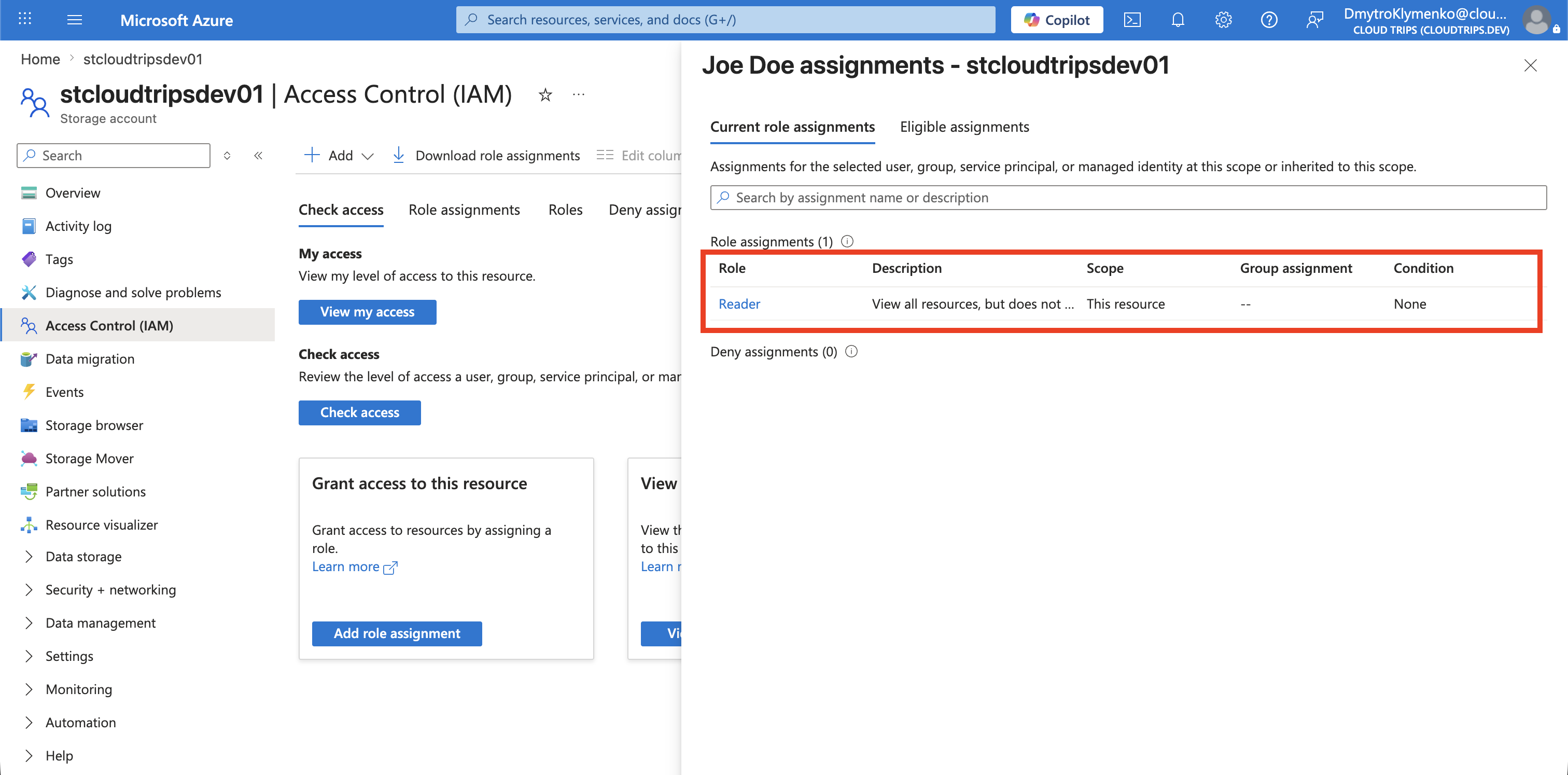
An assignment at stcloudtripsdev01 applies only to that resource. An assignment inherited from rg-customer-portal-dev-weu, Azure subscription 1, or a management group can grant broader access.
If access comes through a group, review Joe’s Microsoft Entra group membership before removing anything. Remove or narrow the actual source assignment rather than adding another role.
You need permission to read role assignments at the selected scope, such as the Reader role.