Regional Deployment Fails Because of Quota? Check Usage and Quotas
The deployment of a new CloudTrips storage account in West Europe fails because the subscription has reached its regional storage-account quota.
Check quota for:
Subscription: Azure subscription 1
Provider: Storage
Region: West Europe
New resource: stcloudtripslogs01
The existing storage account stcloudtripsdev01 remains unchanged and counts toward the subscription’s usage in that region.
Read the Deployment Error
Open the failed deployment’s error details and note:
- the subscription and region
- the quota or limit named in the error
- the current usage and limit
- the resource that failed to deploy
Do not create the storage account under a different name to work around the error. A different name does not change the regional quota.
Open Azure Quotas
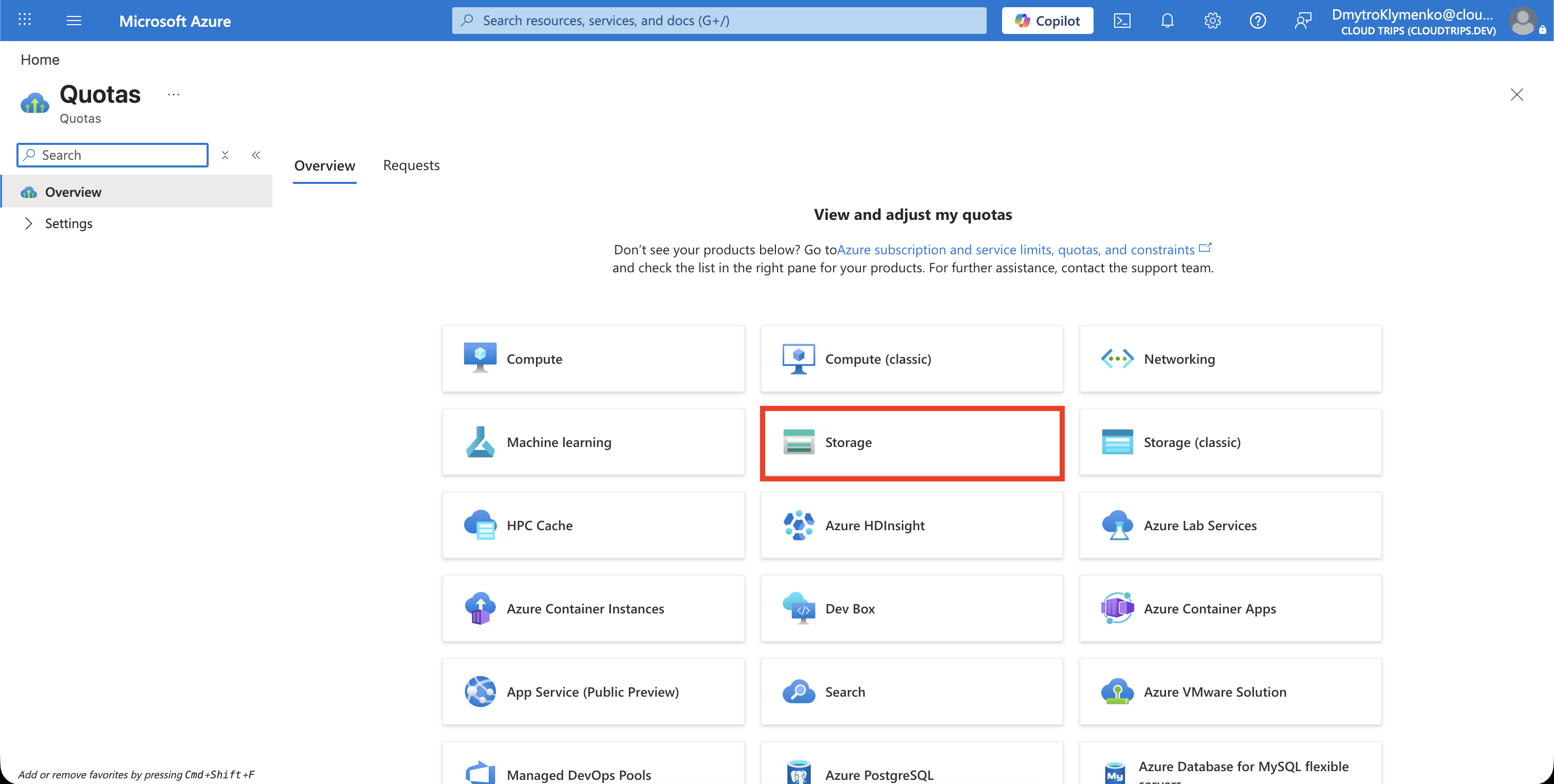
In the Azure portal, search for and open Quotas. On Overview, select Storage, and then open My quotas.
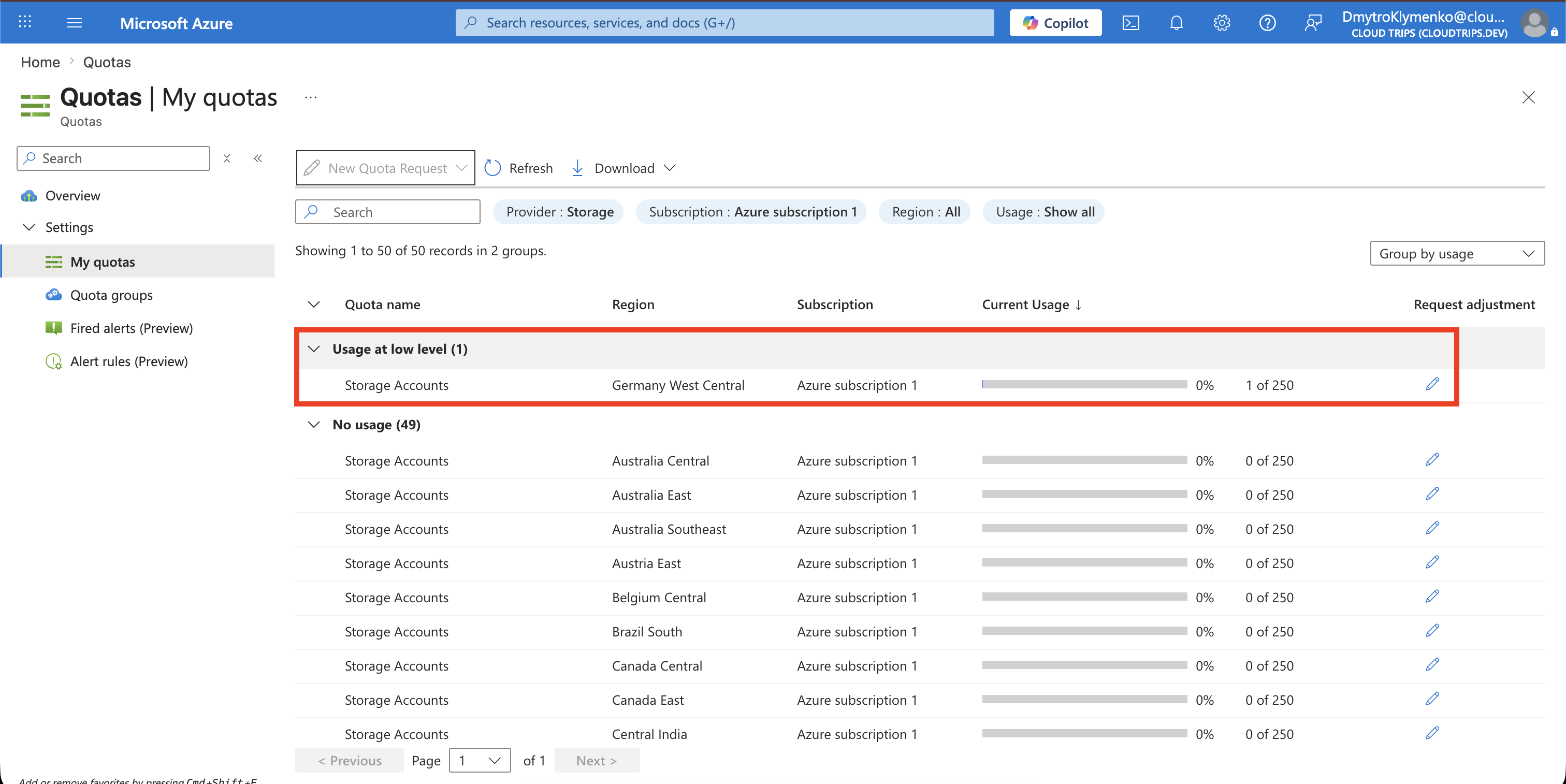
Set the filters:
Subscription: Azure subscription 1
Region: West Europe
Provider: Storage
Find the storage-account quota for West Europe. Check Usage, Current limit, and Request adjustment.
Decide Whether an Increase Is Needed
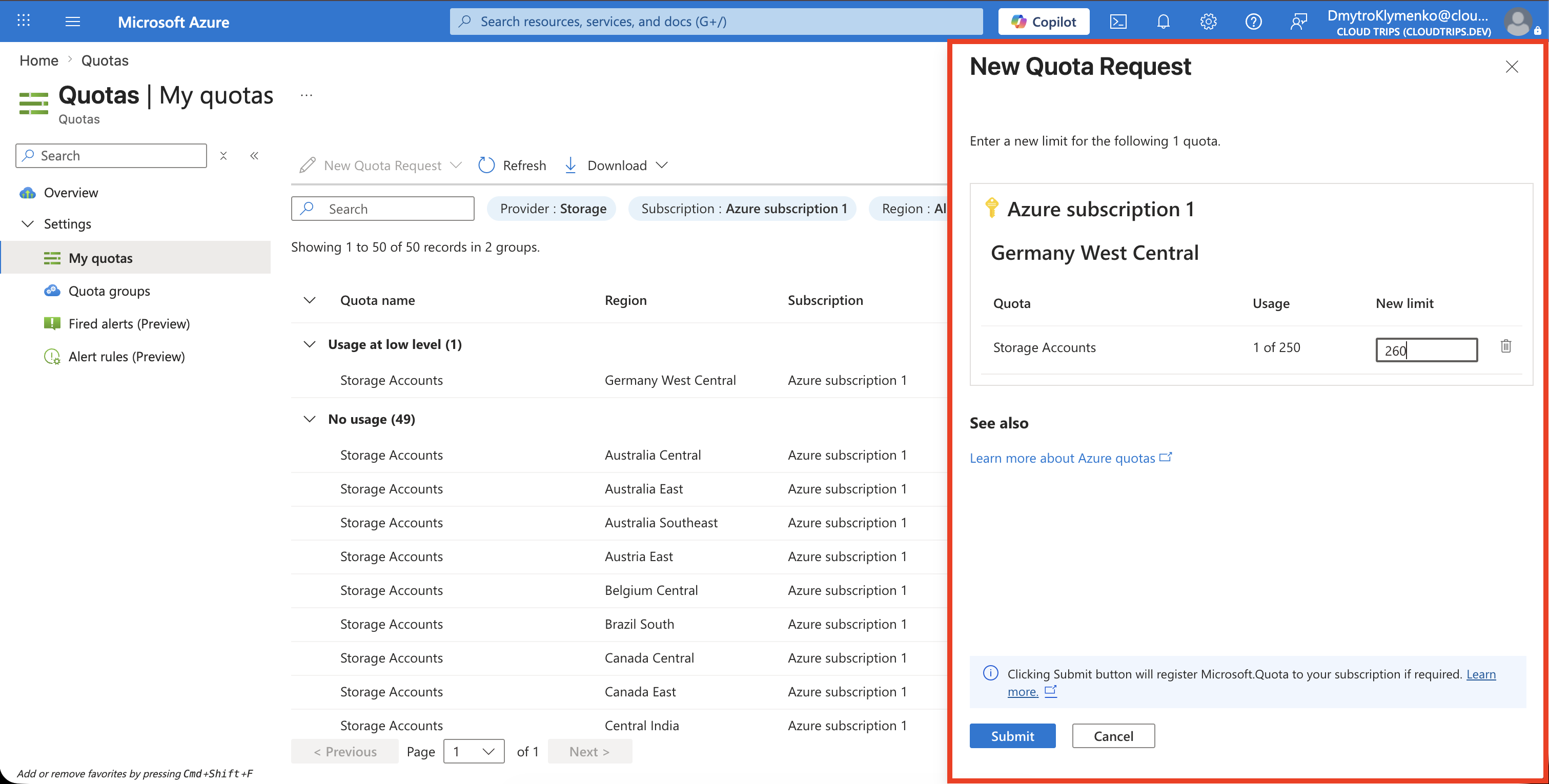
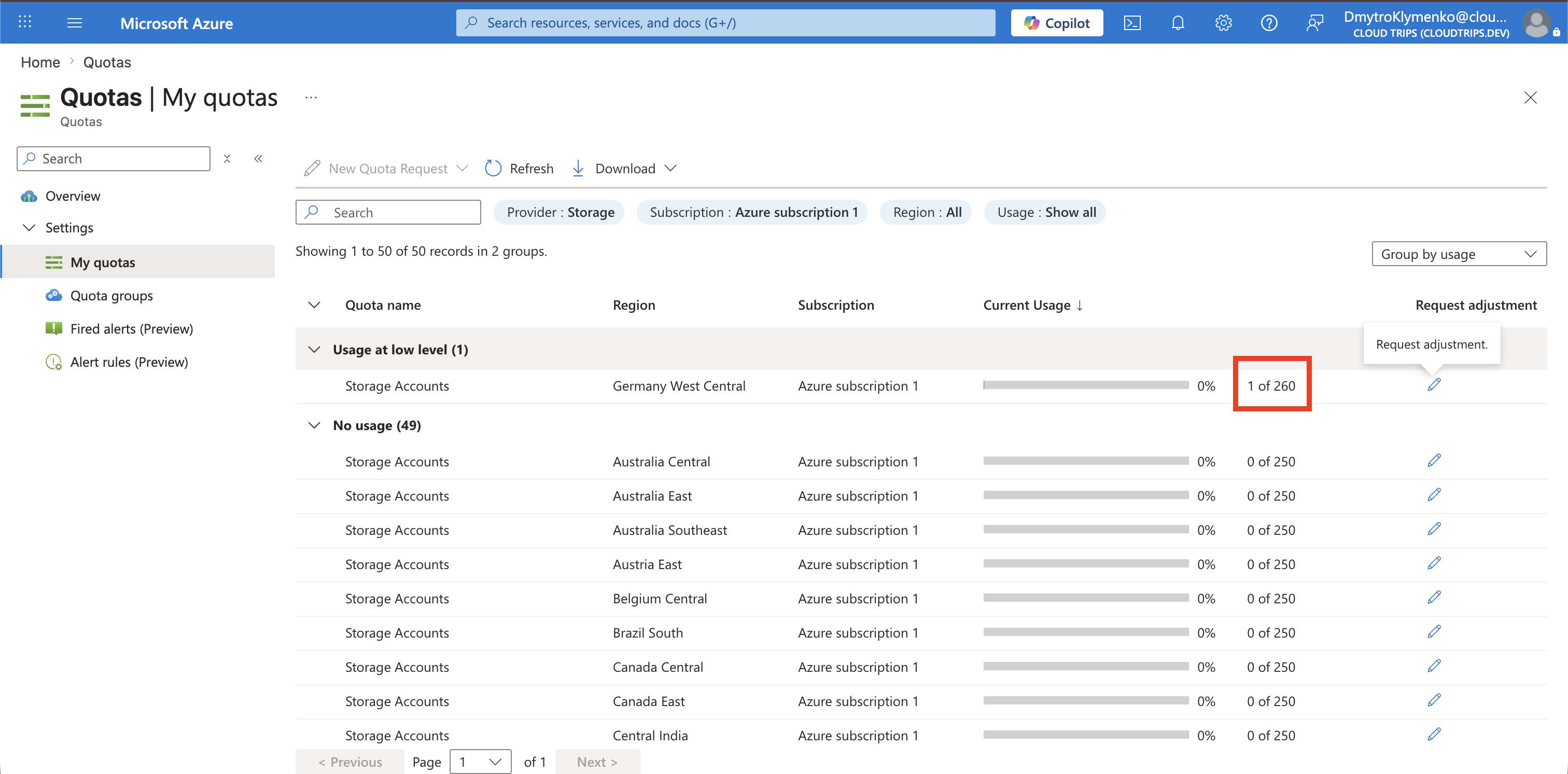
The quota value is a count of storage accounts. Increasing the limit from 250 to 260 means that Azure subscription 1 can contain up to 260 storage-account resources covered by this quota in West Europe.
It does not mean 260 GB of storage, 260 containers, or 260 files. The amount of data stored inside an account is governed by separate storage scalability and capacity limits. Each existing account covered by this regional quota consumes one unit, regardless of whether it is empty or contains data.
For example:
Regional storage-account limit: 260 accounts
Current usage: 250 accounts
Remaining quota: 10 accounts
The increase therefore creates room for 10 additional storage accounts in West Europe, including stcloudtripslogs01. It does not increase the capacity of stcloudtripsdev01.
Confirm that unused storage accounts cannot be removed first. Deleting an account is permanent and should only be done when its data, dependencies, and retention requirements have been reviewed.
If the existing accounts are required, calculate a new limit that covers the new account and reasonable planned growth:
Required new limit = current usage + new storage accounts + planned headroomRequest a Quota Increase
Select the pencil icon under Request adjustment for the West Europe quota. Enter the desired new limit, not only the number of additional accounts, and submit the request.
Azure reviews the request and may approve it automatically. If it cannot be fulfilled directly, follow the portal link to create a support request. The maximum available increase can depend on the subscription and region.
After approval, refresh My quotas and confirm that the new limit is displayed and available usage remains.
Retry the Storage Account Deployment
Return to the failed deployment and retry it, or repeat the original deployment of stcloudtripslogs01 with the same intended settings. Confirm first that the storage account was not partially created.
If the deployment still fails after the quota increase, read the new error instead of assuming it is still a quota problem. Storage account names must be globally unique, the selected region must support the requested features, and Azure Policy may impose additional restrictions.
The CloudTrips storage account can now be deployed after sufficient regional storage-account quota has been confirmed.