User Needs Limited Azure Access? Assign an RBAC Role
A user needs access to Azure, but giving them broad access to the entire subscription would grant more permissions than necessary.
Use Azure role-based access control (Azure RBAC) to combine three decisions:
Security principal: Alex Johnson
Role: Reader
Scope: rg-customer-portal-dev-weu
This assignment allows Alex to view resources in the project resource group without changing them. It does not grant access to unrelated resource groups in Azure subscription 1.
Azure RBAC controls access to Azure resources. It is different from Microsoft Entra roles, which control directory tasks such as managing users and applications.
Choose the Narrowest Scope
Azure RBAC supports these scopes, from broadest to narrowest:
Management group
└── Subscription
    └── Resource group
        └── Resource
For this task, assign access at the resource-group scope:
Azure subscription 1
└── rg-customer-portal-dev-weu
Use the narrowest scope that lets the user complete their work. Prefer assigning roles to Microsoft Entra groups for ongoing team access; a direct user assignment is suitable here for demonstrating the workflow.
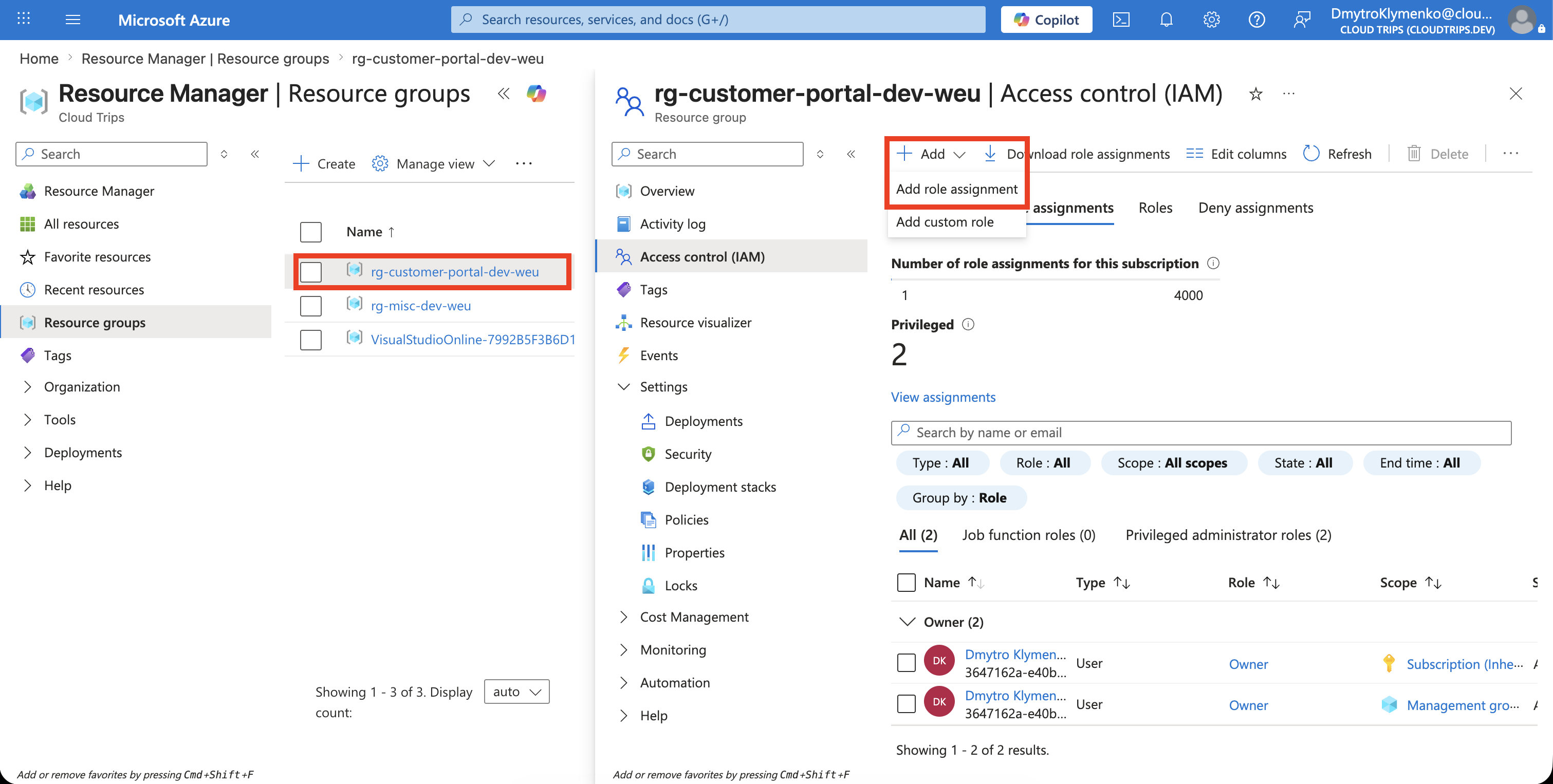
Open Access Control
In the Azure portal, open:
Resource groups
> rg-customer-portal-dev-weu
> Access control (IAM)
> Role assignments
Select:
Add > Add role assignmentIf this option is disabled, your account does not have permission to create role assignments at this scope. You need Microsoft.Authorization/roleAssignments/write, available through roles such as Role Based Access Control Administrator or User Access Administrator.
Select the Role
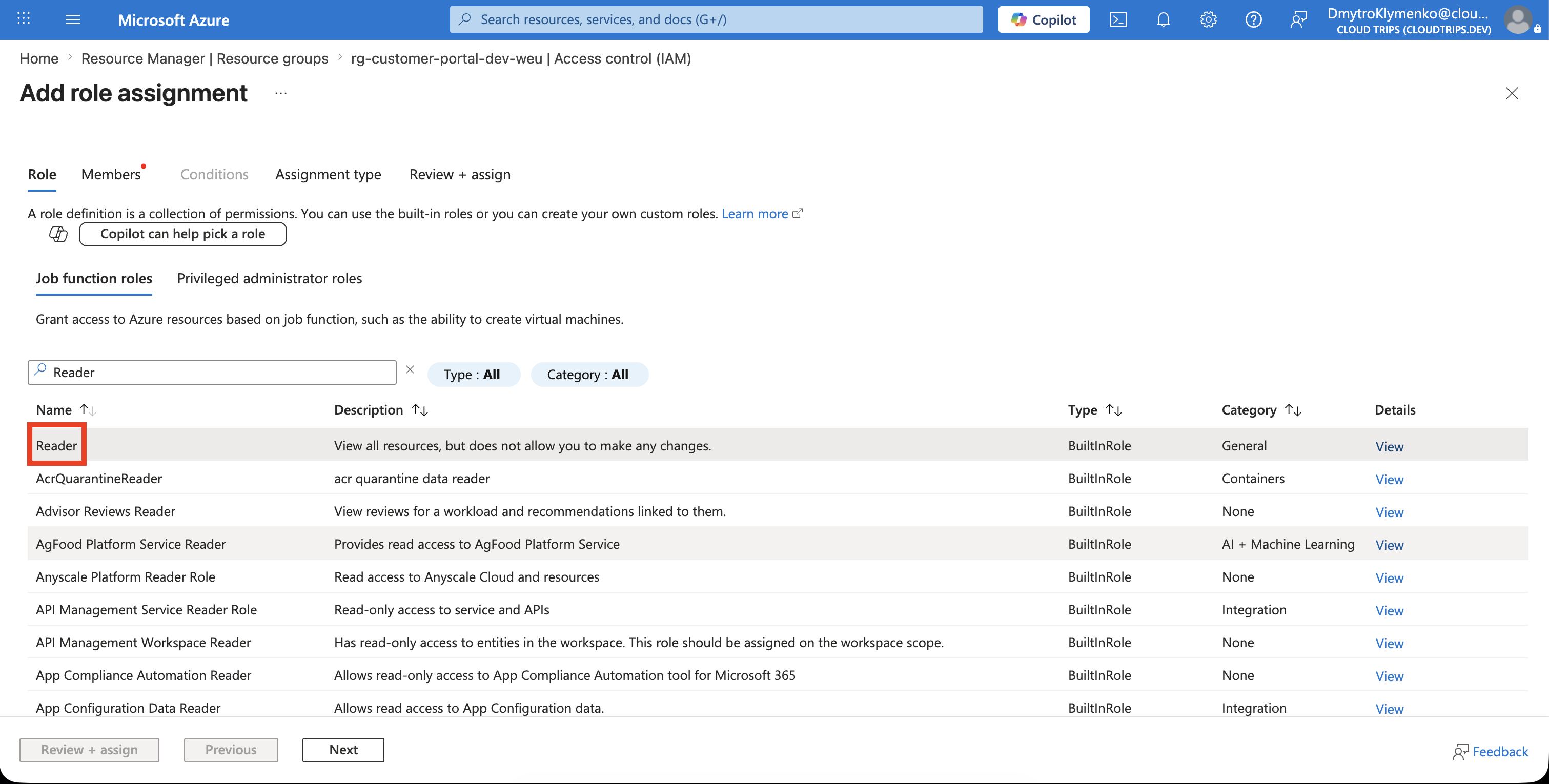
On the Role tab, search for and select:
ReaderReader can view control-plane resources and settings but cannot make changes. It does not automatically grant access to all service data, such as blobs inside a storage account; data access can require a separate data-plane role.
Avoid Owner or Contributor when read-only access is sufficient.
Select the User
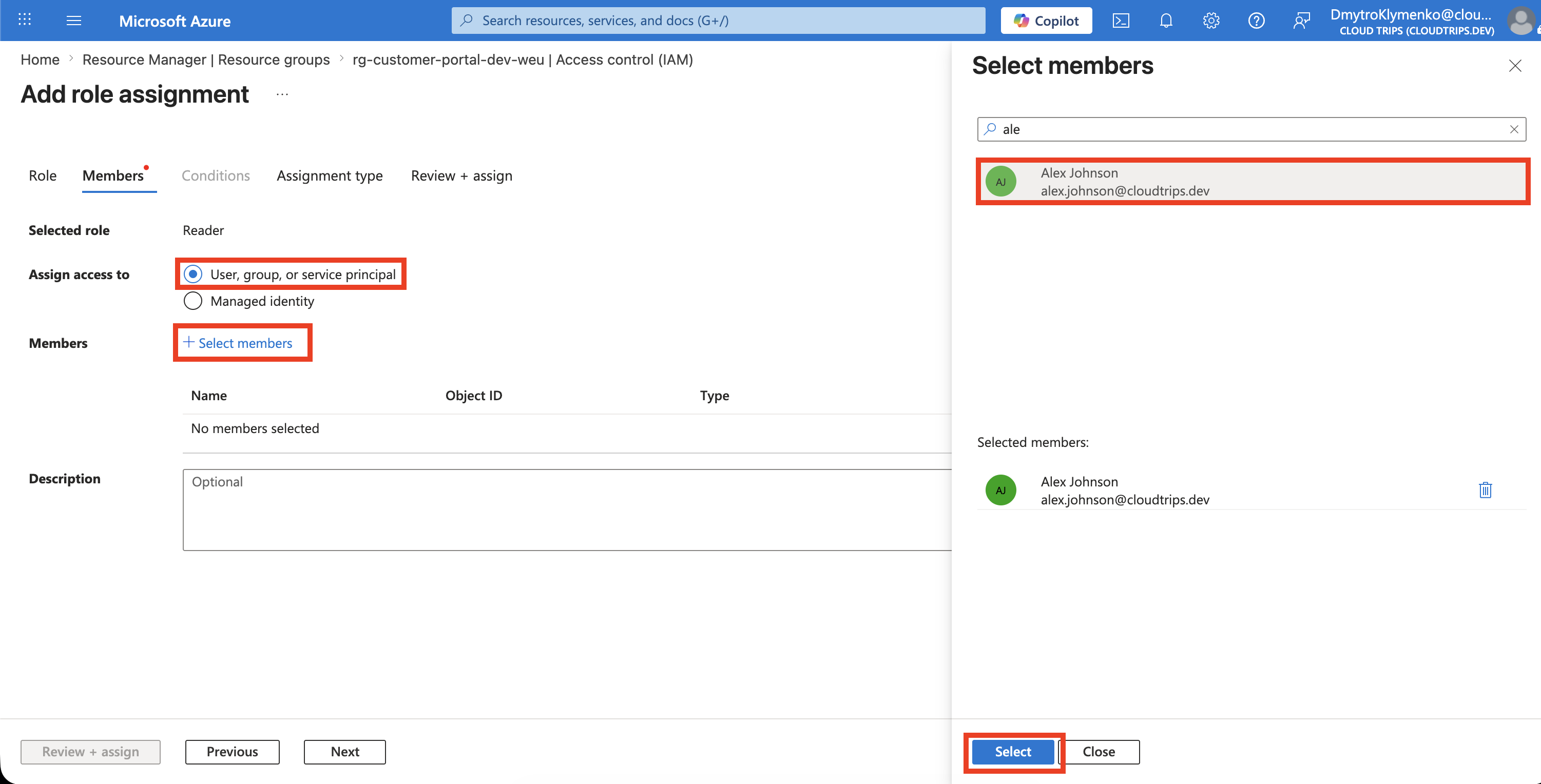
On the Members tab, choose:
Assign access to: User, group, or service principalSelect Select members, search for Alex Johnson, select the correct account, and confirm the selection.
Review and Assign
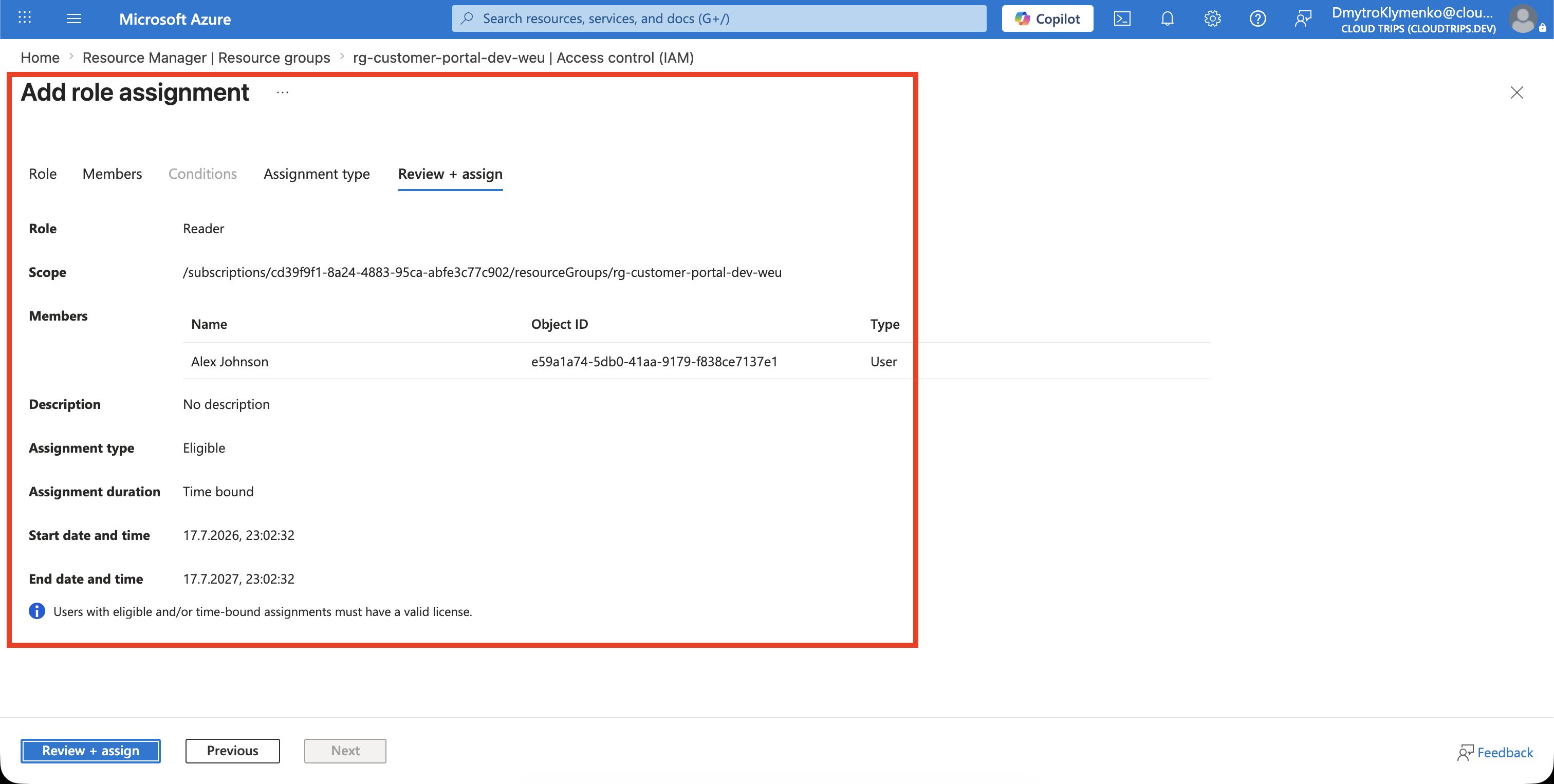
On Review + assign, verify:
Role: Reader
Member: Alex Johnson
Scope: rg-customer-portal-dev-weu
Select Review + assign to create the role assignment.
Verify Limited Access
Return to Access control (IAM) > Role assignments and search for Alex Johnson. Confirm that the assignment shows:
Role: Reader
Scope: This resource
RBAC changes can take a few minutes to become effective. Ask the user to sign in and verify that they can open the resource group but cannot modify or delete its resources.
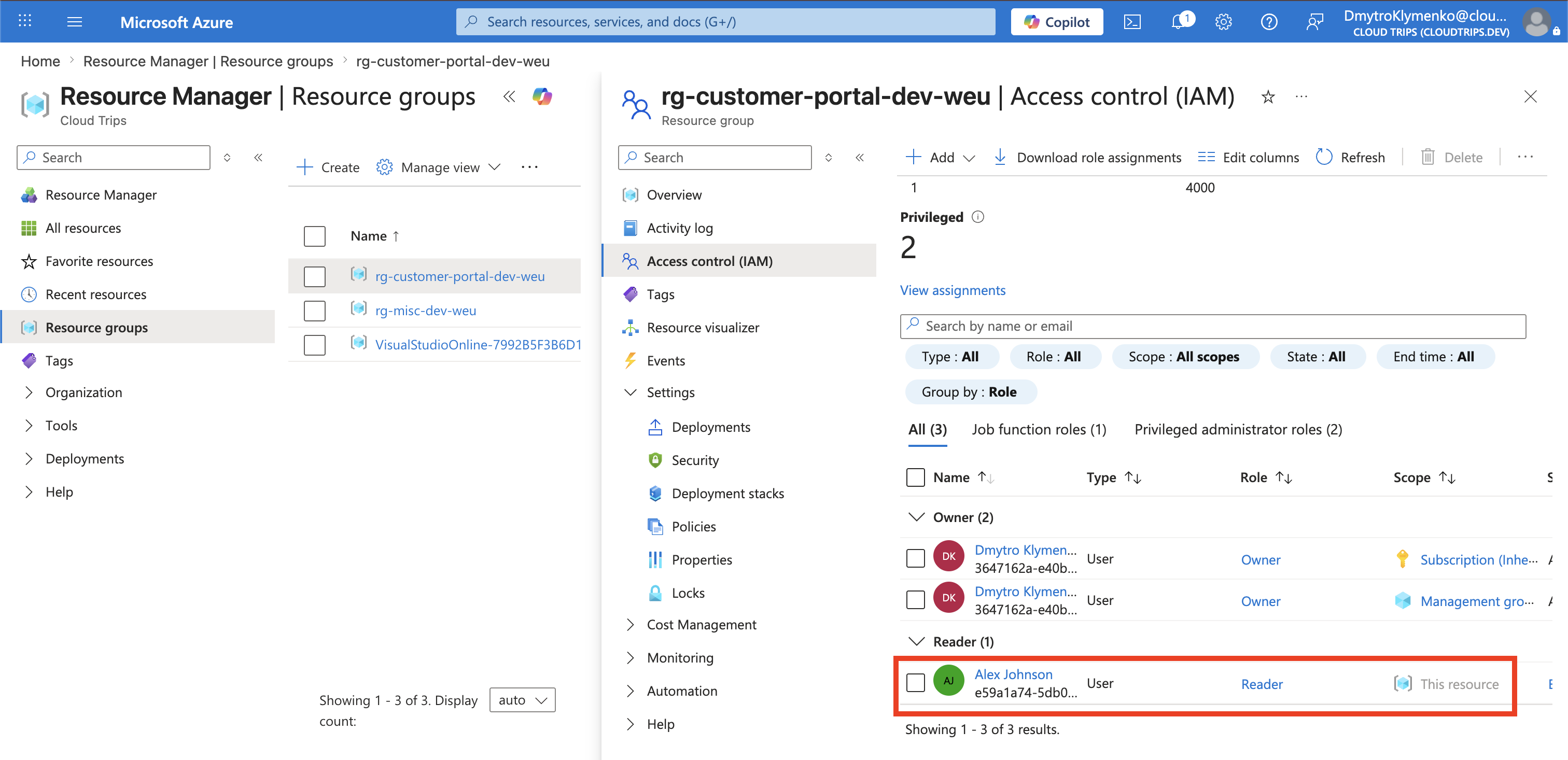
The user now has the access required for the project without receiving broad permissions across Azure subscription 1.
Review direct user assignments regularly and remove them when access is no longer required.