App Needs a Cache? Create Azure Managed Redis
Customers repeatedly request the same product details. Querying the database for every request adds latency and repeated work. A cache keeps a temporary copy in memory for fast retrieval. Azure Managed Redis provides this shared cache for multiple app instances and is Azure’s current service for new Redis deployments.
Create the Cache
In Azure Portal, search Azure Managed Redis → Create:
Resource group: rg-cloudtrips-redis-test-fc (new)
Name: redis-ctappfc
Region: France Central
Data tier: In-memory
Cache size: 0.5 GB, if available
Performance: Balanced
High availability: Disabled for this lab
Choose the smallest available Balanced size and review its price. Disabling high availability suits this temporary lab; production caches benefit from replicas.
Under Networking, enable public access for the local connection. Keep Active geo-replication disabled. Under Advanced, choose Enterprise clustering and enable Access keys authentication for this lab. Retain TLS encryption. Select Review + create → Create.
After deployment, open Overview and wait for Running. Under Settings → Firewall, restrict access to your current public IP using identical start and end addresses, then save.
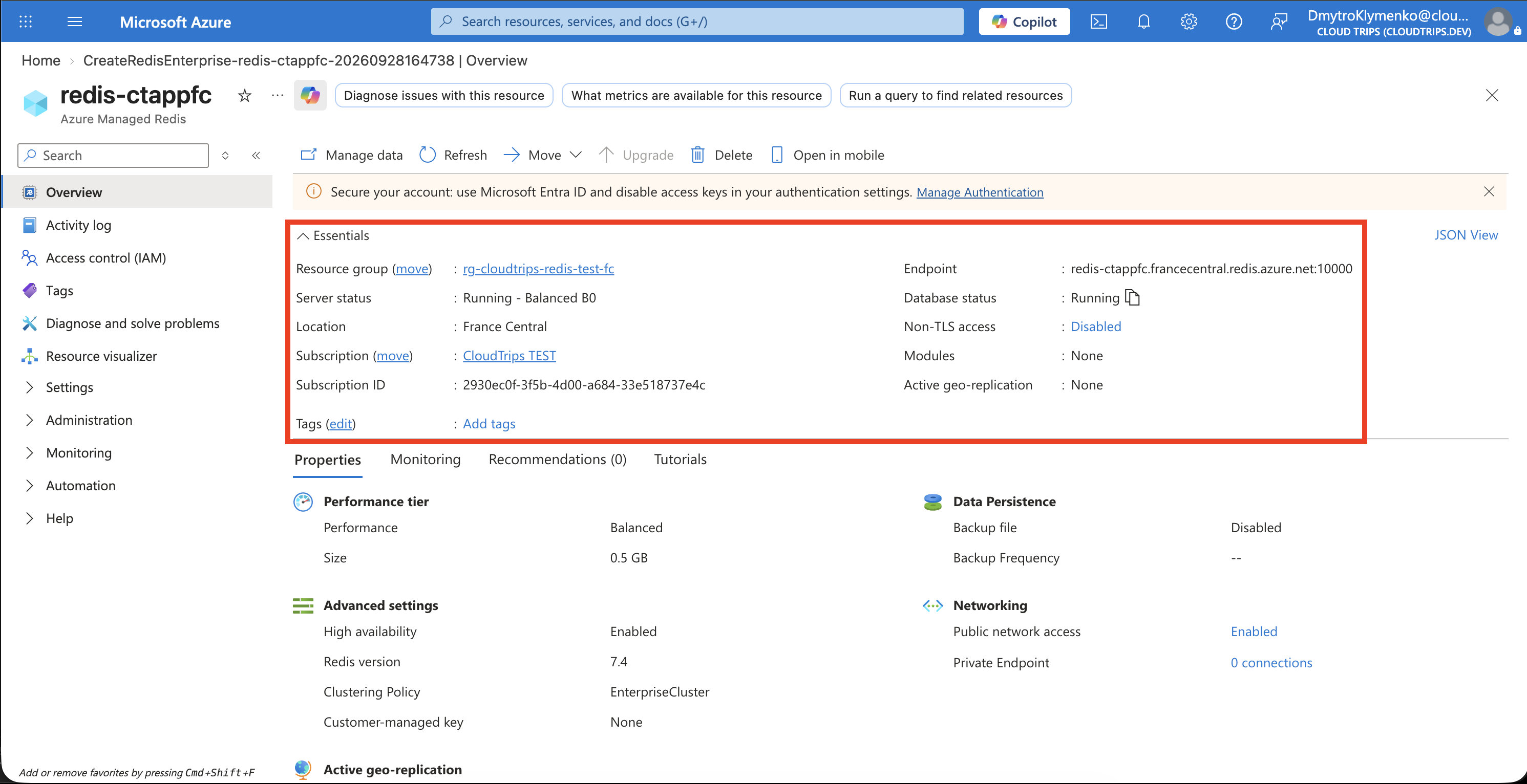
Check Running, the selected size, and the hostname. Copy the actual endpoint from this page; Azure Managed Redis uses port 10000.
Connect and Store a Value
Install Redis Insight for your computer. Select Connect existing database and use the manual connection form:
Host: endpoint copied from Azure Overview
Port: 10000
Username: default
Password: primary access key
TLS: Enabled
Find the key under Settings → Authentication → Access keys; enable access-key authentication there if still disabled. Enter it only in the password field. Keep TLS certificate verification enabled, save the connection, and open it. For application deployments, prefer Microsoft Entra ID authentication.
In Redis Insight’s Browser, choose Add key, select type String, and enter:
Key: product:1
Value: Notebook | price 12.50
TTL: 120 seconds
Save the key and select it in the browser.
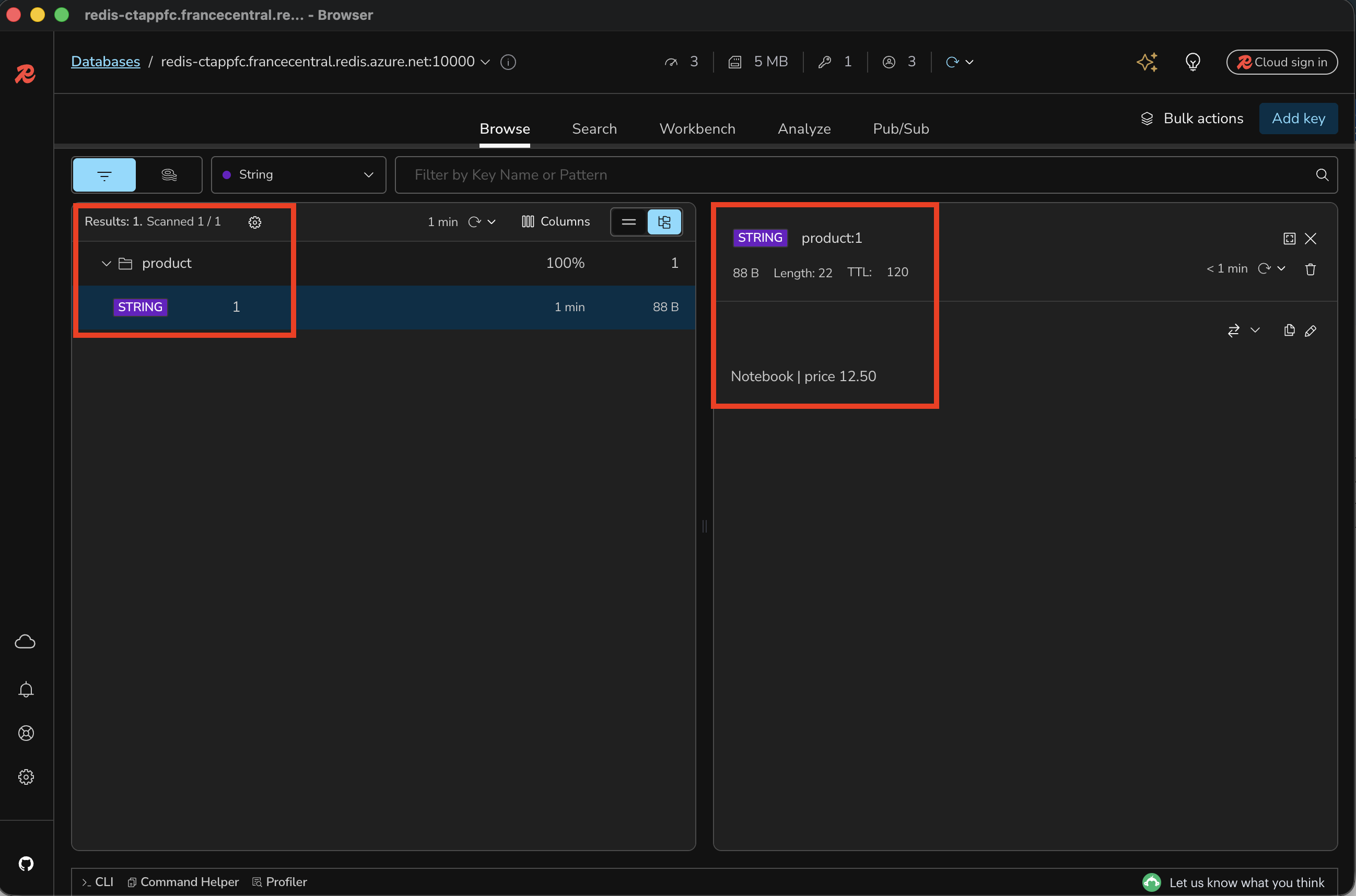
Check the value is Notebook | price 12.50. TTL (Time To Live) is the remaining lifetime in seconds; it decreases after saving. This manually stored value represents product details an app could cache after reading its database.
Check Expiration
Wait until more than 120 seconds have passed since saving. Refresh the key list and search for product:1.
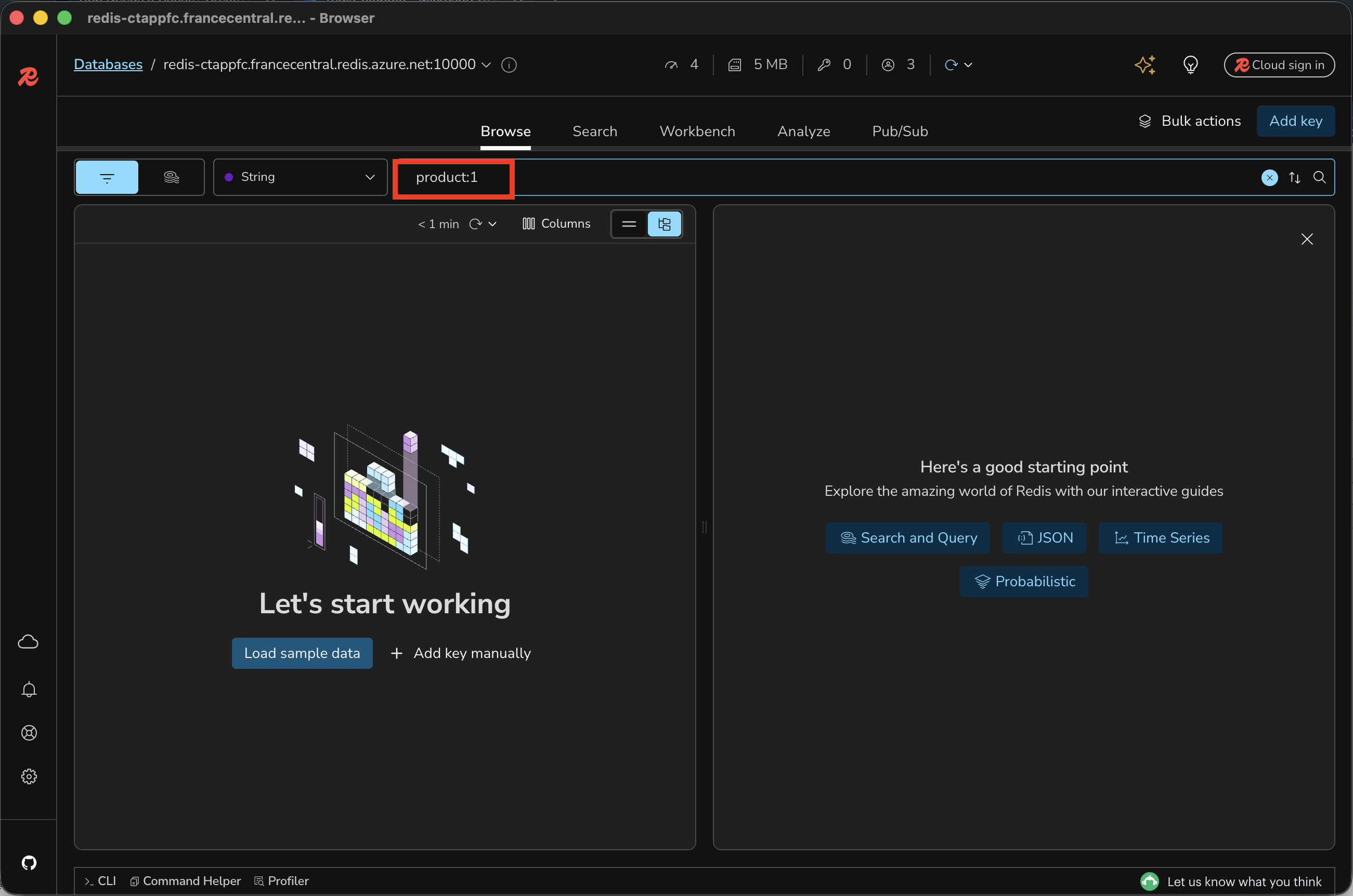
Expect an empty result for that key. Redis expired the cached copy. With the cache-aside pattern, an app checks Redis first; on a cache miss, it reads the database and stores a fresh copy with a TTL. The database remains the source of truth. When a product changes, the app can also update or remove its cached value so readers get fresh data sooner.
What Happens When Memory Fills?
More cached products can fill the available memory before their TTLs expire. An eviction policy decides which keys Redis removes to make room. TTL controls expiry by time; eviction responds to memory pressure.
| Policy | What it does | When to use it |
|---|---|---|
| allkeys-lru | Evicts keys used least recently (Least Recently Used). | General caching where every value can be fetched again. |
| allkeys-lfu | Evicts keys used least frequently (Least Frequently Used). | Keeping consistently popular products in memory. |
| volatile-lru | Evicts least recently used keys among those with a TTL. | Making only expiring keys eligible for eviction; Azure Managed Redis’s default. |
| volatile-ttl | Evicts expiring keys with the shortest remaining TTL. | Preferring to remove values already close to expiry. |
| noeviction | Keeps keys and rejects writes that require more memory when full. | Applications that handle full-cache errors explicitly. |
For a product cache whose values can be reloaded from the database, allkeys-lru is a practical starting point. With volatile policies, eligible keys need a TTL; if none remain, memory-growing writes can fail. Expiration, explicit deletion, and failures can still remove data under noeviction.
Clean Up
Keep the cache for the next trip, or delete rg-cloudtrips-redis-test-fc. Closing Redis Insight or expiring keys leaves the provisioned cache billable.