Data Pipelines Needed? Create Azure Data Factory
A team receives daily sales files that must reach a reporting system. Manual copying delays reports, and failed transfers need tracking and retries. Azure Data Factory (ADF) coordinates these steps in a pipeline, with recorded runs and optional schedules. This lab copies one file between storage folders using the browser.
Create the Factory
In Azure Portal, open Data factories → Create:
Resource group: rg-cloudtrips-adf-test-weu
Name: adf-ctappweu
Region: West Europe
Version: V2
Git configuration: Configure Git later
Use a unique suffix if the name is taken. Keep public access for this lab, select Review + create → Create, then Launch studio. Use Edge or Chrome.
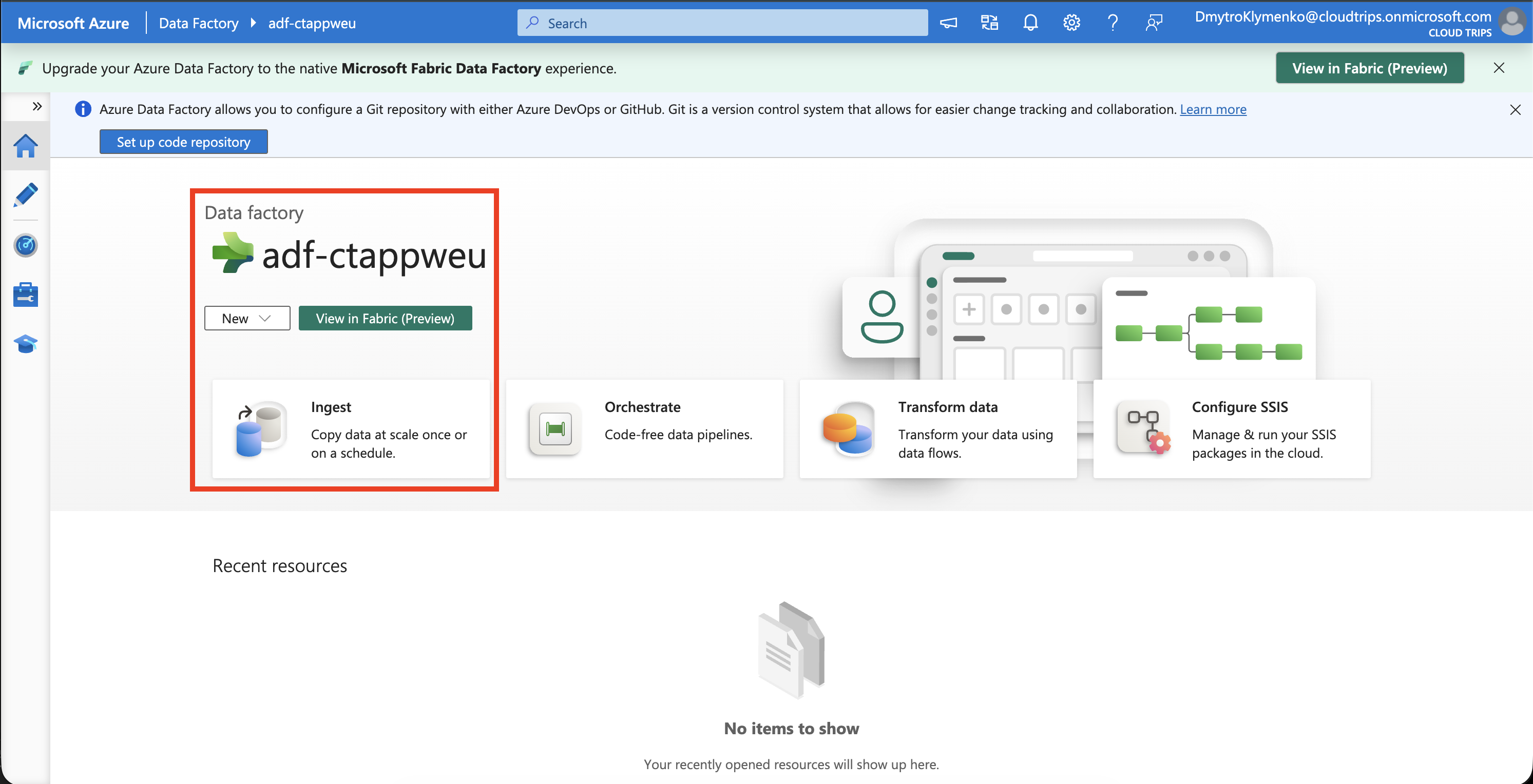
Check the factory name. Ingest opens a wizard that builds a copy pipeline.
Prepare a Small File
Create a storage account in the same resource group:
Name: stctadfweu
Region: West Europe
Account kind: StorageV2 (general-purpose v2)
Performance: Standard
Redundancy: LRS
Public network access: Enabled from all networks
Allow Blob anonymous access: Disabled
Adjust the storage name if taken. Under Containers, create pipeline with private access. Save this as a plain-text file named sales.csv on your computer:
order_id,product,amount
1,Notebook,12.50
2,Pen,2.00
Upload it to pipeline, using Advanced → Upload to folder: input. The source path is pipeline/input/sales.csv.
On the storage account, open Access control (IAM) → Add role assignment. Assign Storage Blob Data Contributor to Managed identity → Data factory → adf-ctappweu. This lets the factory read and write blobs using its Azure identity. Allow a few minutes for the permission to propagate.
Build the Copy Pipeline
In Data Factory Studio, select Ingest → Built-in copy task → Run once now. Create an Azure Blob Storage connection:
Connection name: ls_ctstorage
Integration runtime: AutoResolveIntegrationRuntime
Authentication: System Assigned Managed Identity
Storage account: stctadfweu
Select Test connection, then Create. This saved connection is a linked service; the Azure integration runtime executes the transfer.
Choose pipeline/input/sales.csv as the source and enable Binary copy to preserve the file unchanged. For the target, reuse ls_ctstorage and enter folder pipeline/output. Set the pipeline name to pl_copy_sales, review, and finish the wizard to deploy and run it.
Open Monitor, refresh until the run finishes, then open its activity details.
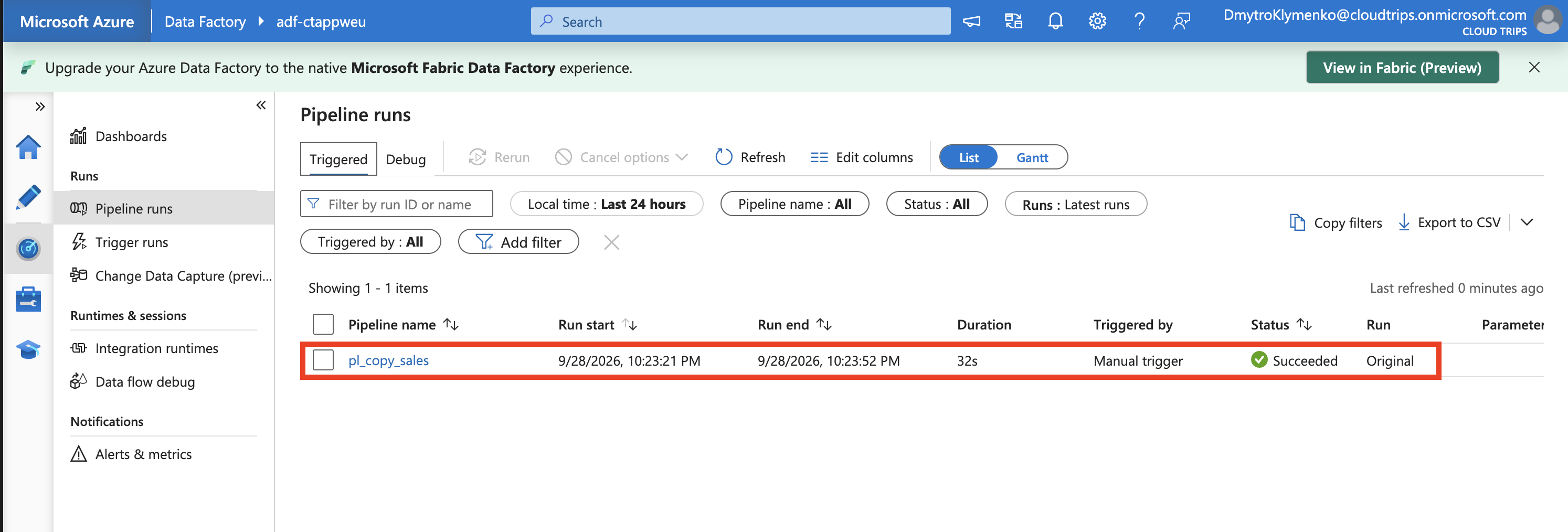
Expect Succeeded, one file read, and one file written. Data read and written should match for this unchanged file; byte counts and duration depend on your saved file and run.
Check the Result
In the storage container, refresh and open output/sales.csv. Download it and compare its contents with the original.
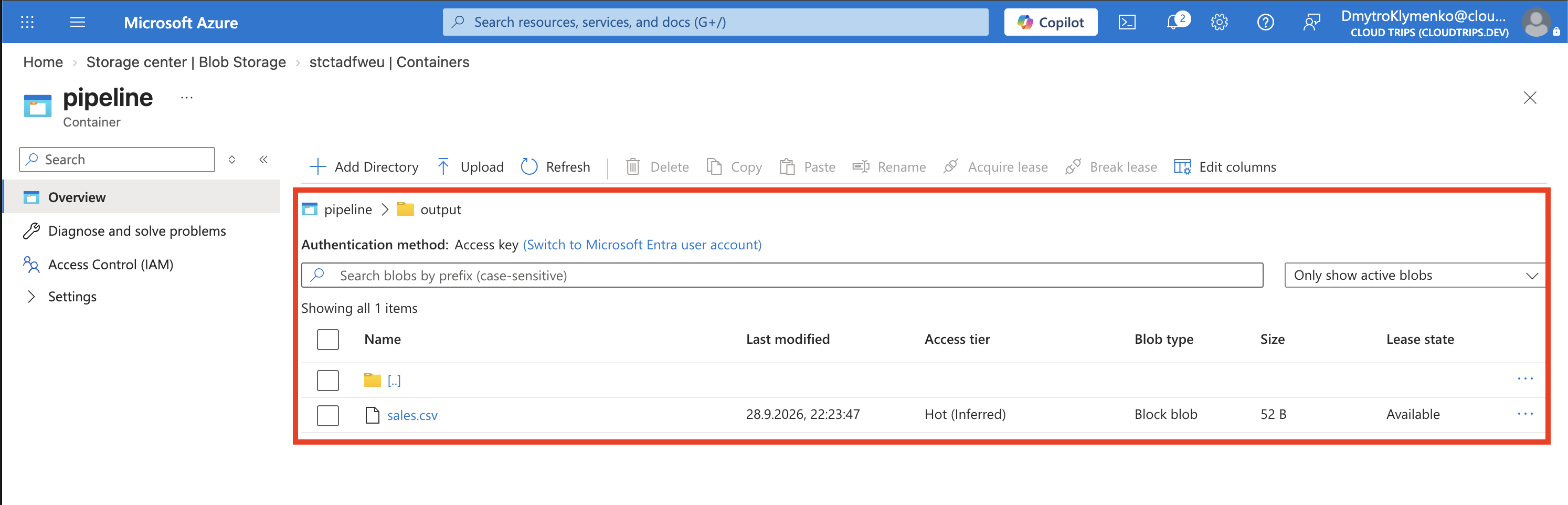
The destination should contain the same header and two sales records. Run once now performs one transfer; a schedule trigger can run the pipeline automatically for recurring work.
Finish
Pipeline activity and data movement incur usage charges; storage also incurs charges. Keep the resources for later Data Factory trips, or delete rg-cloudtrips-adf-test-weu when finished.