SQL Needs Multiple Databases with Shared Resources? Configure Elastic Pool
One customer’s database is busy in the morning; another peaks in the afternoon. Giving each dedicated peak capacity leaves resources idle. An elastic pool lets separate databases on the same logical SQL server share compute capacity while keeping their tables and permissions separate.
Prepare Two Databases
Use sql-ctappweu and sqldb-cloudtrips from Create Azure SQL Database. Recreate them if previously deleted.
Create another empty SQL database with these settings:
Resource group: rg-cloudtrips-sql-test-weu
Database name: sqldb-customer2
Server: sql-ctappweu (select the existing server)
Workload environment: Development
Elastic pool: No (we move both databases next)
Compute + storage: Basic
Use your actual server name if different. Both databases must be on this same server to join the pool.
Create the Shared Pool
Open the server’s Elastic pools → Add, or search for SQL elastic pools → Create. Select the same resource group and server, and name the pool pool-ctshared.
Under Configure pool, choose Standard, 100 eDTUs, with zone redundancy disabled. Review the displayed storage allocation and cost.
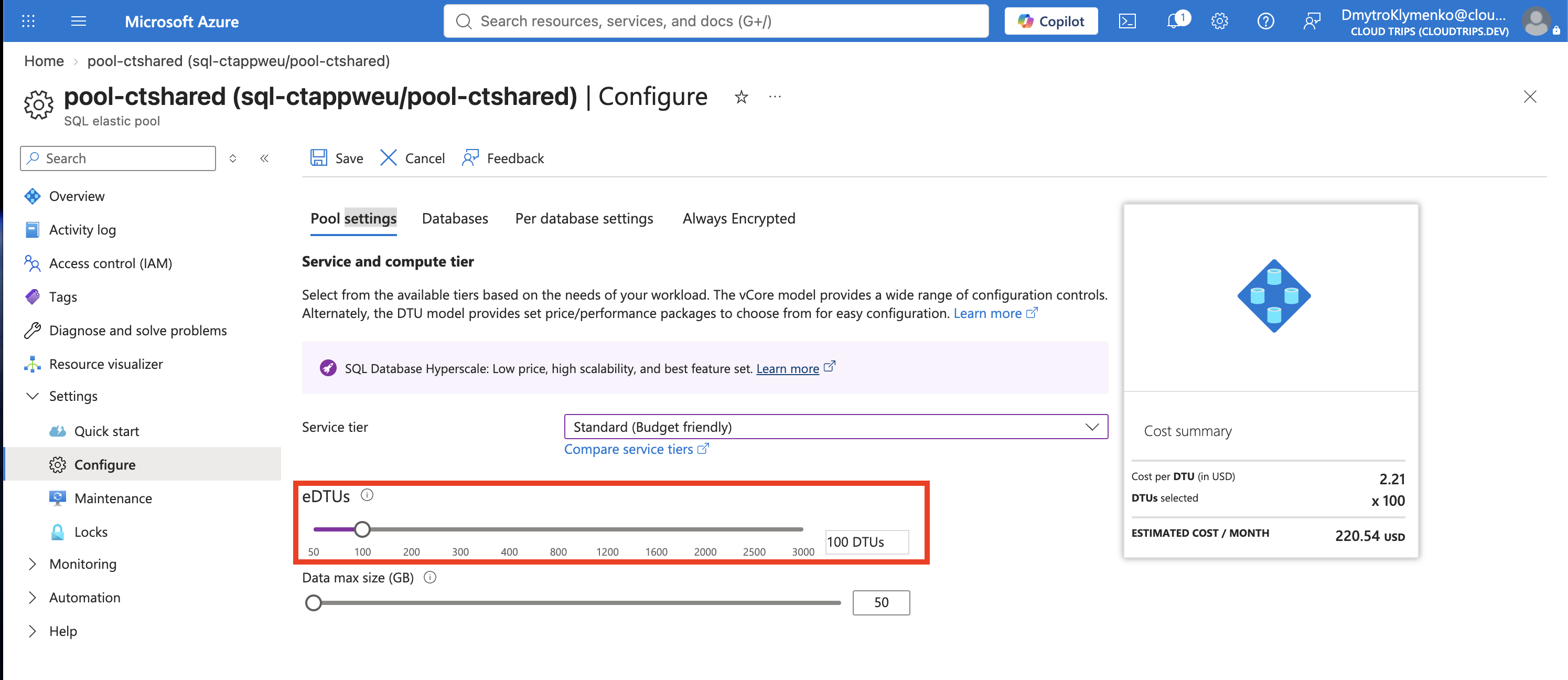
Check that the pool supplies 100 eDTUs total. An elastic Database Transaction Unit (eDTU) measures bundled compute and I/O capacity shared by the databases.
Under Per database settings, set minimum 0 DTUs and maximum 50 DTUs.
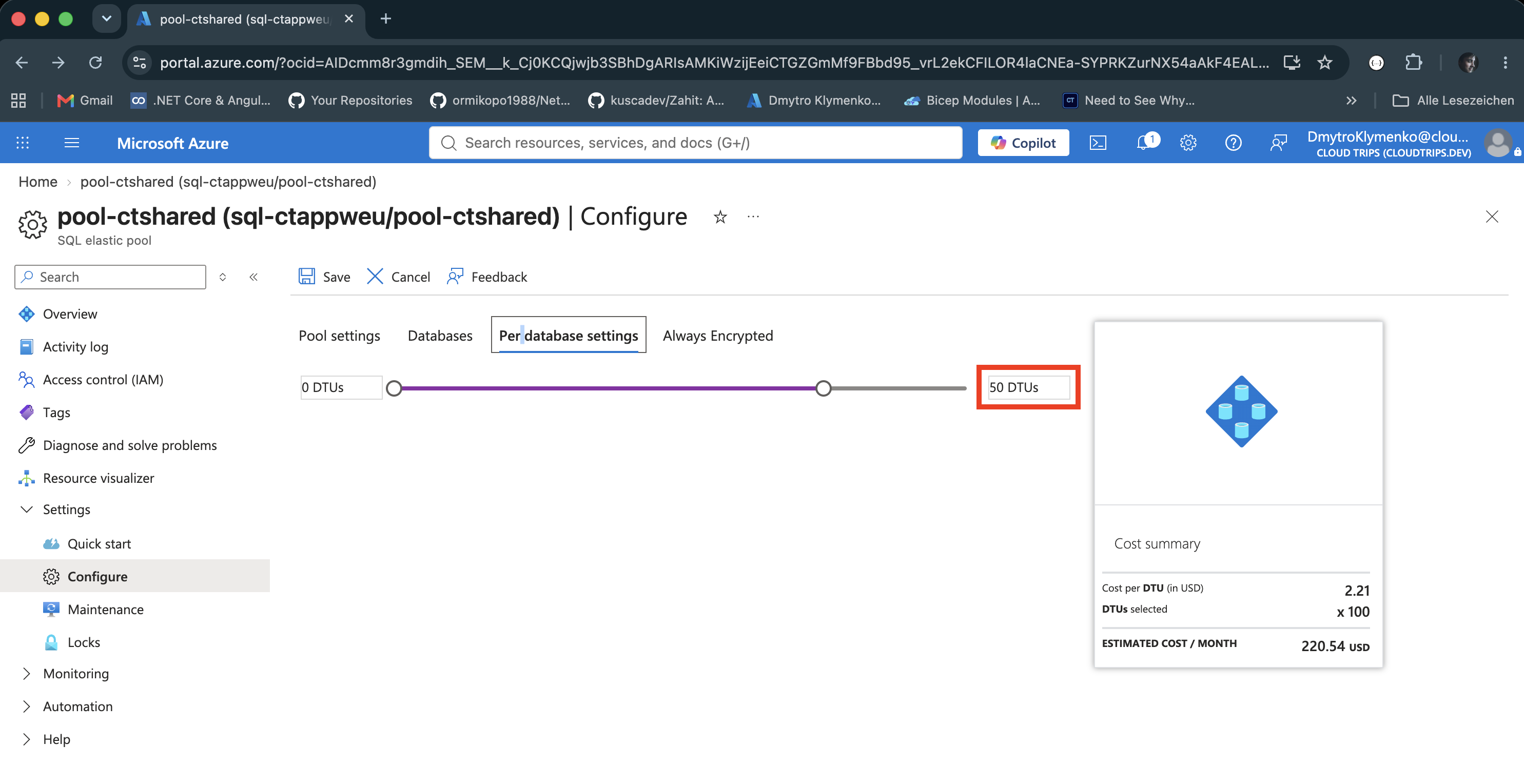
Each database can use up to 50 DTUs within the pool’s 100-eDTU total. Minimum 0 reserves no compute floor; databases use available resources as needed. The pool remains provisioned and billable while idle.
Under Databases → Add databases, select sqldb-cloudtrips and sqldb-customer2. Apply the configuration and create the pool.
If the Portal Move Fails
If the portal reports an invalid edition such as System, try the move directly through SQL. In VS Code’s MSSQL extension, connect to your server as ctadmin, selecting master as the database. Run these statements separately:
ALTER DATABASE [sqldb-cloudtrips]
MODIFY (SERVICE_OBJECTIVE = ELASTIC_POOL (name = [pool-ctshared]));
ALTER DATABASE [sqldb-customer2]
MODIFY (SERVICE_OBJECTIVE = ELASTIC_POOL (name = [pool-ctshared]));Each statement moves the named database into the existing pool so it shares compute resources. Tables, data, database names, and the server address remain unchanged. Connections may briefly drop; if SQL also fails, use its error details to investigate before retrying.
Verify Membership and Sharing
Wait for deployment and database moves to finish, then open pool-ctshared → Databases.
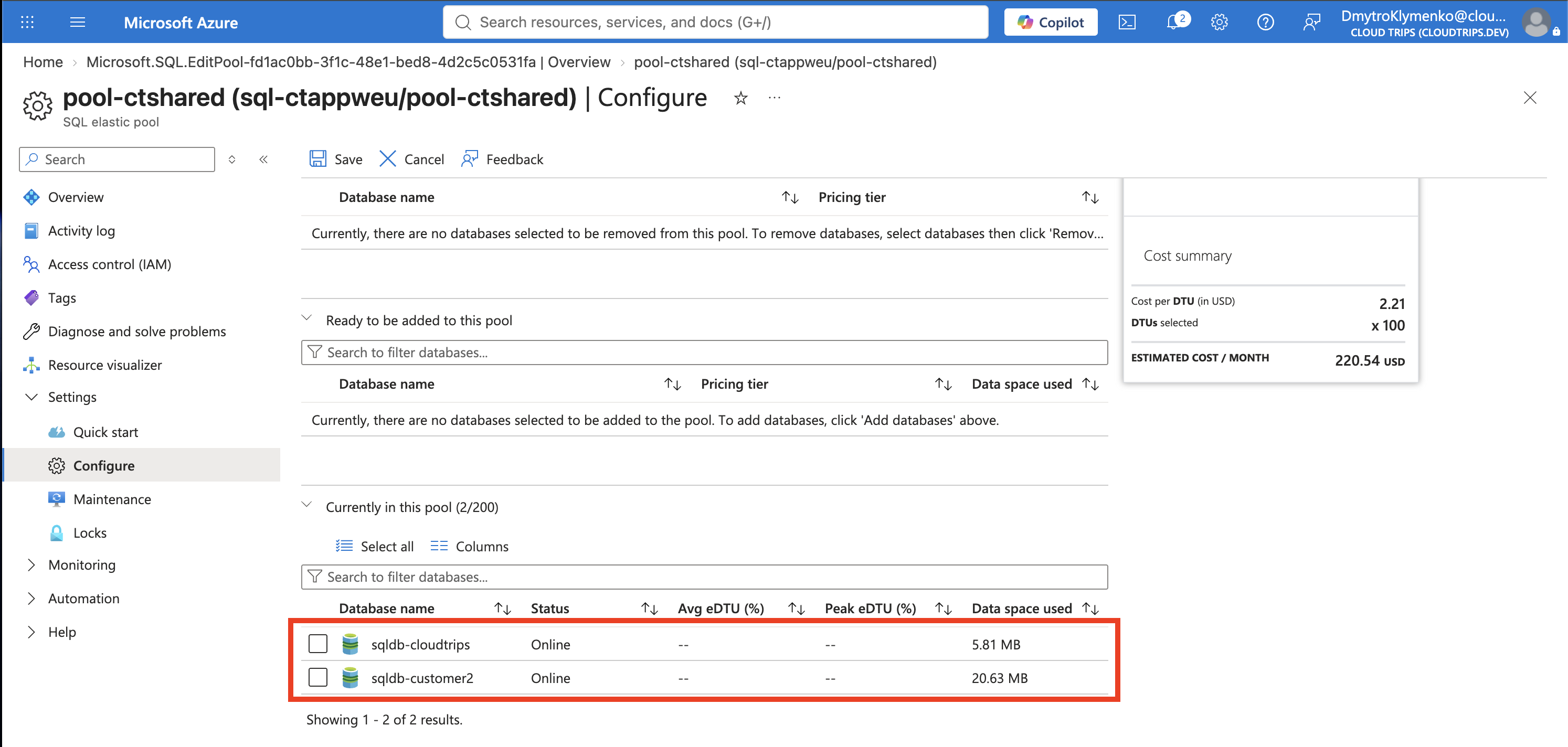
Confirm both databases belong to pool-ctshared; their server address and database names remain unchanged. Moves can briefly interrupt connections, so reconnect if needed.
Open the pool’s Monitoring → Metrics to inspect DTU percentage and compare with each database’s metrics. Quiet test databases may show little usage. Sharing is useful when peaks differ; simultaneous heavy demand may require a larger pool. Compare the pool price with separate databases for the actual workload.
Clean Up
If finished, delete rg-cloudtrips-sql-test-weu. To keep the databases, move each out using its Compute + storage settings and choose a suitable standalone tier; once both moves finish, delete the empty pool. An empty pool continues to incur charges.