SQL Needs Threat Protection? Configure Defender for SQL
Your database is reachable and records activity, but someone still needs to notice suspicious behavior among thousands of events. Repeated password attacks or a query suggesting SQL injection could otherwise go unnoticed. Microsoft Defender for SQL analyzes activity and raises threat alerts. It also scans for weaknesses, such as excessive permissions, that your team can fix before an incident.
Prepare the Lab
Use sql-ctappweu and an existing database such as sqldb-cloudtrips or stctauditweu. If needed, follow Create Azure SQL Database.
Use your Azure portal account with permission to change Defender plans, such as subscription Owner. The SQL login ctadmin is for database connections; this setup uses Azure permissions.
Enable the Azure SQL Plan
Open Microsoft Defender for Cloud → Environment settings → your subscription → Defender plans. Under Databases → Select types, set Azure SQL Databases to On, then select Continue → Save. Preserve the existing settings for other database types.
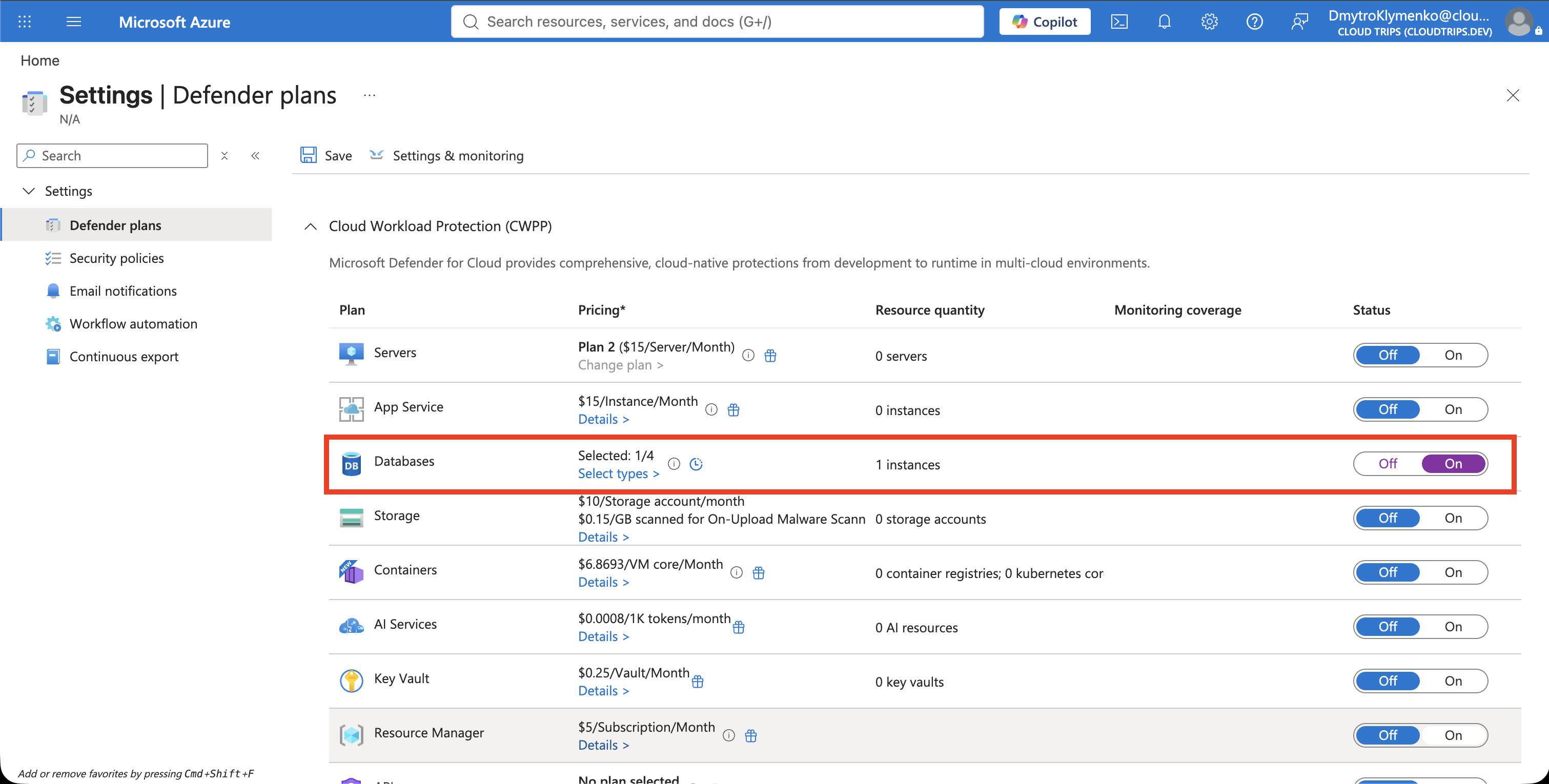
Confirm the subscription and enabled SQL plan. This setting covers all Azure SQL databases in that subscription, including existing lab servers. Review the displayed pricing and any trial eligibility before enabling it; protection can incur ongoing charges.
Open your database → Security → Defender for Cloud and confirm the enablement status. Configure opens the server’s Defender settings. Enabling the plan also enables threat protection and Express vulnerability assessment for Azure SQL databases.
Scan for Weaknesses
On the database’s Defender for Cloud page, enable Express configuration if prompted. Express stores scan results in Microsoft-managed storage. If an existing Classic setup is shown, review its history and baselines before switching; those records are not migrated.
Open Vulnerability assessment and select Scan to request an on-demand scan. Wait for completion, then open the results or Scan History.
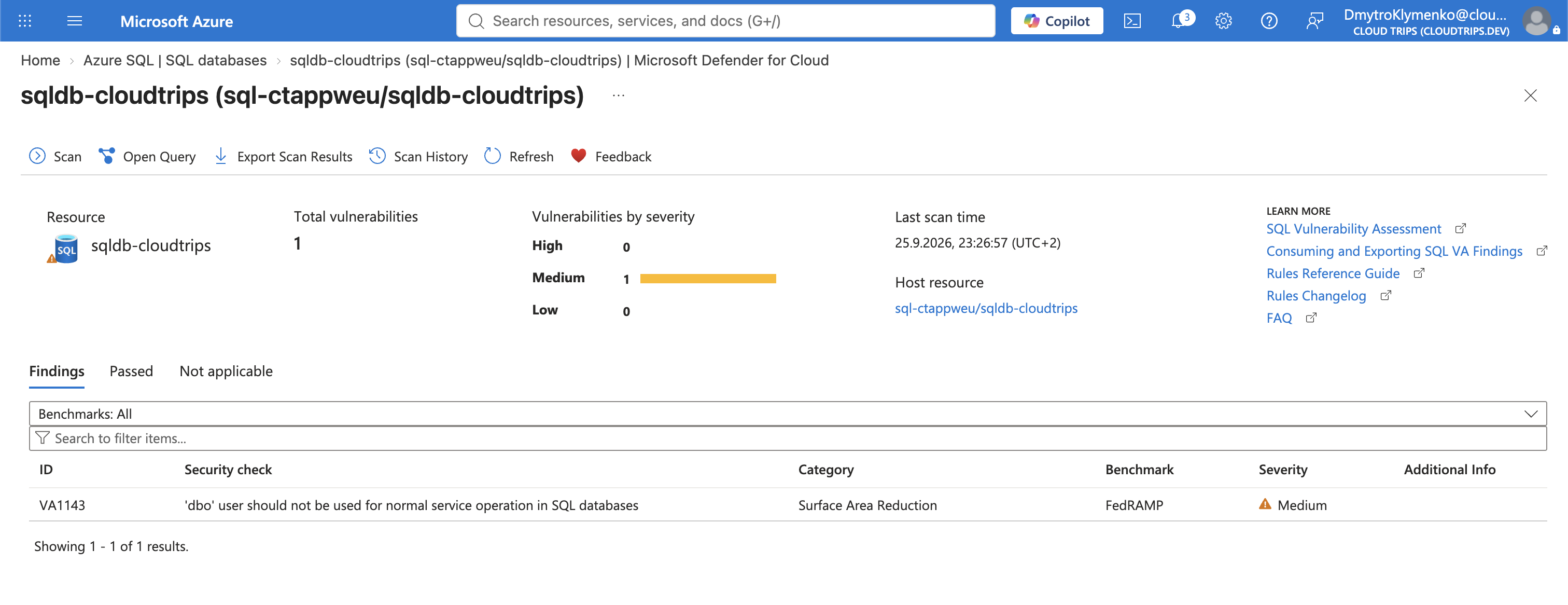
Check the scan status and review each finding’s severity, affected setting, and remediation guidance. Your findings depend on the database configuration. A failed rule identifies a condition to investigate, such as an overly broad permission. Apply a suitable correction and rescan to check it. A completed scan with zero findings means the checked rules passed.
Find Threat Alerts
Open Microsoft Defender for Cloud → Security alerts. Filter by your subscription, the SQL resource, and a recent time range. Open any SQL alert to inspect its description, affected resource, evidence, and recommended response.
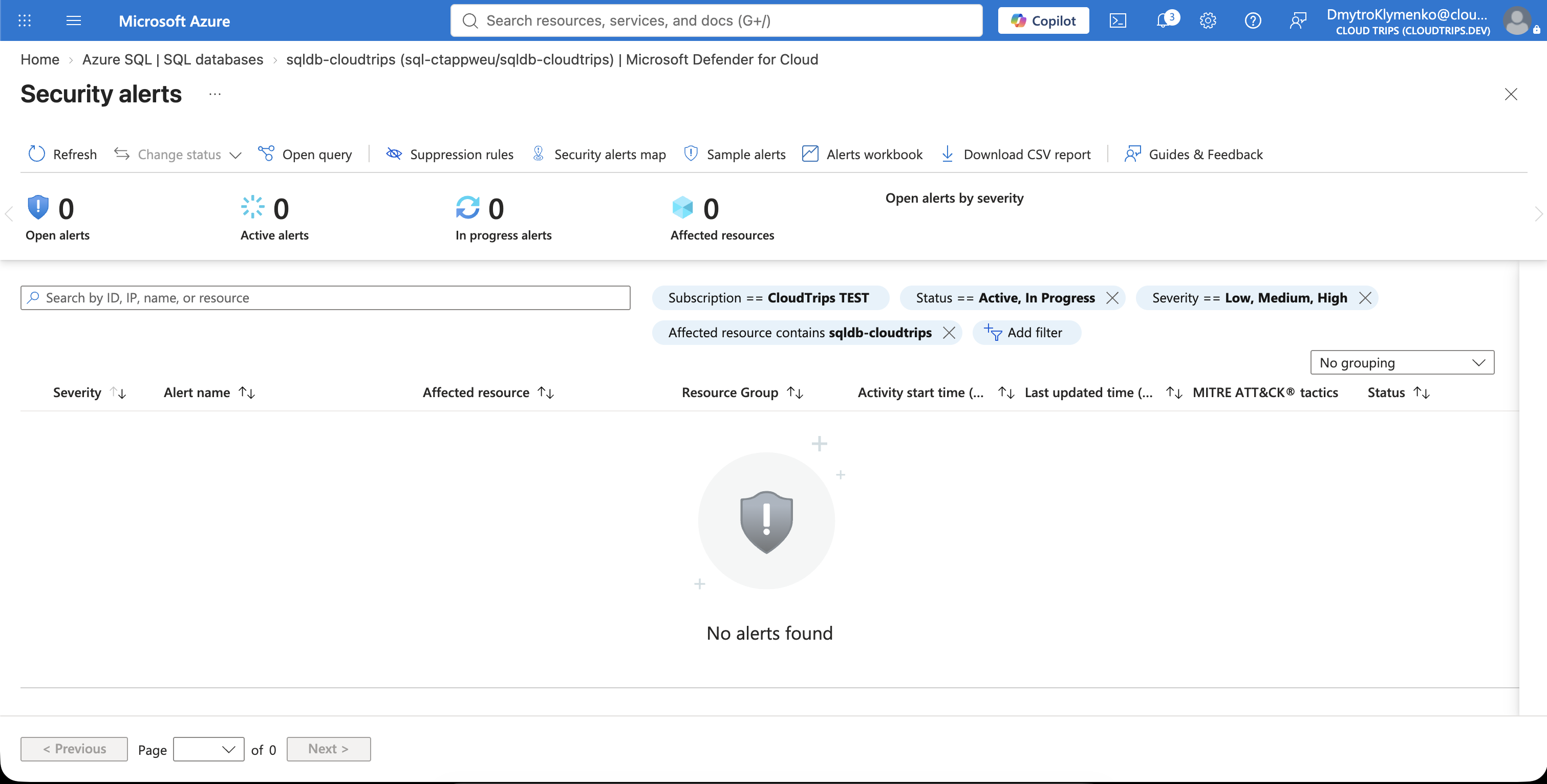
An empty result means no matching alerts are currently listed. Vulnerability findings describe weaknesses; threat alerts describe detected suspicious activity. Use the enabled plan status and completed scan to verify this setup. Detection depends on observed activity and processing time.
Clean Up
For a temporary lab, restore the Azure SQL Databases plan to its previous state under the same subscription settings. Disabling it removes subscription-level SQL protection, so retain it if other databases depend on that coverage. Existing database and storage charges continue independently.