A Simple Container Needs Hosting? Deploy Azure Container Instances from Your Registry
Azure Container Instances (ACI) runs containers without you managing a VM or Kubernetes cluster. Use it for a small standalone workload, a temporary service, or a batch task. ACR stores the image; ACI downloads it and runs it. Your laptop can be turned off after deployment and the Azure container keeps running.
This lab runs Nginx from your existing acrctcontainersneu registry on Basic, in North Europe. Use your actual registry name if different. ACI deploys a container group: one or more containers sharing a host environment and networking. Ours contains one container.
Private ACR → authenticated image pull → ACI → public HTTP endpointThe image stays private; the sample web page is publicly reachable. We use HTTP only for this temporary welcome-page demo. It has no user data or sign-in. A real application needs appropriate TLS and access controls.
Use the Azure portal to create the container group, inspect its status and logs, and clean up. Only preparing and pushing the image uses local Docker and Azure CLI. You need permission to create container instances and enable/read the registry’s admin credentials. The deployment creates billable Azure resources.
Prepare an Image ACI Can Run
ACI supports Linux amd64 images, not arm64. The previous trip on an Apple Silicon Mac may have pushed an arm64 image. Create a separate v2-amd64 tag, leaving v1 available for your previous local test.
Run locally with Docker running, replacing the registry name:
az login
az account set --subscription "CloudTrips TEST"
ACR_NAME="acrctcontainersneu"
ACR_SERVER=$(az acr show --name "$ACR_NAME" --query loginServer -o tsv)
az acr login --name "$ACR_NAME"

docker pull --platform linux/amd64 nginx:stable-alpine
docker tag nginx:stable-alpine "$ACR_SERVER/cloudtrips/nginx:v2-amd64"
docker push --platform linux/amd64 "$ACR_SERVER/cloudtrips/nginx:v2-amd64"
Both pull and push specify --platform linux/amd64. A tag such as v2-amd64 is only a name; it does not convert an ARM image. Docker on Apple Silicon can store multiple variants under the same local image name, so do not rely on a plain local docker image inspect or tag operation to select amd64.
Stop if any command fails. Wait for the push to complete successfully, then verify the image in your registry:
docker buildx imagetools inspect "$ACR_SERVER/cloudtrips/nginx:v2-amd64" \
  --format '{{json .Image}}'
The JSON must contain “architecture”: “amd64” and “os”: “linux”. Do not create ACI until this registry check passes. If it reports arm64, repeat the explicit-platform pull and push. If docker push does not recognize --platform, update Docker Desktop before continuing.
Enable Registry Access for the Portal Deployment
Open Container registries → your registry → Access keys. Set Admin user → Enabled and save if required.
This portal workflow uses the registry’s shared admin credentials to pull the image. Your personal az acr login session only authenticates your local Docker client. No managed identity or IAM role assignment is needed for this lab’s container group. Do not include registry passwords in screenshots.
Keep the admin account enabled while using this container group: later image pulls may need it. After deleting the group, disable it again if nothing else uses it.
Create the Container Group in the Portal
Search for Container instances → Create. On Basics, enter:
Subscription: CloudTrips TEST
Resource group: rg-cloudtrips-aci-test-neu (create new, or reuse if already created)
Container name: aci-ctnginx-neu
Region: North Europe
SKU: Standard (if shown)
Image source: Azure Container Registry
Registry: your existing registry, for example acrctcontainersneu
Image / Repository: cloudtrips/nginx
Image tag: v2-amd64
OS type: Linux
Size: 1 vCPU, 1 GiB memory
Use Change size if needed. If the registry picker still reports that admin access is disabled, refresh the form after enabling it. Another portal entry point is Registry → Repositories → cloudtrips/nginx → v2-amd64 → Run instance; verify the same settings in its creation form.
On Networking, choose:
Networking type: Public
DNS name label: leave empty for this IP-based test
Ports: 80
Protocol: TCP
If the form requires a DNS label, choose a unique value such as ctnginx-yourinitials-neu; you can still test using the public IP. Nginx listens on port 80. There is no 8082:80 mapping here.
On Advanced, keep Restart policy → Always, leave command overrides and environment variables empty, and do not add a Log Analytics workspace for this lab. Always restarts an exited container process; it does not add replicas or autoscaling.
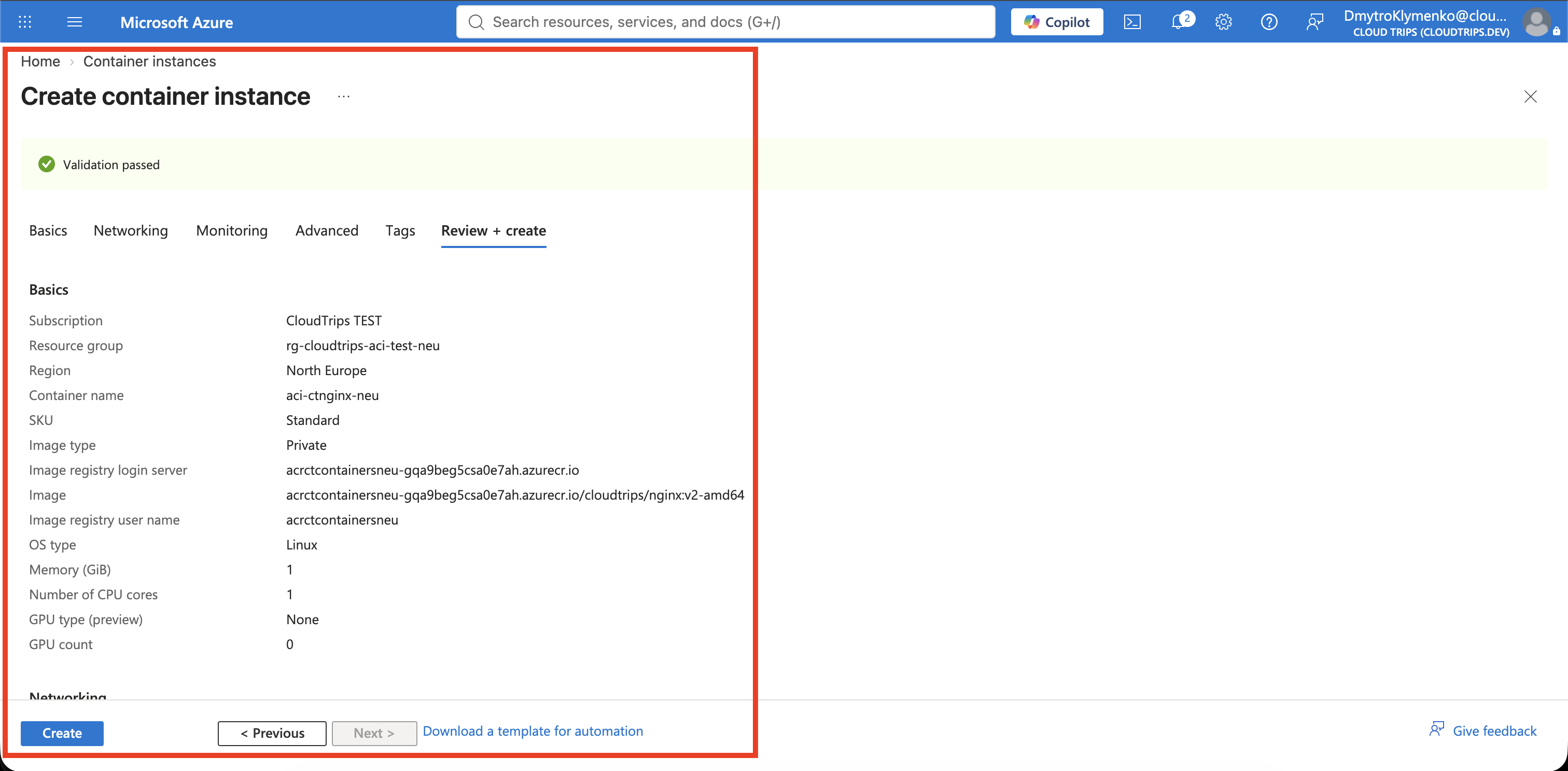
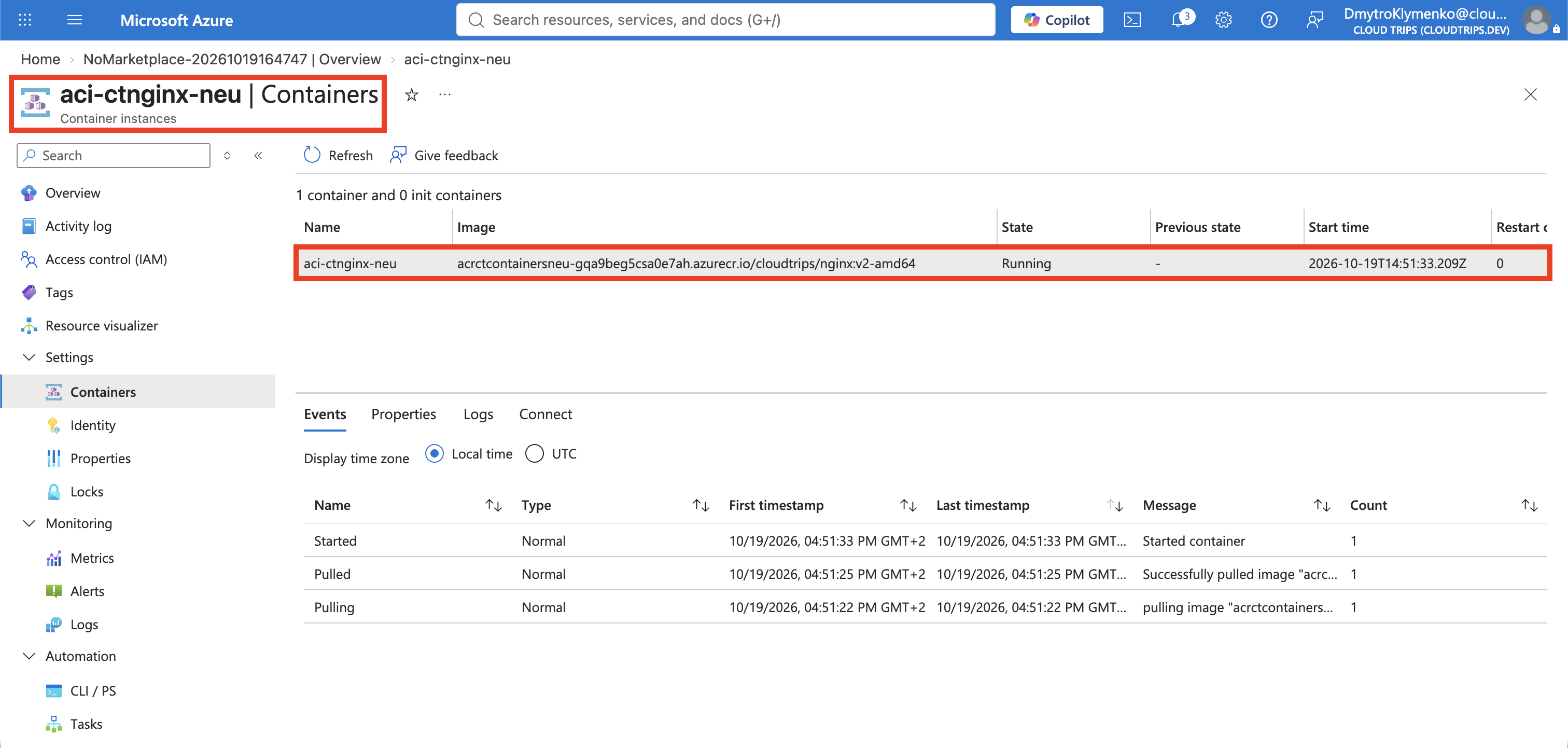
Select Review + create, check the image ends with cloudtrips/nginx:v2-amd64, then select Create. Wait for deployment to complete and select Go to resource. In Overview and Containers, confirm the container is Running and has a public IP.
Test in the Browser
Copy the Public IP address from the container instance’s Overview. In your browser, open:
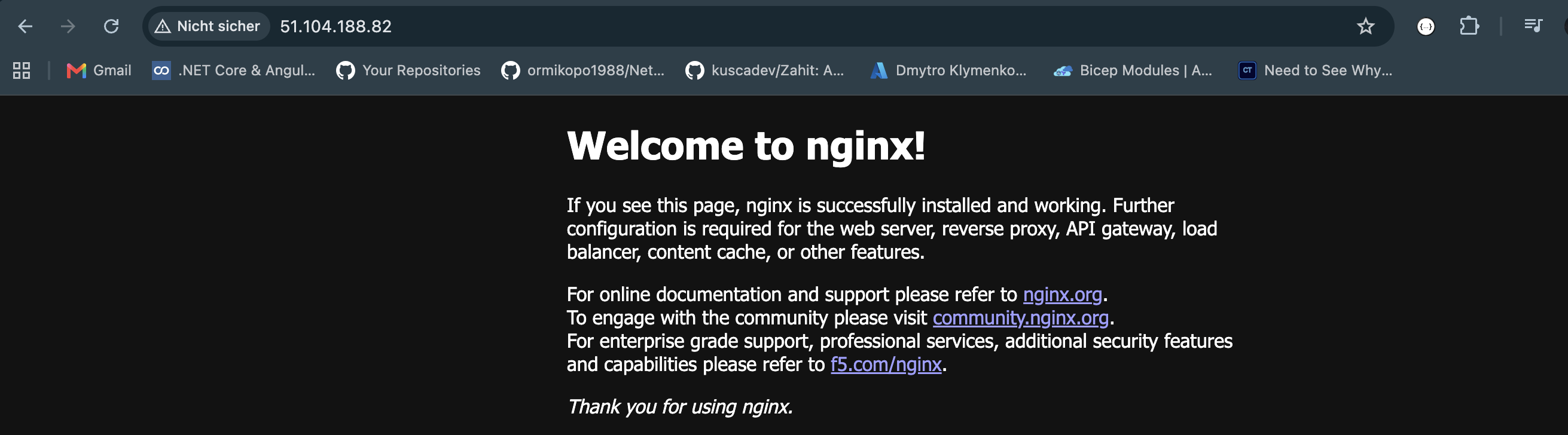
http://<the-public-IP>/Expect the Nginx welcome page. Use HTTP explicitly; this lab does not configure HTTPS. There is no local 8082:80 mapping here: the Azure endpoint uses port 80 directly. If Nginx is still starting, wait briefly and refresh.
This IP belongs to Azure, not your computer’s localhost. The response demonstrates that ACI pulled your registry image and is serving it in Azure. The IP can change after stopping/starting or recreating the group.
Inspect Logs and Troubleshoot in the Portal
Open aci-ctnginx-neu → Containers → nginx → Logs for Nginx output and Events for startup and image-pull messages. Refresh after opening the web page to see its request. If deployment failed before the resource became available, open Resource group → Deployments → failed deployment → Operation details for the error.
- Image inaccessible / unauthorized: confirm the registry Admin user is enabled, public network access is enabled, and the selected repository/tag exists. Refresh the creation form and select the registry again. If a failed group blocks retry, delete only aci-ctnginx-neu first.
- Exec format error / unsupported architecture: verify the registry image as above. The tag name alone is not proof of amd64.
- MissingSubscriptionRegistration: register Microsoft.ContainerInstance under Subscriptions → CloudTrips TEST → Resource providers, then retry after registration finishes.
- Capacity or quota error: inspect the requested region/resources. If another supported region is needed, select that Region in the creation form before redeploying.
- Browser fails: check Running state, current public IP, port 80, and http://, not HTTPS or port 8082.
Finish
Delete aci-ctnginx-neu from its Overview → Delete, or delete rg-cloudtrips-aci-test-neu if all resources in that group are only for this lab. Then open Registry → Access keys and disable Admin user if no other workload uses it. If you already created id-ctaci-pull for the earlier instructions, it is not used by this workflow; remove its registry role assignment and delete that lab identity when no longer needed.
Keep rg-cloudtrips-containers-test-neu and its registry for later trips. Deleting a local Docker container does not stop the Azure workload. The registry continues to have its own charges.