Short Background Container Task Needed? Create a Container Apps Job
CloudTrips needs to run a short containerized task and stop when the work is finished. A Container Apps Job is designed for finite background work; unlike a Container App, it does not provide a continuously available web endpoint.
Container App → serves requests and can keep running
Container Apps Job → starts, performs work, exits
Job → reusable configuration
Execution → one run of that job
Replica → container instance participating in an execution
A job can use a Manual trigger for on-demand work, Schedule for a cron schedule, or Event for sources such as queue messages. This trip uses Manual so that a person, deployment pipeline, CLI command, or API call controls each execution.
Create the Job
In the Azure portal, search for Container App Jobs, select Create, and enter:
Subscription: CloudTrips TEST
Resource group: Create new → rg-cloudtrips-containerapps-job-test-weu
Container job name: caj-cloudtrips-task-test-weu
Region: West Europe
Container Apps environment: Create new
Environment name: cae-cloudtrips-job-test-weu
Environment type: Workload profiles
Zone redundancy: Disabled
Trigger type: Manual
The current portal may not show replica timeout, retry, parallelism, or completion count during creation. Leave their generated defaults unchanged.
Configure the Container
On Container, use Microsoft’s public job sample:
Container name: main
Image source: Docker Hub or other registries
Image type: Public
Registry login server: mcr.microsoft.com
Image and tag: k8se/quickstart-jobs:latest
Workload profile: Consumption
CPU and memory: 0.25 CPU cores, 0.5 Gi
Do not enable ingress: a background job is not an HTTP application. The sample waits for a few seconds, prints messages to standard output, and exits. In a real job, this image would be replaced with a container that processes a file, generates a report, performs a migration, or handles queued work.
The container is not created as a separate Container App resource. It is part
of the job template. Every job execution starts a replica containing this
main container; when its process exits successfully, that replica completes.
Select Review + create > Create, and then Go to resource.
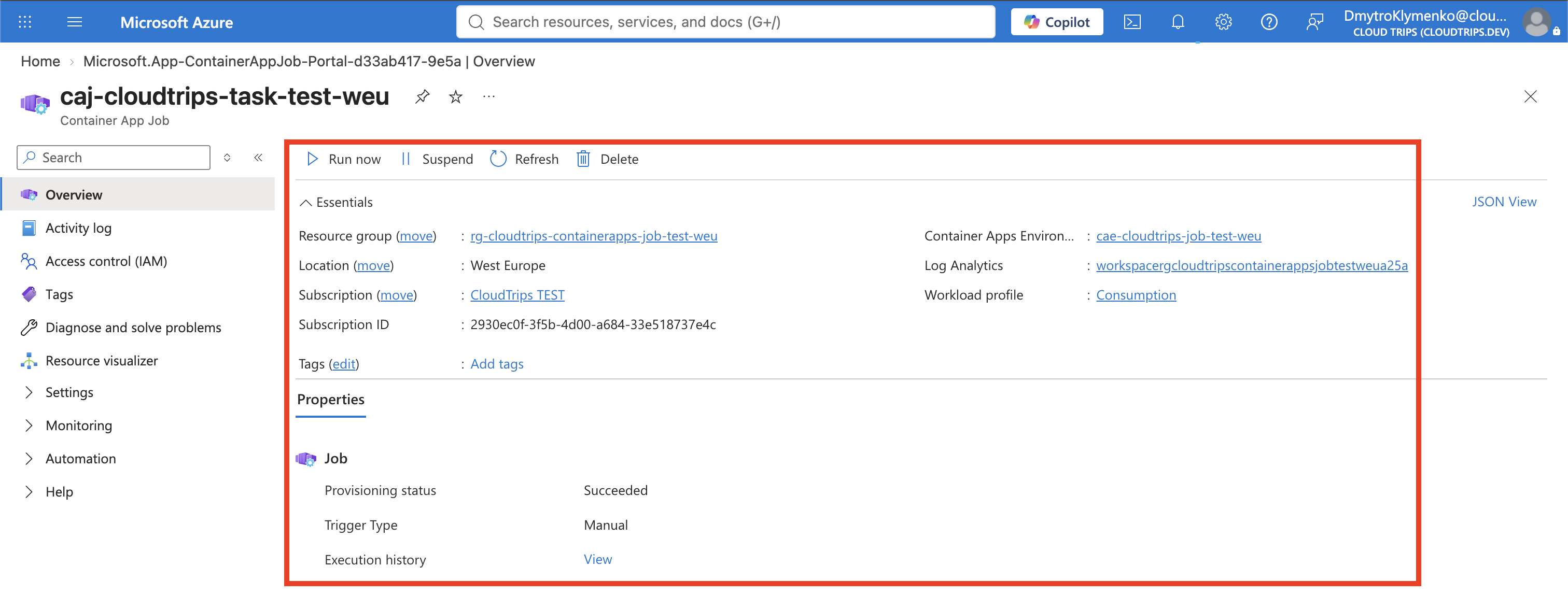
Check the Execution Configuration
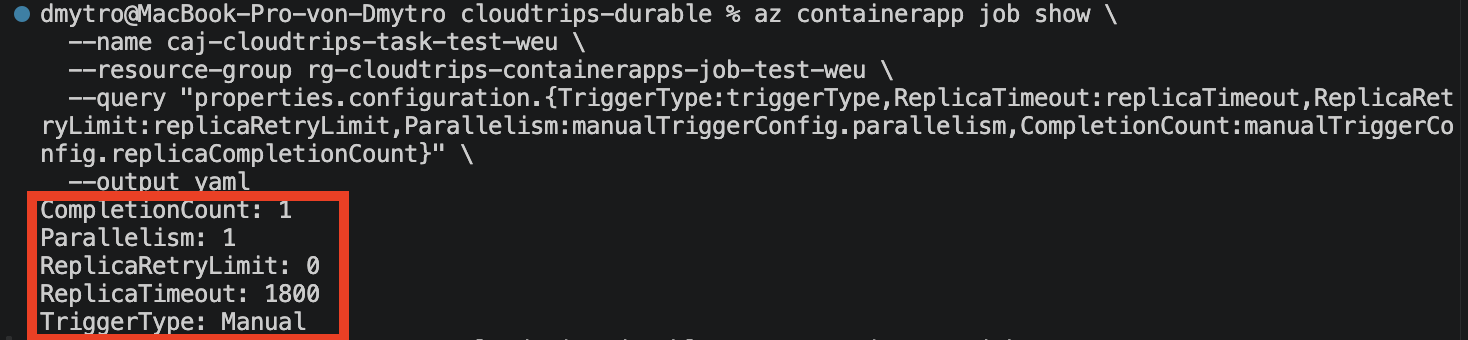
After creation, check Settings > Configuration if those fields are shown in your portal. Otherwise inspect the effective values with:
az containerapp job show \
  --name caj-cloudtrips-task-test-weu \
  --resource-group rg-cloudtrips-containerapps-job-test-weu \
  --query "properties.configuration.{TriggerType:triggerType,ReplicaTimeout:replicaTimeout,ReplicaRetryLimit:replicaRetryLimit,Parallelism:manualTriggerConfig.parallelism,CompletionCount:manualTriggerConfig.replicaCompletionCount}" \
  --output yaml
These values control an execution, not a continuously running service:
Replica timeout → maximum time a replica may run
Replica retry limit → replacement attempts after failure
Parallelism → replicas that may work at the same time
Completion count → successful replicas required to finish the execution
The exact generated values can differ from the example defaults; no change is required for this short sample job.
Start an Execution
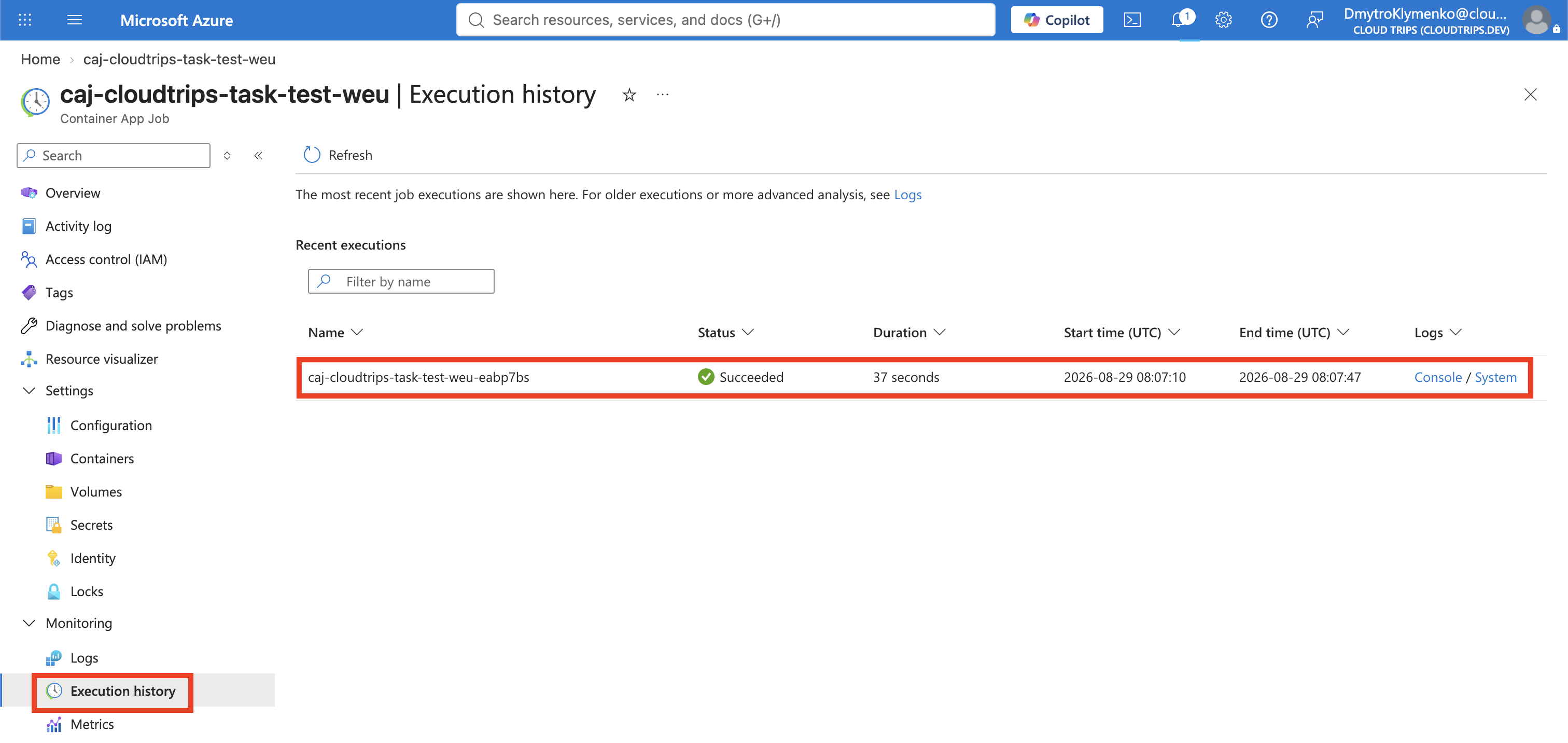
Creating a manual job saves its configuration but does not run it. Open the job’s Overview page and select Run now from the top action bar. After the request is accepted, open Monitoring > Execution history and select Refresh.
The execution normally moves through:
Pending → Running → SucceededSucceeded means the required completion count was reached with exit code 0.
Failed means the container exited unsuccessfully, timed out, or exhausted its
allowed retries.
Inspect the Output
Select the execution and then View logs. The sample output should show that the job started, waited briefly, and finished. Logs may take a minute or two to appear because they are collected asynchronously.
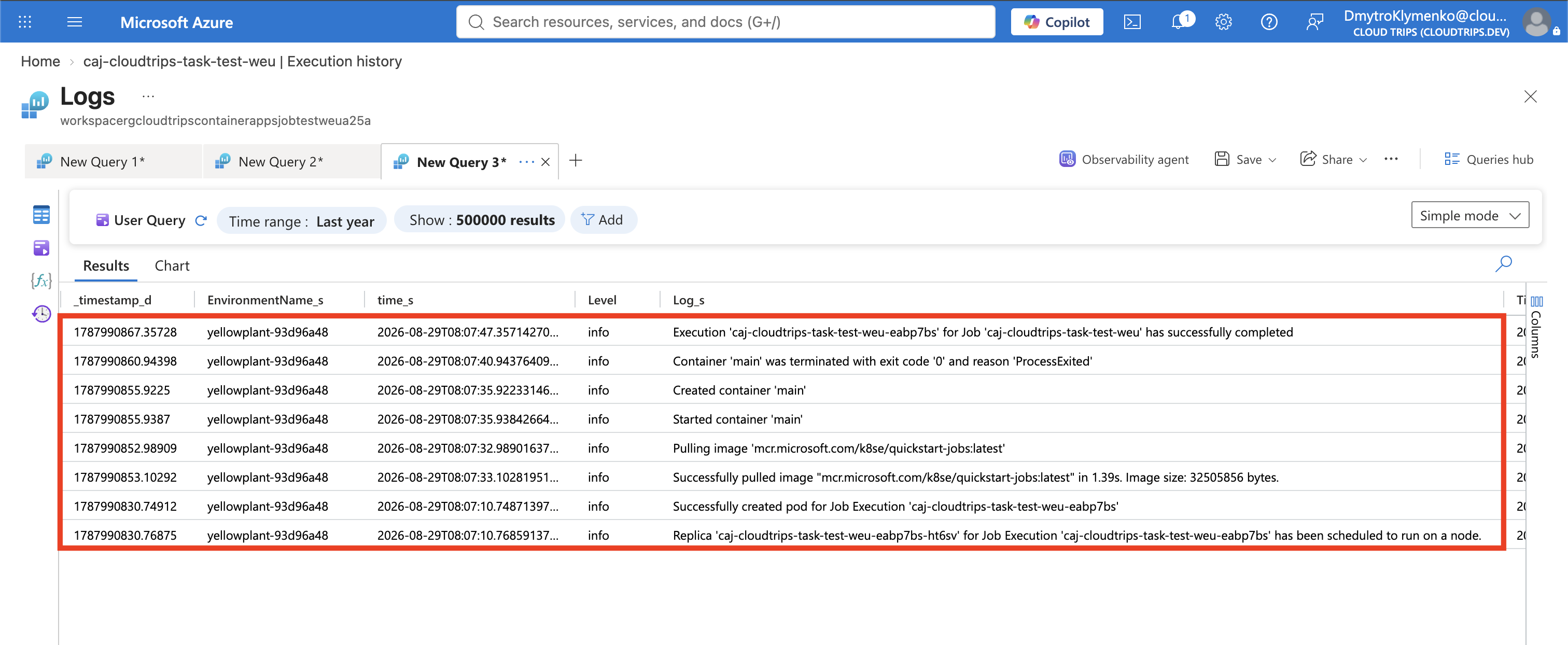
Start the job once more to verify that Azure creates a new execution rather than restarting the old one. Each execution has its own name, status, start and end time, replicas, and logs.
Optionally, start another execution from the CLI:
az containerapp job start \
  --name caj-cloudtrips-task-test-weu \
  --resource-group rg-cloudtrips-containerapps-job-test-weu
List all executions:
az containerapp job execution list \
  --name caj-cloudtrips-task-test-weu \
  --resource-group rg-cloudtrips-containerapps-job-test-weu \
  --query "[].{Execution:name,Status:properties.status,Started:properties.startTime,Finished:properties.endTime}" \
  --output table
The Consumption workload profile charges for resources used while executions run. The environment can also incur log-ingestion charges; there is no idle job replica that must remain running.
Clean Up
Delete the standalone resource group to remove the job, its environment, and monitoring resources:
az group delete \
  --name rg-cloudtrips-containerapps-job-test-weu \
  --yes
Confirm that it is gone:
az group exists --name rg-cloudtrips-containerapps-job-test-weuExpected result: false.