SQL Access Must Be Restricted? Configure SQL Firewall
A database login could be used from an unexpected network. Azure SQL firewall rules restrict which public IP addresses can connect; database authentication still decides who gets access.
Use the Test Database
Use sqldb-cloudtrips on sql-ctappweu from Create Azure SQL Database. Recreate those test resources if you already cleaned them up. Use your actual server name if it differs.
This exercise changes rules on that test server and affects all databases it hosts. Keep the ctadmin password available for testing.
Restrict the Public Endpoint
Open SQL servers → sql-ctappweu → Networking → Public access. Set Public network access: Selected networks and clear Allow Azure services and resources to access this server. That exception admits connection attempts from Azure resources across subscriptions.
Remove existing IP rules from this dedicated test server and save. Keep virtual-network rules empty. The database from the previous trip has no separate database-level IP rules; such rules can also grant access.
Verify a Blocked Connection
Open sqldb-cloudtrips → Query editor (preview) and attempt a fresh login with ctadmin. Close any existing editor session first; firewall changes can take up to five minutes to apply.
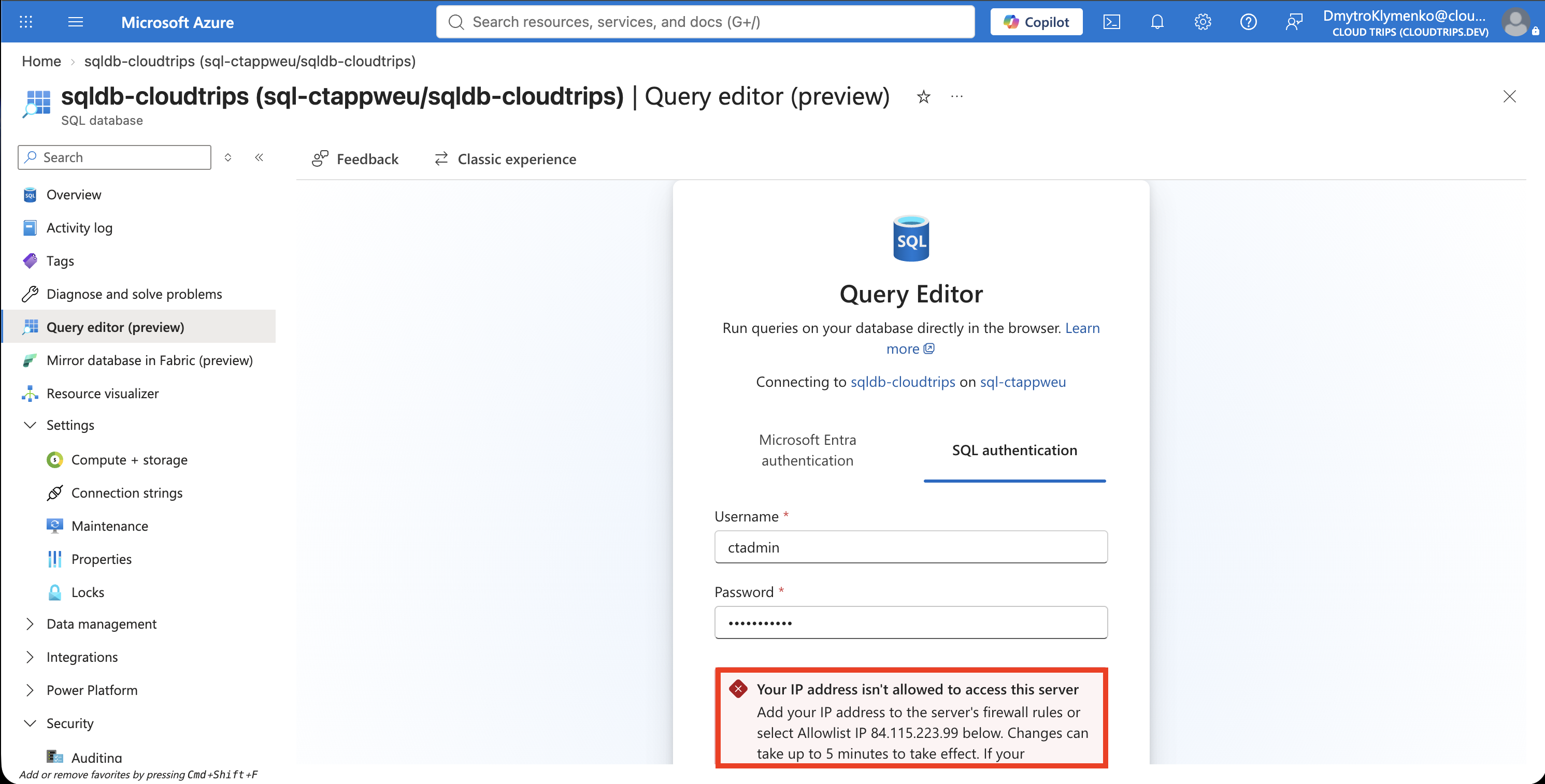
Expect a message identifying the client IP as blocked. Record that address and leave the editor’s automatic allowlist action unused for now. This verifies network denial using the same database credentials.
Allow Your IP
Return to the server’s Networking page, select Add your client IPv4 address, and save. Use a rule named AllowMyComputer with identical start and end addresses. If the editor reported a different address, use that verified outbound address for your connection.
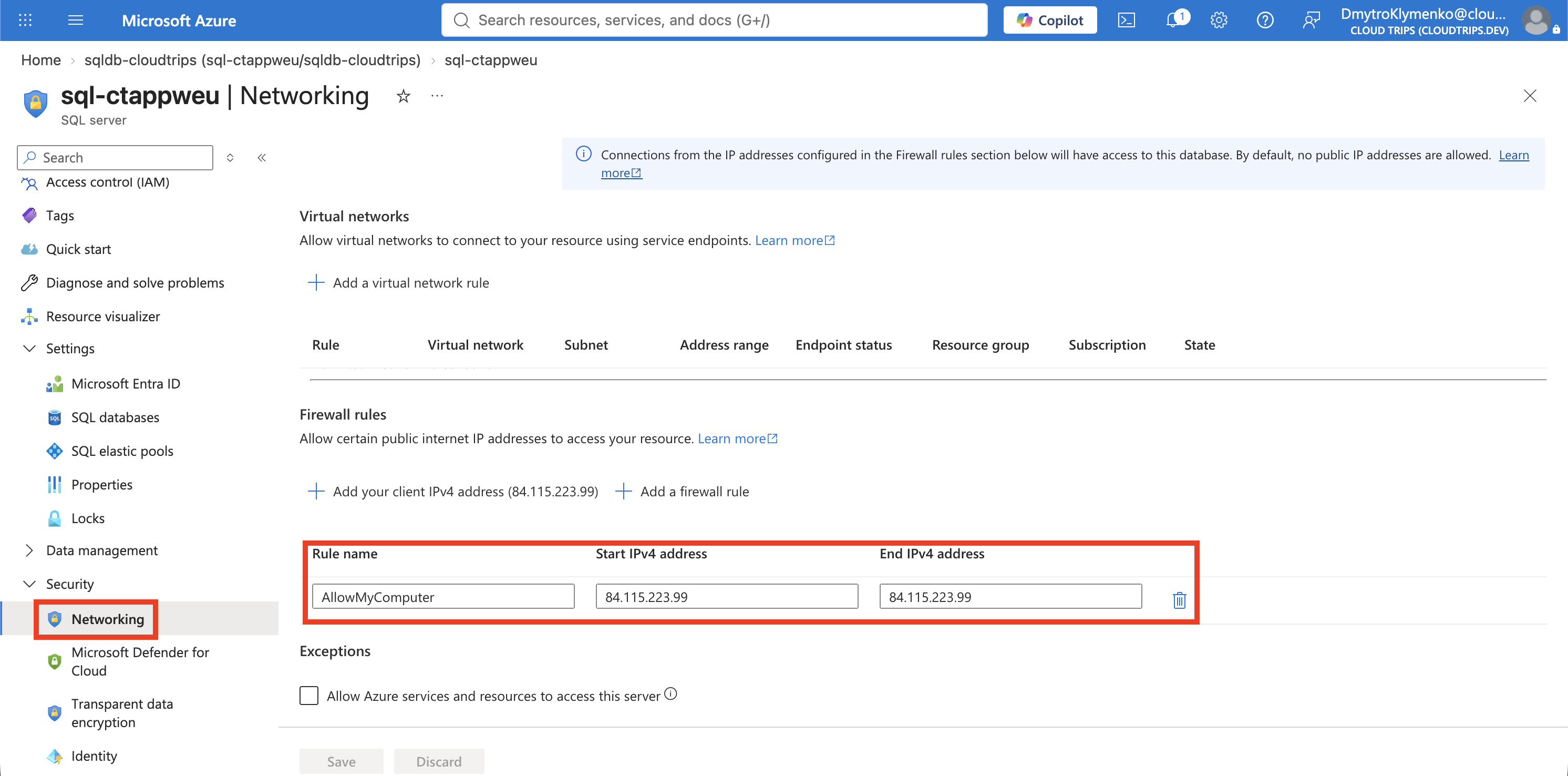
Matching start and end addresses allow one public IP. This is your router’s or VPN’s internet-facing address, so other devices sharing it share the network permission; each still needs valid database credentials.
Verify Allowed Access
After the rule takes effect, reopen Query editor, sign in, and run:
SELECT DB_NAME() AS DatabaseName, 1 AS ConnectionWorks;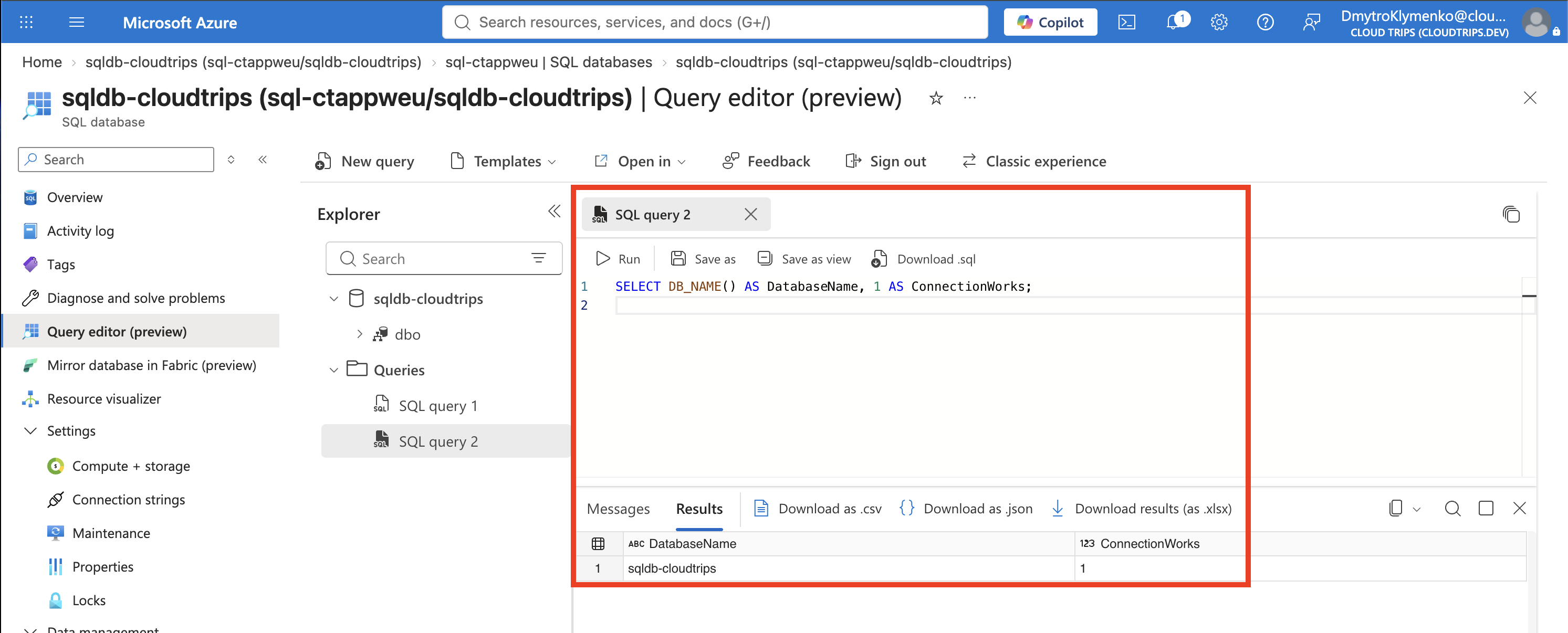
Expect sqldb-cloudtrips and 1. Compared with the earlier failure, this confirms that adding the IP rule enabled the connection. Azure portal access alone grants neither network nor SQL data access.
Clean Up
Remove AllowMyComputer when finished. If the database is no longer needed, delete rg-cloudtrips-sql-test-weu and confirm the group disappears. Private-only access requires a private endpoint and private DNS, followed by disabling public network access.