Need a Windows Server Quickly? Create a Windows VM
CloudTrips needs a Windows server quickly for a temporary administration or application test. Buying hardware would take too long, while an Azure virtual machine can provide a Windows Server operating system within minutes.
An Azure virtual machine, or VM, is software-defined compute running on physical infrastructure managed by Microsoft. You choose its operating-system image, CPU and memory size, disks, network, and access controls. You still administer the guest operating system, install updates and applications, and protect administrative access.
This trip creates one small Windows Server VM with a public IP address for a short test. RDP is restricted to your current public IP address. A production server should normally use private connectivity and a controlled management path such as Azure Bastion, VPN, or ExpressRoute instead of exposing RDP to the internet.
Understand What Will Be Created
The VM deployment includes several Azure resources:
| Resource | Purpose |
|---|---|
| Virtual machine | Supplies CPU, memory, and the Windows guest operating system |
| OS disk | Stores Windows and the server configuration |
| Network interface | Connects the VM to an Azure subnet |
| Virtual network and subnet | Provide the VM’s private network boundary |
| Public IP address | Provides a temporary internet-reachable address for RDP |
| Network security group | Allows only the selected inbound traffic |
These are separate resources with separate lifecycles. Deleting only the VM can leave disks, public IP addresses, and networking resources behind.
Plan the Deployment
Use this temporary TEST design:
Subscription: CloudTrips TEST
Resource group: rg-cloudtrips-compute-test-weu
Region: West Europe
Virtual machine: vm-cloudtrips-win01-test-weu
Image: Windows Server 2022 Datacenter: Azure Edition - x64 Gen2
Size: Standard_B2s
Authentication: Password
Inbound port: RDP (3389), restricted to your public IP/32
OS disk: Standard SSD, default size
Public IP: New, Standard SKU
Virtual network: vnet-cloudtrips-compute-test-weu
Subnet: snet-servers
Standard_B2s is sufficient for this short exercise, but VM-size availability
and subscription quota vary by region. If it is unavailable, select another
small general-purpose or burstable size displayed by the portal and review its
estimated monthly cost before continuing.
The VM, managed disk, and Standard public IP can incur charges while they exist. Stopping Windows from inside the operating system does not release the Azure compute allocation. Use Stop in the Azure portal and confirm the VM state becomes Stopped (deallocated) to stop compute charges. Storage and some networking charges can continue until those resources are deleted.
Create the Resource Group
Sign in to the Azure portal and open:
Resource groups > CreateConfigure:
Subscription: CloudTrips TEST
Resource group: rg-cloudtrips-compute-test-weu
Region: West Europe
Select Review + create, and then select Create.
Start the VM Deployment
Search for Virtual machines, open the service, and select Create > Azure virtual machine.
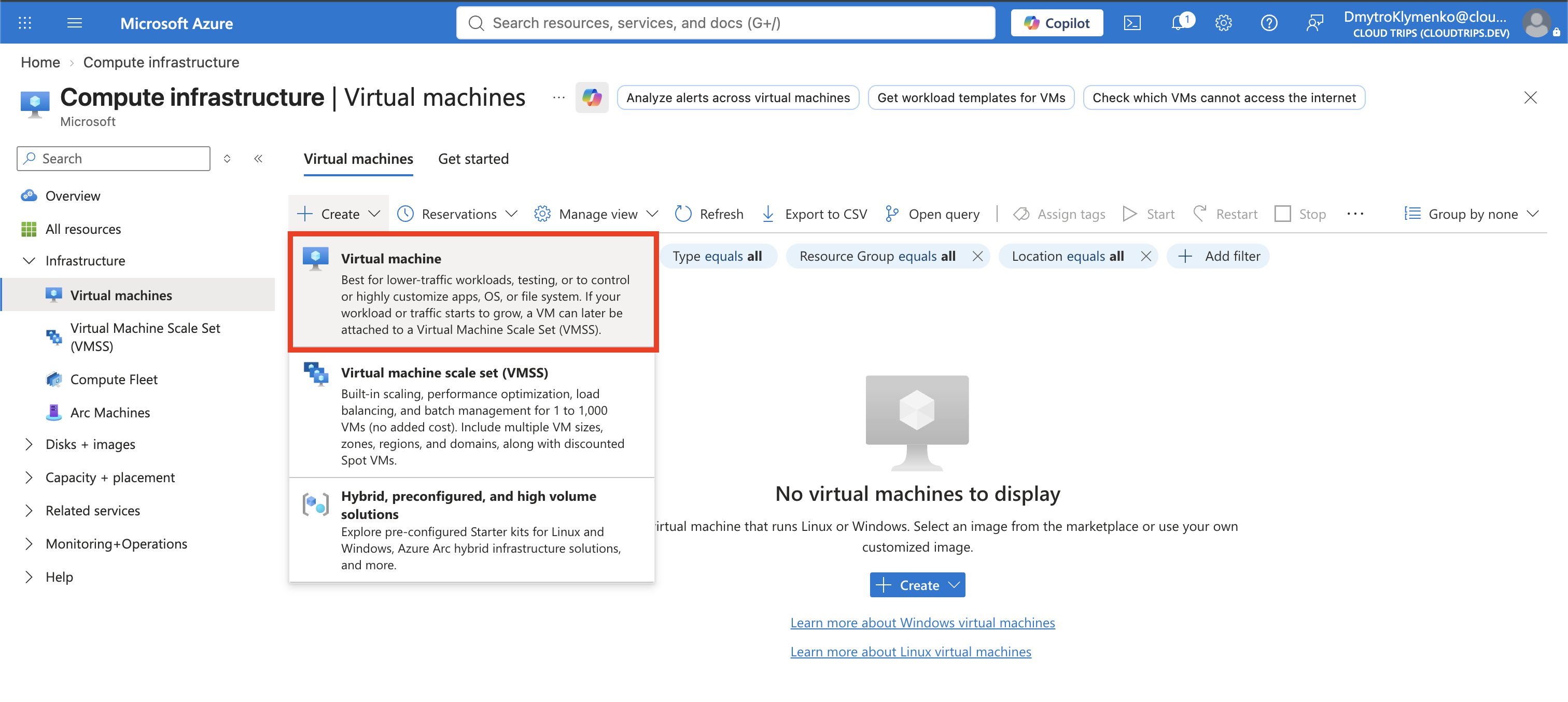
On Basics, configure:
Subscription: CloudTrips TEST
Resource group: rg-cloudtrips-compute-test-weu
Virtual machine name: vm-cloudtrips-win01-test-weu
Region: West Europe
Availability options: No infrastructure redundancy required
Security type: Trusted launch virtual machines
Image: Windows Server 2022 Datacenter: Azure Edition - x64 Gen2
VM architecture: x64
Size: Standard_B2s
This single-VM design deliberately has no availability redundancy. It is suitable for learning or a disposable test, not for a production service that must survive host, zone, or regional failures.
Under Administrator account, create a unique local administrator username and a strong password. Do not use the examples from this guide as real credentials, do not reuse an organizational password, and do not store the password in the trip or source repository.
Under Inbound port rules, configure:
Public inbound ports: NoneDo not let the Basics tab create its standard RDP rule. That convenient rule can use a broad internet source. The Networking tab will instead create an explicit NSG rule restricted to your current public IP address.
Configure the Disks
Open Disks and configure:
OS disk size: Image default
OS disk type: Standard SSD (locally-redundant storage)
Delete with VM: Enabled
Standard SSD keeps the exercise less expensive than Premium SSD. Enabling Delete with VM helps cleanup, but the complete resource group will still be deleted at the end of the trip.
Do not add a data disk for this test.
Restrict the Network Access
Open Networking. Create or select the following network:
Virtual network: vnet-cloudtrips-compute-test-weu
Address range: 10.80.0.0/16
Subnet: snet-servers
Subnet range: 10.80.1.0/24
Public IP: Create new Standard SKU public IP
NIC network security group: Advanced
Configure network security group: Create new
Delete public IP and NIC when VM is deleted: Enabled, if displayed
Name the new NSG nsg-cloudtrips-win01-test-weu. In its Inbound rules, add
one rule:
Source: IP Addresses
Source IP addresses/CIDR ranges: <YOUR-CURRENT-PUBLIC-IP>/32
Source port ranges: *
Destination: Any
Service: RDP
Destination port: 3389
Protocol: TCP
Action: Allow
Priority: 1010
Name: Allow-RDP-MyIP
<YOUR-CURRENT-PUBLIC-IP> is the internet-facing address of the laptop or
workstation from which you will connect. You can find it using a trusted
organizational IP-check service or by asking your network administrator. /32
means exactly that one IPv4 address.
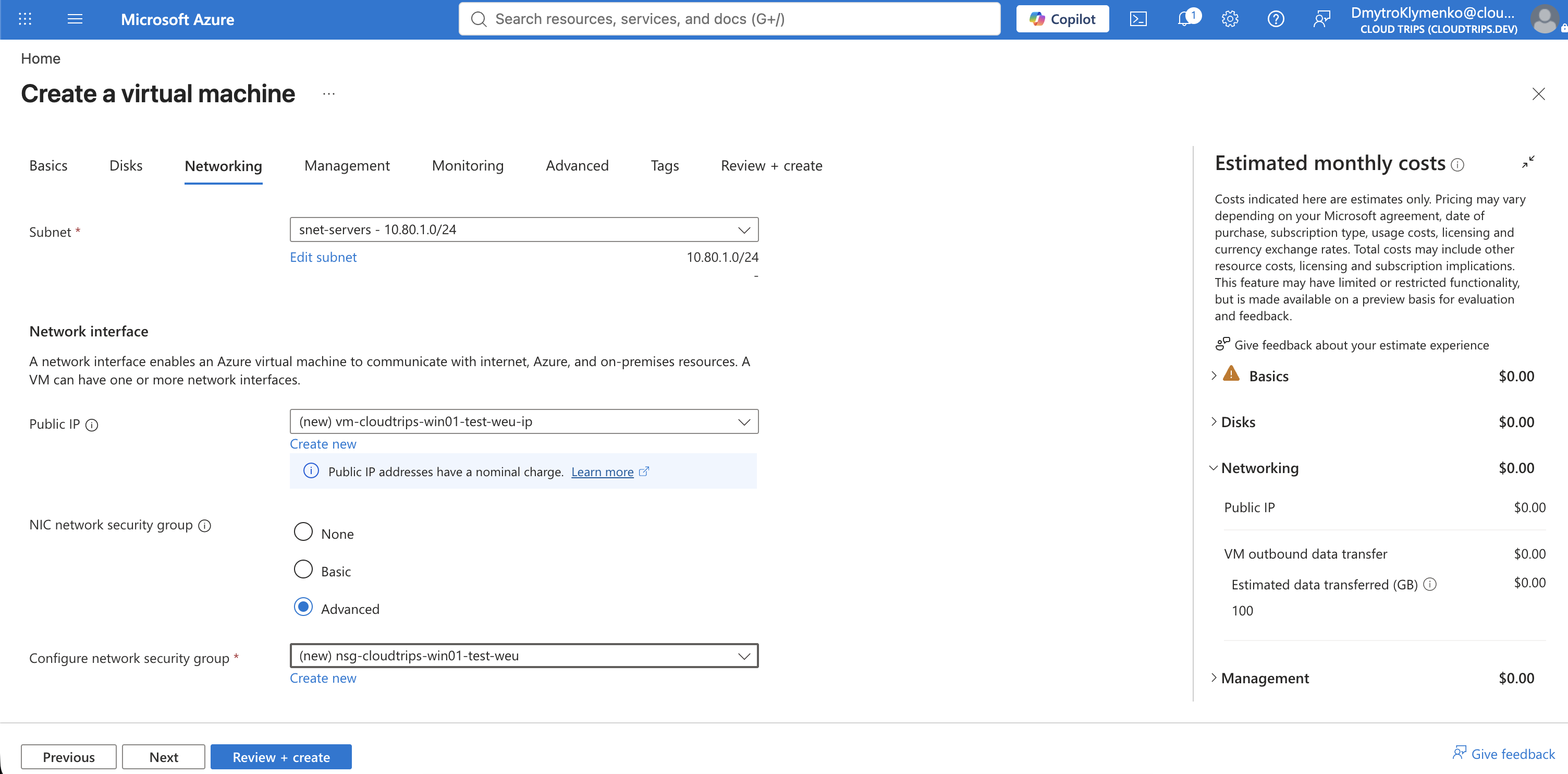
Do not select Any or the Internet service tag as the RDP source. Either
would allow connection attempts from far more addresses than necessary. If
your public IP changes later, update the NSG rule to the new /32 address
rather than broadening the source.
Leave accelerated networking and load balancing at their displayed defaults for this small VM.
Add Tags and Create the VM
On Management, keep automatic shutdown disabled unless you deliberately want a daily shutdown schedule. Remember that guest shutdown and Azure deallocation are different states.
Leave the remaining advanced options at their defaults. On Tags, add:
Application: CloudTrips
Environment: TEST
ManagedBy: Portal
Select Review + create. Review the price estimate and the validation results, and then select Create.
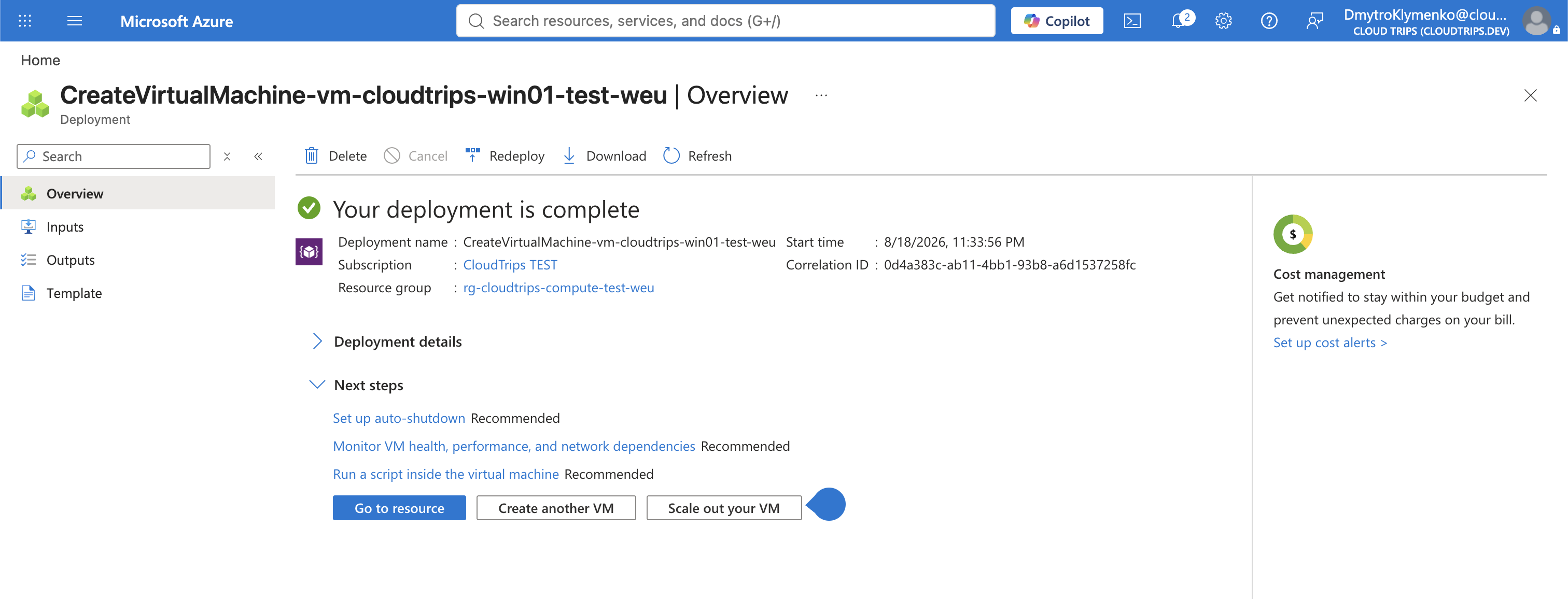
Deployment can take several minutes. When it completes, select Go to resource.
Verify the Azure Resources
On the VM Overview, confirm:
Status: Running
Operating system: Windows
Size: Standard_B2s, or the small size you selected
Public IP address: Assigned
Private IP address: Assigned from 10.80.1.0/24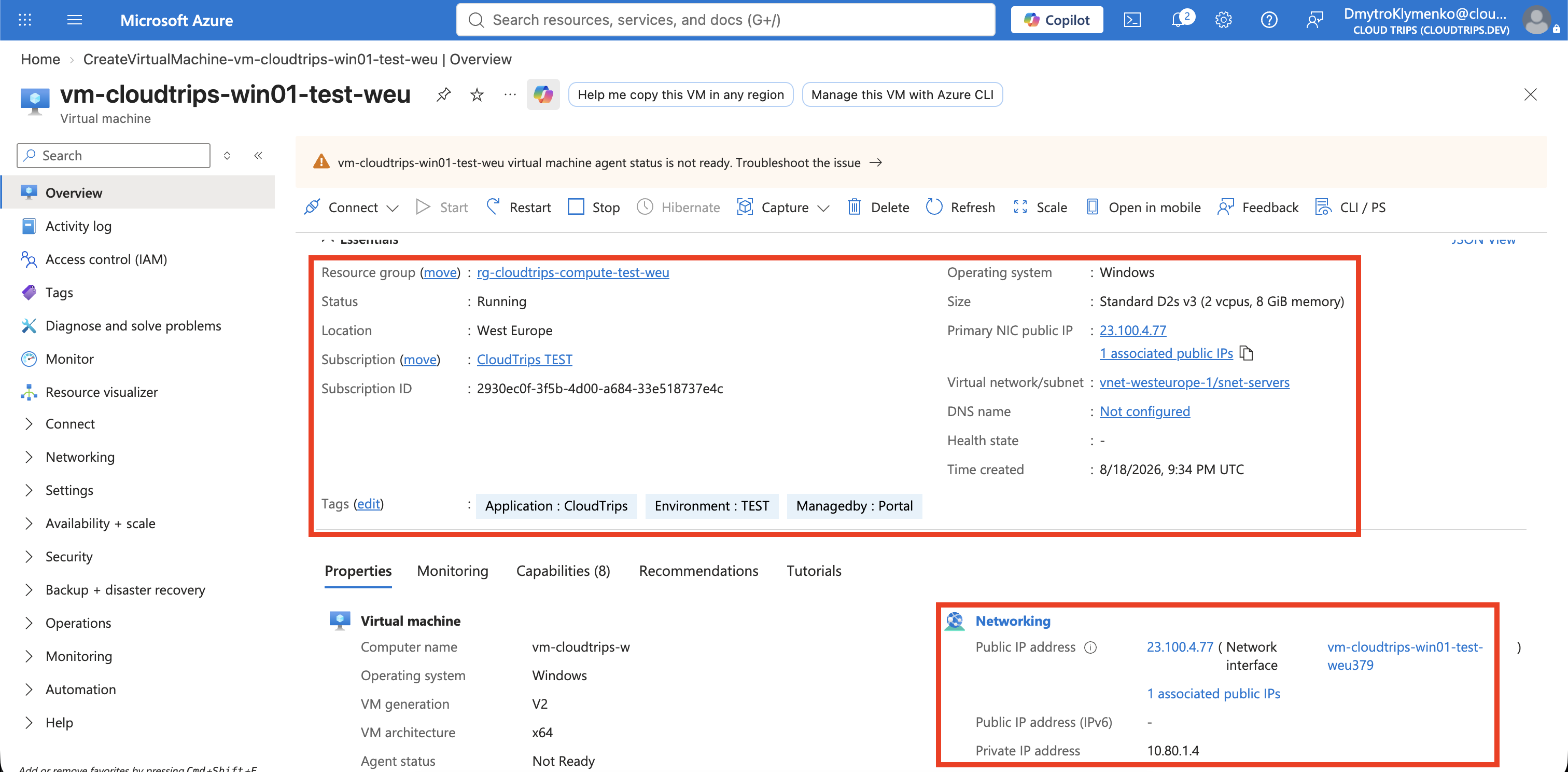
Open Networking > Network settings and inspect the inbound rules.
Confirm that TCP destination port 3389 is allowed only from your current
public IP address. The source should be one address with a /32 prefix, not
0.0.0.0/0, Any, or the Internet service tag.
Connect with RDP
On the VM page, select Connect > Connect via RDP. Confirm the public IP
address and port 3389, then download the RDP file.
Open the file with an RDP client:
- On Windows, use Remote Desktop Connection.
- On macOS, use the Windows App from Microsoft.
- On Linux, use a trusted RDP client available for your distribution.
Accept the connection only after confirming that its target IP matches the VM’s public IP. Sign in using the local administrator credentials created for this VM.
After Windows opens, start PowerShell and run:
hostname
Get-ComputerInfo | Select-Object WindowsProductName, WindowsVersion, OsArchitecture
Get-NetIPAddress -AddressFamily IPv4 | Where-Object InterfaceAlias -Like 'Ethernet*'
Confirm that the hostname is vm-cloudtrips-win01-test-weu, Windows Server is
reported, and the Ethernet interface has an address from 10.80.1.0/24.
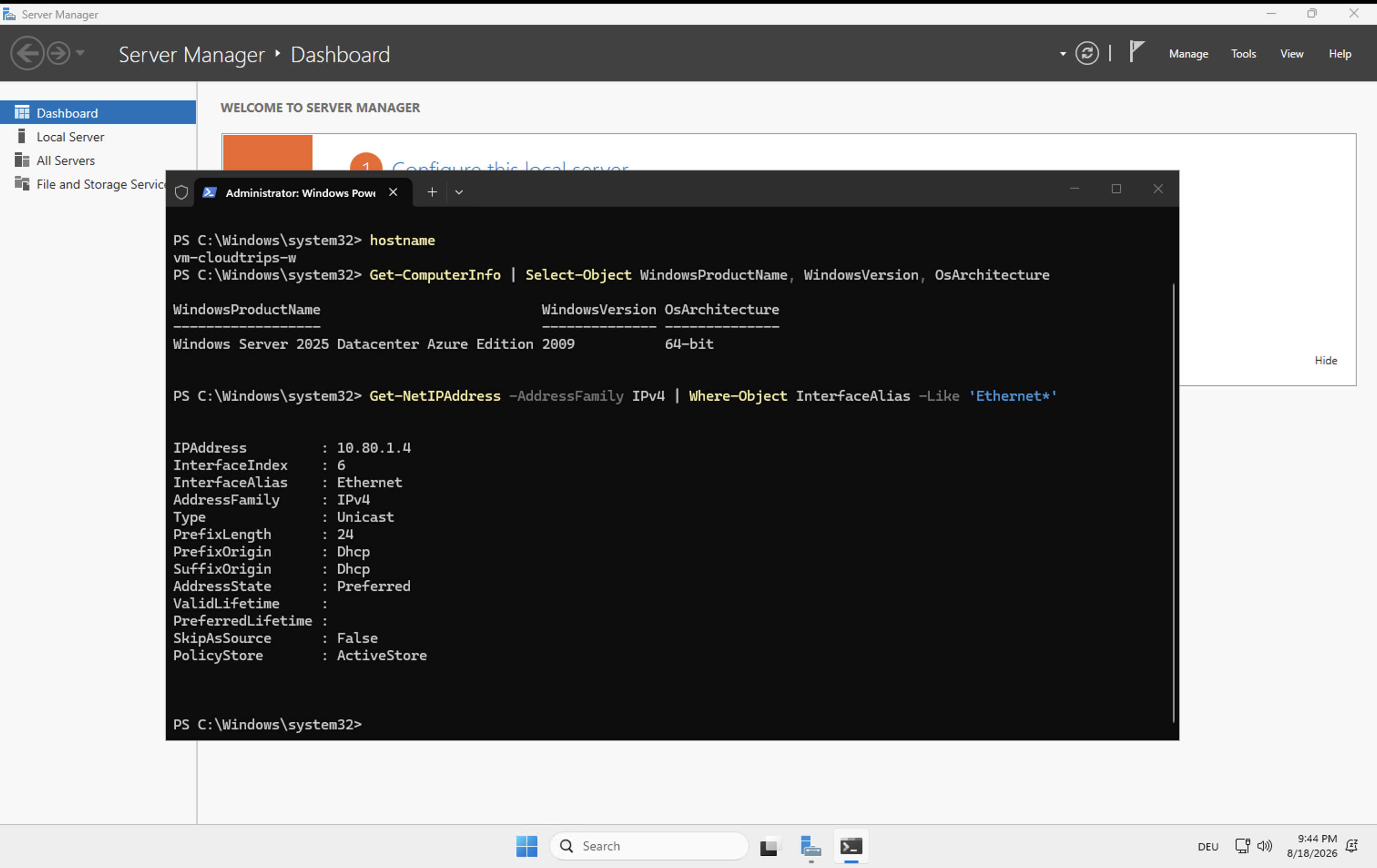
The Windows server is now running in Azure. The VM supplies compute, the OS disk stores Windows, and the NIC connects it to the server subnet. The public IP and restricted NSG rule provide only the temporary RDP path used by this exercise.
Clean Up the Paid Resources
Disconnect the RDP session. If you want to keep the VM temporarily, select Stop on the VM Overview and wait until the status is Stopped (deallocated). This stops VM compute billing but does not remove every charge.
For complete cleanup, delete the dedicated resource group:
az group delete \
  --name rg-cloudtrips-compute-test-weu \
  --yes
Then verify that it no longer exists:
az group exists \
  --name rg-cloudtrips-compute-test-weu
The expected result is false. Deleting the resource group removes the VM,
managed disk, NIC, NSG, public IP, VNet, and subnet created for this trip.